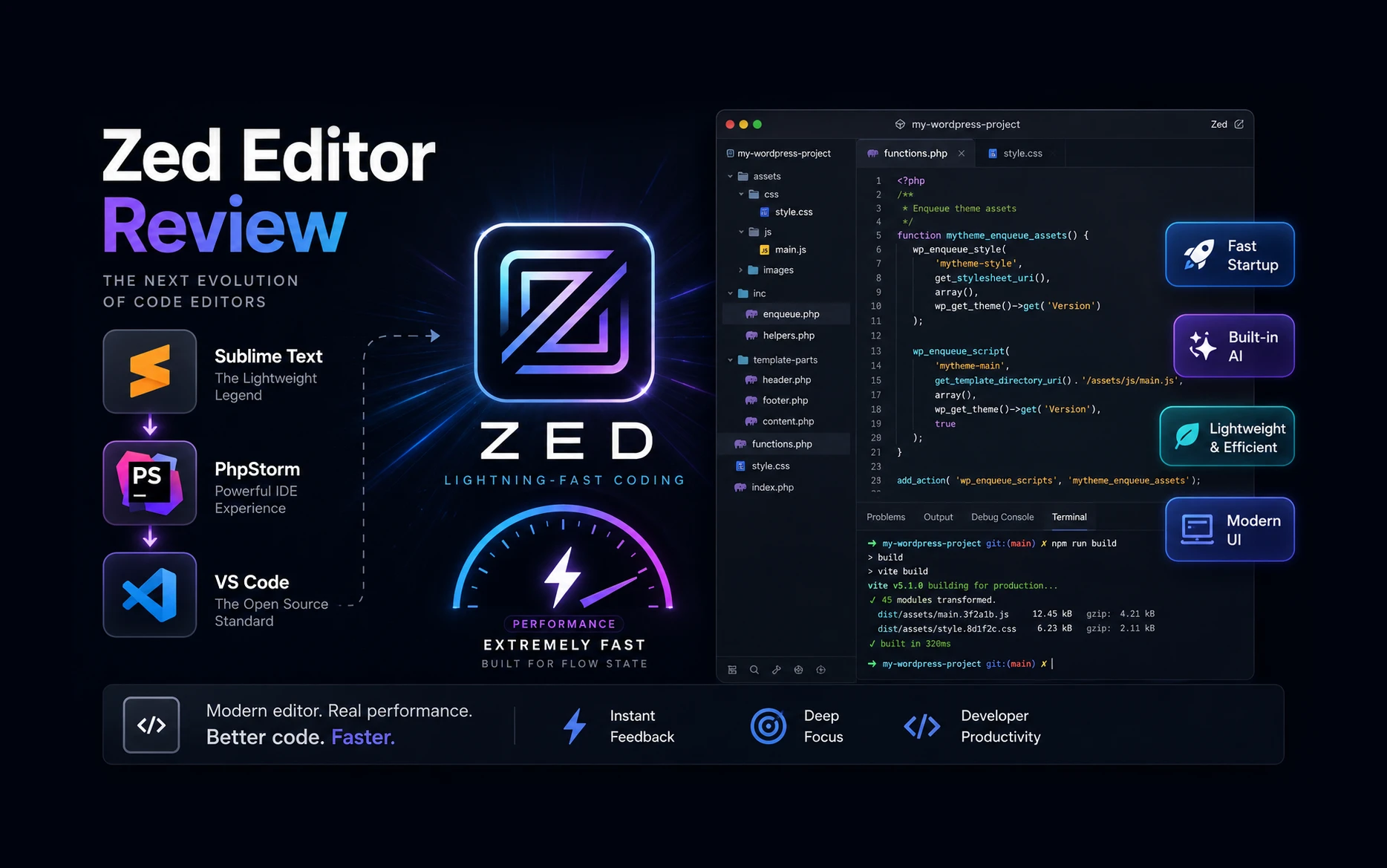
Zed has become my preferred code editor recently. I like its speed, clean interface, and the overall editing experience.
But there was one thing stopping me from using it comfortably for some of my day-to-day web development work: Zed Editor remote file sync.
My workflow is quite simple. I keep the project files on my local computer, edit them locally, and need the changed files to reach the corresponding folder on the web server automatically.
With VS Code, I had a reasonably good solution for this using an SFTP extension. With Zed, finding a workflow that suited the way I work wasn’t as straightforward.
I experimented with a few approaches before realizing that the solution was already installed on my computer.
It was GoodSync.
Interestingly, GoodSync isn’t a development tool at all. I had been using it for years for completely different purposes. Once I separated file synchronization from the code editor itself, the whole workflow became much simpler.
Table of Contents
Why I Prefer Working on Local Files
Before getting into Zed or GoodSync, it’s worth explaining how I prefer to work.
For most projects, I maintain a local copy of the files I’m actively developing. I edit those files locally and use Git where appropriate for version control.
The remote server is where the website runs, but I don’t want that to be my primary working copy.
For a PHP website, for example, my setup might look something like this:
Local Computer
└── Projects
    └── client-website
        ├── css
        ├── js
        ├── includes
        └── index.php

Remote Server
└── public_html
    └── client-website
        ├── css
        ├── js
        ├── includes
        └── index.php
For WordPress development, I usually don’t need to synchronize the entire installation. I can map only the part I’m actually developing.
For example:
Local Computer
└── my-wordpress-project
    └── my-theme

Remote Server
└── public_html
    └── wp-content
        └── themes
            └── my-theme
The requirement is simple:
Edit locally
      ↓
Save the file
      ↓
Detect the change
      ↓
Upload the changed file
      ↓
Refresh the website
I don’t want to manually open an FTP client and upload a file every time I change a few lines of CSS or PHP.
When you’re making dozens of small changes while developing a site, that gets old very quickly.
VS Code and SFTPresso Solved Most of This Problem
Before settling on my current workflow, I was using VS Code with the SFTPresso extension from jmwerk.
SFTPresso does exactly the sort of thing I needed from an FTP/SFTP extension. You create an sftp.json configuration file containing the server details, remote path and synchronization settings.
At its simplest, the configuration looks something like this:
{
    "name": "My Server",
    "host": "server.example.com",
    "protocol": "sftp",
    "port": 22,
    "username": "username",
    "remotePath": "/path/to/remote/project",
    "uploadOnSave": true
}
The most important setting for this workflow is:
"uploadOnSave": trueOnce that’s enabled, the workflow is beautifully simple.
Edit local file in VS Code
        ↓
Save
        ↓
SFTPresso detects the change
        ↓
Upload changed file
        ↓
Remote website updated
I could edit a PHP, CSS or JavaScript file locally, press Ctrl + S, and SFTPresso would upload the changed file to the corresponding location on the server.
For actual project work, however, my configuration was a little more detailed.
My Actual SFTPresso Configuration
Here is a sanitized version of the configuration I was using. I’ve changed the server address, username and remote path for obvious reasons.
{
    "name": "My Server",
    "host": "ftp.myserver.com",
    "protocol": "ftp",
    "port": 21,
    "username": "username",
    "remotePath": "/path/to/remote/files",

    "uploadOnSave": true,

    "syncOption": {
        "delete": true
    },

    "syncConfirm": true,

    "useTempFile": true,
    "openSsh": false,
    "concurrency": 4,

    "ignore": [
        ".vscode/**",
        ".git/**",
        "node_modules/**",
        "*.log",
        "*.ftpquota"
    ]
}
My actual server connection used FTP, which is why you see:
"protocol": "ftp",
"port": 21
If SFTP is available on your hosting account, I would prefer SFTP for a new setup because the connection is encrypted. The important point here, though, isn’t whether you use FTP or SFTP. It’s the automatic local-to-remote workflow.
The remotePath tells SFTPresso where this local project belongs on the server:
"remotePath": "/path/to/remote/files"This needs to be checked carefully. If you’re working with a WordPress theme, for example, it could point directly to that theme:
/public_html/wp-content/themes/my-theme/I also enabled remote deletion during synchronization:
"syncOption": {
    "delete": true
}
This meant that when I deliberately removed a file locally and performed a synchronization, the remote copy could also be removed.
Obviously, this is a setting to use with care on a live website. Before enabling deletion, make absolutely sure the local and remote directories are mapped correctly.
I kept synchronization confirmation enabled:
"syncConfirm": trueand limited simultaneous transfers to four:
"concurrency": 4The ignore rules were also important:
"ignore": [
    ".vscode/**",
    ".git/**",
    "node_modules/**",
    "*.log",
    "*.ftpquota"
]
I don’t want development-specific files such as .git, .vscode, node_modules, log files or FTP quota files being copied to the web server.
This gave me much more control than simply saying “upload everything.”
What About the Password?
You might have noticed that neither configuration contains a password.
That’s intentional.
I didn’t keep the FTP password as plain text inside sftp.json. SFTPresso stores the password separately, so it doesn’t need to sit inside the project’s configuration file.
That’s especially important because I use Git for version control.
I definitely don’t want this in a project file:
{
    "username": "my-username",
    "password": "my-real-password"
}
Even with a private Git repository, I prefer not to store server passwords inside version-controlled files.
The sftp.json file therefore contains the information required to describe the connection and synchronization behaviour, while the sensitive password is kept separately.
When It Worked, This Was Almost Perfect
Once everything was configured, this was a very convenient development workflow.
I didn’t have to open an FTP client, locate the changed file and manually upload it every time I made a modification.
I simply worked locally:
VS Code
   ↓
Local project
   ↓
Ctrl + S
   ↓
SFTPresso
   ↓
Remote server
For PHP development, that was particularly useful. I could change a few lines locally, save the file, switch to the browser and test the result on the server.
So my reason for moving away from this setup wasn’t that SFTPresso couldn’t do what I needed.
When it worked, it handled the job beautifully.
The problem was that occasionally the synchronization would stop working or produce an error. Then I might have to run Developer: Reload Window, restart VS Code, or manually run SFTP: Sync Local to Remote to get things moving again.
Those interruptions were what eventually made me look for a solution where file synchronization wasn’t dependent on my code editor at all.
Zed Remote Development Over SSH
Zed does have a proper remote development system.
You can connect to a remote machine over SSH and open a project stored on that server. Zed’s interface continues to run locally while the source code and development services operate on the remote machine.
Technically, this is a very capable solution.
I could connect to my web server, open the site’s files directly in Zed and edit them. I could also use Git for version management, giving me a way to track changes and roll back when necessary.
For many developers, this might actually be the better workflow.
But there was one thing about it that I personally wasn’t comfortable with.
I would be editing the files on the live server directly.
Why I Don’t Like Editing Live Server Files Directly
I’ve been working with PHP and WordPress long enough to know how a small mistake can be catastrophic.
A missing semicolon in PHP, an accidental deletion, a badly timed save or a change to the wrong file can immediately affect a production website.
Git certainly reduces the risk because I can track and restore changes.
Backups reduce the risk further.
But neither changes the fundamental fact that I’m modifying the production copy of the file.
I personally prefer having another layer between my editor and the live website.
My local project should be my working copy.
I want to edit:
Local filerather than:
Live server fileand only after saving the local change should that file be synchronized to the server.
That might sound like a small distinction, especially when automatic synchronization happens only a few seconds later. But from a workflow point of view, it matters to me.
My local project remains the source I work with. Git remains local and easy to manage. I can also maintain separate backups of that project independently of the web server.
This is where I eventually realized I had been approaching the problem from the wrong direction.
My Code Editor Doesn’t Need to Handle File Synchronization
This was the key realization.
I had been looking for a Zed extension that could reproduce what I had in VS Code.
But why should my code editor be responsible for synchronizing files?
Zed is excellent at editing code.
I already had another application that was excellent at synchronizing files.
There was no real reason those two jobs had to be handled by the same application.
Once I separated them, the solution became obvious:
Zed
  ↓
Local project files
  ↓
GoodSync
  ↓
Remote web server
Zed doesn’t need to know anything about my FTP or SFTP account.
It doesn’t need my server credentials.
It doesn’t need an upload-on-save extension.
It simply saves files to my local project directory.
GoodSync watches that directory and handles everything after that.
This has become my standard workflow.
What Is GoodSync?
GoodSync is file synchronization and backup software.
It isn’t designed specifically for developers, and that’s probably why I didn’t immediately think of it as the solution to my Zed problem.
I’ve actually been using GoodSync for years.
My original reason for using it was much more conventional. I use it for synchronizing files between hard disks and for maintaining copies of important working files.
Over time, I also started using it with some of my PHP websites.
GoodSync can work with local drives as well as remote locations, including FTP and SFTP. That meant I could synchronize a local PHP project directory with the corresponding directory on my web server.
Once that was working, I realized there was no reason I couldn’t use exactly the same approach with Zed.
The editor became irrelevant to the synchronization process.
I could use Zed today, switch to another editor tomorrow, and the synchronization job wouldn’t have to change.
A Quick Note About GoodSync Pricing
GoodSync is commercial software, although there is also a limited free version.
The exact licensing you need depends on how you’re using it, particularly whether it is for personal or business use. GoodSync offers separate personal and business licensing, so I recommend checking the current pricing and license terms rather than choosing a license based only on price.
For professional use, GoodSync currently offers its Workstation product as an annual subscription.
Prices and licensing can change, so rather than treating the figures in this article as permanent, check the current GoodSync pricing page before purchasing.
For me, GoodSync wasn’t an additional purchase made specifically to solve the Zed problem. I already had a subscription because I was using it for other synchronization and backup jobs.
Discovering that it could also handle my development workflow simply made the software more useful to me.
Disclosure: I have no affiliate relationship with GoodSync. I pay for and use the software myself. I’m mentioning it because it is part of my actual workflow and solved this particular problem for me.
My Zed + GoodSync Workflow
My current setup is surprisingly simple.
I open the local project directory in Zed.
For a WordPress project, this might be:
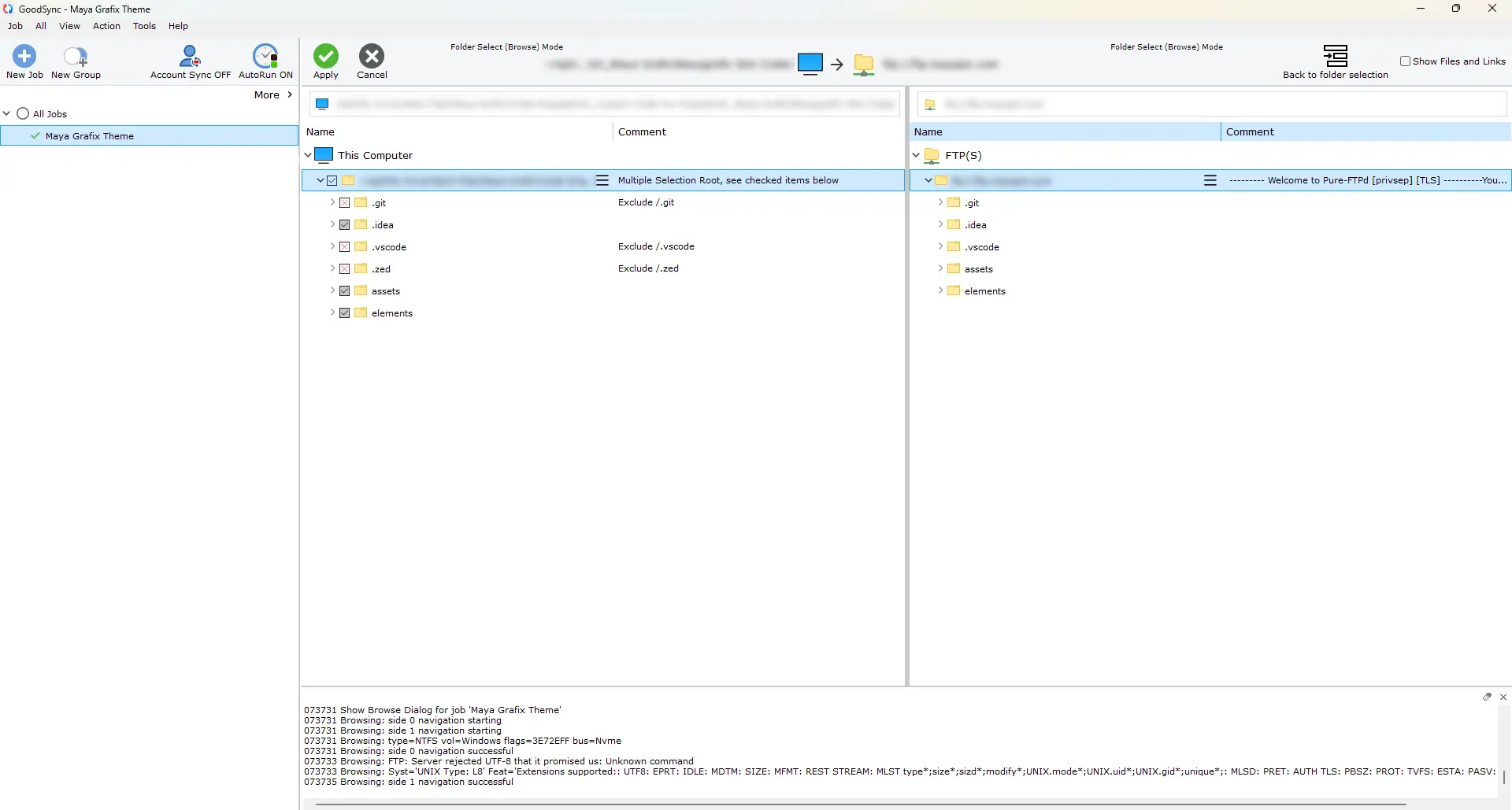
D:\Projects\my-website\wp-content\themes\my-themeI then create a GoodSync job where the left side points to this local folder and the destination points to the corresponding theme directory on the remote server.
Conceptually:
LOCAL

D:\Projects\my-website\
wp-content\themes\my-theme

            ↓

        GoodSync

            ↓

REMOTE

/public_html/wp-content/
themes/my-theme
The important part is that the directory structure on both sides is mapped correctly.
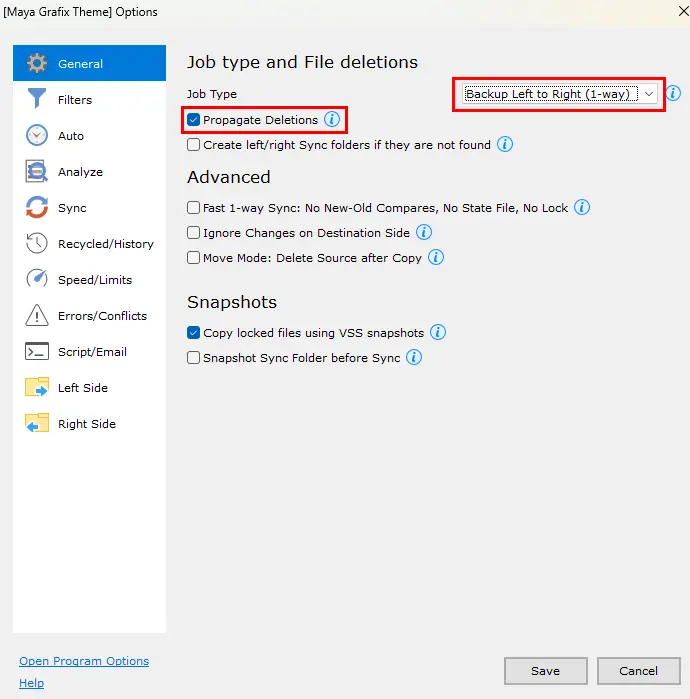
Once that’s done, I configure the job so that changes on the local side are synchronized to the remote side.
Connecting GoodSync to the Remote Server
GoodSync supports FTP, FTPS and SFTP connections.
If your hosting provider gives you SFTP access, I would personally prefer SFTP because the connection is encrypted.
The exact server details depend on your hosting provider, but you’ll generally need information such as:
Protocol: SFTP
Host: example.com
Port: 22
Username: your-username
Password / SSH authentication
Remote path: /path/to/website/theme
With FTP, the standard port is normally 21.
I select the appropriate remote connection in GoodSync and browse to the exact directory that corresponds with my local project.
For a WordPress theme, for example:
/wp-content/themes/my-theme/For a custom PHP website, it might instead be:
/public_html/or a specific project directory below it.
I strongly recommend checking these paths carefully before enabling automatic synchronization.
You don’t want a synchronization job pointing to the wrong production directory.
One-Way or Two-Way Sync?
This is an important decision.
For this particular development workflow, my intention is:
LOCAL → REMOTEnot:
LOCAL ↔ REMOTEMy local project is the working copy.
I edit locally and push those changes to the server.
This keeps the workflow predictable.
If someone else is also modifying the same remote files, you need to think much more carefully about your synchronization strategy. A simple local-to-remote job can overwrite changes made directly on the server.
For a solo development workflow where you control both copies, one-way synchronization is much easier to reason about.
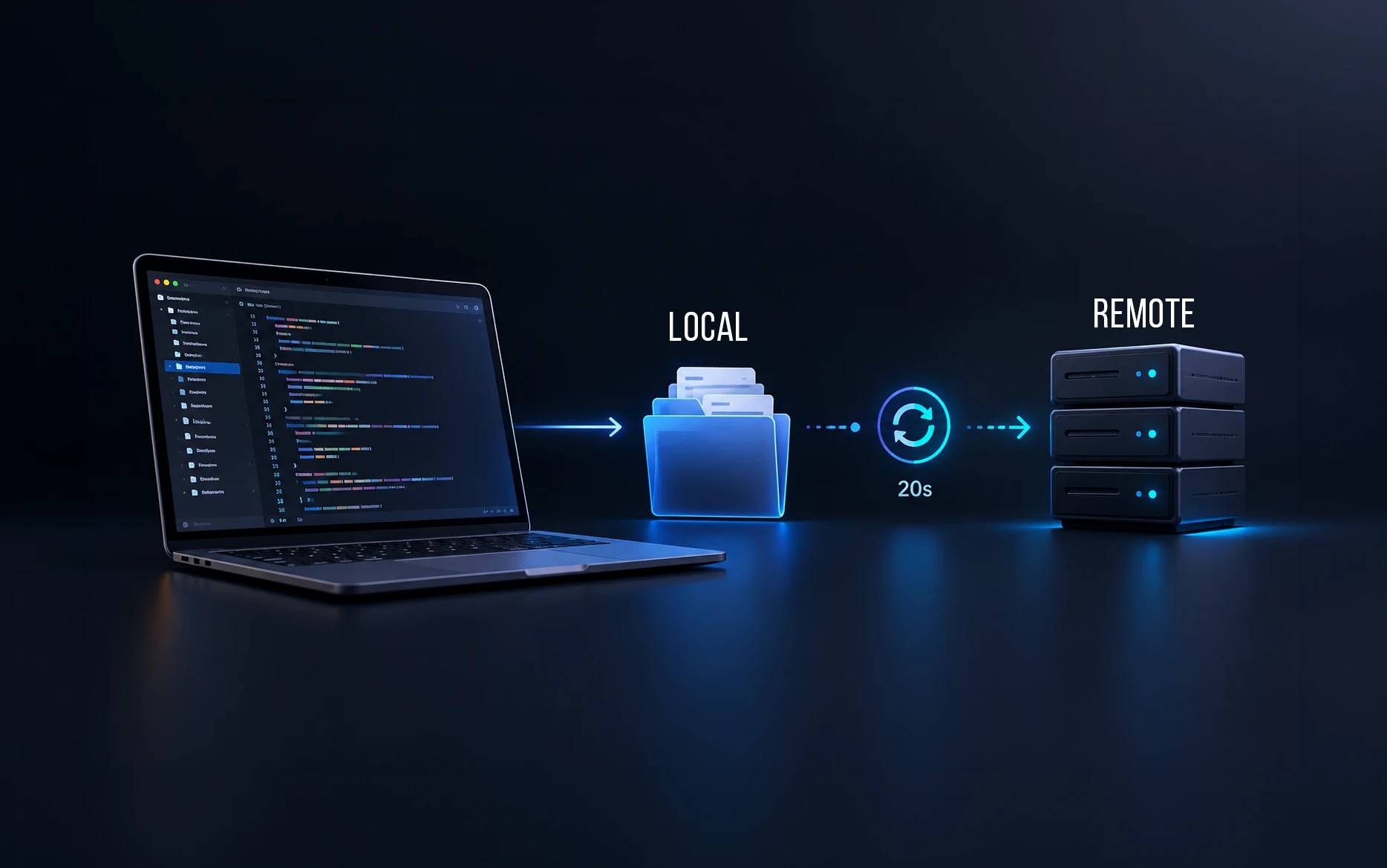
The 20-Second Automatic Sync
This is the part that makes the workflow feel almost like an editor’s upload-on-save feature.
GoodSync has an On File Change automation option.
I enable this for the job and set the delay to:
20 seconds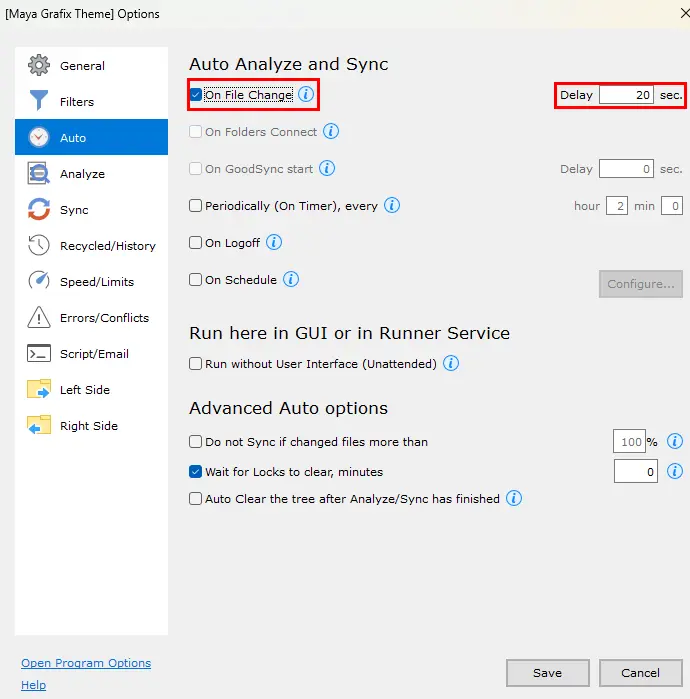
So now my workflow becomes:
Edit in Zed
      ↓
Press Ctrl + S
      ↓
Local file changes
      ↓
GoodSync detects the change
      ↓
Wait approximately 20 seconds
      ↓
Analyze
      ↓
Sync changed file
      ↓
Remote server updated
Interestingly, 20 seconds isn’t just a number I happened to choose.
GoodSync itself recommends a delay of at least 20 seconds so files have time to stabilize before synchronization begins.
The delay is also counted from the last detected change.
That’s useful during development.
If I save several files one after another, GoodSync doesn’t necessarily need to launch a separate synchronization operation for every individual change. It can wait until the changes settle and then process them.
In actual use, I’ve found 20 seconds to be a good balance.
It isn’t instant, but it is short enough that it doesn’t interrupt my development workflow.
Usually I make the change, save it, and by the time I’m ready to check the browser, the files are already synchronized.
Why I Prefer This to Upload on Save
At first glance, waiting 20 seconds might sound worse than uploading instantly whenever I press Save.
In practice, I’ve found the opposite.
When I’m editing CSS, PHP or JavaScript, I often save multiple times within a short period. I might change one file, save it, switch to another, make another change and save again.
I don’t necessarily need a server connection triggered for every single Ctrl + S.
GoodSync watches the filesystem independently of Zed and synchronizes after the changes settle.
There is another advantage that I didn’t appreciate initially.
The workflow isn’t tied to Zed.
If another application modifies a file inside that project directory, GoodSync can detect the filesystem change.
If I use Git to restore a file, GoodSync sees the resulting local change.
If I temporarily open the project in another editor, the workflow still works.
That’s a big improvement conceptually.
My synchronization system now belongs to the project, not to the editor.
Keep GoodSync Running in the Background
There is one more setting I recommend changing if you want this workflow to feel completely automatic.
GoodSync needs to be running for the On File Change automation to detect changes and synchronize them. I don’t want to remember to manually start GoodSync every time I begin development, and I also don’t want the main GoodSync window sitting open all day.
Go to:
Tools → Program Options
Then enable these two options:
Hide to System Tray when Main Window is closed

Start GoodSync when Windows starts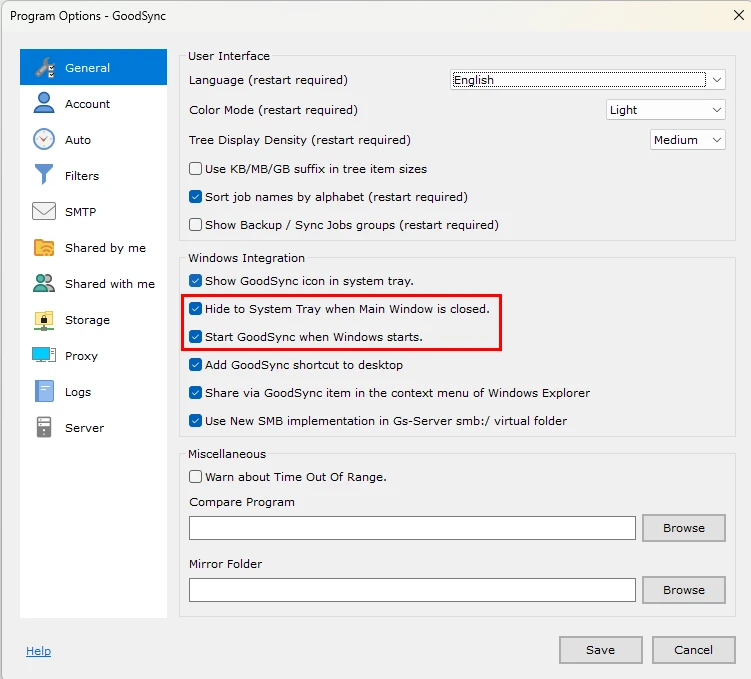
The first option is particularly useful. When I close the main GoodSync window, the application doesn’t completely exit. It continues running quietly in the Windows system tray, so my automatic synchronization jobs can continue working in the background.
The second option makes sure GoodSync starts automatically when Windows starts.
Together, these two settings remove another manual step from the workflow.
I can start my computer, open Zed and begin working. I don’t have to remember to launch GoodSync first.
My complete workflow is effectively:
Start Windows
      ↓
GoodSync starts automatically
      ↓
GoodSync stays in the system tray
      ↓
Open Zed
      ↓
Edit local project
      ↓
Save changes
      ↓
GoodSync detects the file changes
      ↓
20-second delay
      ↓
Sync to remote server
This is what makes the setup feel seamless in everyday use.
Most of the time, I don’t even have the GoodSync window open. It simply runs in the background and does its job.
One thing worth remembering is that closing the GoodSync main window and exiting GoodSync are not the same thing once the system-tray option is enabled. If you explicitly exit GoodSync from the tray, automatic file-change synchronization will naturally stop until GoodSync is started again.
After configuring this once, there is very little to think about. Zed remains my working environment, while GoodSync quietly handles the local-to-remote synchronization in the background.
This also reinforces the main point of the article nicely: after the initial setup, you don’t need to interact with GoodSync during normal development at all.
Where Git Fits Into This Workflow
GoodSync is not a replacement for Git.
They solve completely different problems.
I use Git for version history:
Git
↓
What changed?
When did it change?
Can I restore an earlier version?
GoodSync handles synchronization:
GoodSync
↓
Has the local file changed?
Does the remote copy need updating?
Transfer the change.
And Zed handles editing:
Zed
↓
Write and edit the code.
So the complete workflow becomes:
        Zed
         ↓
   Local Project
      ↙      ↘
    Git      GoodSync
     ↓           ↓
Version       Remote
History       Server
I like this separation because each tool has one clear responsibility.
Don’t Treat Automatic Sync as a Backup
This deserves special attention.
Synchronization and backup are not the same thing.
If you accidentally delete or damage a local file and that change is automatically synchronized, the remote copy could also be deleted or damaged depending on how you’ve configured the job.
That’s why I still keep proper backups and Git history.
Before setting up an automated local-to-production workflow, make sure you have a way to recover from a mistake.
At minimum, I would want:
- Git version history for the project
- Hosting/server backups
- A known-good local copy
- A carefully configured GoodSync job
Automatic synchronization is convenient precisely because it happens without much thought.
That also means a bad configuration can automatically do the wrong thing.
Be Careful with WordPress Sites
There’s another distinction worth making if you’re using this workflow with WordPress.
This setup synchronizes files.
It does not synchronize the WordPress database.
That matters particularly when you’re working with a visual builder such as Bricks, Elementor or another system that stores page layouts and settings in the database.
If I modify:
style.css
functions.php
assets/css/custom.css
assets/js/custom.js
GoodSync can synchronize those files.
But changing a page layout inside WordPress is a different matter because that information normally lives in the database.
So I don’t look at this workflow as a complete WordPress staging/deployment system.
It’s specifically a file development workflow.
For custom themes, plugins, PHP files, CSS and JavaScript, that’s exactly what I need.
Files and Folders I Don’t Want to Sync
I also don’t blindly synchronize everything inside a development directory.
Depending on the project, there are files that belong only on my development machine.
Typical examples include:
.git/
.vscode/
.idea/
node_modules/
*.log
There may also be build files, temporary files or local configuration files that shouldn’t reach production.
GoodSync provides filtering options, so it’s worth spending a few minutes deciding exactly what the job should and shouldn’t transfer.
This is particularly important when the destination is a live website.
Test the Job Manually Before Enabling Automation
I wouldn’t create the job and immediately turn on automatic synchronization.
First, run an analysis.
Look carefully at what GoodSync intends to do.
Make sure:
Local project → Correct remote directoryCheck which files will be copied.
Check which files will be deleted.
Check the direction of synchronization.
Then run a manual sync with a harmless test file.
For example:
goodsync-test.txtConfirm that it appears in exactly the directory you expect on the server.
Delete the test file once you’re satisfied.
Only then would I enable automatic synchronization.
A few minutes of testing here can prevent a much bigger problem later.
Why This Workflow Works Better for Me
There are technically more sophisticated ways to deploy code.
I could use Git-based deployments.
I could maintain a full staging environment.
I could work directly on the server through Zed’s SSH remote development.
I could continue using VS Code with SFTPresso.
All of those are valid workflows.
But web development workflows need to fit the actual projects you’re working on.
For many of my projects, I simply need to edit a PHP, CSS or JavaScript file locally and see that change on the web server shortly afterwards.
For that requirement, this setup has been remarkably straightforward.
I open Zed.
I work normally.
I press Save.
GoodSync takes care of the rest.
Most importantly, I no longer need to think about whether my editor’s FTP/SFTP extension is connected.
Common Mistakes to Avoid
The biggest mistake would be configuring automatic synchronization before verifying the local and remote directories.
A wrong remote path can turn a convenient automation into a very unpleasant problem.
Another mistake is assuming synchronization gives you version history. It doesn’t. Keep Git or another proper versioning system alongside it.
Be particularly careful with automatic deletions. If deleting a local file also deletes its remote counterpart, understand exactly what will happen before enabling that option.
And don’t put FTP/SFTP passwords into files inside a Git repository. Connection credentials should be stored securely and kept outside version-controlled project files.
Finally, don’t assume this workflow replaces staging.
It doesn’t.
It’s simply a practical way of keeping local development files synchronized with their corresponding files on a remote server.
Final Thoughts
The interesting part of this setup isn’t really GoodSync or Zed.
For me, the important realization was that the code editor doesn’t have to solve every part of the development workflow.
I originally went looking for a Zed equivalent of the SFTP workflow I had in VS Code. Then I tried working remotely over SSH. Both approaches kept the editor involved in something that didn’t necessarily need to be the editor’s responsibility.
GoodSync gave me a cleaner separation.
Zed edits my local files.
Git tracks them.
GoodSync synchronizes them.
The web server runs them.
I’ve been using GoodSync for years for hard-drive synchronization and backups. Finding another practical use for software I already owned was much better than adding another extension or changing editors simply to solve file synchronization.
And so far, this setup has been extremely reliable for me.
If you’re using Zed for PHP or WordPress development and have found a different way to handle local-to-remote file synchronization, I’d be interested to know what your workflow looks like.
Frequently Asked Questions
Can Zed Editor edit files on a remote server?
Yes. Zed supports remote development over SSH. The Zed interface runs locally while the source code and development services operate on the remote machine. This is a good solution if you’re comfortable working directly with files stored on the remote server.
Does Zed Editor have upload-on-save like VS Code SFTP extensions?
The workflow described in this article doesn’t depend on a Zed upload-on-save extension. I keep my files locally and use GoodSync to detect filesystem changes and synchronize them with the remote server independently of the editor.
Can GoodSync synchronize files over FTP and SFTP?
Yes. GoodSync supports FTP, FTPS and SFTP connections, allowing a local folder to be synchronized with a directory on a remote server.
Why use a 20-second delay for automatic synchronization?
GoodSync recommends a delay of at least 20 seconds for its On File Change automation so files can stabilize before Analyze and Sync begin. The countdown starts again after the latest detected change, which also works well when several files are being edited in quick succession.
Can I use this workflow for WordPress development?
Yes, particularly for theme files, custom plugins, PHP, CSS and JavaScript. However, GoodSync synchronizes files; it does not replace a proper workflow for WordPress database changes.
Should I use FTP or SFTP with GoodSync?
I recommend SFTP whenever your hosting environment supports it because the connection is encrypted. If SFTP isn’t available, GoodSync also supports FTP and FTPS.
Does GoodSync replace Git?
No. Git provides version control and change history, while GoodSync handles file synchronization. I use them for different purposes.
Is GoodSync free?
GoodSync has a limited free version as well as paid licenses. Licensing differs for personal and business use, so check GoodSync’s current pricing and licensing terms before deciding which version is appropriate.
Are you affiliated with GoodSync?
No. I have no affiliate relationship with GoodSync. I purchased the software for my own use and had already been using it for file synchronization and backup before adopting this development workflow.
Useful Resources
- Zed Editor — The official Zed website.
- Zed Remote Development documentation — Explains how Zed runs its interface locally while source code, language servers, tasks and terminals can run remotely over SSH.
- GoodSync — Official GoodSync website.
- GoodSync Manual — Particularly useful for understanding On File Change automation and the recommended 20-second delay.
- GoodSync Business Pricing — At the time of writing, GoodSync lists its business Workstation license at $49.95/year for one Windows or Mac workstation.
- GoodSync Free vs Paid — Shows FTP/SFTP/WebDAV support, automation and the differences between free and paid versions.
- SFTPresso for VS Code — The extension I used for my earlier VS Code upload-on-save workflow.
From Maya Grafix
- Staging to Live WordPress Migration Without Losing Content – A useful article to know a safe way to migrate a staging site without losing content
- How to Enqueue CSS and JavaScript in WordPress: A Smarter, Powerful Versioning Method – Another useful article to know how to enqueue CSS & Javascript with version numbers