For most WordPress development, I still prefer working in a proper local environment. It gives me the full project context: the real codebase, database, media library, plugins, configuration, and a setup I can keep working in for as long as the project needs.
But a full local site is not always the quickest answer. When I only need to check a PHP hook, shortcode, REST API route, or small plugin idea, creating another complete WordPress install can be more setup than the test itself.
That is where WordPress Playground fits into my workflow. It gives me a disposable WordPress site in the browser, so I can test a focused piece of code before it reaches a client project.
Table of Contents
My current local setup
I currently use Laragon extensively as my local development stack. It is fast, flexible, and works well for the PHP and WordPress development I do regularly.
Laragon’s non-commercial licences currently start at US$10 for the Standard option and US$30 for the Extended option. Both are perpetual licences for non-commercial use: the Standard licence includes one year of updates, while the Extended licence includes five years of updates. Commercial licences have separate pricing, starting at US$49 per year. Check the current Laragon pricing before choosing a licence.
Disclosure: I do not have an affiliate relationship with Laragon.
Even with a local stack ready to use, I do not need a full project environment for every small test. Sometimes I only need to know whether a function causes a fatal error, whether a shortcode renders, or whether a plugin idea works with a particular PHP version.
WordPress Playground gives me that quick first check without local Apache setup, a new database, or any risk to a client website.
Why use WordPress Playground for code testing?
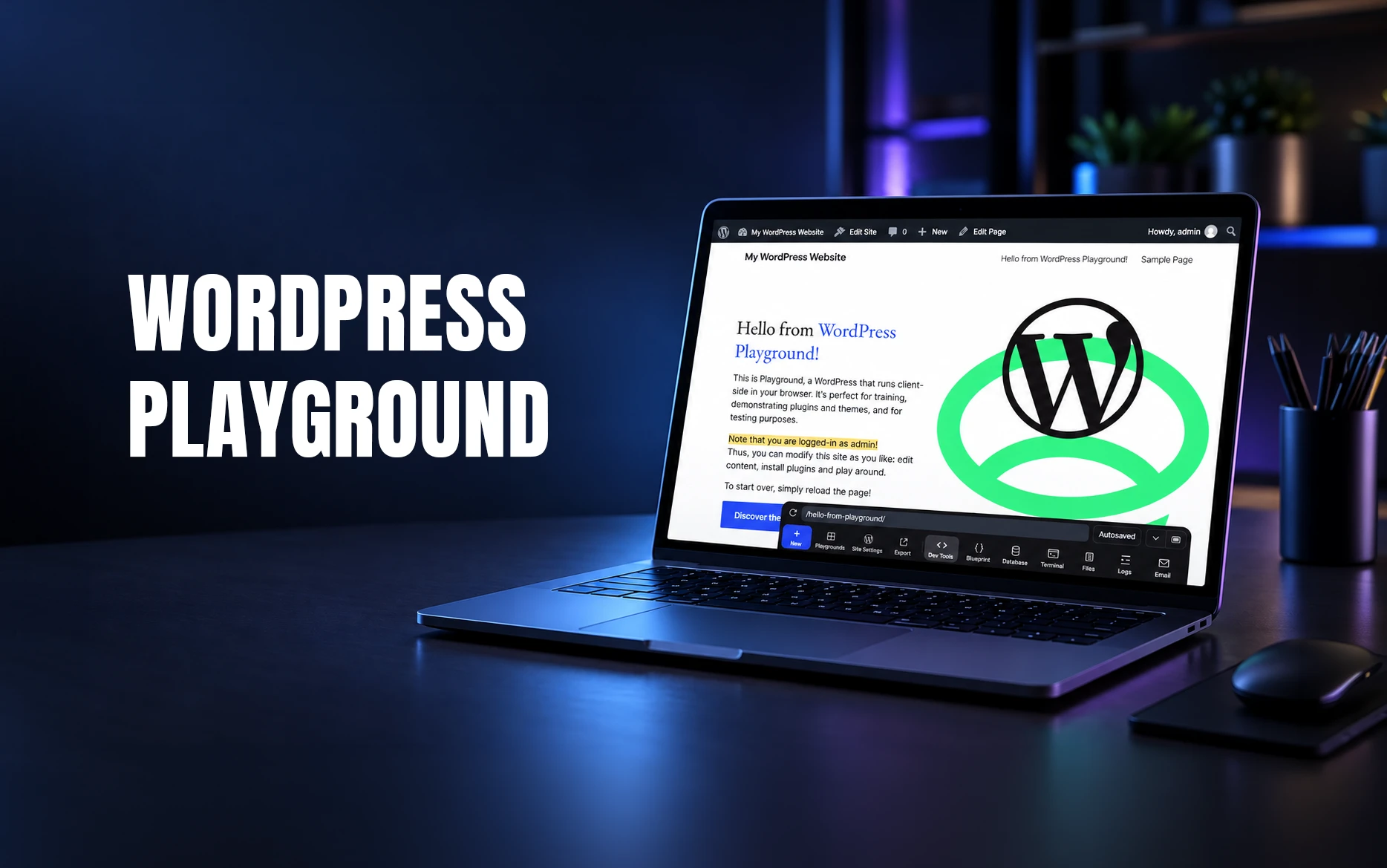
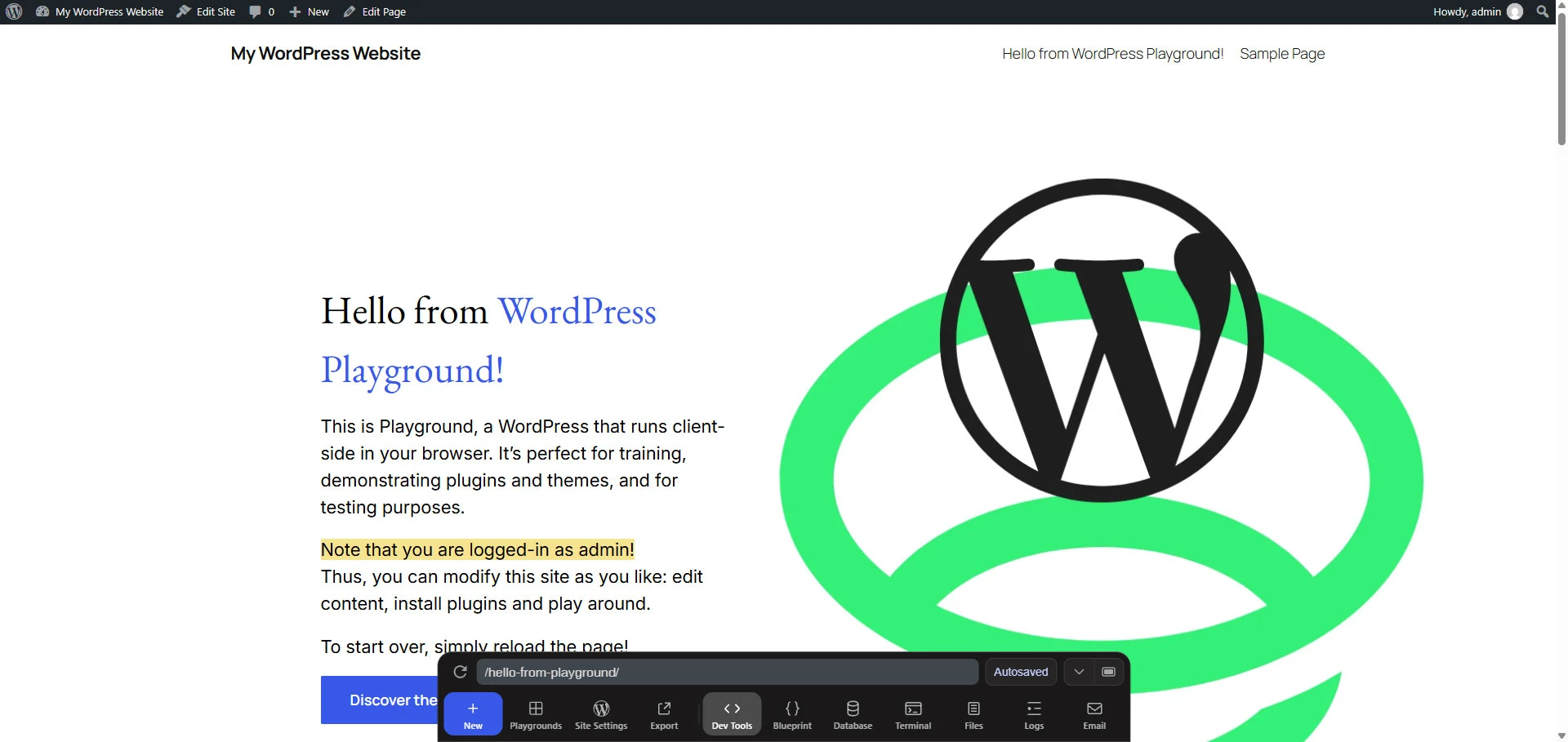
WordPress Playground runs a complete WordPress site directly in the browser. You do not need traditional hosting, a local Apache or Nginx setup, or a MySQL database to open a clean environment and start testing.
The public Playground website is free to use. WordPress Playground is open-source software, and its browser-based environment is ideal when you need a quick, disposable WordPress installation.
I find it useful for:
- Checking whether a PHP snippet causes a fatal error.
- Testing a hook, shortcode, custom plugin, or REST API route.
- Trying code against a specific WordPress or PHP version.
- Inspecting PHP warnings and notices.
- Checking whether WordPress stored the expected data.
- Testing whether code generates an email.
- Creating a repeatable test environment for another developer.
The current Playground Dock also gives you direct access to New, Playgrounds, Site Settings, Export, and Dev Tools. Under Dev Tools, you can work with Blueprints, Database, Terminal, Files, Logs, and Email.
That makes WordPress Playground much more useful than a simple demo site.
Step 1: Start with a clean WordPress site
Open WordPress Playground and click New in the Dock.
The New menu works like a starting command palette. You can create a clean site, choose a Blueprint from the gallery, use a public Blueprint URL, import a ZIP, or start from another supported source.
For a focused code test, I personally prefer Vanilla WordPress.
A clean installation removes unnecessary variables. If the code fails, I know the problem is more likely to be in the code itself instead of an old plugin, cached setting, or leftover database value.
Use a more complex starting point only when the code needs a real dependency. For example, if the code calls a WooCommerce or ACF function, install that dependency before testing it.
Step 2: Match the WordPress and PHP versions
Open Site Settings before adding code.
This is where you can select the WordPress version, PHP version, language, multisite option, and networking settings. It is a small step that prevents misleading results.
If a client site runs WordPress 6.7 with PHP 8.2, start there. Testing only against the newest Playground defaults does not prove the code will work on the client’s environment.
You can also open a specific combination directly:
https://playground.wordpress.net/?php=8.2&wp=6.7This is useful when you want to share a test setup with another developer. The link provides the same starting PHP and WordPress versions without requiring them to choose settings manually.
After the initial check passes, I often test the latest supported PHP version as well. It is a quick way to spot deprecated functions before a future server upgrade turns them into a larger problem.
Step 3: Test code as a small plugin
For anything beyond a quick experiment, do not paste code into a theme’s functions.php file.
Open Dev Tools → Files and create a small plugin instead. It keeps the test isolated, makes activation explicit, and gives you a reusable file you can export later.
Create this file:
/wp-content/plugins/playground-test/playground-test.phpAdd this complete plugin code:
<?php
/**
 * Plugin Name: Playground Test
 * Description: A disposable plugin for testing WordPress code in WordPress Playground.
 * Version: 1.0.0
 * Requires PHP: 8.0
 */

defined( 'ABSPATH' ) || exit;

/**
 * Registers a shortcode that confirms the plugin loaded correctly.
 *
 * @return string
 */
function playground_version_shortcode(): string {
	$wordpress_version = get_bloginfo( 'version' );
	$php_version       = PHP_VERSION;

	return sprintf(
		'<p><strong>WordPress:</strong> %1$s<br><strong>PHP:</strong> %2$s</p>',
		esc_html( $wordpress_version ),
		esc_html( $php_version )
	);
}
add_shortcode( 'playground_versions', 'playground_version_shortcode' );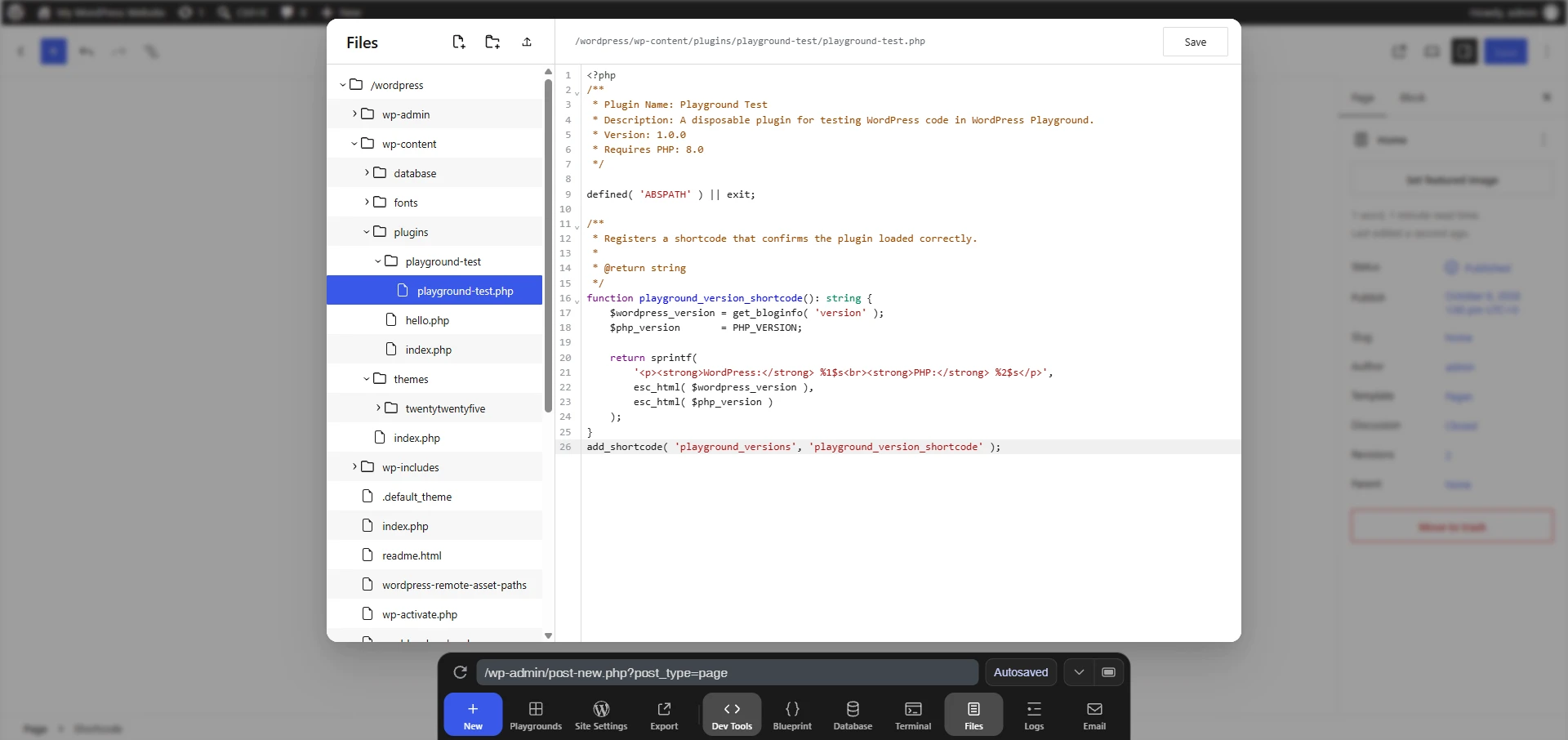
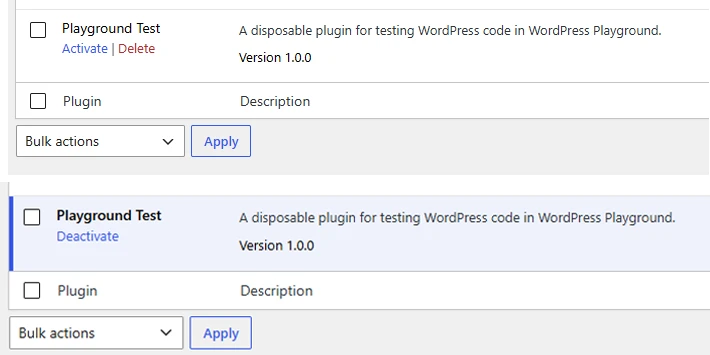
Open the WordPress dashboard, go to Plugins, and activate Playground Test.
Next, create a page and add this shortcode:
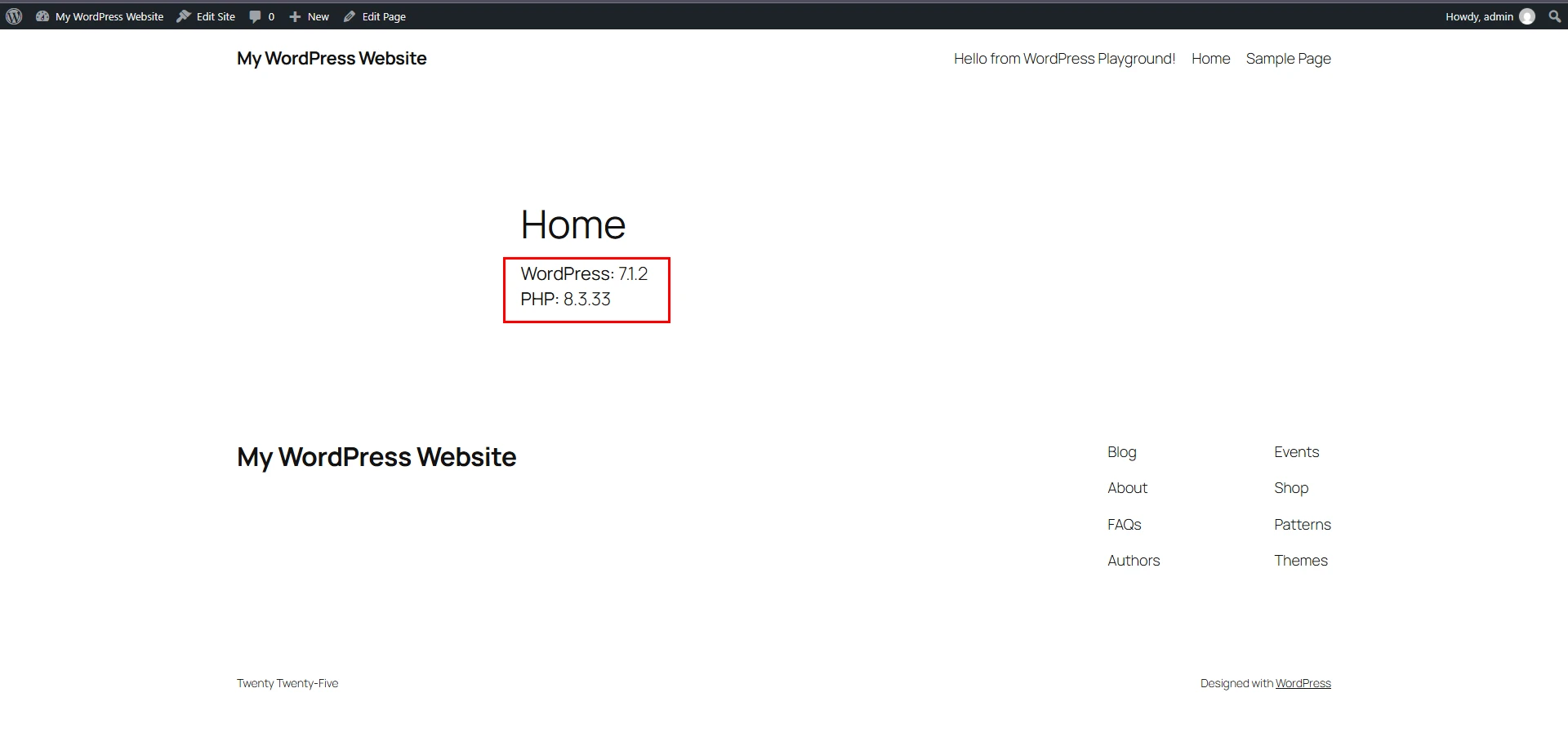
[playground_versions]View the page. If the WordPress and PHP versions appear, you have confirmed that the plugin loaded, the code parsed successfully, the shortcode registered, and the callback rendered safely.
This is a better first test than placing an unknown snippet in a live site or client child theme.
Step 4: Check PHP errors in Logs
A page can look correct while PHP logs tell a different story.
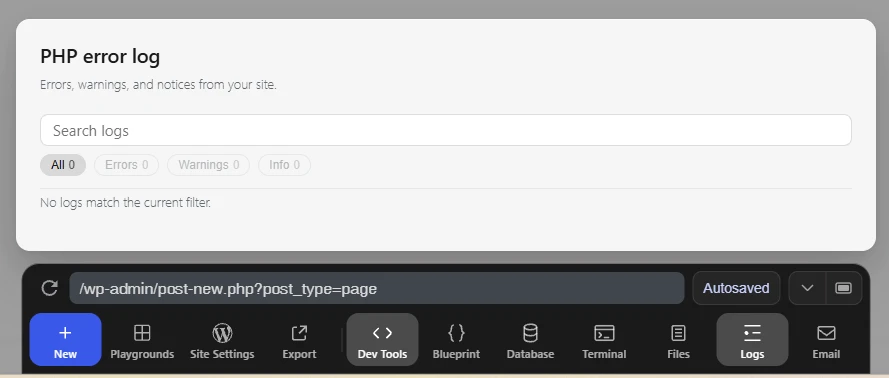
After every meaningful code change, open Dev Tools → Logs. This is where you can check for PHP errors, warnings, notices, and deprecated-function messages.
I treat clean logs as part of a passing test.
That is particularly important when you are testing code from an old tutorial, a forum answer, Stack Overflow, or an AI-generated draft. A snippet may produce the expected output while still relying on a deprecated function or triggering warnings that will become a real problem later.
Do not move code into a project simply because it “works” on screen. Check the logs first.
Step 5: Inspect WordPress data in Database
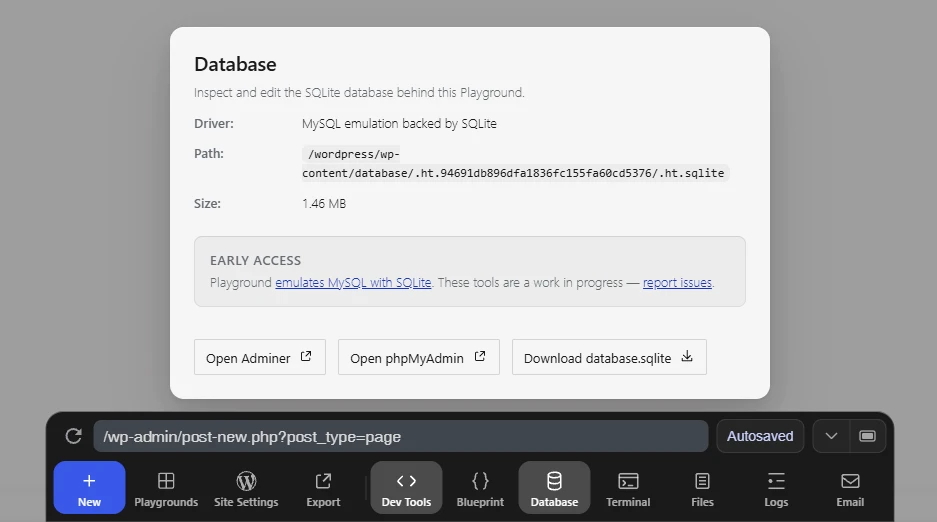
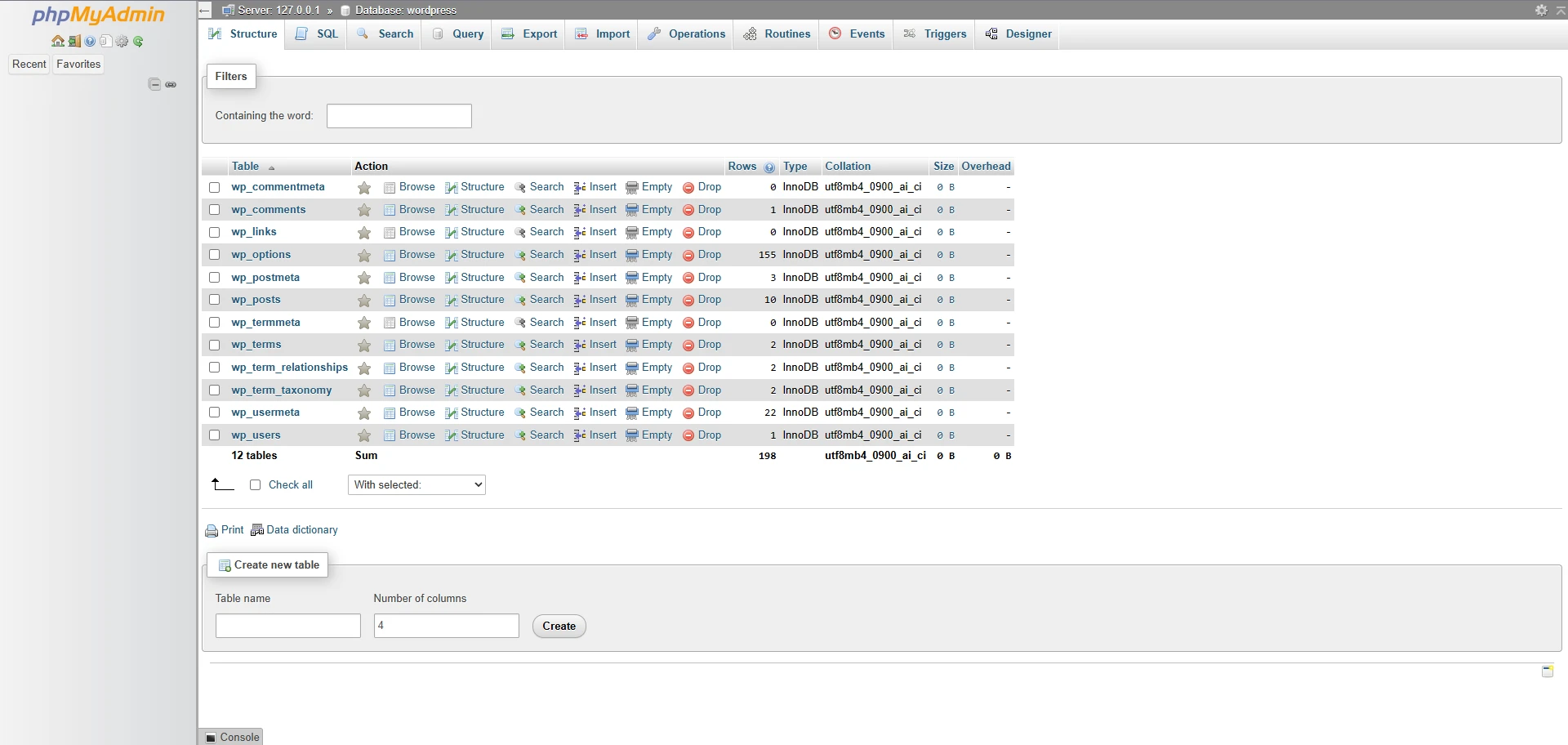
WordPress Playground uses SQLite in the browser rather than a normal MySQL or MariaDB server. The Database tool lets you inspect or download that data.
This becomes useful when your code changes something that is not immediately visible on a page.
For example, you can inspect the result after testing:
- A custom post type.
- A WordPress option update.
- Post meta or user meta.
- A settings page.
- A custom taxonomy.
- A plugin activation routine.
- A database query using standard WordPress APIs.
The database tool helps you verify what WordPress actually stored instead of relying entirely on the admin interface.
For normal WordPress functions such as update_option(), wp_insert_post(), or update_post_meta(), this is a strong first check. For complex custom SQL, test again on staging with the same database engine used by the real site.
Step 6: Test generated email and use Terminal
WordPress code often seems finished until it needs to send an email.
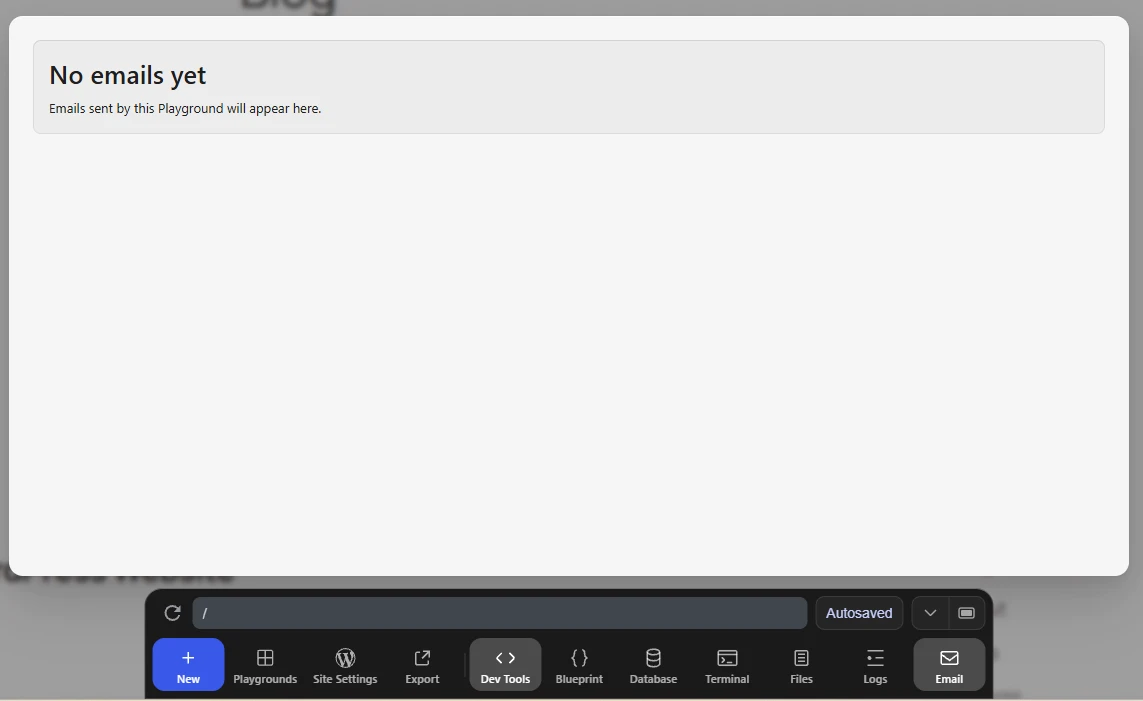
Open Dev Tools → Email when you are testing code that calls wp_mail() or triggers a workflow that should generate a message. It is useful for checking the subject line, recipient logic, message content, and whether WordPress generated the email at all.
You can use it to test things such as:
- A custom contact form.
- A password-reset style message.
- A WooCommerce email template.
- A notification sent after a custom form submission.
- A custom plugin workflow.
The Email tool does not replace production deliverability testing. It can show that WordPress generated the message, but it cannot prove that your SMTP provider, DNS records, authentication settings, or recipient inbox will deliver it.
The Terminal tool is useful when you need a lower-level look at the Playground environment or prefer working more directly with the WordPress setup. For a small one-file plugin, Files is often quicker. For deeper debugging, Terminal, Logs, Database, and Files work well together.
The advantage is that all of this remains inside a disposable browser sandbox. You are not changing your computer, local stack, staging site, or client hosting account.
Step 7: Save the setup with Blueprints and Export
Once a test becomes useful, make it repeatable.
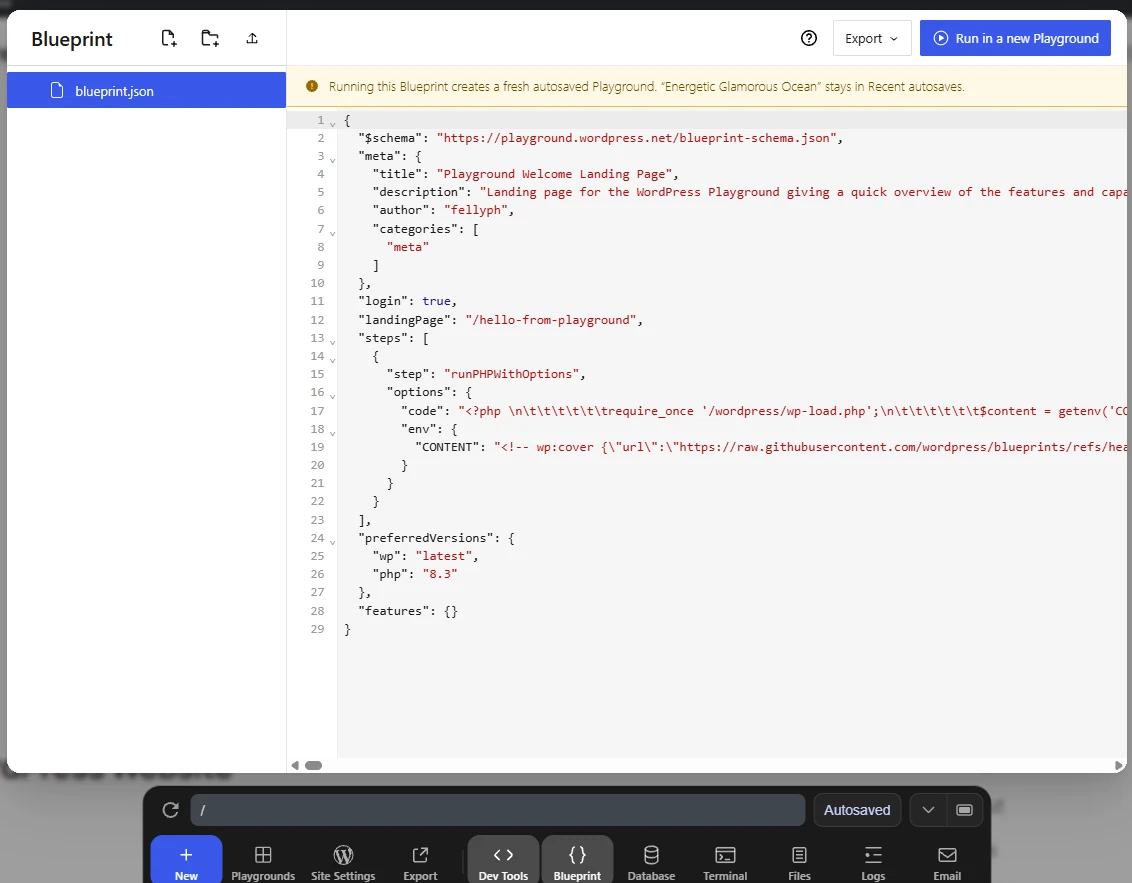
Open Dev Tools → Blueprint to view, edit, export, or run the configuration for the current Playground environment. A Blueprint is a JSON setup that can define WordPress and PHP versions, install plugins or themes, write files, activate components, and run setup steps.
Blueprints are valuable when a test needs more than one manual action.
For example, a test may require:
- A specific WordPress version.
- A particular PHP version.
- WooCommerce or another plugin.
- Sample content.
- A theme or child theme.
- A custom plugin file.
- A setting enabled before the test begins.
Instead of recreating those steps every time, save the environment as a Blueprint. This has become my preferred way to share a reproducible bug report or test setup with another developer.
Also pay attention to the save status in the Dock:
- Autosaved means the environment is stored temporarily in browser storage.
- Saved means it was deliberately stored in browser storage or a local directory.
- Unsaved means it can disappear when the tab is refreshed or closed.
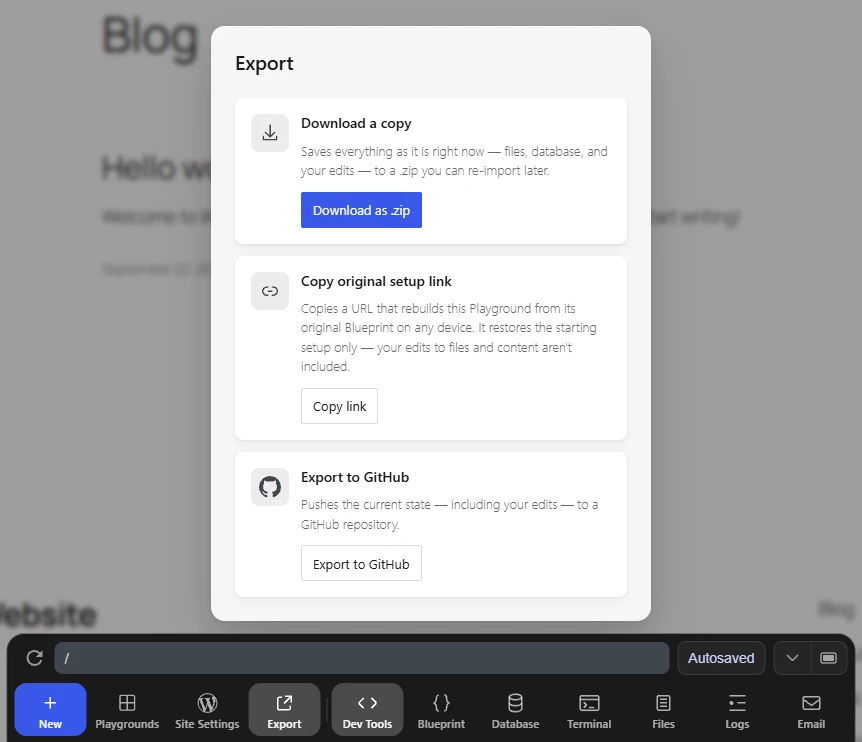
Browser storage is convenient, but it is not a permanent backup. When a test matters, open Export and download a ZIP.
The ZIP can preserve the current WordPress files, database, plugins, themes, uploads, and edits. It can later be restored through New → Import ZIP.
When WordPress Playground is not enough
WordPress Playground is excellent for testing independent code. It is not a replacement for a proper local or staging environment when the result depends on the real project setup.
Move the work to Laragon, another local environment, or staging when you need to test:
- Bricks Builder templates, components, dynamic data, conditions, query loops, or frontend interactions.
- Existing client plugins, themes, media files, and custom database tables.
- WooCommerce checkout, payment gateways, subscriptions, and order flows.
- External APIs, webhooks, SMTP, cron jobs, or third-party integrations.
- Cache plugins, CDN behavior, object caching, or server-level configuration.
- Real user roles, memberships, orders, and production-like content.
- Performance, security, accessibility, and browser compatibility.
For Bricks projects, I use WordPress Playground to prove isolated PHP logic when possible. I still test the finished feature in the actual Bricks environment because the template context, dynamic data, and frontend behavior are part of the real contract.
Final thoughts
WordPress Playground does not replace a full local development stack. It solves a different problem.
It is the fastest way I know to test a small WordPress idea before it reaches a real project. I can open a clean site, match the PHP and WordPress versions, test code in a tiny plugin, inspect logs and data, check generated email, and export the environment if it becomes useful.
That is a strong first step before staging.
Test the isolated idea in WordPress Playground. Test the final feature in the real project environment.
FAQs
Is WordPress Playground free?
Yes. The public WordPress Playground website is free to use. You do not need paid hosting or a paid plan to launch a browser-based WordPress test site.
Can I test WordPress code online with WordPress Playground?
Yes. You can test PHP plugins, hooks, shortcodes, REST API routes, themes, and plugins in a disposable WordPress environment before moving work to staging.
Does WordPress Playground need MySQL?
No. WordPress Playground uses SQLite in the browser rather than a conventional MySQL or MariaDB database server.
Can I view PHP errors in WordPress Playground?
Yes. Open Dev Tools and choose Logs to inspect PHP errors, warnings, notices, and other messages produced during a test.
Can I test WordPress emails in Playground?
You can use the Email tool to inspect email generated inside Playground. It helps verify the generated message, but it does not replace testing real SMTP delivery.
Can I use WordPress Playground for Bricks Builder development?
It is useful for isolated PHP logic, but the final Bricks feature should be tested in a matching Bricks environment. Templates, dynamic data, query loops, conditions, and frontend interactions depend on the real site setup.
Useful resources
Official WordPress Playground resources
- WordPress Playground — Launch a browser-based WordPress test site.
- WordPress Playground documentation — The main documentation hub.
- Start using WordPress Playground in 5 minutes — Current quick-start instructions.
- WordPress Playground web-instance guide — Documentation for New, Site Settings, Blueprint, Database, Files, Logs, and Export.
- WordPress Playground Blueprints documentation — Learn how to create repeatable test environments.
- WordPress Playground Query API — Open Playground with particular PHP, WordPress, plugin, theme, or setup parameters.
- Laragon — A local development stack for PHP and WordPress work.
From Maya Grafix