I use Bricks for most of my WordPress projects, along with a modified Bricks child theme. For a long time, that meant I would simply remove the default WordPress theme after setting up a site.
I wasn’t using it, so why keep it?
That seemed perfectly reasonable until I ran into a problem where a blog page suddenly went completely blank. While troubleshooting it, I discovered that the theme I had routinely been deleting could actually have helped me narrow down the problem much faster.
Since then, I always keep one current default WordPress theme installed.
Why I Keep a Default WordPress Theme Installed
When the blog page went blank, the first challenge was figuring out where the problem was coming from.
The WordPress admin was working. The posts were still there. Other parts of the website were loading normally.
That left quite a few possibilities. Was WordPress failing to retrieve the posts? Was there a problem with my Bricks archive template? Was something in my modified child theme causing it? Could some custom code be interfering with the query?
While working through the possibilities, I came across a simple troubleshooting recommendation:
Temporarily activate a default WordPress theme and check whether the problem still exists.
There was just one problem.
I had deleted it.
Until then, I had considered the default theme unnecessary once Bricks and my child theme were installed. That experience made me look at it differently.
What Switching to a Default WordPress Theme Can Tell You
I installed Twenty Twenty-Five and temporarily activated it.
The standard WordPress blog archive loaded correctly.
Twenty Twenty-Five hadn’t fixed the original problem. What it had done was give me a valuable clue.
WordPress could retrieve my posts and render an archive normally.
That allowed me to concentrate my troubleshooting on the Bricks side of the website, my child theme and the customizations around them rather than looking everywhere.
Eventually, I traced the issue back to my Bricks setup and fixed it.
That’s the real value of keeping a default WordPress theme available. You’re not keeping it because you intend to build your website with it. You’re keeping it as a clean fallback for troubleshooting.
If the problem disappears when you temporarily switch themes, you’ve narrowed the search considerably.
It doesn’t automatically mean Bricks or your active theme is broken. The actual cause could be a child-theme customization, custom PHP, a theme-specific hook, template logic or something else connected to your normal theme environment.
But now you have somewhere sensible to start looking.
What I Keep Installed on My Bricks Sites
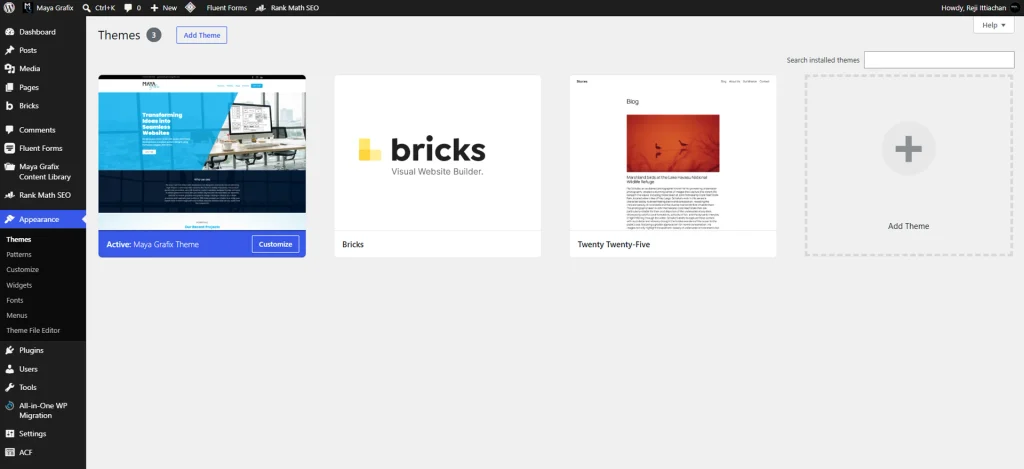
My normal Bricks setup now has three themes:
- My modified Bricks child theme
- Bricks
- Twenty Twenty-Five
My child theme is active.
Bricks remains installed because it is the parent theme.
Twenty Twenty-Five remains inactive and is there as my fallback.
I don’t keep Twenty Twenty-Four, Twenty Twenty-Three and every other old default theme just because WordPress installed them at some point. One current default WordPress theme is enough for my purposes.
This gives me a clean setup while still leaving a fallback available if I need to troubleshoot something.
The screenshot below shows exactly how I have this configured on the Maya Grafix website.
A Small Bricks Child Theme Customization I Always Make
You might have noticed something else in my Themes screenshot.
My modified Bricks child theme doesn’t show the standard Bricks child-theme thumbnail. It displays a preview of the Maya Grafix website, and I’ve also renamed the child theme to Maya Grafix Theme.
Neither change is necessary for Bricks to work. I simply prefer doing this because it makes a customized child theme much easier to recognize.
This is particularly useful if you work on several WordPress websites.
How to Change the Bricks Child Theme Thumbnail
WordPress gets the image displayed on the Themes screen from a file called:
screenshot.pngFor a standard Bricks child theme, you’ll find it in the root of the child-theme directory:
/wp-content/themes/bricks-child/To customize it, create a screenshot or preview image that represents the website.
Make sure your screenshot.png file is 1200 × 900 pixels.
I personally prefer using a screenshot of the actual website because I can immediately identify which site the child theme belongs to.
Save your image as:
screenshot.pngThen replace the existing file inside the child-theme folder.
That’s it.
You don’t need PHP or CSS for this. WordPress automatically uses the screenshot.png file as the theme preview under Appearance → Themes.
Because the file belongs to your child theme, updating the Bricks parent theme won’t overwrite it.
It’s a tiny customization, but I’ve found that it makes the Themes screen much more useful.
You Can Rename the Bricks Child Theme Too
You can take this a little further and change the name displayed for the child theme.
The theme information comes from the header at the beginning of the child theme’s style.css file.
You’ll normally find it here:
/wp-content/themes/bricks-child/style.cssOpen the file and you’ll see something similar to:
/*
Theme Name: Bricks Child Theme
Template: bricks
*/
Change the Theme Name to the name you want WordPress to display.
For example, mine can be:
/*
Theme Name: Maya Grafix Theme
Template: bricks
*/
There is one line here that you should pay particular attention to:
Template: bricksDon’t change this.
That line tells WordPress that the child theme uses Bricks as its parent. The value corresponds to the Bricks parent-theme directory.
You can also rename the child-theme folder itself.
For example:
/wp-content/themes/bricks-child/can become:
/wp-content/themes/maya-grafix-theme/The folder name and the Theme Name inside style.css are two different things. Changing Theme Name controls what you see on the Themes screen, while renaming the directory changes the actual child-theme folder.
Where I Prefer to Make These Changes
I wouldn’t experiment with renaming an active child-theme directory directly on an important live website.
I personally prefer making these changes in a local development environment or on a staging site.
If you’re working on staging and don’t have convenient filesystem access, a file-management plugin such as WP File Manager can also give you access to:
/wp-content/themes/From there, you can edit style.css, replace screenshot.png and rename the child-theme directory.
If you install a file manager plugin only for this purpose, I recommend deactivating and deleting it when you’re finished. A plugin that provides filesystem access to WordPress isn’t something I would leave installed without a reason.
Also be careful when renaming an active theme directory. WordPress identifies themes partly through their directory, so changing the folder name can cause WordPress to temporarily treat the active theme as missing.
That’s another reason I prefer doing this locally or on staging first.
Once everything is customized, my child-theme directory might look something like this:
maya-grafix-theme/
├── style.css
├── functions.php
└── screenshot.png
And remember, I prepare screenshot.png at 1200 × 900 pixels.
The end result doesn’t change how Bricks works. It simply makes my customized child theme easier to identify and keeps the WordPress Themes screen organized.
Keep Your Fallback Theme Updated
There is one important point about keeping an inactive default theme.
Inactive doesn’t mean irrelevant.
The theme files are still sitting on your server, so I keep Twenty Twenty-Five updated even though I don’t normally activate it.
I also agree with the general advice to remove old themes you genuinely don’t need. I don’t want a collection of outdated themes sitting on a WordPress installation.
My rule is straightforward:
If I need it, I keep it updated. If I don’t need it, I remove it.
The current default WordPress theme stays because it has a specific troubleshooting purpose.
Test Theme Changes on Staging Whenever Possible
Temporarily activating Twenty Twenty-Five on a Bricks website has an obvious consequence: your Bricks-designed frontend won’t render normally while the default theme is active.
That’s why I personally prefer performing this kind of troubleshooting on staging whenever possible.
A staging environment gives me room to switch themes, deactivate plugins, enable debugging and test custom code without visitors seeing what I’m doing.
The same applies when renaming a child-theme folder or making structural changes to the theme.
Of course, sometimes you’re troubleshooting because the production site is already broken. In that situation, you work with the access and options you have.
But when staging is available, I use it.
When Is Switching to the Default Theme Worth Trying?
I don’t switch themes for every WordPress problem.
If I’m troubleshooting some CSS spacing or a JavaScript interaction inside a particular element, activating Twenty Twenty-Five isn’t going to be my first step.
I use this test when I have a reasonable suspicion that the problem could be connected to the theme layer.
A blank page or archive is a good example. Theme-related PHP errors, template rendering problems, issues appearing after a theme update, and problems involving child-theme functions are other situations where the test can be useful.
The question I’m trying to answer is simple:
Does the problem still happen without my normal theme setup?
If the answer is no, I’ve just made the next stage of troubleshooting considerably easier.
Final Thoughts
I used to see the default WordPress theme as unnecessary clutter.
Once I installed Bricks and my modified child theme, I would remove it because I couldn’t imagine ever using it.
That blank blog page changed my thinking.
Today, my typical setup is very simple: my customized Bricks child theme, the Bricks parent theme, and one current default WordPress theme sitting there as a fallback.
I hope I rarely need to activate it.
But troubleshooting WordPress is often about eliminating possibilities, and having a clean fallback theme gives me one more quick way to do that.
Along the way, I’ve also started customizing my Bricks child theme with its own name and a 1200 × 900 screenshot. These aren’t essential changes, but they’ve become part of how I keep my WordPress installations clean and easy to identify.
Sometimes the most useful workflow improvements come from small problems you didn’t expect to encounter.
Have you ever solved—or at least narrowed down—a WordPress problem by switching to the default theme? I’d be interested to hear what happened.
FAQs
WordPress can run without an inactive default theme as long as the active theme is working. I keep one because it provides a useful fallback when troubleshooting problems that could be connected to the active theme or child theme.
I prefer keeping the current WordPress default theme. In my present setup, that’s Twenty Twenty-Five. I remove older default themes unless I have a specific reason to keep them.
Yes. The theme is still installed on the server. If I keep an inactive theme, I keep it updated.
Yes. You can change the displayed theme name through the Theme Name entry in the child theme’s style.css file. You can also rename the child-theme directory, although I recommend doing that locally or on staging and testing everything afterwards.
Yes. Replace the screenshot.png file in the root of your child-theme directory with your own image. Make sure the screenshot is 1200 × 900 pixels.
No. If you’re still using the standard Bricks parent-theme directory, leave Template: bricks unchanged. It tells WordPress which parent theme the child theme depends on.
Useful Resources
If you’re setting up or troubleshooting a WordPress site, these related articles and official resources are worth keeping handy.
From Maya Grafix
- WordPress Stuck in Maintenance Mode — A practical troubleshooting guide for situations where an interrupted WordPress update leaves the site stuck in maintenance mode.
- Staging vs Live WordPress: How to Move Changes Without Losing New Content — Particularly useful before experimenting with themes, plugins or major changes on a production website.
- How to fix Bricks Builder Editor not loading on Godaddy servers — Helpful to know if you are stuck with Bricks Builder and Godaddy servers.
Official Resources
- WordPress Site Health — Useful background on the checks WordPress performs for themes and the availability of a fallback default theme.
- Twenty Twenty-Five — Official WordPress information about the default theme I’m currently keeping as my fallback.
- Bricks Academy — The official Bricks documentation and my preferred starting point when checking whether a problem is related to Bricks configuration or my implementation.