Whenever I mention that I still use jQuery in WordPress, someone usually points out that modern JavaScript can do everything jQuery does.
That is true.
However, jQuery is not a separate programming language competing with JavaScript. It is a JavaScript library that provides a shorter and more consistent way to handle DOM selection, events, animations and Ajax requests.
For a completely new application, I will usually consider vanilla JavaScript first. Inside an existing WordPress website, however, I often find jQuery more practical.
WordPress has supported jQuery for years. Many themes, plugins, page builders and older custom scripts already depend on it. When jQuery is already part of the project, using it for a small interaction can be clearer and faster than introducing a different approach.
This is why I still prefer jQuery for many WordPress customisations.
This Is Not an Argument Against Vanilla JavaScript
Before looking at the code, I want to make one distinction clear.
I do not prefer jQuery for every website or every JavaScript task. Modern vanilla JavaScript is capable, fast and well supported. For a lightweight website that does not already load jQuery, I would not add the entire library just to toggle a class on one button.
My preference is specific to WordPress projects where:
- jQuery is already loaded
- an existing plugin exposes jQuery events
- I am extending a legacy interface
- I need a small custom interaction
- the project already contains jQuery-based code
- development speed and maintainability matter more than removing a library that is already present
In those situations, jQuery often gives me the most direct solution.
Why jQuery Still Makes Sense in WordPress
WordPress Already Manages jQuery
WordPress registers its own copy of jQuery through its script dependency system.
That means I do not need to download jQuery, add a CDN link or manually insert a script tag into the header.
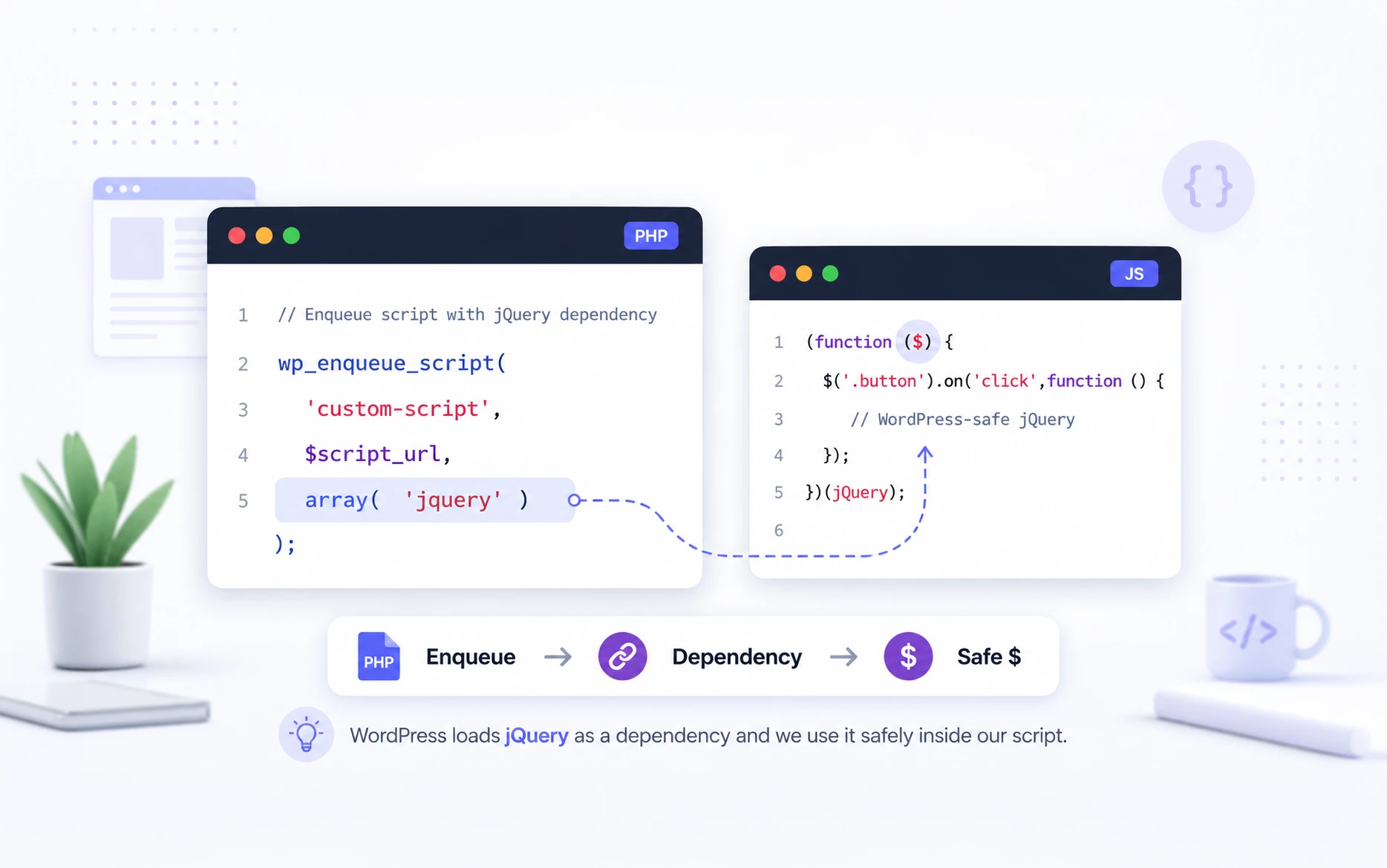
I can declare jquery as a dependency when enqueueing my own script. WordPress will then load the registered jQuery script before loading my file. This is the workflow recommended in the WordPress JavaScript best-practices documentation – https://developer.wordpress.org/themes/advanced-topics/javascript-best-practices/
This allows WordPress to control dependency order and avoid loading the same library multiple times.
Where WordPress Registers Its Built-In Scripts
WordPress registers its bundled JavaScript libraries and their dependencies inside the core script-loader.php file.
You can browse the current development version here: https://core.trac.wordpress.org/browser/trunk/src/wp-includes/script-loader.php
This file is extremely useful when you want to check:
- which JavaScript libraries WordPress provides
- the handles used to enqueue them
- script dependencies
- registered versions
- whether a script is intended for the frontend or admin area
One important thing to understand is that this file shows every script that WordPress registers, not every script that is loaded on a page.
Registering a script simply tells WordPress that the script exists and what its dependencies are.
A script is only loaded when it is actually enqueued by WordPress core, a theme or a plugin.
For example, the jquery handle is registered in WordPress, but it will only be printed on a page if something requests it as a dependency or explicitly enqueues it.
This is why using:
array( 'jquery' )
inside wp_enqueue_script() is the correct approach. WordPress checks whether the script is already required, loads it only when necessary and ensures that all dependencies are loaded in the correct order.
Understanding the difference between registered and enqueued scripts makes debugging much easier. If you cannot find a script in your page source, it does not necessarily mean WordPress doesn’t include it—it often means nothing has requested it to be loaded.
The Syntax Is Still Convenient
Compare a simple click event in vanilla JavaScript:
document.querySelectorAll('.faq-question').forEach((question) => {
    question.addEventListener('click', function () {
        this.closest('.faq-item').classList.toggle('is-open');
    });
});
The same interaction in jQuery looks like this:
$('.faq-question').on('click', function () {
    $(this).closest('.faq-item').toggleClass('is-open');
});
Both examples are valid.
I personally find the jQuery version easier to scan when working on small WordPress interactions. Selection, event binding, traversal and class manipulation follow the same chain.
That becomes useful when I am troubleshooting an existing site and need to understand the behaviour quickly.
It Works Well With Dynamically Added Elements
WordPress plugins and page builders sometimes add or replace content after the initial page load.
For dynamically generated elements, jQuery event delegation is straightforward:
$(document).on('click', '.load-more-button', function () {
    console.log('Load more button clicked');
});
The event is attached to document, but it responds only when the click originates from an element matching .load-more-button.
This works even when that button is inserted after the original page has loaded.
The vanilla JavaScript equivalent is still possible, but requires a little more manual checking:
document.addEventListener('click', function (event) {
    const button = event.target.closest('.load-more-button');

    if (!button) {
        return;
    }

    console.log('Load more button clicked');
});
Neither version is wrong. In an existing jQuery-based WordPress project, the jQuery version is often the more natural fit.
Many WordPress Plugins Still Expose jQuery Events
Some WordPress interfaces and third-party plugins trigger custom jQuery events.
When extending one of those systems, using jQuery is not simply a personal preference. It can be the API that the plugin expects developers to use.
For example:
$(document).on('plugin-content-loaded', function (event, response) {
    console.log(response);
});
Replacing this with unrelated vanilla JavaScript does not automatically make the solution better. I prefer to work with the conventions of the system I am extending.
It Is Useful for Existing Client Websites
A large part of WordPress development involves existing websites rather than brand-new builds.
A client site can contain:
- an older theme
- multiple plugins
- custom code written several years ago
- page-builder scripts
- jQuery-based sliders or popups
- Ajax-loaded forms and filters
Rewriting the entire JavaScript layer is rarely justified when the client only needs one feature fixed.
In my experience, adding a focused jQuery solution is often safer than introducing a second scripting style into an already established codebase.
How Not to Load jQuery in WordPress
Do not add jQuery directly inside header.php:
<script src="https://code.jquery.com/jquery-3.7.1.min.js"></script>
Do not paste a CDN script into a page-builder header field when WordPress already provides jQuery.
Do not register a second copy without a strong technical reason.
Loading another version can result in:
- scripts running against different jQuery versions
- plugins behaving unpredictably
- duplicate downloads
- dependency-order problems
- code working on one page but failing on another
WordPress provides wp_enqueue_script() specifically for loading and managing scripts. The official Plugin Handbook recommends enqueueing scripts instead of hardcoding script tags into templates.
How to Enqueue jQuery in WordPress
If a script requires jQuery, add jquery to its dependency array.
I personally prefer putting reusable site customisations inside a small custom plugin instead of adding everything to functions.php.
Create the following plugin structure:
custom-site-scripts/
├── custom-site-scripts.php
└── assets/
    └── js/
        └── frontend.js
Add this code to custom-site-scripts.php:
<?php
/**
 * Plugin Name: Custom Site Scripts
 * Description: Loads custom frontend JavaScript with jQuery as a dependency.
 * Version: 1.0.0
 */

if ( ! defined( 'ABSPATH' ) ) {
	exit;
}

/**
 * Enqueue frontend scripts.
 *
 * @return void
 */
function custom_site_scripts_enqueue_assets() {
	$script_path = plugin_dir_path( __FILE__ ) . 'assets/js/frontend.js';
	$script_url  = plugin_dir_url( __FILE__ ) . 'assets/js/frontend.js';

	wp_enqueue_script(
		'custom-site-frontend',
		$script_url,
		array( 'jquery' ),
		file_exists( $script_path ) ? filemtime( $script_path ) : '1.0.0',
		array(
			'in_footer' => true,
		)
	);
}
add_action( 'wp_enqueue_scripts', 'custom_site_scripts_enqueue_assets' );
The important part is this dependency array:
array( 'jquery' )
WordPress checks whether the registered jquery handle is available and ensures that it loads before custom-site-frontend.
The filemtime() value changes whenever the JavaScript file changes. This helps browsers receive the latest version instead of continuing to use an older cached file.
The final parameter uses the current argument-array format supported by wp_enqueue_script(). Setting in_footer to true loads the script near the closing body tag. The function also supports additional loading arguments when appropriate.
Why $ Does Not Work Directly in WordPress
After enqueueing jQuery, developers often create a JavaScript file like this:
$(document).ready(function () {
    console.log('Ready');
});
They then see an error such as:
Uncaught ReferenceError: $ is not defined
This happens because WordPress loads jQuery in no-conflict mode.
The $ variable is commonly used as a shortcut for jQuery, but other JavaScript libraries can also use $. WordPress avoids assigning $ globally so that different libraries have less chance of conflicting.
The full jQuery variable remains available:
jQuery(document).ready(function () {
    console.log('Ready');
});
This works, but repeatedly typing jQuery can make larger scripts harder to read.
Fortunately, WordPress developers have several safe ways to use $.
Method 1: Pass jQuery Into the Ready Callback
This is one of the simplest patterns:
jQuery(document).ready(function ($) {
    $('.menu-toggle').on('click', function () {
        $('.mobile-menu').toggleClass('is-open');
    });
});
Inside the callback, $ refers to jQuery.
Outside that callback, $ is not being assigned globally.
A shorter version uses jQuery’s ready shorthand:
jQuery(function ($) {
    $('.menu-toggle').on('click', function () {
        $('.mobile-menu').toggleClass('is-open');
    });
});
This has become my standard pattern for small frontend scripts.
Method 2: Use an Immediately Invoked Function Expression
For a larger script, I often wrap the complete file in an Immediately Invoked Function Expression, commonly called an IIFE:
(function ($) {
    'use strict';

    function initializeMenu() {
        $('.menu-toggle').on('click', function () {
            $('.mobile-menu').toggleClass('is-open');
        });
    }

    function initializeAccordion() {
        $('.accordion-button').on('click', function () {
            $(this)
                .closest('.accordion-item')
                .toggleClass('is-open');
        });
    }

    $(function () {
        initializeMenu();
        initializeAccordion();
    });
})(jQuery);
The function receives the global jQuery object and assigns it to the local $ parameter.
This gives me the familiar $ syntax without creating or modifying a global $ variable.
It also keeps variables and helper functions scoped inside the wrapper, reducing the chance that they will conflict with another plugin.
Method 3: Use the Full jQuery Name
For a very small inline test, using the full name is perfectly acceptable:
jQuery('.notice-close').on('click', function () {
    jQuery(this).closest('.notice').remove();
});
This is explicit and does not require a wrapper.
For longer files, I prefer one of the previous methods because repeated jQuery() calls quickly become visually noisy.
A Complete Practical Example
Let us create a simple FAQ interaction.
The HTML looks like this:
<div class="custom-faq">
    <div class="custom-faq__item">
        <button
            class="custom-faq__question"
            type="button"
            aria-expanded="false"
        >
            Does WordPress include jQuery?
        </button>

        <div class="custom-faq__answer" hidden>
            <p>
                WordPress registers jQuery through its script dependency system.
            </p>
        </div>
    </div>

    <div class="custom-faq__item">
        <button
            class="custom-faq__question"
            type="button"
            aria-expanded="false"
        >
            Can I use the dollar sign in WordPress?
        </button>

        <div class="custom-faq__answer" hidden>
            <p>
                Yes. Pass jQuery into a local function and use the dollar sign
                inside that function.
            </p>
        </div>
    </div>
</div>
Add this code to assets/js/frontend.js:
(function ($) {
    'use strict';

    function initializeFaq() {
        $('.custom-faq').on(
            'click',
            '.custom-faq__question',
            function () {
                const $button = $(this);
                const $item = $button.closest('.custom-faq__item');
                const $answer = $item.find('.custom-faq__answer');
                const isOpen = $item.hasClass('is-open');

                $item.toggleClass('is-open', !isOpen);
                $button.attr('aria-expanded', String(!isOpen));
                $answer.prop('hidden', isOpen);
            }
        );
    }

    $(function () {
        initializeFaq();
    });
})(jQuery);
This example uses delegated event handling by attaching the click handler to .custom-faq.
When a question is clicked, the script:
- finds the parent FAQ item
- finds the related answer
- toggles the open class
- updates
aria-expanded - updates the answer’s
hiddenproperty
The JavaScript does not depend entirely on visual class changes. It also updates the relevant accessibility attributes.
How to Check the Loaded jQuery Version
You can check the jQuery version loaded on a WordPress page directly from the browser console.
Open the page, launch Chrome Developer Tools and select the Console tab. Then enter:
jQuery.fn.jquery;The console will return the loaded version:
3.x.xYou can also print a clearer message:
if (typeof jQuery !== 'undefined') {
    console.log('Loaded jQuery version:', jQuery.fn.jquery);
} else {
    console.log('jQuery is not loaded on this page.');
}
This is the version I normally use while troubleshooting because it also confirms whether the jQuery object exists.
You can use the following version if you also want to check whether $ currently points to jQuery:
console.log(
    'jQuery version:',
    typeof jQuery !== 'undefined' ? jQuery.fn.jquery : 'Not loaded'
);

console.log(
    '$ points to jQuery:',
    typeof $ !== 'undefined' &&
    typeof jQuery !== 'undefined' &&
    $ === jQuery
);
On a standard WordPress frontend, the second result will often be:
falseThat does not mean jQuery is broken. It usually means WordPress has loaded jQuery in no-conflict mode, so $ has not been assigned as a global jQuery shortcut.
The full jQuery object still works:
jQuery('.button').addClass('is-ready');Inside a safe wrapper, $ will work normally:
(function ($) {
    'use strict';

    console.log('Loaded jQuery version:', $.fn.jquery);

    $('.button').on('click', function () {
        console.log('Button clicked');
    });
})(jQuery);
Checking the version in the console is also useful when a plugin unexpectedly replaces the WordPress-provided version or when a script behaves differently across the frontend, admin area and login page.
Enqueue jQuery Only on Pages That Need It
Even when jQuery is convenient, there is no reason to load a custom script across the entire website when it only runs on one page.
For example, this loads the script only on the contact page:
<?php
/**
 * Enqueue the contact page script.
 *
 * @return void
 */
function custom_site_enqueue_contact_script() {
	if ( ! is_page( 'contact' ) ) {
		return;
	}

	$script_path = plugin_dir_path( __FILE__ ) . 'assets/js/contact.js';
	$script_url  = plugin_dir_url( __FILE__ ) . 'assets/js/contact.js';

	wp_enqueue_script(
		'custom-contact-script',
		$script_url,
		array( 'jquery' ),
		file_exists( $script_path ) ? filemtime( $script_path ) : '1.0.0',
		array(
			'in_footer' => true,
		)
	);
}
add_action( 'wp_enqueue_scripts', 'custom_site_enqueue_contact_script' );
Conditional loading is one of the easiest ways to avoid unnecessary frontend assets.
I always check where a script is actually needed before loading it globally.
Loading a Script in the WordPress Admin Area
Frontend and admin scripts use different hooks.
For an admin script, use admin_enqueue_scripts:
<?php
/**
 * Enqueue a script on a specific admin screen.
 *
 * @param string $hook_suffix Current admin page hook.
 *
 * @return void
 */
function custom_site_enqueue_admin_script( $hook_suffix ) {
	if ( 'settings_page_custom-settings' !== $hook_suffix ) {
		return;
	}

	$script_path = plugin_dir_path( __FILE__ ) . 'assets/js/admin.js';
	$script_url  = plugin_dir_url( __FILE__ ) . 'assets/js/admin.js';

	wp_enqueue_script(
		'custom-site-admin',
		$script_url,
		array( 'jquery' ),
		file_exists( $script_path ) ? filemtime( $script_path ) : '1.0.0',
		array(
			'in_footer' => true,
		)
	);
}
add_action( 'admin_enqueue_scripts', 'custom_site_enqueue_admin_script' );
Checking $hook_suffix prevents the script from loading on every WordPress admin screen.
This matters because the admin area already loads many assets. A custom plugin should add its scripts only where they are required.
Passing PHP Data to a jQuery Script
A JavaScript file sometimes needs information generated by WordPress, such as:
- an Ajax URL
- a REST API URL
- a nonce
- a plugin setting
- a translated message
- the current user’s configuration
Do not manually print these values into random script tags.
For general configuration data, enqueue the main file first and attach data using wp_add_inline_script():
<?php
/**
 * Enqueue a frontend script with configuration data.
 *
 * @return void
 */
function custom_site_enqueue_ajax_script() {
	$script_path = plugin_dir_path( __FILE__ ) . 'assets/js/ajax-example.js';
	$script_url  = plugin_dir_url( __FILE__ ) . 'assets/js/ajax-example.js';

	wp_enqueue_script(
		'custom-ajax-example',
		$script_url,
		array( 'jquery' ),
		file_exists( $script_path ) ? filemtime( $script_path ) : '1.0.0',
		array(
			'in_footer' => true,
		)
	);

	$script_data = array(
		'ajaxUrl' => admin_url( 'admin-ajax.php' ),
		'nonce'   => wp_create_nonce( 'custom_ajax_action' ),
	);

	wp_add_inline_script(
		'custom-ajax-example',
		'window.customAjaxData = ' . wp_json_encode( $script_data ) . ';',
		'before'
	);
}
add_action( 'wp_enqueue_scripts', 'custom_site_enqueue_ajax_script' );
wp_add_inline_script() adds code to a registered and enqueued script handle. WordPress prints the attached code in the requested position relative to that script.
The JavaScript can then access the values:
(function ($) {
    'use strict';

    $('.custom-action-button').on('click', function () {
        $.ajax({
            url: window.customAjaxData.ajaxUrl,
            method: 'POST',
            data: {
                action: 'custom_ajax_action',
                nonce: window.customAjaxData.nonce
            }
        })
            .done(function (response) {
                console.log(response);
            })
            .fail(function (jqXHR, textStatus) {
                console.error('Request failed:', textStatus);
            });
    });
})(jQuery);
For Ajax actions that change data or perform privileged operations, always verify the nonce and check the user’s capabilities in PHP.
A nonce helps protect against cross-site request forgery, but it does not replace an authorisation check.
Common Mistakes When Using jQuery in WordPress
Forgetting the jQuery Dependency
This is incomplete:
wp_enqueue_script(
	'custom-script',
	$script_url,
	array(),
	'1.0.0',
	true
);
If the file uses jQuery, declare it:
wp_enqueue_script(
	'custom-script',
	$script_url,
	array( 'jquery' ),
	'1.0.0',
	true
);
Never depend on another plugin loading jQuery before your script by accident.
Using $ Globally
This can fail in WordPress:
$('.button').on('click', function () {
    console.log('Clicked');
});
Wrap it safely:
(function ($) {
    $('.button').on('click', function () {
        console.log('Clicked');
    });
})(jQuery);
Loading Another Copy of jQuery
Avoid adding a separate CDN version unless the project has a carefully tested reason for replacing the WordPress-managed version.
A plugin can update or deactivate. The WordPress dependency system provides a more predictable way to manage scripts.
Running Code Before the DOM Is Ready
This can fail when the matching HTML has not been parsed:
(function ($) {
    $('.menu-toggle').on('click', function () {
        $('.menu').toggleClass('is-open');
    });
})(jQuery);
Run the initialisation after the DOM is ready:
(function ($) {
    'use strict';

    $(function () {
        $('.menu-toggle').on('click', function () {
            $('.menu').toggleClass('is-open');
        });
    });
})(jQuery);
Ignoring Dynamically Inserted Content
This only targets elements that exist when the code runs:
$('.ajax-result-button').on('click', function () {
    console.log('Clicked');
});
For elements inserted later, delegate the event:
$(document).on('click', '.ajax-result-button', function () {
    console.log('Clicked');
});
Use the closest stable parent instead of document whenever possible:
$('.search-results').on(
    'click',
    '.ajax-result-button',
    function () {
        console.log('Clicked');
    }
);
This keeps the event handling limited to the relevant component.
When I Would Choose Vanilla JavaScript Instead
I would normally choose vanilla JavaScript when:
- the website does not already load jQuery
- the interaction is extremely small
- I am building a standalone component
- the codebase already follows a modern JavaScript architecture
- I am using ES modules or a build process
- removing jQuery provides a measurable benefit
- the feature does not need a jQuery-based plugin API
For example, this does not justify loading jQuery on its own:
document.querySelector('.menu-toggle')?.addEventListener(
    'click',
    function () {
        document
            .querySelector('.mobile-menu')
            ?.classList.toggle('is-open');
    }
);
The key question is not whether jQuery or vanilla JavaScript is more modern.
The better question is:
Which approach fits the existing project and solves the problem with the least unnecessary complexity?
That is how I decide.
Best Practices for Using jQuery in WordPress
My standard workflow is straightforward:
- Use the jQuery version registered by WordPress.
- Declare
jqueryas a dependency of the custom script. - Load scripts through
wp_enqueue_script(). - Use a custom plugin for reusable site functionality.
- Wrap scripts so
$remains locally scoped. - Load the script only where it is required.
- Use event delegation for dynamically inserted content.
- Keep accessibility attributes synchronised with visual states.
- Pass server-generated data through WordPress script APIs.
- Verify nonces and capabilities for privileged Ajax actions.
These practices prevent most of the jQuery problems I see on WordPress sites.
Final Thoughts
jQuery is no longer required for every frontend interaction, and I would not add it automatically to a new project.
However, WordPress development is often about working within an existing ecosystem. Themes, plugins, builders and custom integrations can already rely on jQuery. In that environment, refusing to use it simply because vanilla JavaScript is newer does not always improve the project.
I personally prefer jQuery when it is already available and it gives me a clearer solution. I use vanilla JavaScript when it keeps the project lighter or better matches the existing architecture.
The tool matters less than the reasoning behind the choice.
Do you still use jQuery in your WordPress projects, or have you moved most of your custom interactions to vanilla JavaScript?
Frequently Asked Questions
WordPress registers jQuery through its script dependency system. A theme or plugin can request it by declaring jquery as a script dependency.
You should not assume that jQuery is already printed on every frontend page. Enqueue your script with the correct dependency and let WordPress manage the loading order.
WordPress loads jQuery in no-conflict mode. This prevents jQuery from claiming the $ variable globally and reduces conflicts with other JavaScript libraries.
Pass jQuery into a local function to use $ safely:
(function ($) {
    $('.button').on('click', function () {
        console.log('Clicked');
    });
})(jQuery);
Add jquery to the dependency array of your custom script:
wp_enqueue_script(
	'custom-script',
	plugin_dir_url( __FILE__ ) . 'assets/js/frontend.js',
	array( 'jquery' ),
	'1.0.0',
	array(
		'in_footer' => true,
	)
);
WordPress will load its registered jQuery script before loading your custom file.
Usually, no.
Using the WordPress-registered version avoids duplicate libraries and gives WordPress control over dependencies. Replacing it with a CDN version can cause compatibility problems with themes and plugins.
Vanilla JavaScript avoids the additional library layer and can produce less frontend overhead when jQuery is not otherwise required.
When a WordPress page already loads jQuery, using it for an existing feature does not add another copy of the library. Performance should be evaluated based on the complete page rather than assumptions about one syntax style.
WordPress still provides jQuery through its script system. However, developers should not treat that as a reason to use jQuery for every new feature.
Choose it when it fits the project, and use vanilla JavaScript when adding jQuery would create unnecessary overhead.
Yes, provided jQuery has been loaded on the page.
For a reusable or site-wide feature, enqueueing an external JavaScript file through a custom plugin is cleaner than repeating code in multiple Code elements.
For a small page-specific script, you can use this pattern inside the Bricks Code Element:
<script>
(function ($) {
    'use strict';

    $(function () {
        $('.custom-button').on('click', function () {
            $('.custom-panel').toggleClass('is-open');
        });
    });
})(jQuery);
</script>
Do not include another jQuery CDN script inside the Code Element.