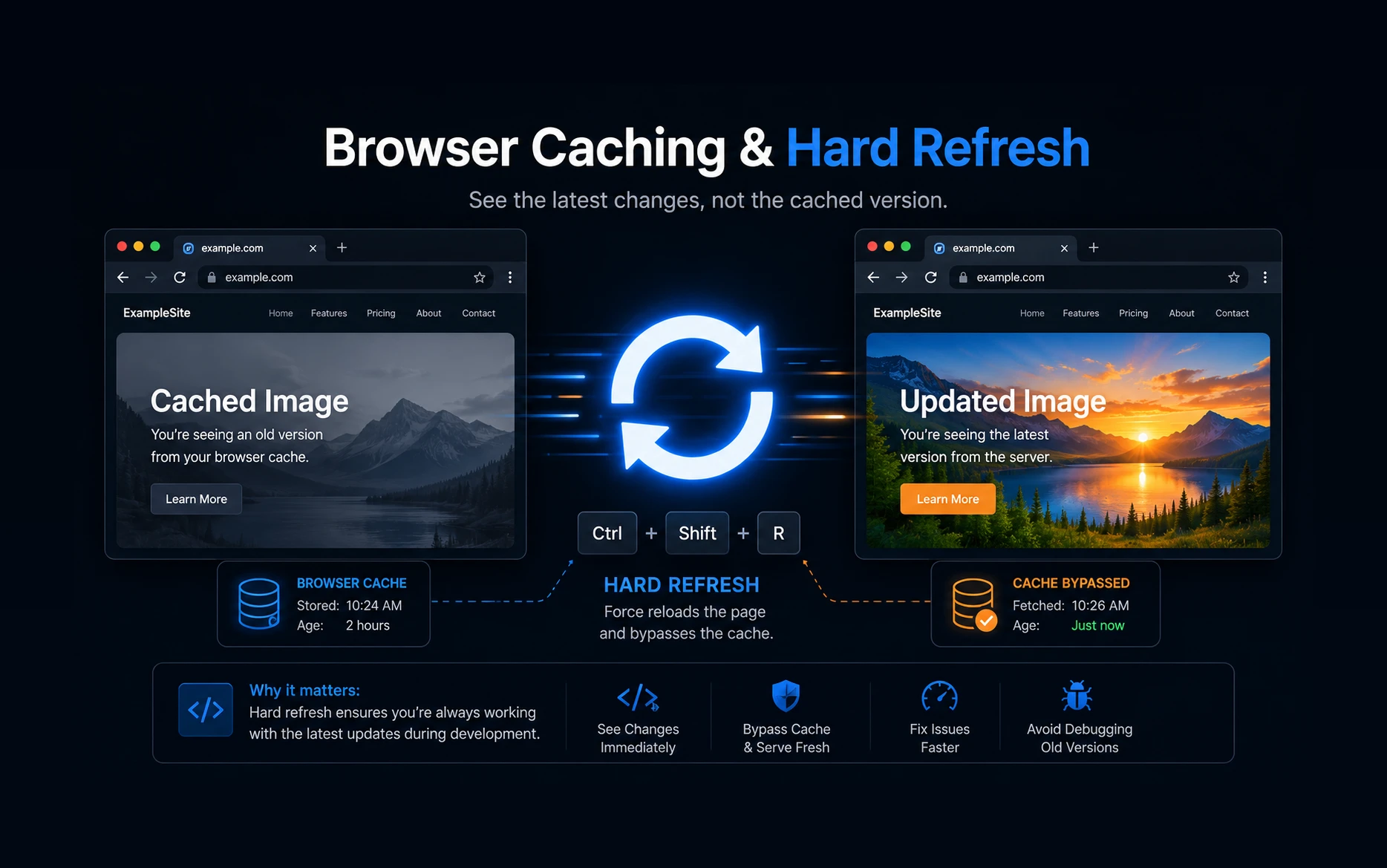
You replace an image on a website, refresh the page, and everything looks perfect.
Confident that the update is live, you ask your client to check the website. A few minutes later, you receive a message:
“I’m still seeing the old image.”
If you’ve been building websites for any length of time, you’ve probably had this conversation more than once.
Your first thought might be that the image upload failed or that something went wrong during deployment. In reality, the website is usually working exactly as expected. The browser is simply displaying a cached copy of the old image.
Over the years, I’ve learned that one of the first things to ask a client is:
“Could you try doing a hard refresh?”
That simple step has saved me countless hours of unnecessary debugging.
Why Does This Happen?
Modern web browsers are designed to make websites load as quickly as possible. To do that, they store copies of images, CSS files, JavaScript files, fonts, and other resources on your computer. This process is called browser caching.
You can get more information about browser caching from this mdn aricle: https://developer.mozilla.org/en-US/docs/Web/HTTP/Guides/Caching
The next time you visit the same website, your browser doesn’t need to download those files again. Instead, it uses the locally stored copies, making the page load much faster.
Most of the time, this is exactly what we want.
The problem appears when you replace an image with a newer version but keep the same filename. Since the browser already has a copy of that file, it may continue displaying the old version instead of downloading the updated one.
That’s why you may see the new image on your computer while your client is still looking at the old one.
What Is a Hard Refresh?
A normal page refresh reloads the webpage but may still use cached files.
A hard refresh tells the browser to ignore its local cache and request fresh files directly from the web server.
In many cases, that’s all it takes to display the latest version of your website.
How to Perform a Hard Refresh
| Browser | Windows | Mac |
|---|---|---|
| Chrome / Edge | Ctrl + Shift + R, Ctrl + F5 | Cmd + Shift +R |
| Firefox | Ctrl + Shift + R, Ctrl + F5 | Cmd + Shift + R |
| Safari | Click Reload. If the old image still appears, enable the Develop menu and choose Empty Caches, then reload the page. | Cmd + Option + E (Empty Caches), then reload the page. |
If you’re helping a client over the phone or through email, I’ve found that asking them to hold the Shift key and click the browser’s Refresh button is usually the easiest instruction to follow.
What If the Hard Refresh Doesn’t Work?
If the old image still appears after a hard refresh, there’s a good chance another layer of caching is involved.
Depending on how your website is hosted, your content may also be cached by:
- Your WordPress caching plugin
- Your hosting provider
- A CDN such as Cloudflare
- A reverse proxy or server cache
In those cases, you’ll need to clear or purge those caches as well before everyone sees the latest version.
My Preferred Way to Avoid This Problem
After dealing with this issue countless times, I’ve developed a simple habit.
Instead of replacing an image with another file that has exactly the same filename, I rename the new image before uploading it.
Instead of:
hero-banner.jpg
I use something like:
hero-banner-v2.jpg
or
hero-banner-2026.jpg
Because the filename changes, browsers treat it as a completely new file and download it immediately instead of using an older cached copy.
It’s a tiny change to my workflow, but it has eliminated many unnecessary support calls.
Other Ways to Confirm It’s a Cache Issue
If you’re not sure whether the problem is caused by browser caching, here are a few quick checks:
- Open the website in an Incognito or Private browsing window.
- Check the website in a different browser.
- Open the page on another device.
- Ask someone on a different network to check the page.
If the new image appears there, you’ve almost certainly confirmed that caching is the cause.
Final Thoughts
Browser caching is one of those things that quietly works in the background every day—until it doesn’t.
It’s designed to make websites faster, but it can also make it look as though your latest changes never happened.
These days, whenever a client tells me they’re still seeing the old image, I don’t immediately start checking the server or uploading the image again.
I simply ask them to perform a hard refresh.
More often than not, that’s all it takes.
Frequently Asked Questions
The most common reason is browser caching. Your browser is displaying a locally stored version of the image instead of downloading the latest one from the server.
A normal refresh reloads the page but may still use cached files. A hard refresh forces the browser to request fresh copies of those files from the server.
Yes. Plugins like LiteSpeed Cache, WP Rocket, and other caching solutions can continue serving older versions of images until their cache is cleared.
In many cases, yes. Renaming the image forces browsers to treat it as a new file, which avoids using the previously cached version.