If you’ve ever added custom code to your theme’s functions.php file, you’ve already taken your first step into WordPress development. But what happens when you switch themes? Those customizations disappear.
That’s where plugins come in.
A WordPress plugin allows you to add functionality to your website independently of your theme. In this tutorial, we’ll create a simple plugin from scratch and learn the basic structure of WordPress plugin development.
This guide is aimed at complete beginners, so we’ll start from the very beginning.
Prerequisites
Before we begin, you’ll need:
- A working WordPress installation (local or live)
- Access to your website files
- A code editor such as VS Code
If you already have WordPress installed, you’re ready to go.
Step 1: Locate the Plugins Directory
Every WordPress plugin lives inside the plugins folder.
Navigate to your WordPress installation and open:
wp-content/pluginsYou will likely see several folders already there, such as:
wp-content
└── plugins
    ├── akismet
    ├── elementor
    ├── wordpress-seo
    └── ...
Each folder represents an individual plugin.
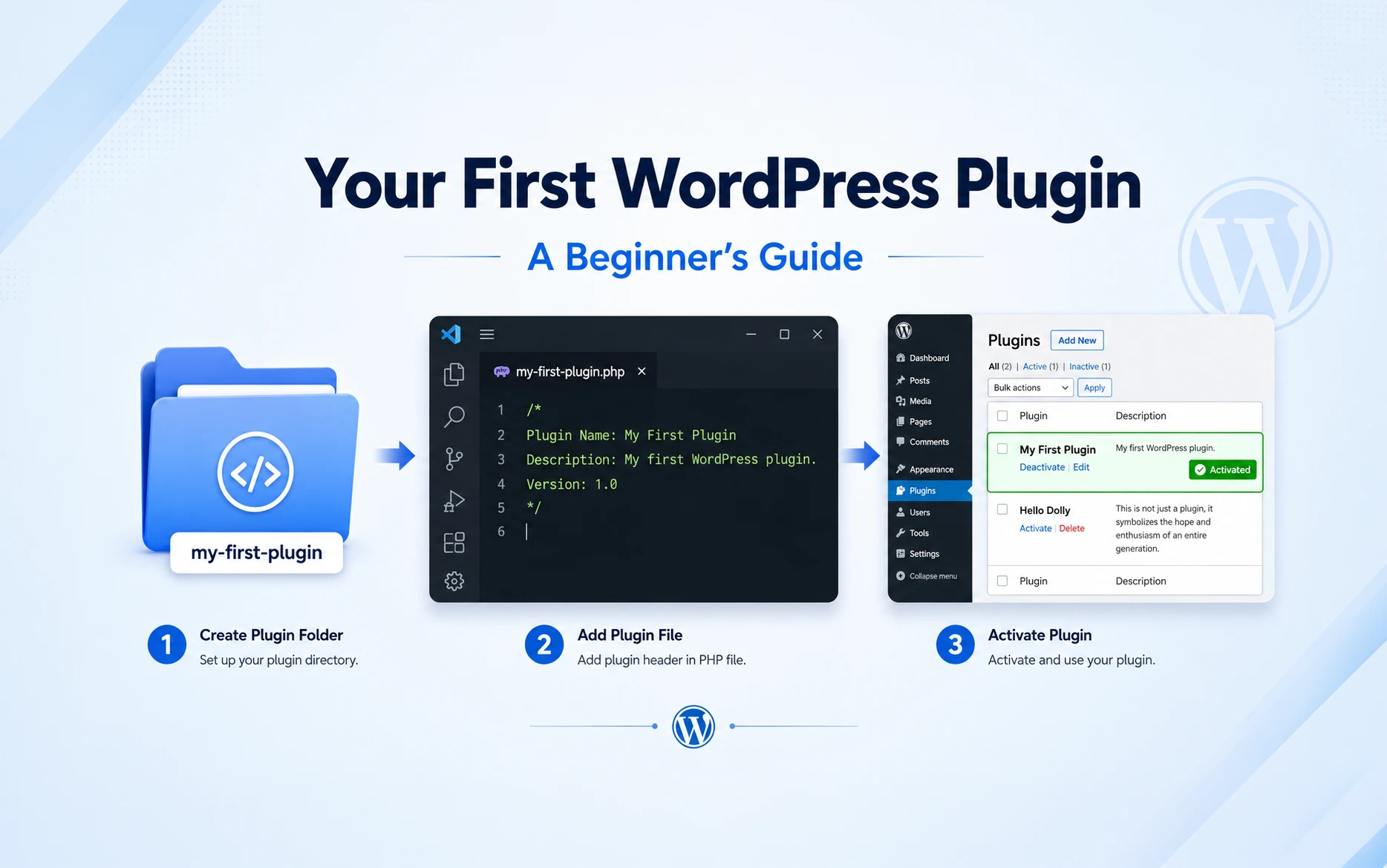
Step 2: Create a New Plugin Folder
Inside the plugins directory, create a new folder for your plugin.
For this example, we’ll name it:
my-first-pluginYour folder structure should now look like this:
wp-content
└── plugins
    └── my-first-plugin
When naming plugin folders, it’s a good practice to use lowercase letters and hyphens instead of spaces.
Step 3: Create the Main Plugin File
Inside your newly created folder, create a PHP file named:
my-first-plugin.phpYour structure should now look like this:
wp-content
└── plugins
    └── my-first-plugin
        └── my-first-plugin.php
This file will serve as the entry point for your plugin.
Step 4: Add the Plugin Header
Open my-first-plugin.php and add the following code:
<?php
/*
Plugin Name: My First Plugin
Description: My first WordPress plugin.
Version: 1.0
Author: Your Name
*/
Save the file.
This block of information is called the plugin header. WordPress reads this information to identify and display your plugin in the admin dashboard.
Step 5: Activate Your Plugin
Log in to your WordPress dashboard and navigate to:
Plugins → Installed Plugins
You should now see My First Plugin listed among your installed plugins.
Click Activate.
Congratulations! You’ve just created and activated your first WordPress plugin.
At this stage, the plugin doesn’t do anything yet, but WordPress recognizes it as a valid plugin.
Step 6: Make the Plugin Do Something
Let’s add a simple message to the footer of every page on your website.
Replace the contents of your plugin file with:
<?php
/*
Plugin Name: My First Plugin
Description: My first WordPress plugin.
Version: 1.0
Author: Your Name
*/

add_action('wp_footer', 'mfp_footer_message');

function mfp_footer_message() {
    echo '<p>Hello from my first WordPress plugin!</p>';
}
Save the file and refresh the front end of your website.
You should now see a message displayed at the bottom of every page.
Understanding What’s Happening
The most important line in the plugin is:
add_action('wp_footer', 'mfp_footer_message');This tells WordPress:
When the footer area is being rendered, run the function called
mfp_footer_message.
The function itself simply outputs some HTML:
function mfp_footer_message() {
    echo '<p>Hello from my first WordPress plugin!</p>';
}
This is your first introduction to WordPress hooks, one of the core concepts of plugin development.
Hooks allow developers to add or modify functionality without editing WordPress core files.
Step 7: Organizing Plugin Files
As plugins grow, it’s common to organize files into separate folders.
A typical plugin structure might look like this:
my-first-plugin
├── my-first-plugin.php
├── assets
│   ├── css
│   └── js
├── includes
└── templates
What These Folders Are Used For
| Folder | Purpose |
|---|---|
| assets | CSS, JavaScript, images |
| includes | Additional PHP files |
| templates | HTML template files |
| main plugin file | Loads everything together |
Keeping files organized becomes increasingly important as your plugin becomes more complex.
What Should You Learn Next?
Once you’re comfortable creating and activating plugins, these are the next concepts worth learning:
1. Actions and Hooks
Hooks allow you to add functionality at specific points in WordPress.
2. Filters
Filters allow you to modify existing content before it is displayed.
3. Shortcodes
Shortcodes let users insert dynamic content directly into posts and pages.
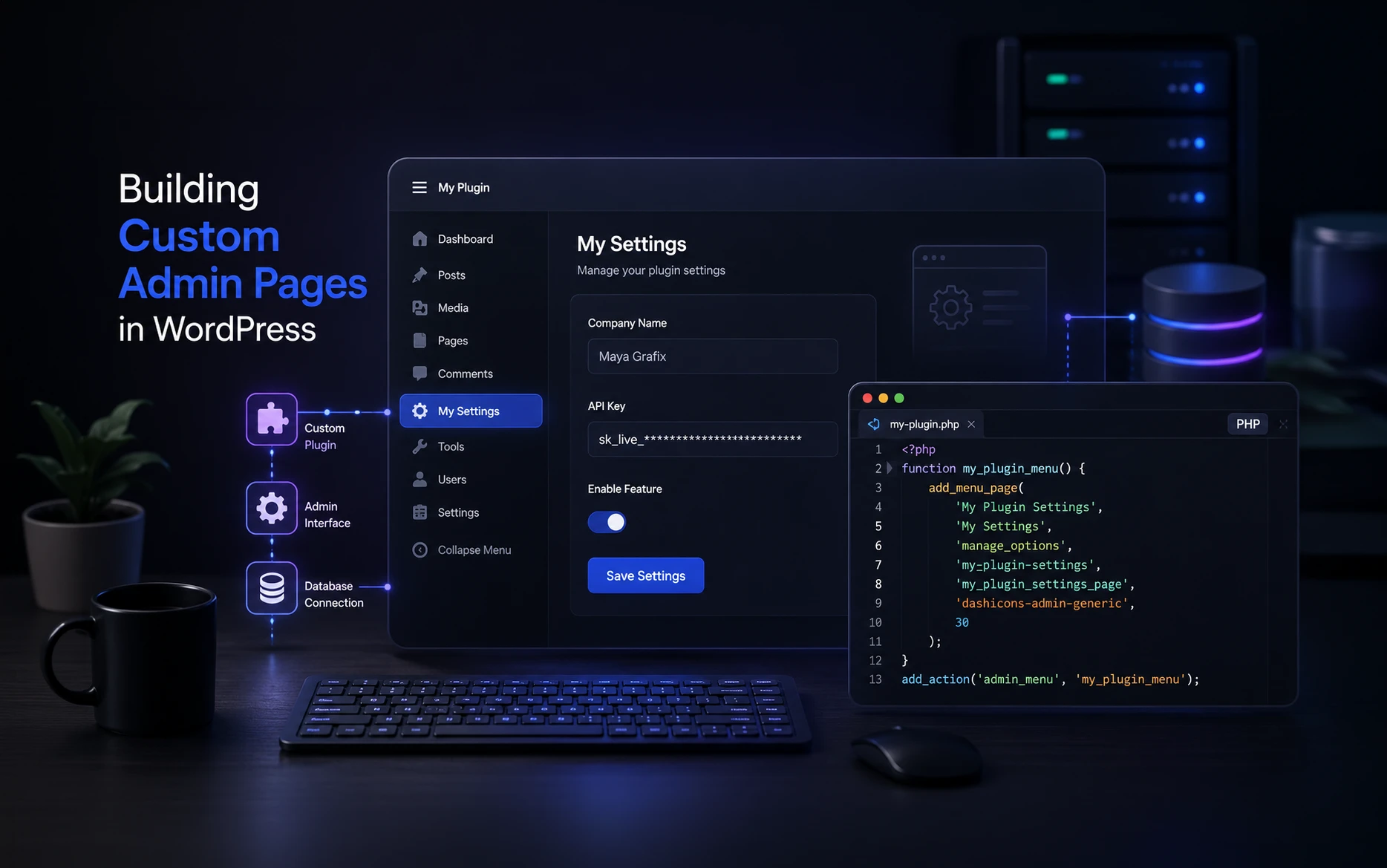
4. Admin Pages
Create custom settings pages within the WordPress dashboard.
5. Enqueuing CSS and JavaScript
Learn how to properly load assets within your plugin.
6. Storing Settings
Use the WordPress Options API to save plugin settings in the database.
Final Thoughts
Creating a WordPress plugin is much simpler than many beginners expect. At its core, a plugin is simply a PHP file with a plugin header and some custom functionality.
In this tutorial, you’ve learned how to:
- Create a plugin folder
- Create a plugin file
- Add a plugin header
- Activate a plugin
- Use your first WordPress action hook
Every advanced WordPress plugin starts with these same fundamentals.
If you’re interested in continuing your WordPress development journey, a great next step would be learning how to create a settings page or build your first shortcode.
Happy coding! 🚀