
Bricks components have become one of my favorite additions to the builder. They let us create a reusable structure once, use it throughout the site, and still customize individual instances where necessary.
But while working on my own blog, I ran into an interesting question.
I had created a reusable component that needed to look slightly different on my Single Blog template and Blog Archive. My first solution used a Component Property with Global Classes.
It worked perfectly. Then I discovered Bricks Component Variants, and realized that I had solved the problem in a more complicated way than necessary.
More importantly, it helped me understand when I should use Component Properties and when I should use Component Variants.
If a value needs to change independently for individual component instances, use a Component Property.
If you’re creating a predefined design or state that will be reused, use a Component Variant.
Let me show you the actual example that led me to this conclusion.
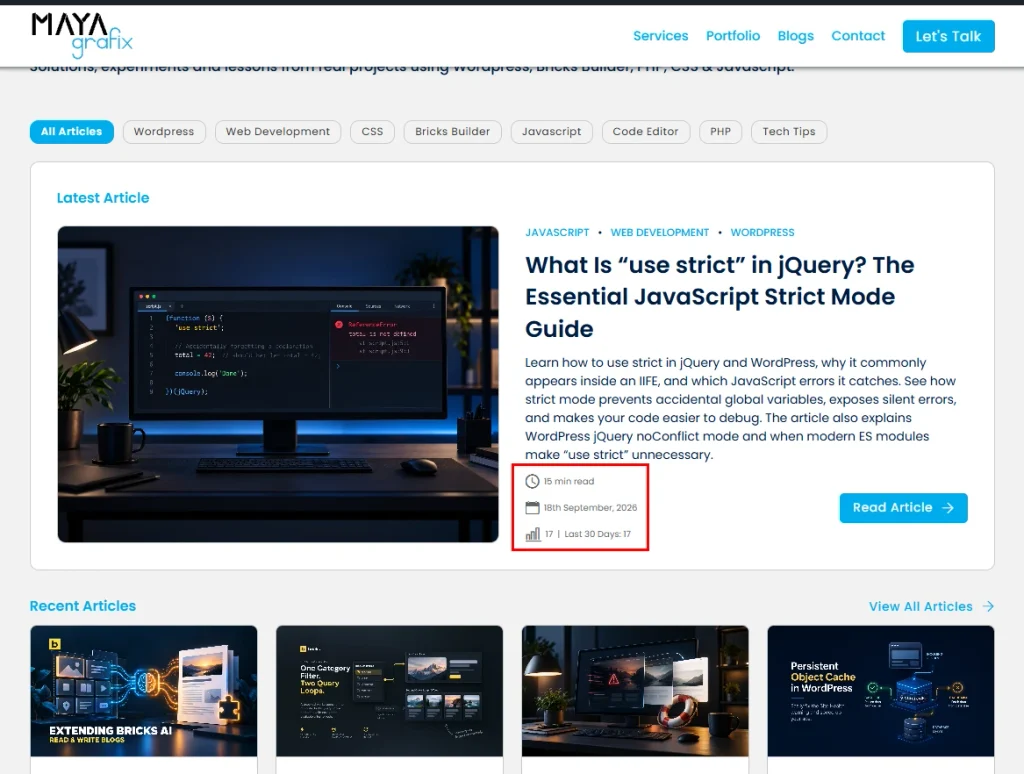
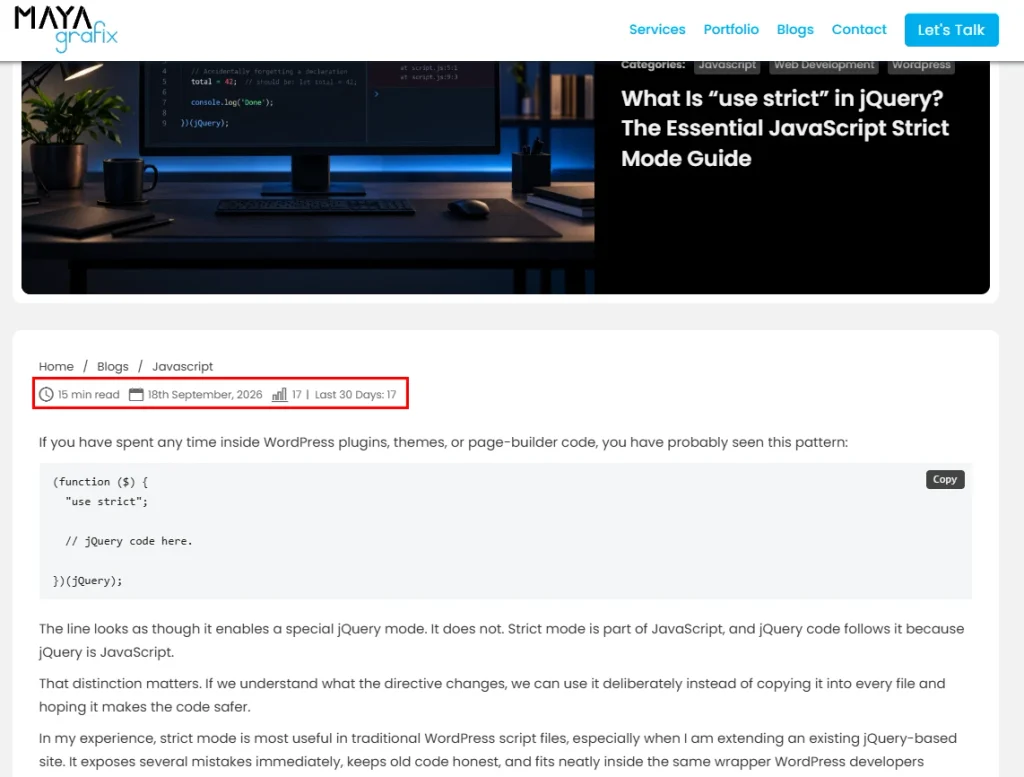
Table of Contents
The Component I Was Building
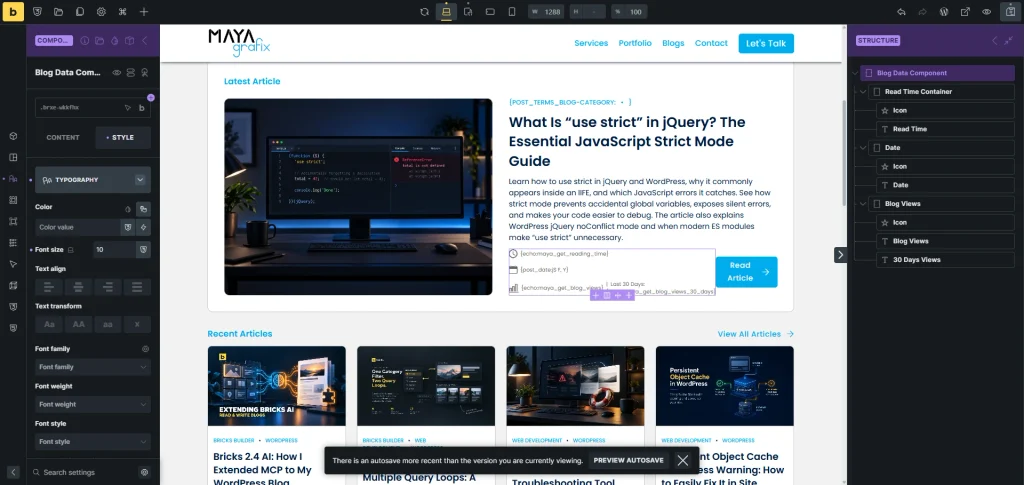
On the Maya Grafix blog, I have a small reusable component containing three pieces of information. The same component appears in different places on the site, but I don’t always want it to have the same layout.
On my Single Blog template, I wanted a 12px parent font size and a horizontal flex direction. On the Blog Archive, I wanted a 10px parent font size and a vertical flex direction.
The three text elements inside the component all use the same font size. Rather than setting the font size individually on all three child elements, I set it on the parent and allow the children to inherit it.
Blog Meta Component
│
├── Meta Item
├── Meta Item
└── Meta Item
This keeps the component much easier to maintain.
Why I Initially Looked at Component Properties
My first thought was to expose the values through Bricks Component Properties. That seems logical because Component Properties are designed to let us change something on an individual component instance.
The problem is that not every styling control in Bricks is available as a directly connectable Component Property. There isn’t simply a Font Size property that I can connect directly to the typography font-size control, and the same applies to several other styling controls.
That’s when I started looking at Global Classes.
My First Solution: Global Classes as a Component Property
Bricks allows Global Classes to be used as a Component Property. Instead of trying to expose font size and flex direction individually, I can create two Global Classes containing all the required styling.
Single Blog class
├── Font size: 12px
└── Direction: Row

Archive class
├── Font size: 10px
└── Direction: Column
Both classes can be created and styled entirely inside Bricks. There’s no need to write custom CSS for these values. Then I can expose the class selection through a Global Classes Component Property.
It works, and there are situations where this approach is genuinely useful. But there is an important detail when setting it up.
First Remove the Existing Component Values
If the parent container already has a font size or flex direction set directly on it, I don’t want to leave those values there and then add another set of values through a class. I first remove the values that I intend the class to control.
When editing the main component in Bricks, values belonging directly to the component are indicated in purple. Click the purple indicator beside the control and reset the existing value.
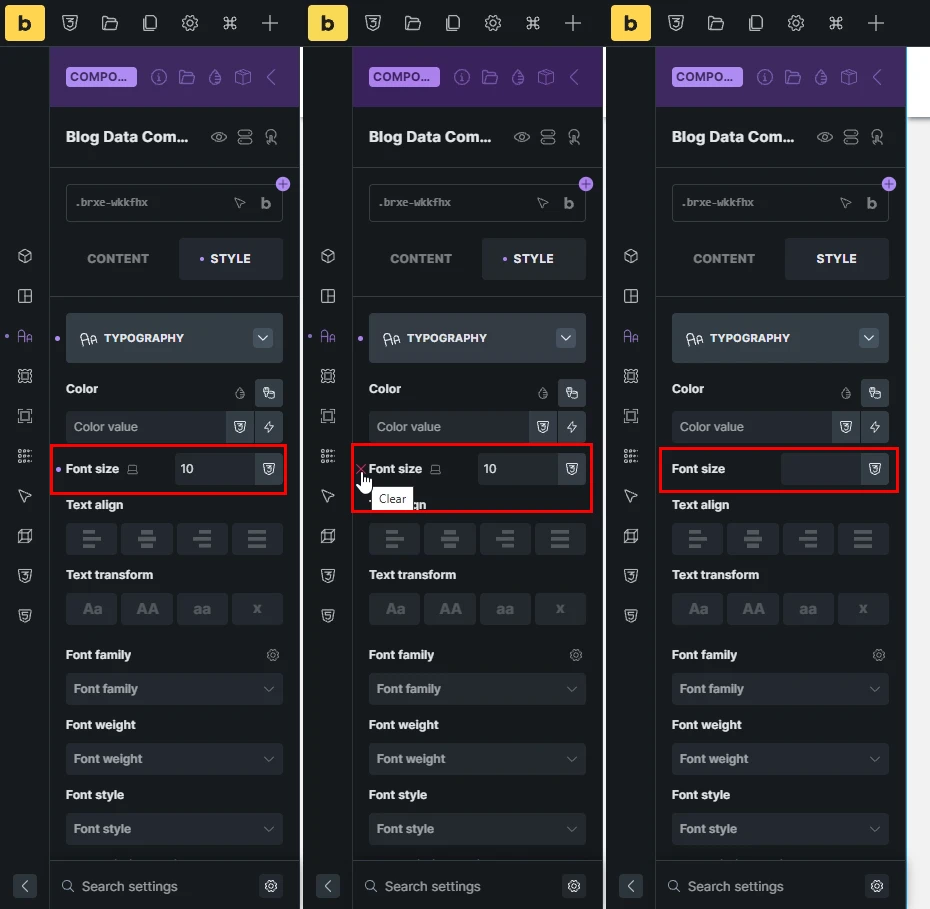
I do the same for the other values that I want the Global Class to control. Now the base component is no longer responsible for those particular styles.
Create the Global Classes in Bricks
Next, I create the Global Class for the Single Blog version and select it on the parent element. While that class is selected, I set the font size to 12px and the direction to Row.
The control indicator is now blue, which provides a useful visual confirmation that the value belongs to the class rather than being stored directly on the component.
I repeat the process for the Archive class, setting the font size to 10px and direction to Column.
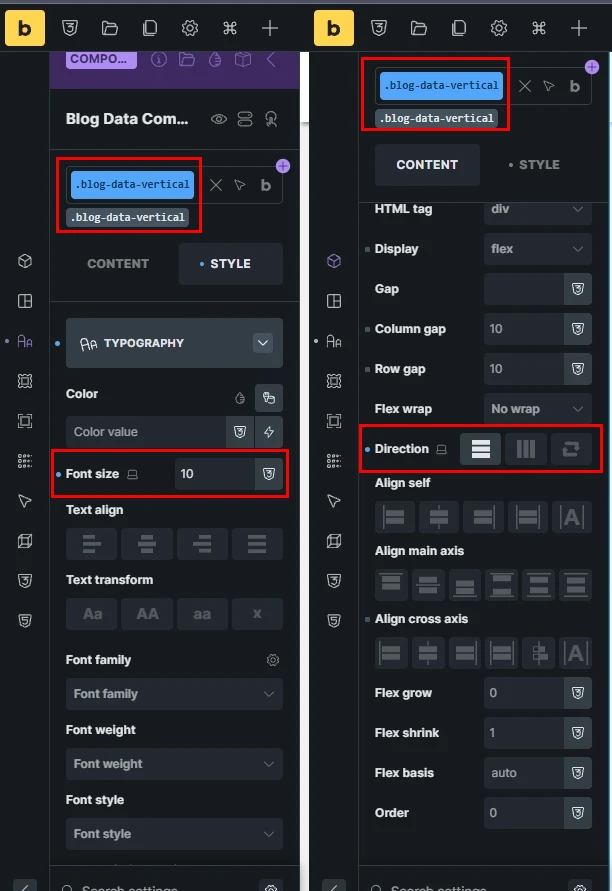
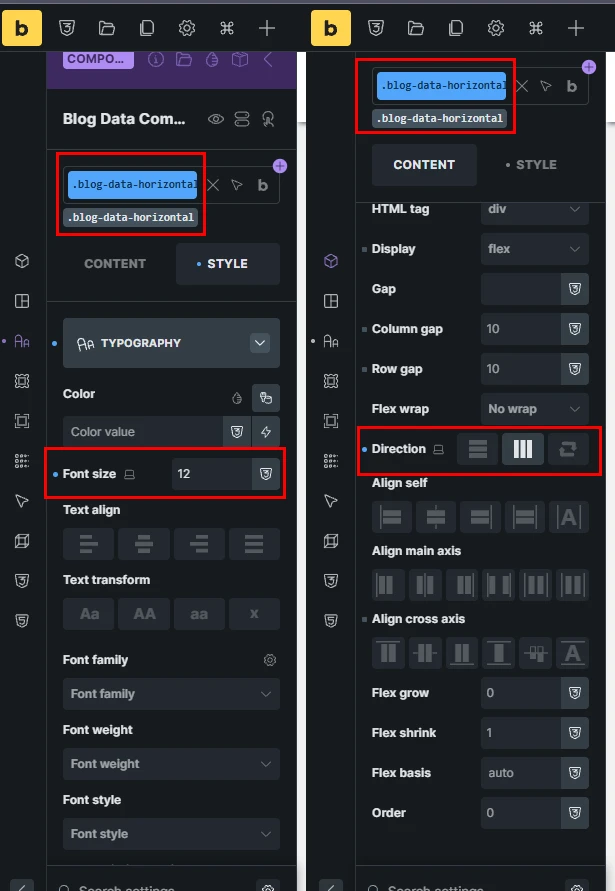
Once the classes have been created and styled, I remove the variation class from the base component element. The Global Classes still exist in Bricks with all their styling; I simply don’t want either one permanently assigned to the base component.
Expose the Classes Through a Component Property
I can now create a Global Classes Component Property with two choices: Single and Archive. The Single option points to the Single Blog Global Class, while Archive points to the Archive class.
I then connect that property to the Global Classes control of the parent element.
Watch this video to know how the property is created and connected to the class field.
Every component instance can now choose its required layout. Technically, the problem is solved. But there was a simpler way.
Then I Looked at Bricks Component Variants
Bricks introduced Component Style Variants in version 2.2. A variant lets us create predefined visual versions of the same component without duplicating its structure.
That description immediately made me reconsider what I was doing. My Single and Archive layouts weren’t really arbitrary values that needed to change independently on every instance.
They were two predefined designs.
Blog Meta Component

Base
│
├── Single Variant
│   ├── Font size: 12px
│   └── Direction: Row
│
└── Archive Variant
    ├── Font size: 10px
    └── Direction: Column
That’s exactly what a Component Variant is intended for.
Creating the Two Variants
Instead of creating Global Classes and exposing them through a Component Property, I can edit the main component and open the Variants panel. I create the same component as the base variant and then create the two alternate variants: Single and Archive.
With Single active, I configure the parent container for the Single Blog design: font size 12px and direction Row.
Then I switch to Archive and configure the font size to 10px and direction to Column.
Now, when I use the component on the Single Blog template, I select the Single variant. On the Blog Archive, I select Archive. That’s it.
There is no additional Global Classes property to maintain because these aren’t really instance-specific values. They’re two defined versions of the component.
Let the Child Elements Inherit the Font Size
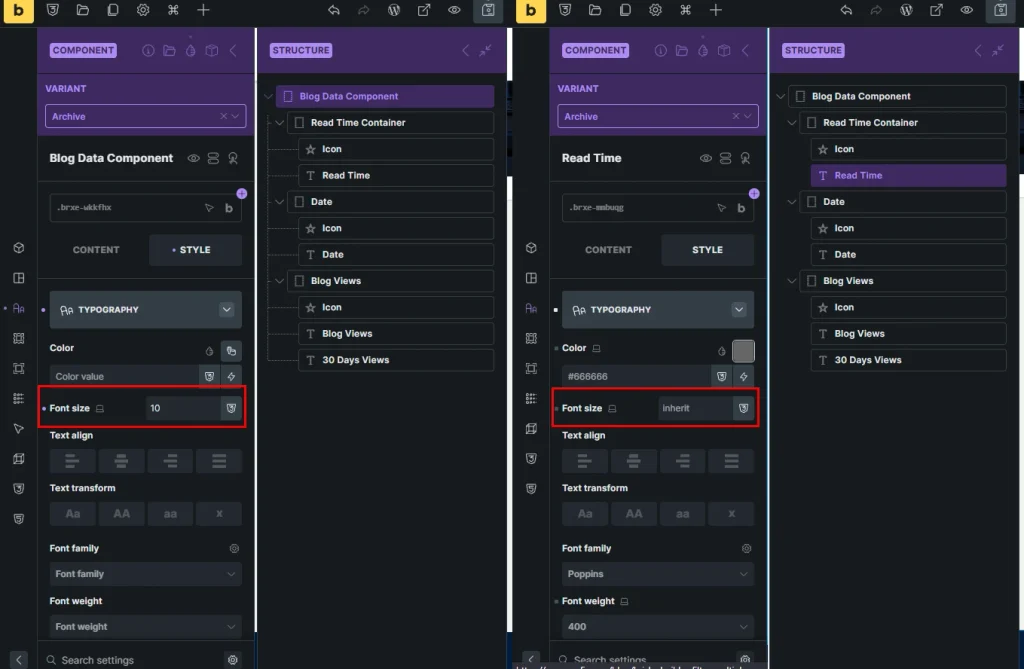
There is another small detail in this component that simplifies things further. I have three text elements that need the same font size.
Instead of setting the font size on all three elements for every variant, I let the parent control it and make the children inherit that value.
Parent
Font size: 12px
│
├── Child → inherit
├── Child → inherit
└── Child → inherit
When the Archive variant changes the parent’s font size to 10px, all three children follow automatically.
This is basic CSS inheritance, but I’ve found it particularly useful when building reusable Bricks components. Before exposing more controls or repeating settings, it’s worth checking whether CSS can already pass the value down for you.
The Simple Rule I Now Use
This experiment changed the way I think about Bricks components. I no longer start by asking, “Can I expose this as a Component Property?”
Instead, I ask: Does this value genuinely need to change for every instance?
If the answer is yes, a Component Property usually makes sense. If the answer is no, and I’m really creating a known design state, I look at Bricks Component Variants instead.
Bricks’ own documentation makes essentially the same distinction: Properties are intended for instance-level customization, while native variants are intended for formal component states or designs.
That distinction sounds small, but it can make your components considerably easier to maintain.
A Practical Example of When Properties Are Better
Imagine I have a reusable section heading component. One instance says “Latest Articles,” another says “Related Articles,” and another says “More From Maya Grafix.”
The heading genuinely changes for every instance. That’s a perfect Component Property.
I wouldn’t create three variants for those headings. They aren’t design variants; they’re instance-specific content.
The same logic can apply to images, links, toggles, queries and other values that need to vary independently.
When Component Variants Are Better
Now imagine a reusable card with three predefined designs: Default, Featured and Compact. Each design changes several things at once, such as spacing, typography or layout.
Those are design states. I personally prefer Bricks Component Variants for this kind of situation because the intent is immediately obvious when I return to the project later.
I’m choosing a design, not configuring a collection of unrelated properties.
When the Global Classes Property Approach Still Makes Sense
The Global Classes method I originally used isn’t wrong. In fact, it can be more flexible when a style choice needs to remain independent of the component’s main variant.
Suppose a component has Default, Featured and Compact variants, but also needs independent Alignment choices such as Left or Center and Theme choices such as Light or Dark.
If I tried to represent every possible combination entirely with variants, the number of variants could grow quickly: Featured Light Left, Featured Light Center, Featured Dark Left, Featured Dark Center, and so on.
In that situation, keeping Featured/Compact as Component Variants while exposing Theme or Alignment independently through properties can be a much cleaner architecture.
A Global Classes property is especially useful when one choice needs to apply several predefined styles together. So I haven’t abandoned the technique I originally used. I just wouldn’t use it for my Single/Archive example anymore.
Don’t Use Properties Just Because You Can
This is probably the biggest lesson I took from this. Bricks gives us several ways to make components flexible, but maximum flexibility isn’t always the goal.
Every property we expose adds another decision to every component instance. If the user only needs to choose between Single and Archive, I’d rather give them those two meaningful choices than expose font size, direction and other individual controls.
It also prevents accidental combinations that were never part of the design.
This has become my standard workflow: keep instance properties for values that genuinely vary, and use variants for predefined designs.
Component Properties vs Variants at a Glance
| Requirement | My Choice |
|---|---|
| Heading changes on every instance | Component Property |
| Image changes on every instance | Component Property |
| Link changes on every instance | Component Property |
| Show/hide something per instance | Component Property |
| Primary/secondary button designs | Component Variant |
| Compact/expanded component designs | Component Variant |
| Single/Archive versions of the same component | Component Variant |
| Several styles change together as one design | Component Variant |
| Independent style option that combines with variants | Component Property / Global Classes |
The question isn’t really which feature is more powerful. It’s what kind of variation you’re creating.
Common Mistakes to Avoid
One mistake is turning every possible setting into a Component Property. It makes the component technically flexible but unnecessarily complicated to use.
The opposite can happen with variants. If you’re creating variants simply because one piece of text or one image changes, that probably belongs in a property instead.
Another mistake I nearly made was assuming that because a particular style control isn’t directly exposed as a Component Property, I needed to find a workaround for it.
Sometimes you don’t need to expose that control at all. The real requirement might simply be a different variant.
Final Thoughts
My original Global Classes solution worked, and figuring it out taught me quite a bit about how Bricks Component Properties can be extended beyond the obvious controls.
But for my blog component, Bricks Component Variants are the cleaner solution. I have two known designs—Single and Archive—and I don’t need the font size or flex direction to vary arbitrarily from one instance to another.
That’s the distinction I’ll use going forward: values that change per instance → Properties. Reusable predefined designs → Variants.
And when those two requirements overlap, I’ll combine them instead of trying to make one feature do everything.
If you’re building components in Bricks, I’d be interested to know how you’re deciding between Properties and Variants in your own projects. There are plenty of cases where both approaches can technically work, and those are usually the situations where component architecture starts getting interesting.
Frequently Asked Questions
Bricks Component Variants let you create predefined visual versions of the same component while keeping the underlying component structure shared. For example, one component could have Default, Compact and Featured variants.
Bricks Component Variants let you create predefined visual versions of the same component while keeping the underlying component structure shared. For example, one component could have Default, Compact and Featured variants.
Component Properties are better suited to values that need to change independently on individual instances, such as text, images, links, toggles, queries or other exposed controls.
Yes. In many components this is the cleanest approach. A variant can determine the overall design while properties handle values that genuinely need to vary from instance to instance.
Yes. Bricks includes a Global Classes property type. You can define options that apply one or multiple Global Classes and connect that property to an element’s Global Classes control.
Not necessarily. Ask whether you’re creating a reusable design state or simply changing an instance-specific value. The former usually suits a variant; the latter usually suits a property.
No. You can create and style Global Classes using the normal Bricks builder controls and then expose those classes through a Global Classes Component Property.
Useful Resources
Official Bricks Resources
- Bricks Components – Official Documentation — The most relevant reference. It covers Component Properties, Component Variants, Global Classes properties, instances, and how component data works.
- Bricks Global CSS Classes — Useful alongside the Global Classes Component Property method discussed in the article. It also explains the important difference between element ID styles and class styles.
- Bricks Global Class Manager — Good additional reading for developers who want to manage reusable classes systematically across a larger Bricks site.
More from Maya Grafix
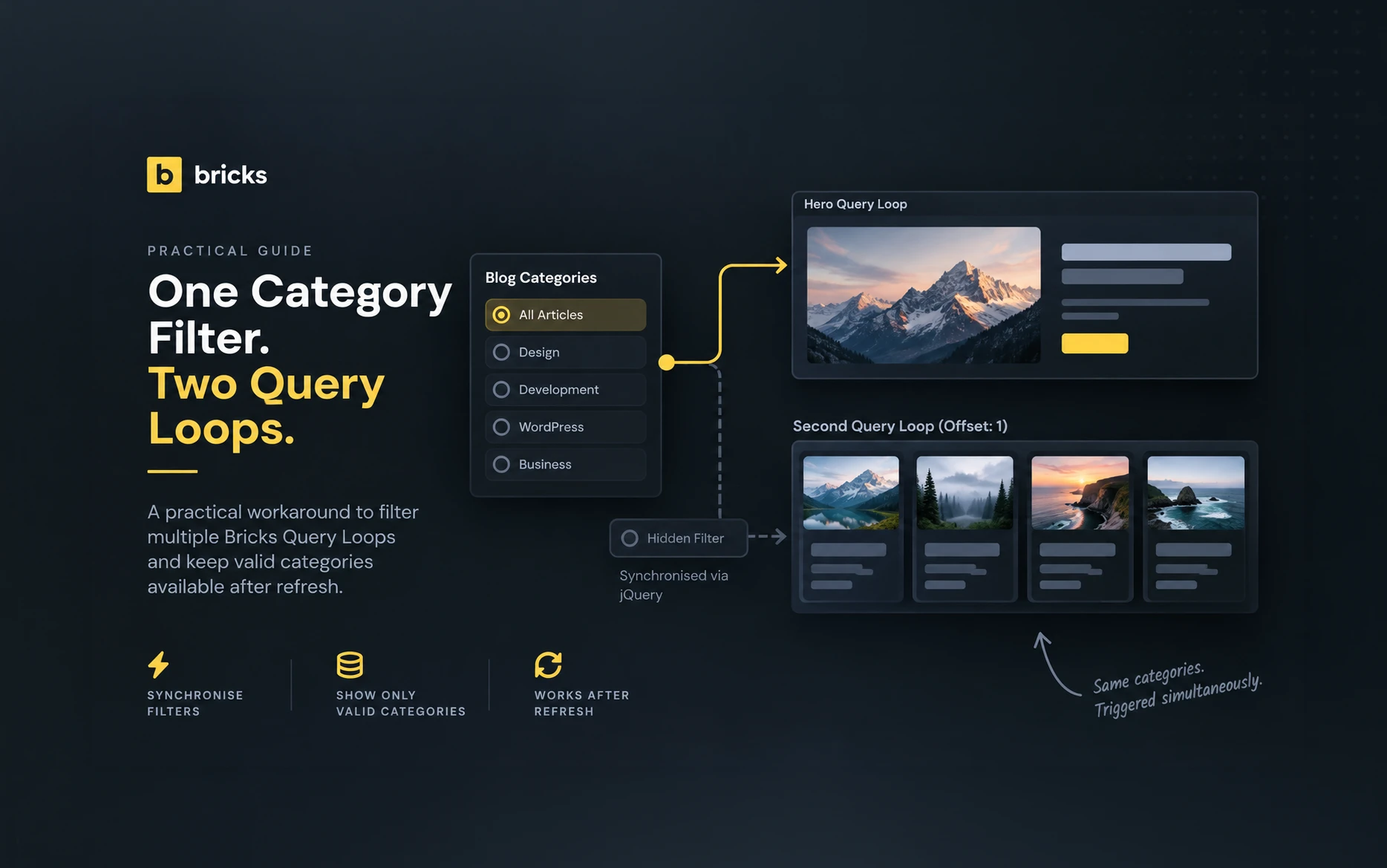
- Bricks Builder Filter Multiple Query Loops: A Practical Workaround — See how one filter is used to control multiple Query Loops with a small js snippet.
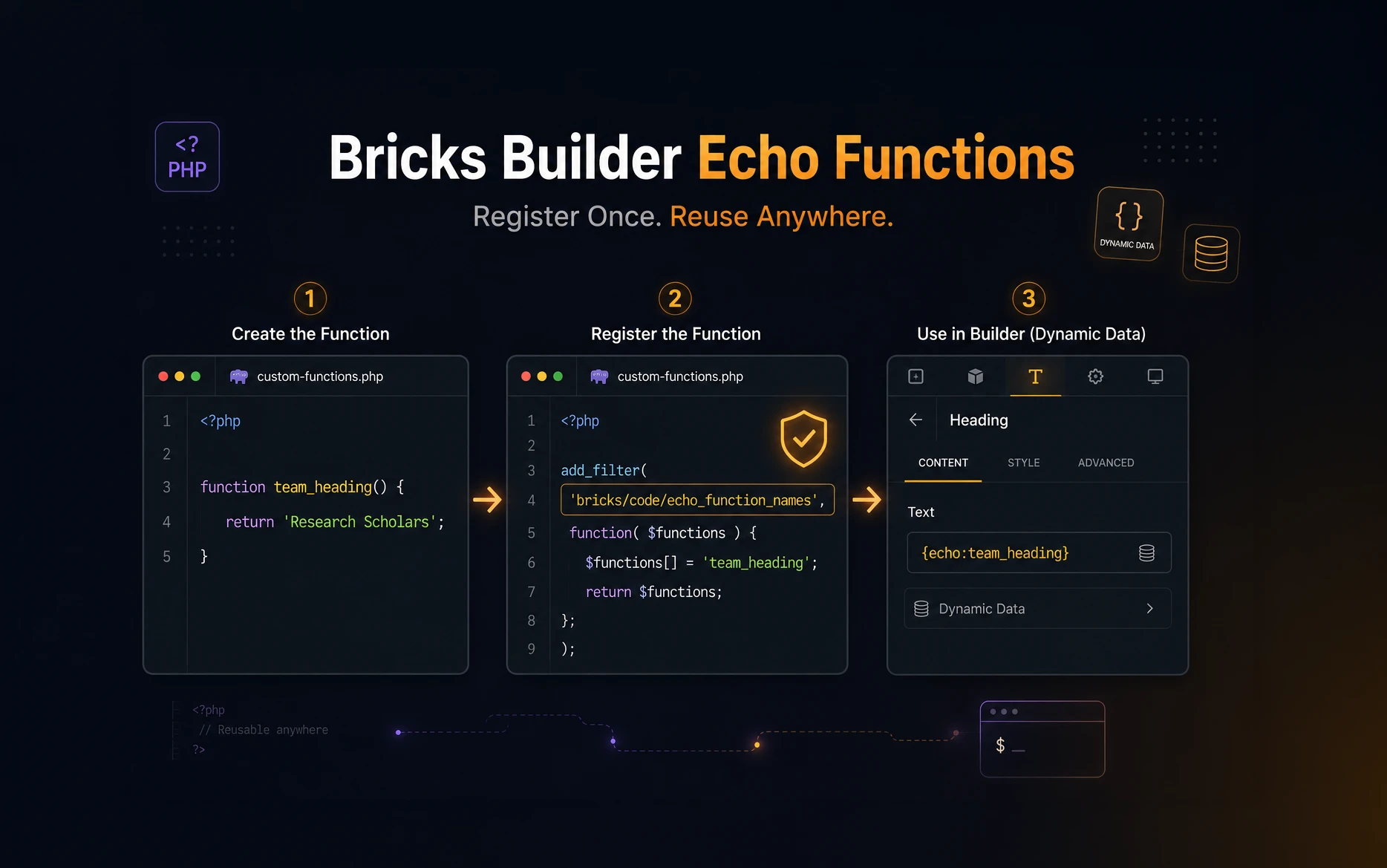
- How to Register and Use Bricks Builder Echo Functions —A practical guide to registering custom PHP functions for use with Bricks dynamic data, useful when your reusable components need more than the built-in dynamic data options.