Recently, somebody asked me what the correct way is to enqueue CSS and JavaScript in WordPress with version numbers.
I have been enqueueing files in WordPress for years, so I already had an answer. But before replying, I decided to research it properly and see whether there was anything I was missing.
There was.
While looking at the different ways to enqueue CSS and JavaScript in WordPress and handle asset versions, I came across a very small PHP function that caught my attention:
filemtime()I knew about file modification times, of course, but I hadn’t been using filemtime() for my WordPress asset versions.
Once I understood how neatly it solved the problem, I changed the way I enqueue my own CSS and JavaScript files.
It’s a small change, but a very useful one.
Table of Contents
The Way I Was Enqueueing My CSS
This is essentially how I was loading my stylesheet:
wp_enqueue_style(
    'maya-style',
    get_stylesheet_directory_uri() . '/assets/css/style.css'
);
There is nothing particularly wrong with this code.
The stylesheet is properly enqueued and WordPress handles loading it.
A quick note about the stylesheet name: I’m using
custom-styles.cssin these examples rather thanstyle.css. In a WordPress theme,style.csshas a special purpose because WordPress uses the rootstyle.cssfile for the theme’s stylesheet and theme metadata. For additional CSS files that I’m enqueueing separately, I personally prefer descriptive names such ascustom-styles.css,frontend-styles.cssor a name related to the functionality. It makes the purpose of the file much clearer as the project grows.
But wp_enqueue_style() accepts some additional arguments:
wp_enqueue_style(
    $handle,
    $src,
    $deps,
    $ver,
    $media
);
My original code only provided the first two.
The argument that became interesting during my research was:
$verThis is where we can provide a version number for the stylesheet.
If $ver is left at its default value of false, WordPress uses the currently installed WordPress version as the version string.
So the generated stylesheet URL may look something like:
custom-styles.css?ver=6.x.xThis made me look at the version parameter differently.
Instead of simply accepting the default version, could I make the version represent the actual CSS file?
That’s where things became interesting.
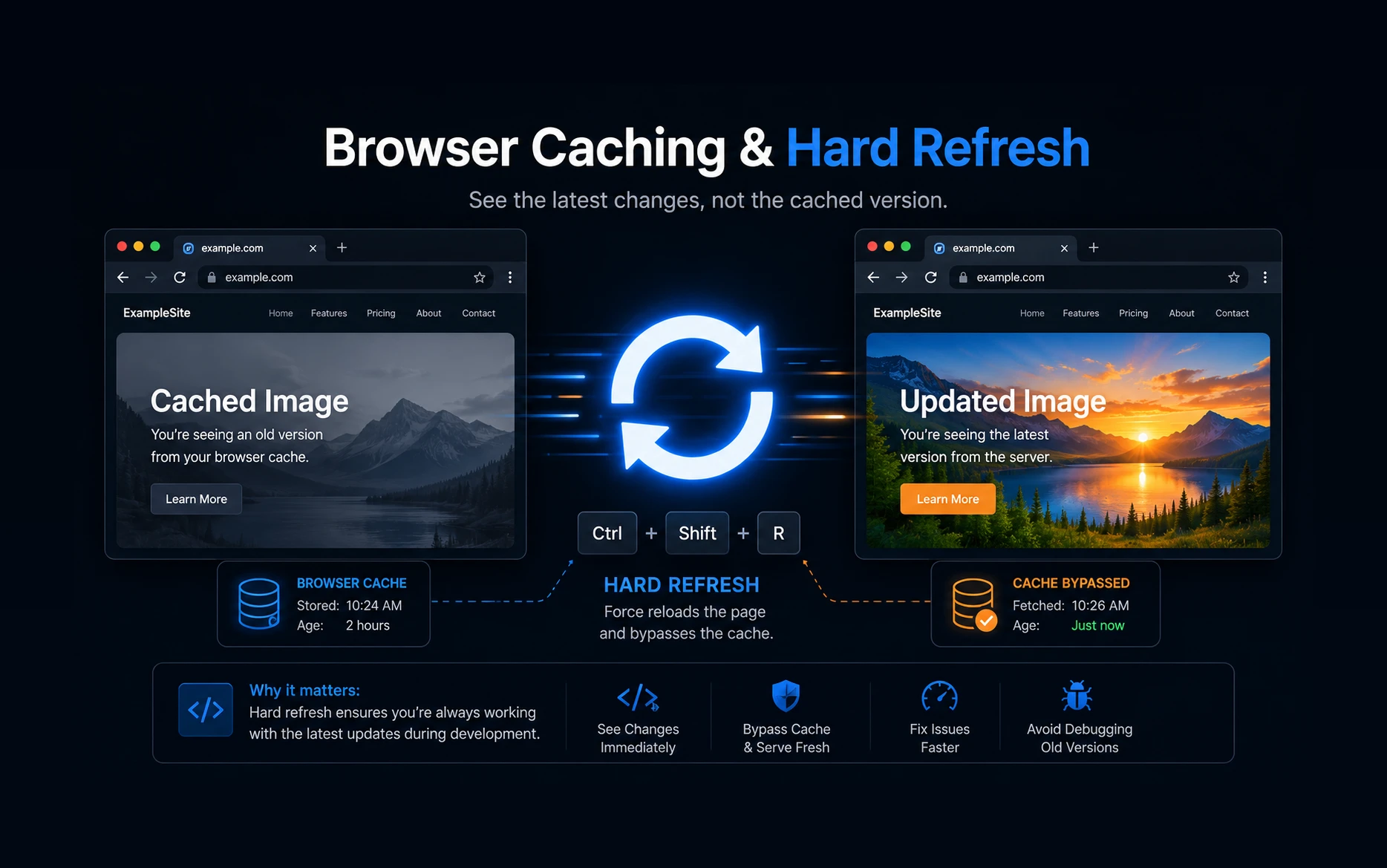
Why Does the Version Number Matter?
This is a situation most developers have encountered.
You change some CSS, upload the file and refresh the website.
Nothing changes.
So you start checking the CSS.
Is the selector correct?
Is another rule overriding it?
Did I upload the correct file?
Then you clear the browser cache and suddenly everything works.
Sometimes there was nothing wrong with your CSS at all. You were simply looking at an older cached copy of the stylesheet.
A version query string helps us deal with this.
For example:
custom-styles.css?ver=1.0.0If we change the version:
custom-styles.css?ver=1.0.1the URL changes.
Browsers and other caching layers can now treat it as a changed resource and request the updated file.
The same principle applies when we enqueue JavaScript.
So when we enqueue CSS and JavaScript in WordPress, the version argument isn’t just some optional number we can ignore. It can be genuinely useful during development and when deploying updated assets.
The Obvious Solution: Add a Version Manually
The simplest solution is to provide our own version number.
For example:
wp_enqueue_style(
    'maya-style',
    get_stylesheet_directory_uri() . '/assets/css/custom-styles.css',
    array(),
    '1.0.0'
);
WordPress can now generate:
custom-styles.css?ver=1.0.0When I change the stylesheet, I can update the version:
wp_enqueue_style(
    'maya-style',
    get_stylesheet_directory_uri() . '/assets/css/custom-styles.css',
    array(),
    '1.0.1'
);
And that works perfectly well.
But there is one practical problem.
I have to remember to change it.
If I’m working on a site and modifying CSS or JavaScript several times, manually maintaining 1.0.0, 1.0.1, 1.0.2 and so on is one more thing to remember.
There had to be a cleaner way.
That’s where filemtime() became useful.
The Small PHP Function That Changed My Approach
filemtime() isn’t a WordPress function.
It’s a PHP function.
Give it the path to a file and it returns the time that file was last modified as a Unix timestamp.
For example:
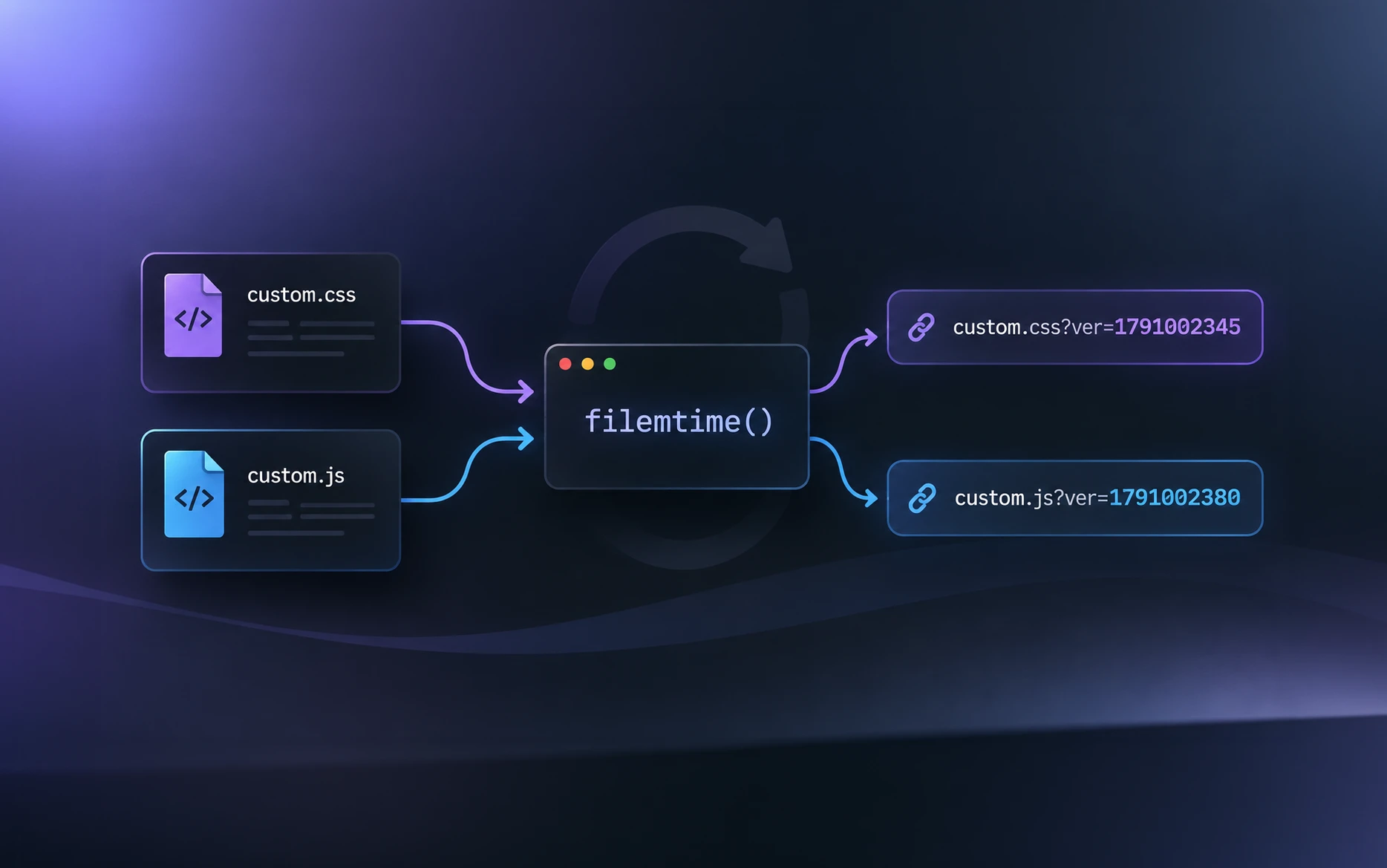
filemtime( get_stylesheet_directory() . '/assets/css/custom-styles.css' )It may return something similar to:
1791002345The actual number doesn’t matter to us.
What matters is this:
When the file changes, the value changes.
That makes it extremely useful as an automatic version number.
Instead of manually deciding:
1.0.0
1.0.1
1.0.2
I can let the file determine its own version.
That was the useful little discovery that changed how I now enqueue CSS and JavaScript in WordPress.
Using filemtime() as the CSS Version
Let’s modify my original code.
First, I need the physical path to the CSS file:
$css_file = get_stylesheet_directory() . '/assets/css/custom-styles.css';Then I can pass its modification time as the $ver argument:
$css_file = get_stylesheet_directory() . '/assets/css/custom-styles.css';

wp_enqueue_style(
    'maya-style',
    get_stylesheet_directory_uri() . '/assets/css/custom-styles.css',
    array(),
    filemtime( $css_file )
);
WordPress can now generate a URL similar to:
custom-styles.css?ver=1791002345Now I edit custom-styles.css and save it.
The file’s modification time changes.
Therefore:
filemtime( $css_file )returns a different value.
That gives the stylesheet a new version automatically.
I don’t have to remember to change anything.
Even better, if I don’t modify the stylesheet, filemtime() continues returning the same value.
That means the URL stays the same and the browser can continue using its cached copy.
That’s exactly the behaviour I want.
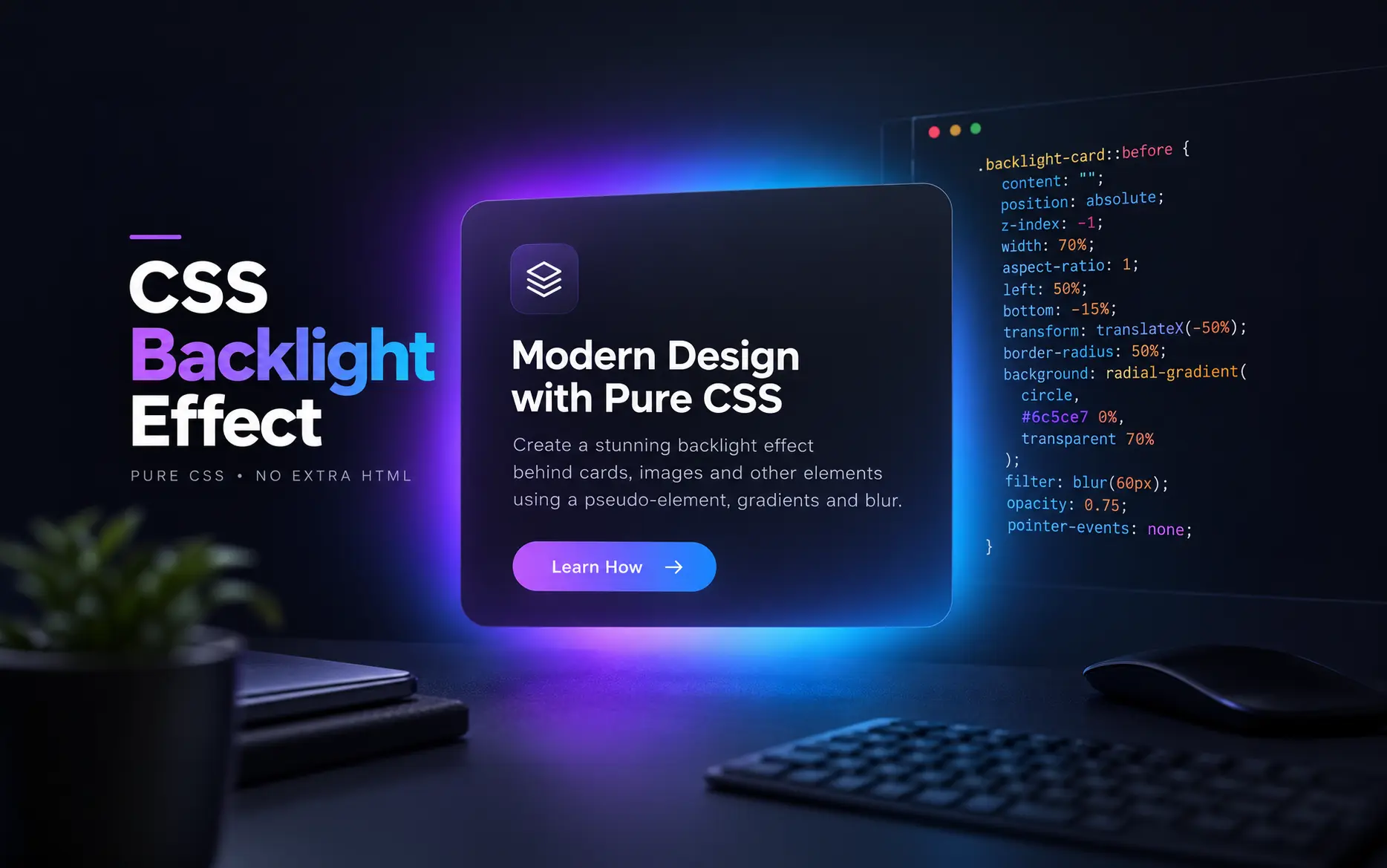
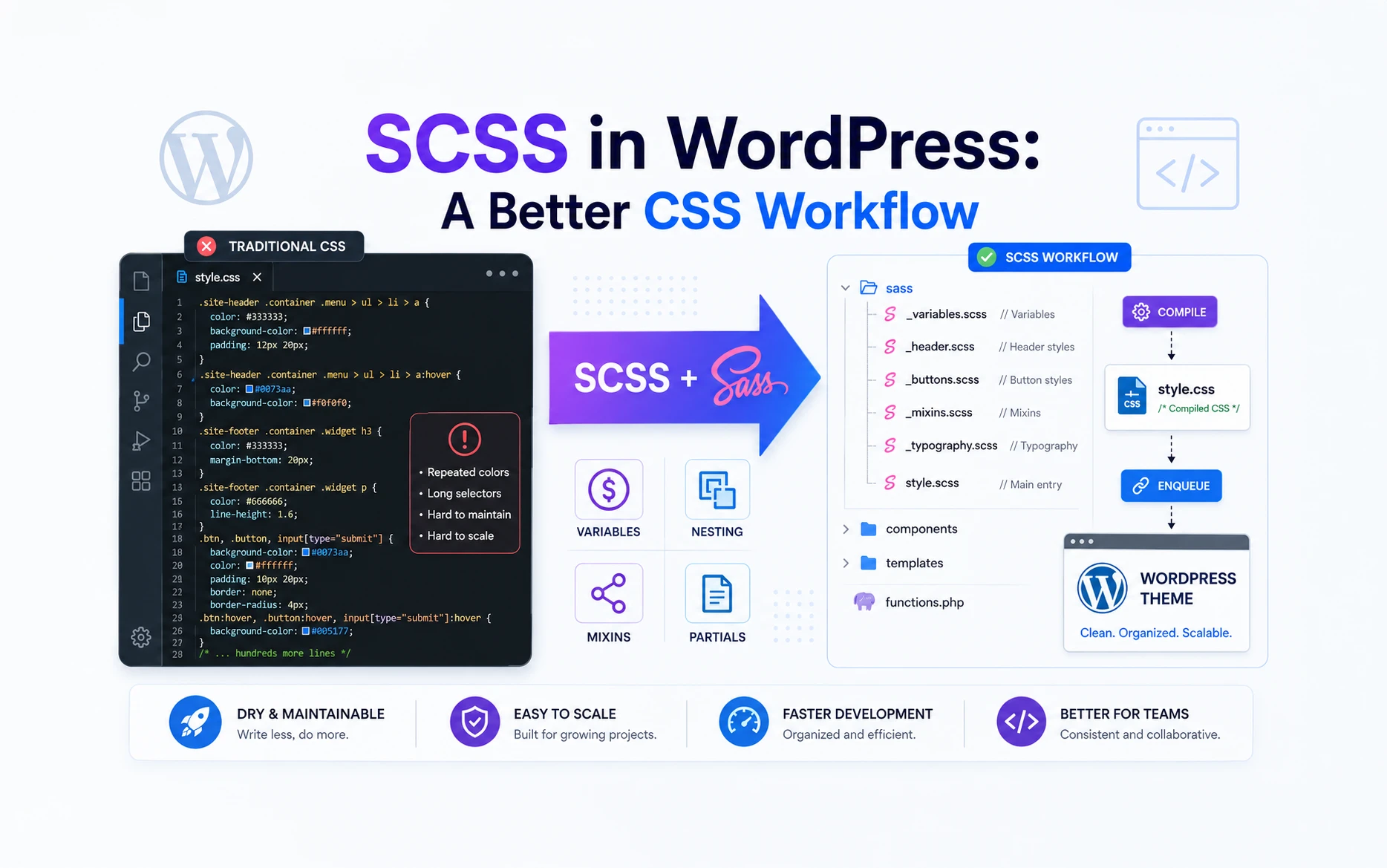
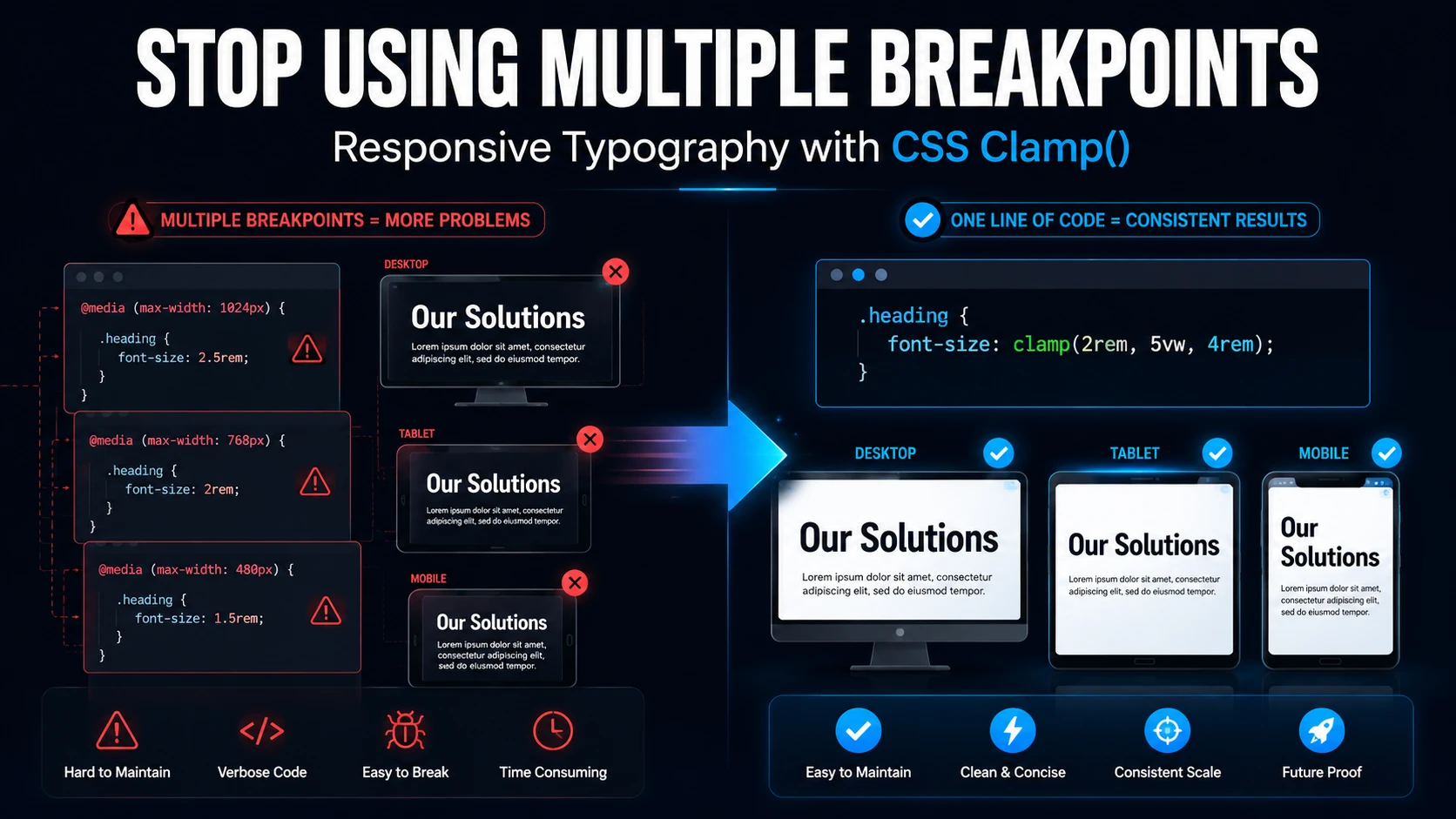
I work with custom CSS quite often. For example, the techniques in my CSS Clamp Responsive Typography article and CSS Backlight Effect tutorial involve repeatedly editing and testing CSS.
During that kind of development, having the asset version change automatically when I modify the file is very convenient.
Don’t Confuse the File Path and the File URL
There is one important detail in the previous example.
Look at these two WordPress functions:
get_stylesheet_directory()and:
get_stylesheet_directory_uri()They aren’t interchangeable.
This:
get_stylesheet_directory_uri()gives us the URL.
The browser needs that URL to request the stylesheet:
get_stylesheet_directory_uri() . '/assets/css/custom-styles.css'But filemtime() isn’t asking the browser for anything.
PHP needs to inspect the actual file on the server.
Therefore, filemtime() needs the physical filesystem path:
get_stylesheet_directory() . '/assets/css/custom-styles.css'So when you look at this code:
$css_file = get_stylesheet_directory() . '/assets/css/custom-styles.css';

wp_enqueue_style(
    'maya-style',
    get_stylesheet_directory_uri() . '/assets/css/custom-styles.css',
    array(),
    filemtime( $css_file )
);
we’re deliberately using two different values.
The filesystem path is for filemtime().
The URL is for wp_enqueue_style().
It’s a small distinction, but an important one.
Now Let’s Do the Same for JavaScript
The same technique works when we enqueue JavaScript.
Suppose my custom JavaScript is:
/assets/js/main.jsI can get its physical path:
$js_file = get_stylesheet_directory() . '/assets/js/main.js';Then use filemtime() as its version:
$js_file = get_stylesheet_directory() . '/assets/js/main.js';

wp_enqueue_script(
    'maya-script',
    get_stylesheet_directory_uri() . '/assets/js/main.js',
    array(),
    filemtime( $js_file ),
    array(
        'in_footer' => true,
    )
);
The principle is exactly the same.
Modify main.js and the version changes.
Don’t modify it and the version stays the same.
So we now have the same automatic versioning behaviour when we enqueue CSS and JavaScript in WordPress.
There is, however, one more thing I normally add to my JavaScript enqueue.
I Usually Add jQuery as a Dependency
I predominantly use jQuery in my WordPress projects.
WordPress already registers jQuery, so I don’t need to manually download jQuery or load another copy from a CDN.
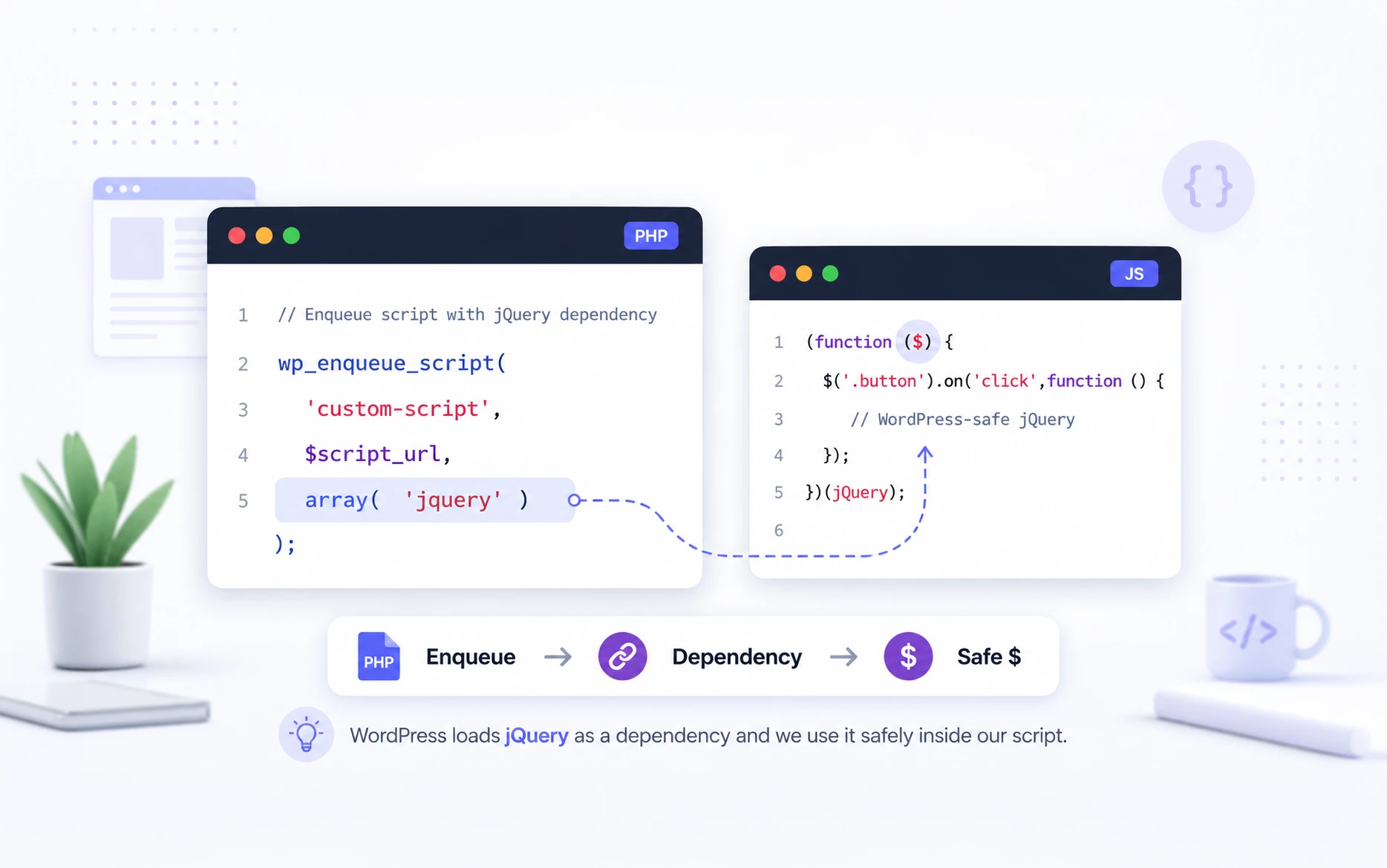
Instead, I tell WordPress that my custom script depends on jQuery.
That’s what the dependency argument is for.
I change:
array()to:
array( 'jquery' )So my actual JavaScript enqueue looks like this:
$js_file = get_stylesheet_directory() . '/assets/js/main.js';

wp_enqueue_script(
    'maya-script',
    get_stylesheet_directory_uri() . '/assets/js/main.js',
    array( 'jquery' ),
    filemtime( $js_file ),
    array(
        'in_footer' => true,
    )
);
By declaring jquery as a dependency, I’m letting WordPress handle the dependency instead of manually loading another copy myself.
If your JavaScript is completely vanilla and doesn’t depend on jQuery, you don’t need to add it.
Since I predominantly use jQuery, however, this has become part of my normal enqueue setup.
A Small Note About jQuery in WordPress
There is another thing worth remembering.
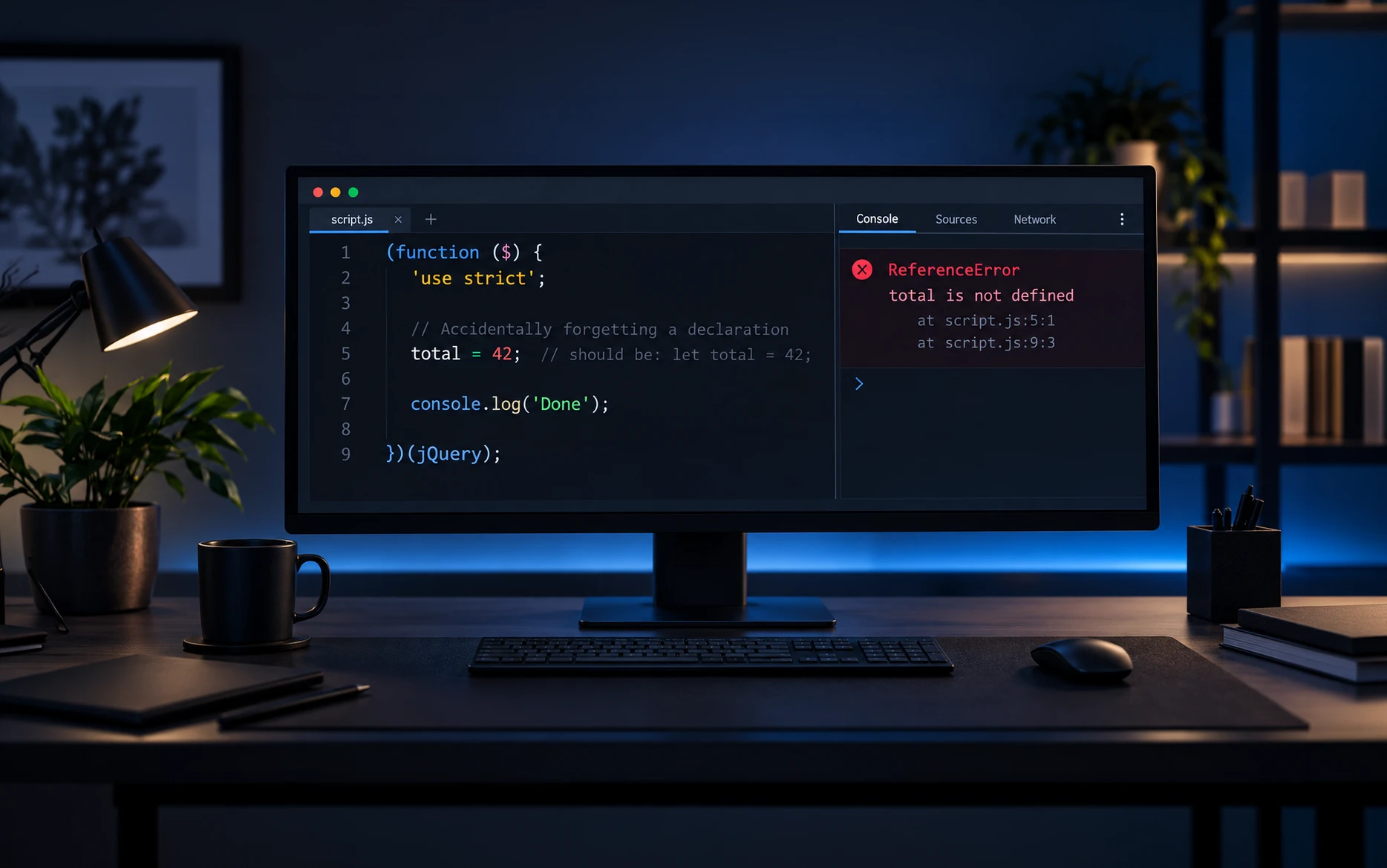
WordPress uses jQuery in noConflict() mode.
If I want to use the familiar $ syntax inside my JavaScript, I normally structure the file like this:
(function ($) {

    // Your jQuery code here.

})(jQuery);
Inside that function, I can use $ normally.
For example:
(function ($) {

    $('.my-button').on('click', function () {
        console.log('Button clicked');
    });

})(jQuery);
I used delegated jQuery events in my Bricks Builder Filter Multiple Query Loops article.
For reusable functionality like that, I personally prefer keeping the JavaScript in its own file and enqueueing it properly. The filemtime() technique we’re discussing here fits perfectly into that workflow.
How I Enqueue CSS and JavaScript in WordPress Now
Let’s put everything together.
function maya_enqueue_assets() {

    $css_file = get_stylesheet_directory() . '/assets/css/custom-styles.css';
    $js_file  = get_stylesheet_directory() . '/assets/js/main.js';

    wp_enqueue_style(
        'maya-style',
        get_stylesheet_directory_uri() . '/assets/css/custom-styles.css',
        array(),
        filemtime( $css_file )
    );

    wp_enqueue_script(
        'maya-script',
        get_stylesheet_directory_uri() . '/assets/js/main.js',
        array( 'jquery' ),
        filemtime( $js_file ),
        array(
            'in_footer' => true,
        )
    );
}
add_action( 'wp_enqueue_scripts', 'maya_enqueue_assets' );
Notice the hook at the bottom:
wp_enqueue_scriptsThe name can initially be a little confusing because it says scripts.
But this is the correct front-end hook for enqueueing both CSS and JavaScript.
With this setup:
Change the CSS → CSS version changes.
Change the JavaScript → JavaScript version changes.
Don’t change either file → their versions remain the same.
I don’t have to manually maintain asset version numbers anymore.
This is now the approach I prefer when I enqueue CSS and JavaScript in WordPress for files I’m actively developing.
Why I Don’t Use time() for the Version
While researching this, I also came across examples using:
time()For example:
wp_enqueue_style(
    'maya-style',
    get_stylesheet_directory_uri() . '/assets/css/custom-styles.css',
    array(),
    time()
);
At first glance, this looks like an easy solution.
time() keeps changing, so the browser keeps seeing a different asset URL.
That certainly solves the stale-cache problem.
But it creates another problem.
The version changes on every request, regardless of whether the CSS file actually changed.
You’re effectively telling the browser:
Treat this as a different resource every time.
That defeats the benefit of having a stable URL for an unchanged file.
filemtime() behaves differently.
File changed → version changes.
File unchanged → version stays the same.
That’s exactly why I prefer it.
Making the Code a Little Safer
There is one more improvement I’d make before using this as reusable production code.
What happens if the CSS or JavaScript file doesn’t exist?
filemtime() expects a valid filesystem path. If PHP can’t find or access that file, the function can generate a warning.
We can avoid that by checking whether the file exists first.
function maya_enqueue_assets() {

    $css_file = get_stylesheet_directory() . '/assets/css/custom-styles.css';
    $css_url  = get_stylesheet_directory_uri() . '/assets/css/custom-styles.css';

    $js_file = get_stylesheet_directory() . '/assets/js/main.js';
    $js_url  = get_stylesheet_directory_uri() . '/assets/js/main.js';

    if ( file_exists( $css_file ) ) {
        wp_enqueue_style(
            'maya-style',
            $css_url,
            array(),
            filemtime( $css_file )
        );
    }

    if ( file_exists( $js_file ) ) {
        wp_enqueue_script(
            'maya-script',
            $js_url,
            array( 'jquery' ),
            filemtime( $js_file ),
            array(
                'in_footer' => true,
            )
        );
    }
}
add_action( 'wp_enqueue_scripts', 'maya_enqueue_assets' );
This is slightly longer than the earlier example.
But for code that I’m going to keep and reuse, I personally prefer this version.
If I later rename, move or remove one of the files, I’m not blindly calling filemtime() against a path that no longer exists.
What If the Files Are Inside a Custom Plugin?
The principle is exactly the same.
The only difference is how we get the filesystem path and URL.
Inside a plugin, we can use:
plugin_dir_path( __FILE__ )to build the physical path.
And:
plugin_dir_url( __FILE__ )to build the URL.
Here’s a complete example:
function maya_plugin_enqueue_assets() {

    $css_file = plugin_dir_path( __FILE__ ) . 'assets/css/custom-styles.css';
    $css_url  = plugin_dir_url( __FILE__ ) . 'assets/css/custom-styles.css';

    $js_file = plugin_dir_path( __FILE__ ) . 'assets/js/main.js';
    $js_url  = plugin_dir_url( __FILE__ ) . 'assets/js/main.js';

    if ( file_exists( $css_file ) ) {
        wp_enqueue_style(
            'maya-plugin-style',
            $css_url,
            array(),
            filemtime( $css_file )
        );
    }

    if ( file_exists( $js_file ) ) {
        wp_enqueue_script(
            'maya-plugin-script',
            $js_url,
            array( 'jquery' ),
            filemtime( $js_file ),
            array(
                'in_footer' => true,
            )
        );
    }
}
add_action( 'wp_enqueue_scripts', 'maya_plugin_enqueue_assets' );
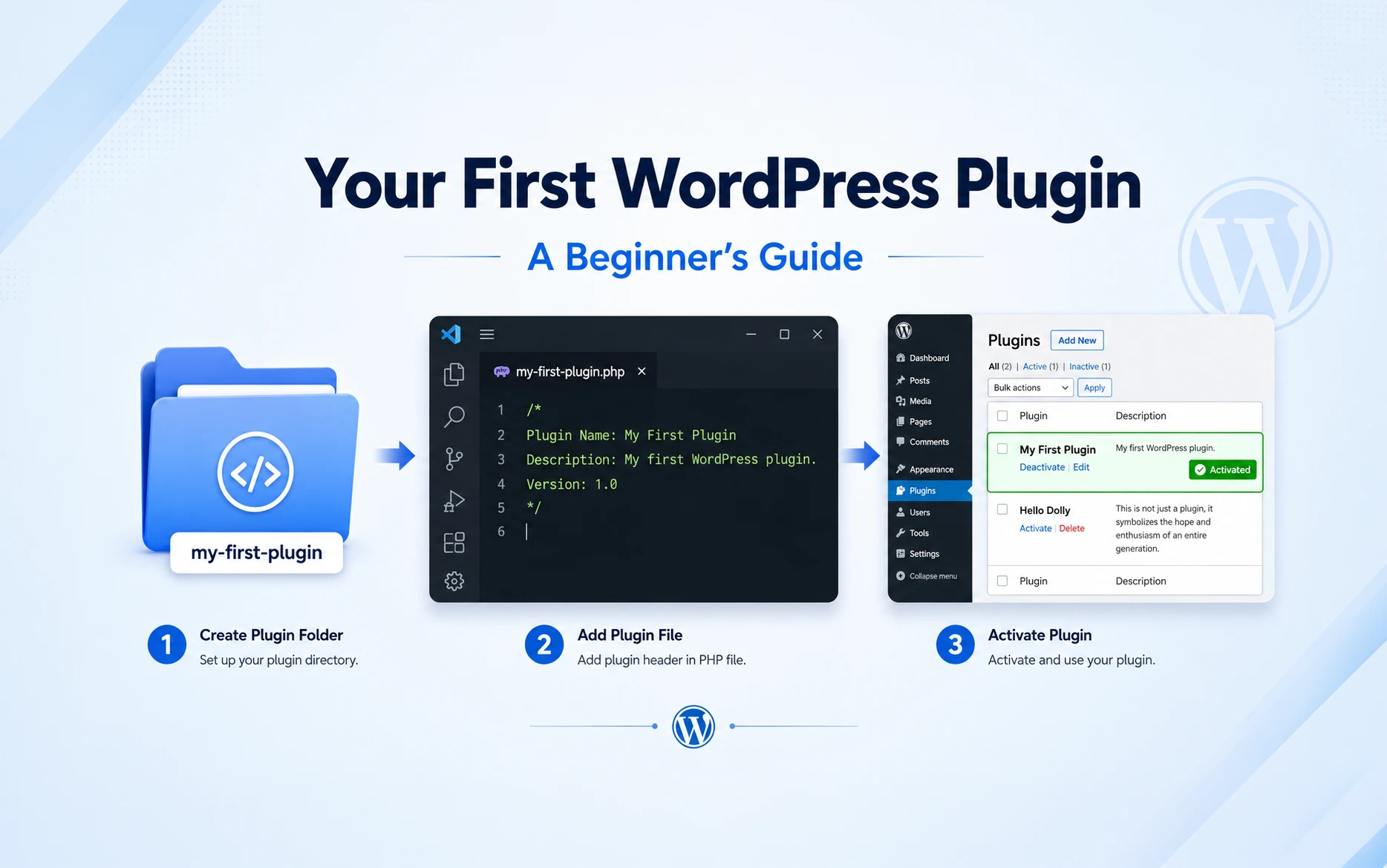
I personally prefer putting reusable site functionality into a custom plugin rather than adding everything to functions.php.
If the CSS and JavaScript genuinely belong to the theme, keeping them with the theme makes sense.
If they’re part of reusable functionality, a custom plugin is usually cleaner.
Either way, the basic method to enqueue CSS and JavaScript in WordPress with filemtime() remains the same.
Common Mistakes to Watch For
The first mistake is passing the asset URL to filemtime().
Remember:
// Physical filesystem path.
get_stylesheet_directory()
is what filemtime() needs.
While:
// Public URL.
get_stylesheet_directory_uri()
is what we use to enqueue the asset.
Another mistake is using time() permanently just because it immediately fixes a caching issue. It works, but it changes the asset URL on every request.
And if your custom JavaScript depends on jQuery, don’t manually add another copy of jQuery. Declare WordPress’s registered jquery handle as a dependency and let WordPress manage it.
Finally, don’t forget that filemtime() is working with the actual file on the server. If your path is wrong, it can’t determine the modification time.
Final Thoughts
This article started because somebody asked me about the correct way to enqueue CSS and JavaScript in WordPress with version numbers.
I already had an answer.
I had been using wp_enqueue_style() and wp_enqueue_script() for years, and my code worked.
But instead of simply sharing what I was already doing, I decided to research it first.
And that research changed my own code.
filemtime() is a very small PHP function, but it solves a practical development problem nicely.
I no longer have to remember to change:
1.0.0to:
1.0.1every time I modify a stylesheet or JavaScript file.
At the same time, I’m not generating a new version on every request.
The version changes when the actual file changes.
That’s why using filemtime() has now become my standard workflow when I enqueue CSS and JavaScript in WordPress.
If you’re using a different approach to version your CSS and JavaScript files, I’d be interested to know how you’re handling it.
Frequently Asked Questions
Use wp_enqueue_style() for stylesheets and wp_enqueue_script() for JavaScript, normally from the wp_enqueue_scripts action hook. WordPress can then manage dependencies and asset versions correctly.
Changing the version changes the asset URL. This helps browsers and other caching layers recognize that the resource has changed and request the updated file.
filemtime() returns the last modification time of a file. Using that value as the asset version means the version automatically changes when you modify the actual file.
I wouldn’t use time() for normal production asset versioning. Its value continually changes, even when the file hasn’t changed. filemtime() is more precise because its value changes when the file itself changes.
Add jquery to the dependency array when calling wp_enqueue_script(). WordPress can then manage the dependency before your custom script runs.
Yes. Use plugin_dir_path() to create the physical filesystem path required by filemtime() and plugin_dir_url() to create the URL used by wp_enqueue_style() or wp_enqueue_script().
Useful Resources
- WordPress Developer Resources — wp_enqueue_style()
Official WordPress documentation for enqueueing stylesheets, including dependencies and the$verargument. - WordPress Developer Resources — wp_enqueue_script()
Official documentation for enqueueing JavaScript, including dependencies, version numbers and script-loading arguments. - WordPress Developer Resources — wp_enqueue_scripts Hook
The official reference for the front-end hook used to enqueue both CSS and JavaScript. - WordPress Theme Handbook — Including Assets
A broader WordPress guide covering the proper way to include CSS and JavaScript files in themes. - WordPress Theme Handbook — JavaScript Best Practices
Useful reference for WordPress JavaScript development, including jQuery dependencies andnoConflict()mode. - PHP Manual — filemtime()
The official PHP reference for the function at the centre of this workflow. It explains howfilemtime()returns a file’s last modification time and what happens when the operation fails.
From Maya Grafix
- CSS Variables Explained: Write Cleaner, Reusable CSS with Custom Properties
A useful article about CSS variables which can come in handy. - How to Create a Stunning CSS Backlight Effect with Pure CSS
Another practical example of custom CSS development where automatic asset versioning can make testing easier.