Recently, I ran into a Bricks Builder duplicate slides issue with the related articles slider on one of my websites.
I had configured the Slider (Nestable) element to display three articles at a time with infinite looping enabled. Everything worked fine when enough related articles were available. But when a post had only one or two related articles, the same articles appeared repeatedly.
Initially, I couldn’t find a suitable solution in Bricks Academy, so I investigated the issue and wrote a short jQuery snippet to change the slider type based on the number of available articles.
Later, I contacted Bricks support, and they suggested a much simpler solution: change the slider type to Slide and enable Rewind.
I tested their suggestion, and it worked.
However, I found the rewind transition a little abrupt compared to infinite looping. I still wanted to keep the smoother looping effect when enough related articles were available.
In this article, I’ll explain what causes the duplicate slides, how I identified them using Chrome DevTools, and both ways to fix the problem.

Table of Contents
The Problem: Duplicate Articles in the Related Posts Slider
I’m using Bricks Builder’s Slider (Nestable) element to display related articles at the bottom of individual blog posts.
The slider retrieves articles through a query and displays three articles at a time.
My original configuration was:
- Slider type: Loop
- Slides per page: 3
- Content: Related articles from a WordPress query
- Infinite looping: Enabled
I wanted visitors to be able to browse the related articles continuously.
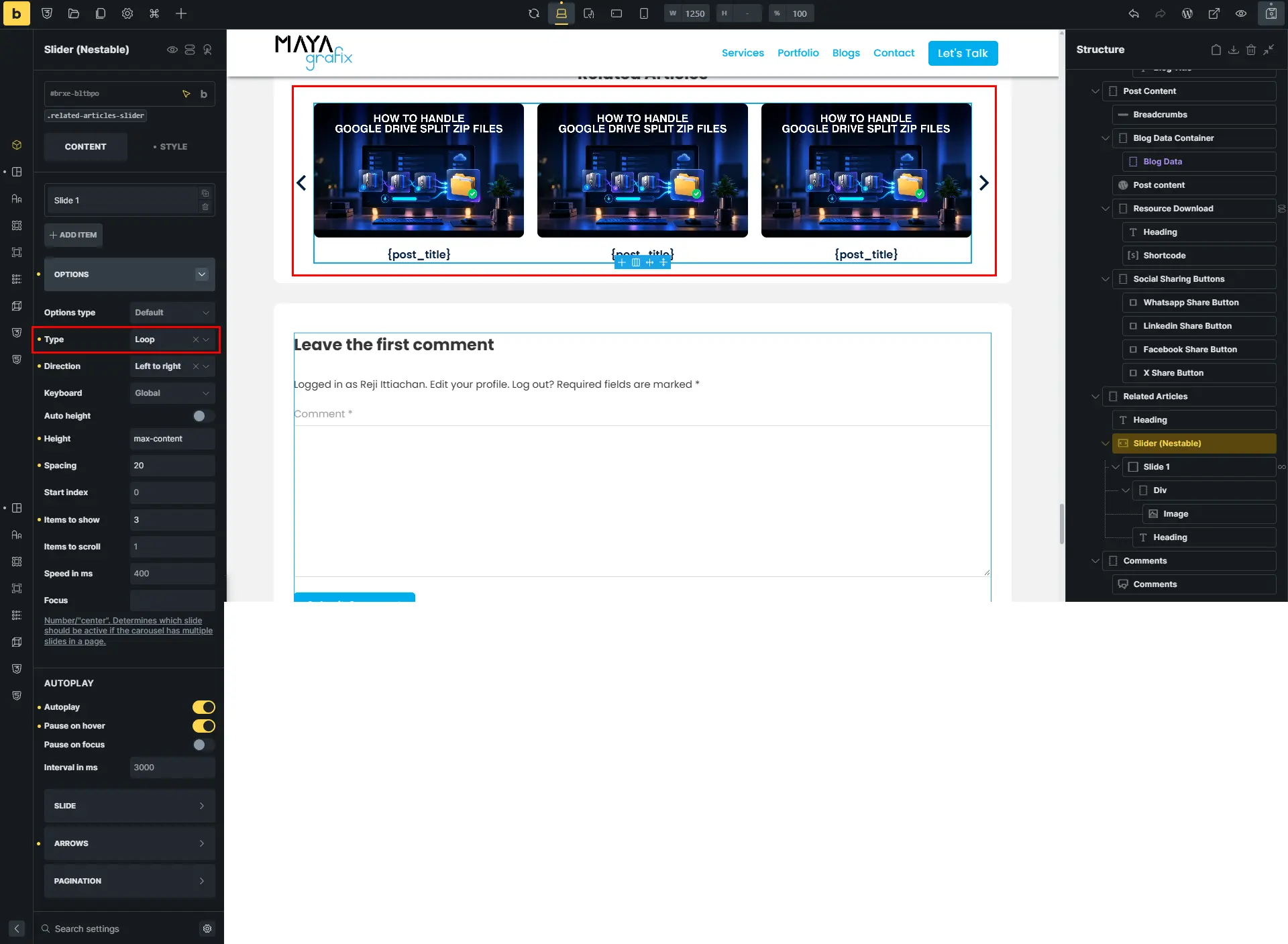
The problem appeared when the query returned fewer articles than the number of visible slides.
For example, if a post had only two related articles, I could see the same articles appearing multiple times.
At first, I suspected the WordPress query.
I wondered whether it was returning duplicate posts or whether something was wrong with my related articles configuration.
But the query results were correct.
The duplicates were being generated by the slider itself.
Why It Happens: Splide.js and Infinite Looping
Bricks Builder’s Slider (Nestable) uses Splide.js, a JavaScript slider library.
Splide supports different slider types, including slide, loop, and fade.
With the slide type, the slider has a beginning and an end.
With the loop type, the slider allows continuous navigation. After the last slide, it can continue to the first without an obvious interruption.
To make this possible, Splide generates cloned slides.
These are copies of the original slide elements, created to support the infinite-loop effect.
This is expected behavior.
The issue becomes noticeable when there aren’t enough original slides.
Suppose my related articles query returns two posts:
Original articles

Article A
Article B
When infinite looping is enabled, Splide may generate additional copies of those slides:
Cloned slides       Original slides       Cloned slides

Article A           Article A             Article A
Article B           Article B             Article B
This is a simplified illustration. The actual number and arrangement of clones depend on the slider configuration.
The important point is that the duplicated articles aren’t additional posts returned by WordPress.
They’re cloned elements generated by Splide.
That’s why changing the related articles query won’t solve this particular problem.
The slider configuration needs to change.
How I Identified the Cloned Slides in Chrome DevTools
Before making any changes, I wanted to confirm that Splide was responsible for the duplicates.
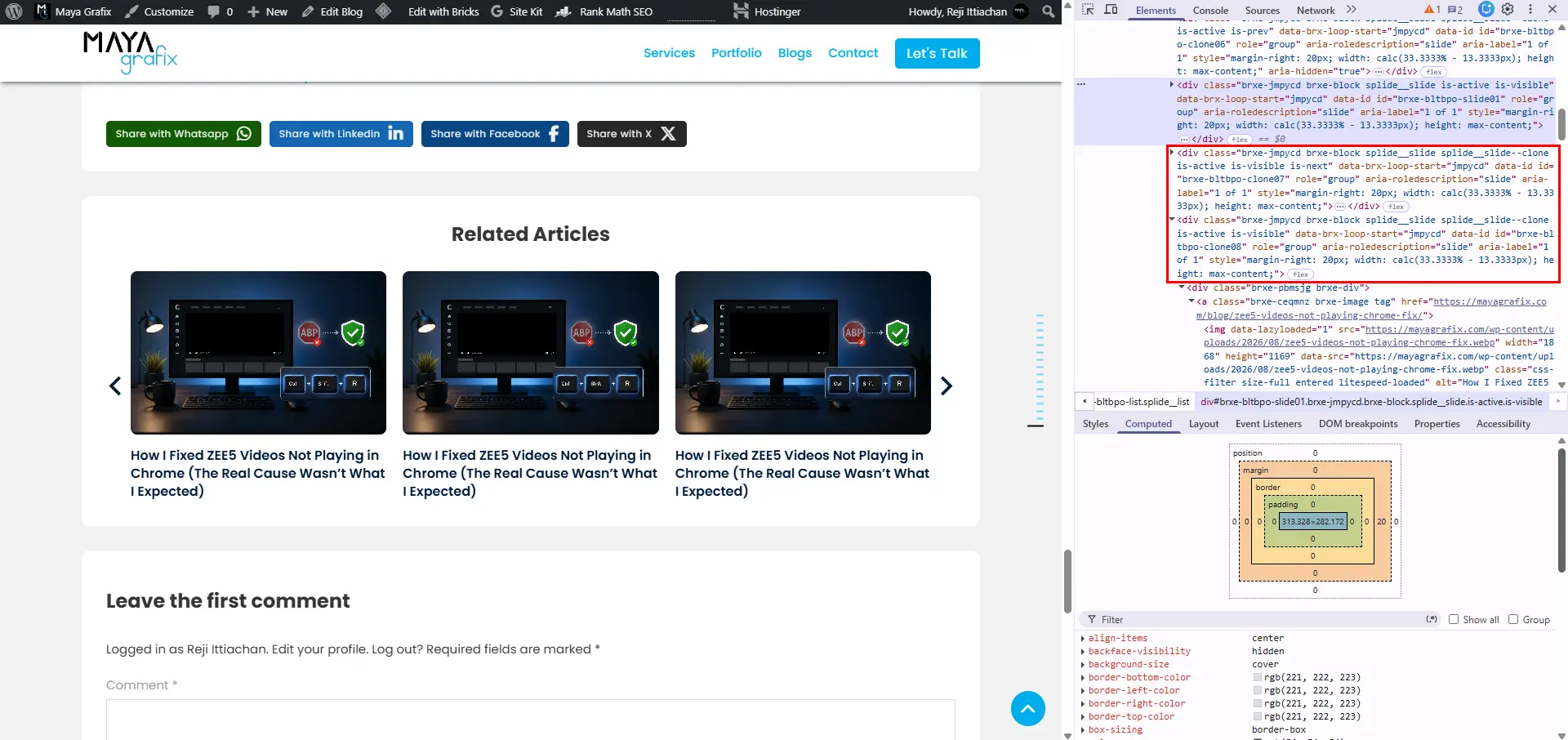
I opened a blog post where the issue occurred, right-clicked the related articles slider, and selected Inspect.
In Chrome DevTools, I located the slider wrapper and expanded its child elements.
Splide uses the class:
.splide__slidefor its slides.
When it generates a clone, the element also receives this class:
.splide__slide--cloneThis confirmed what was happening.
The repeated article cards were cloned slides, not duplicate posts from the query.
You can check this directly in the Console.
First, locate your slider:
const slider = document.querySelector(
  ".related-articles-slider.brxe-slider-nested"
);
Here, related-articles-slider is the custom CSS class I assigned to my slider in Bricks.
Then count the original and cloned slides:
const originalSlides = slider.querySelectorAll(
  ".splide__slide:not(.splide__slide--clone)"
);

const clonedSlides = slider.querySelectorAll(
  ".splide__slide--clone"
);

console.log("Original slides:", originalSlides.length);
console.log("Cloned slides:", clonedSlides.length);
If the query returns two articles, the original slide count should be two.
The cloned slide count may be higher because Splide creates additional elements to support looping.
Once I saw those cloned elements, I knew the problem wasn’t with the WordPress query.
Solution 1: Use Slide with Rewind Enabled in Bricks Builder
After investigating the issue, I contacted Bricks support.
They suggested a simpler approach that doesn’t require any custom JavaScript.
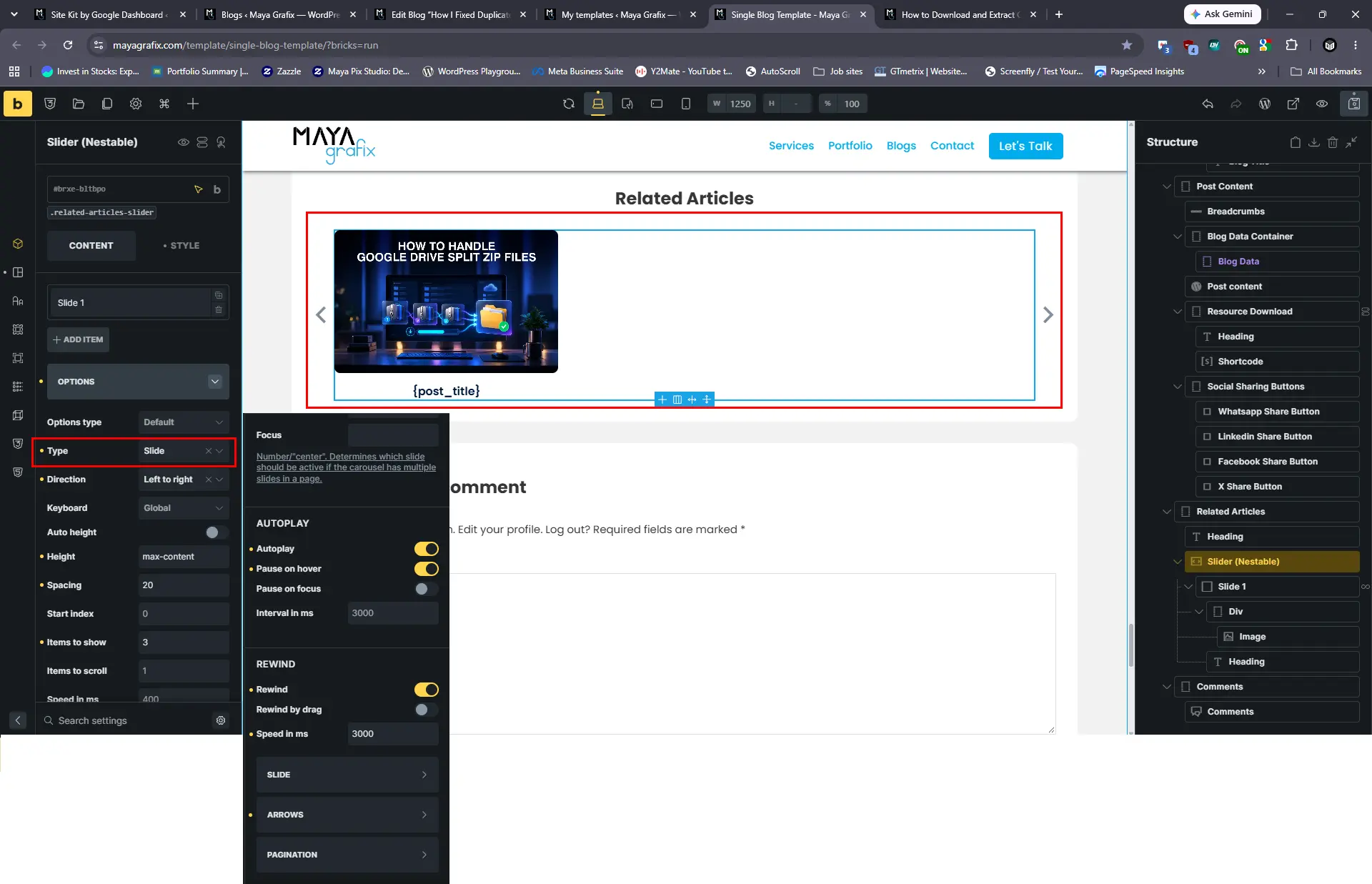
Instead of using Loop, change the slider type to Slide and enable Rewind.
I tested this configuration, and it solved the duplicate-slide problem.
The reason is straightforward.
With Slide, Splide doesn’t need to generate the clones used for infinite looping.
Enabling Rewind allows the slider to return to the beginning when navigating forward from the end.
You still get a way to move through the articles repeatedly, but without using the infinite-loop mechanism.
How to configure it
Open your Bricks template and select the Slider (Nestable) element.
In the slider settings:
- Change Type from
LooptoSlide. - Enable the Rewind option.
- Save the template and test the slider on a post with only one or two related articles.
That’s it.
No jQuery or additional JavaScript is required.
This is the first solution I’d recommend trying because it uses the options already available in Bricks.
There is one thing worth understanding, though.
The Difference Between Loop and Rewind
Although Loop and Slide with Rewind enabled may appear to offer similar navigation, they behave differently.
With Loop, Splide uses cloned slides to create a continuous carousel effect.
With Slide and Rewind, the slider moves through the original slides normally. When you reach the end and navigate forward again, it returns to the beginning.
That return is a rewind, not a seamless continuation.
Here’s the difference:
LOOP

Article A → Article B → Article C → Article A → ...
                      Continuous movement


SLIDE + REWIND

Article A → Article B → Article C
    ↑                     |
    └──── Rewind ─────────┘
With rewind enabled, the transition back to the beginning can feel abrupt, especially when compared with the continuous movement of a looping carousel.
I found this a little disturbing visually.
It’s not a technical problem, and it may not bother everyone. But if you prefer the smooth infinite-loop experience, you’ll probably notice the difference.
There’s also another consideration.
If your slider displays three articles at a time but the query returns only two, there may not be enough content for meaningful navigation. In that case, the slider can simply display the available articles without looping.
For many websites, Slide with Rewind is a perfectly reasonable solution.
But I wanted to keep infinite looping when enough related articles were available.
That’s where my jQuery snippet comes in.
Solution 2: Keep Infinite Looping When Enough Articles Are Available
My original goal was slightly different from simply disabling looping.
I wanted the slider to behave according to the number of related articles returned by the query.
When there are more than three related articles, I want to keep the smooth infinite-loop effect.
When there are three or fewer articles, I want to disable looping to prevent the repeated content.
The logic is simple:
Related articles count

More than 3 articles
    |
    └── Keep the existing Loop configuration

3 or fewer articles
    |
    └── Change slider type to Slide
        Disable Rewind
        Disable Autoplay
I chose three because my slider is configured to display three articles at a time.
This is a project-specific threshold, not a universal Splide limitation.
With this approach, I can continue using Loop in the Bricks settings.
The JavaScript only changes the slider configuration when there aren’t enough related articles.
Step 1: Keep the slider type set to Loop
In Bricks Builder, leave the Slider (Nestable) type set to Loop.
This is the configuration I want when enough articles are available.
Step 2: Add a custom CSS class
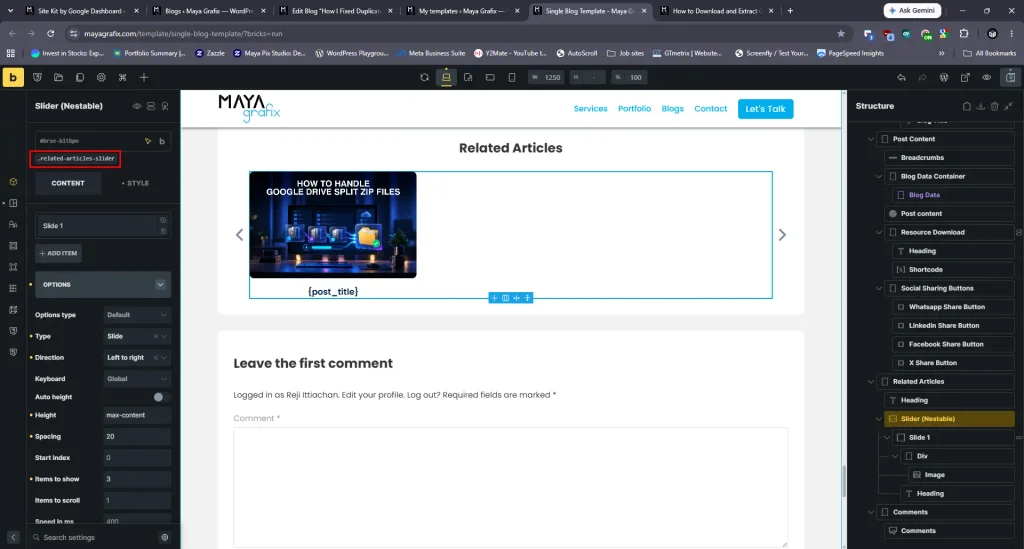
Select the Slider (Nestable) element and add this class:
related-articles-sliderThis allows the script to target only the related articles slider.
I prefer using a custom class rather than applying the same logic to every Nestable Slider on the website.
Step 3: Add the jQuery snippet
The script checks how many original slides exist.
If there are more than three, it leaves the slider unchanged.
If there are three or fewer, it rebuilds the slider using the slide type.
Complete jQuery Code
Here’s the final code I used.
function initRelatedArticlesSlider() {
  const $ = jQuery;

  $(".related-articles-slider.brxe-slider-nested").each(function () {
    const slider = this;
    const id = slider.dataset.scriptId;
    const instance = window.bricksData?.splideInstances?.[id];

    if (!instance) return;

    // Count actual articles, excluding clones.
    const count = instance.length;

    // Keep infinite looping for more than 3 articles.
    if (count > 3) return;

    // Read existing Splide configuration.
    const config = JSON.parse(slider.getAttribute("data-splide") || "{}");

    // Disable looping for 3 or fewer articles.
    config.type = "slide";
    config.rewind = false;
    config.autoplay = false;

    // Update configuration before rebuilding.
    slider.setAttribute("data-splide", JSON.stringify(config));

    // Destroy existing Splide instance.
    instance.destroy(true);

    // Reinitialize with updated configuration.
    const newInstance = new Splide(slider, config);
    newInstance.mount();

    // Update Bricks instance reference.
    window.bricksData.splideInstances[id] = newInstance;
  });
}

jQuery(function ($) {
  setTimeout(initRelatedArticlesSlider, 250);
});
This is the complete snippet, including the jQuery initialization.
It assumes that the slider is initially configured as Loop in Bricks and that jQuery and Splide are available on the page.
Understanding How the Code Works
There are a few important parts worth explaining.
Targeting the related articles slider
const $ = jQuery;

$(".related-articles-slider.brxe-slider-nested").each(function () {
I use jQuery to select the slider by its custom class and the Bricks-generated brxe-slider-nested class.
The .each() method also allows the function to handle multiple matching sliders on the same page.
Retrieving the Splide instance
const slider = this;
const id = slider.dataset.scriptId;
const instance = window.bricksData?.splideInstances?.[id];

if (!instance) return;
Bricks exposes initialized Splide instances through:
window.bricksData.splideInstancesUsing the slider’s data-script-id attribute, I retrieve the instance that Bricks has already created.
If the instance isn’t available, the function stops processing that slider.
Counting the original slides
const count = instance.length;This is the most important line.
Splide’s length property returns the number of original slides, excluding clones.
That gives me the actual number of related articles without counting the duplicate elements created for looping.
Keeping the loop when enough articles exist
if (count > 3) return;If there are more than three articles, the function does nothing.
The existing Bricks slider configuration remains unchanged.
Notice that the code doesn’t explicitly enable looping.
That’s because Loop is already selected in Bricks.
The script only changes the configuration when there aren’t enough articles.
Changing the slider settings
const config = JSON.parse(slider.getAttribute("data-splide") || "{}");

config.type = "slide";
config.rewind = false;
config.autoplay = false;
First, I read the existing configuration from the slider’s data-splide attribute.
Then I change three settings.
type = "slide" disables infinite looping.
rewind = false prevents the slider from returning to the beginning after reaching the end.
autoplay = false stops automatic progression when there are only a few articles.
The remaining configuration stays unchanged.
Unlike the first solution suggested by Bricks support, I’m deliberately disabling rewind here.
That’s because I don’t want the abrupt rewind transition when only a few articles are available.
Destroying and rebuilding the slider
slider.setAttribute("data-splide", JSON.stringify(config));

instance.destroy(true);

const newInstance = new Splide(slider, config);
newInstance.mount();
Changing the data-splide attribute alone won’t rebuild an already initialized Splide instance.
Splide also treats type as an option that shouldn’t be changed through its normal runtime options setter.
That’s why I destroy the existing instance and create a new one with the updated configuration.
Calling destroy(true) completely destroys the original instance.
Then new Splide(slider, config) creates the replacement, and mount() initializes it.
Updating the Bricks instance reference
window.bricksData.splideInstances[id] = newInstance;Finally, I update the reference stored by Bricks.
This ensures that any later JavaScript accessing the slider through window.bricksData.splideInstances receives the new instance rather than the destroyed one.
Why I Used jQuery for Initialization
The function needs to run after Bricks has initialized the Nestable Slider.
If it runs too early, the Splide instance won’t exist yet.
Since I’m already using jQuery, I kept the initialization consistent:
jQuery(function ($) {
  setTimeout(initRelatedArticlesSlider, 250);
});
The jQuery ready callback runs when the DOM is ready.
The setTimeout() adds a short delay before executing the function.
I used 250 milliseconds as a practical starting point.
However, this delay isn’t a guaranteed signal that every Splide instance has finished initializing.
If your website uses delayed JavaScript or AJAX-loaded content, you may need to trigger the function after the slider is ready.
For my setup, the short delay worked.
Best Practices When Using This Solution
Try the built-in Bricks settings first
If you simply want to avoid duplicate slides, start by changing the slider type to Slide and enabling Rewind.
It’s easier to maintain and doesn’t require custom code.
Only use the JavaScript approach if you specifically want different slider behavior depending on the number of available articles.
Keep the script limited to the relevant slider
I wouldn’t apply this function to every Nestable Slider on a website.
Different sliders may have different requirements.
Using a custom CSS class makes the behavior predictable.
Adjust the threshold to match your layout
I used three because my slider displays three articles at a time.
If your slider displays four articles, you may want to change the condition to:
if (count > 4) return;The same principle applies.
Just remember that the threshold is fixed. It doesn’t automatically change when the responsive perPage setting changes.
Avoid running the function repeatedly
The function is intended to run once after the slider initializes.
If you call it repeatedly, it can destroy and rebuild a slider that has already been converted to slide.
If your implementation requires repeated initialization, add a check to skip sliders that have already been processed.
Keep reusable JavaScript in a separate file
For a one-off implementation, you can use a Bricks Code element.
For functionality used across templates, I personally prefer keeping the JavaScript in a separate file and enqueueing it through WordPress.
That makes the code easier to maintain.
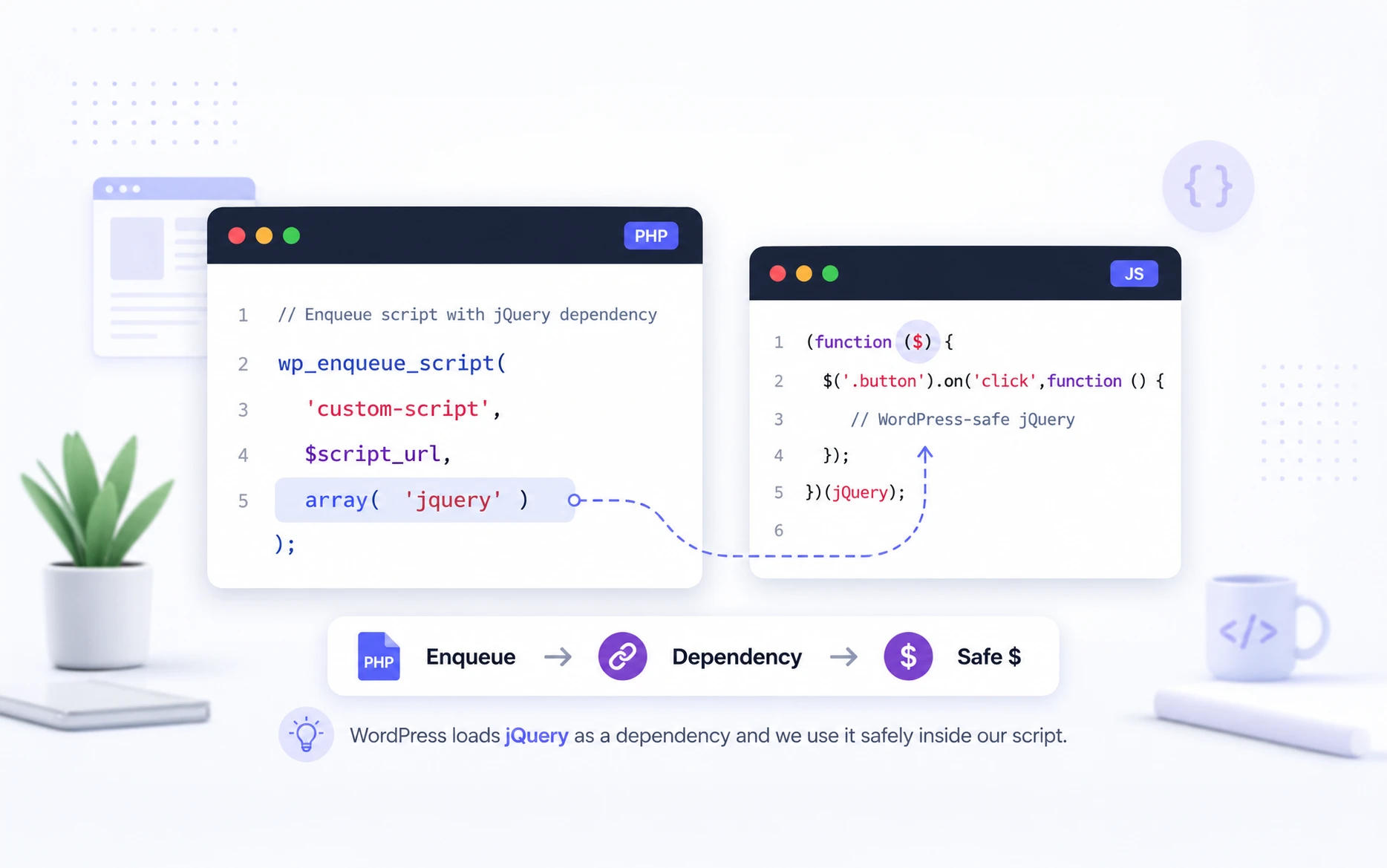
I’ve covered this approach in How to Enqueue CSS and JavaScript in WordPress: A Smarter, Powerful Versioning Method.
Test custom slider integrations
Destroying and recreating a Splide instance removes its registered event handlers.
If your slider uses custom navigation controls, extensions, or additional JavaScript events, you may need to restore those integrations after rebuilding.
This wasn’t necessary for my related articles slider, but it’s worth checking before using the code on a more customized slider.
Common Mistakes to Avoid
Assuming the WordPress query is returning duplicates
Before changing the query, inspect the slider markup.
If the repeated elements have the .splide__slide--clone class, Splide is generating them.
Confusing Loop with Rewind
Both options can allow users to navigate through the articles repeatedly, but they don’t behave the same way.
Loop uses cloned slides for continuous movement.
Slide with Rewind returns to the beginning when navigation reaches the end.
If the visual transition matters, test both before deciding.
Counting every slide element
A selector like this may include cloned slides:
$(".related-articles-slider .splide__slide").length;That isn’t the count I need.
Instead, I use:
instance.length;This returns the number of original slides.
Hiding cloned slides with CSS
You might be tempted to hide the clones:
.splide__slide--clone {
  display: none;
}
I wouldn’t recommend that.
Splide uses those clones to support its looping behavior. Hiding them can interfere with positioning and navigation.
Changing the slider type is a more appropriate solution.
Changing only the HTML configuration
Updating the data-splide attribute after initialization doesn’t automatically rebuild the slider.
In my JavaScript solution, I handle this by destroying and recreating the instance.
Testing and Verifying Both Solutions
I tested the built-in Bricks configuration and the jQuery solution with different numbers of related articles.
For the built-in solution, the slider remains in Slide mode with Rewind enabled regardless of how many articles are returned.
For the jQuery solution, the expected behavior is:
| Related articles | Slider behavior |
|---|---|
| 1 | Slide, rewind disabled |
| 2 | Slide, rewind disabled |
| 3 | Slide, rewind disabled |
| 4 or more | Existing Loop configuration |
You can verify the current slider configuration using Chrome DevTools.
const slider = document.querySelector(
  ".related-articles-slider.brxe-slider-nested"
);

const id = slider.dataset.scriptId;

const instance = window.bricksData?.splideInstances?.[id];

console.log("Slider type:", instance.options.type);
console.log("Rewind enabled:", instance.options.rewind);
console.log("Original articles:", instance.length);
For a post with two related articles using the jQuery solution, the expected output is:
Slider type: slide
Rewind enabled: false
Original articles: 2
For a post with more than three related articles, the slider should retain the loop type configured in Bricks.
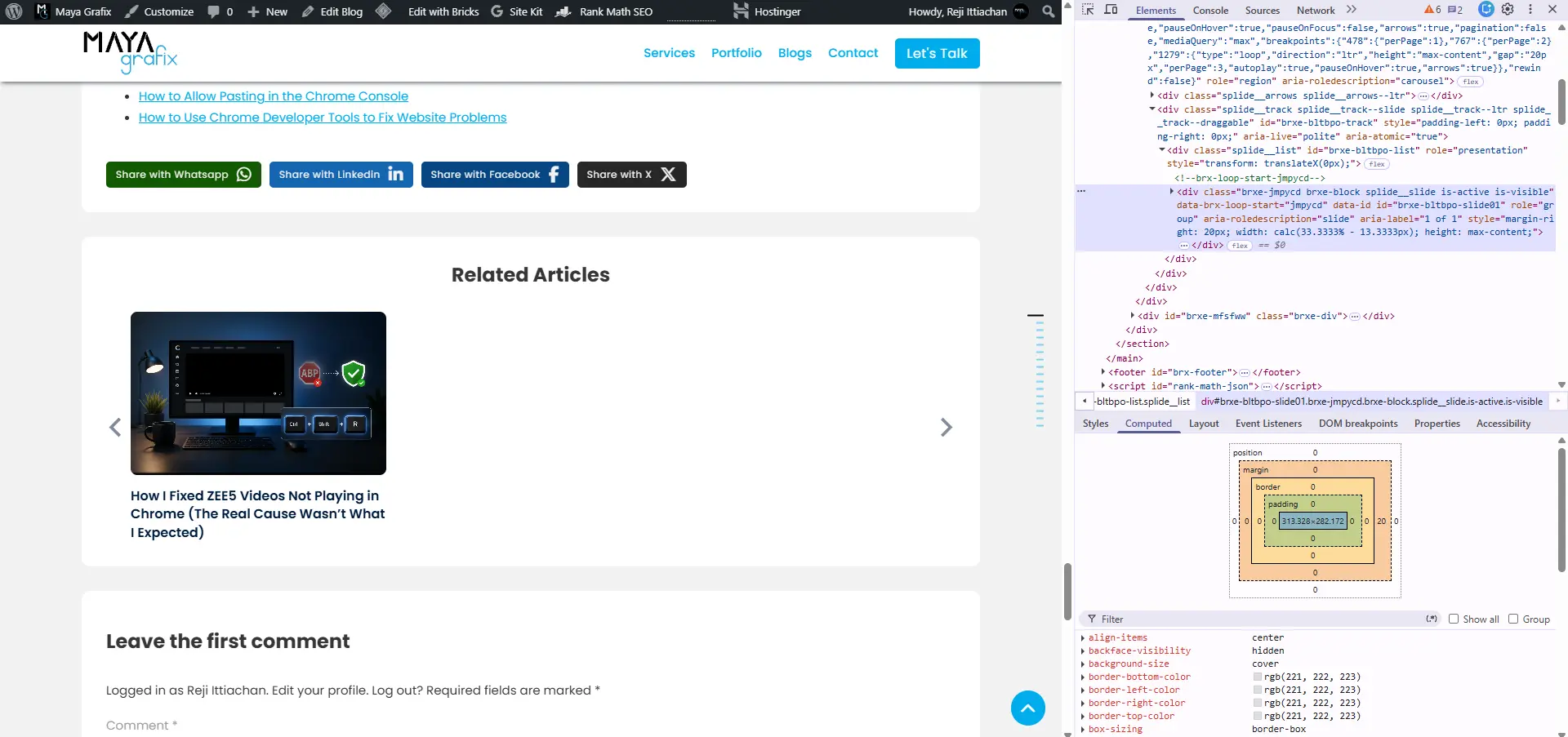
I’d also test both approaches on mobile and tablet.
If your slider displays a different number of articles at different breakpoints, remember that the jQuery threshold is fixed at three.
For my implementation, the goal was to disable looping whenever the total article count was three or fewer, regardless of viewport width.
Final Thoughts
What initially looked like a problem with my related articles query turned out to be normal Splide.js behavior.
The slider was configured to display three articles with infinite looping enabled. When only one or two related articles were available, Splide generated clones to maintain that looping effect, making the same articles appear repeatedly.
After contacting Bricks support, I learned that the simplest solution was already available in the slider settings: change the type to Slide and enable Rewind.
I tested it, and it worked.
For many websites, that’s probably all you need.
Personally, I still prefer the smoother experience of infinite looping when enough related articles are available. The rewind transition feels a little abrupt to me.
That’s why I kept my jQuery solution.
It allows the slider to loop normally when there are more than three articles and automatically switches to a regular slider when there are fewer.
Both approaches solve the duplicate-slide issue. The right choice depends on how you want the slider to behave.
If you’ve run into the same issue with Bricks Builder’s Nestable Slider, I’d be interested to know which approach you prefer.
Frequently Asked Questions
Why does Bricks Builder show duplicate slides in the Nestable Slider?
Bricks Builder’s Slider (Nestable) uses Splide.js. When infinite looping is enabled, Splide creates cloned slides to support continuous navigation. Those clones can appear as duplicate content when only a few original slides are available.
What is the easiest way to fix duplicate slides in Bricks Builder?
Change the slider type from Loop to Slide and enable Rewind. This avoids the cloned slides used for infinite looping while still allowing navigation back to the beginning.
What is the difference between Loop and Rewind in Splide?
Loop uses cloned slides to create a continuous carousel effect. Rewind works with the regular Slide type and returns the slider to the beginning when navigation reaches the end. The rewind transition may be more noticeable than infinite looping.
Are the duplicate related articles coming from my WordPress query?
Not necessarily. If the repeated elements have the .splide__slide--clone class, they’re generated by Splide rather than returned as additional WordPress query results.
Can I keep infinite looping when enough articles are available?
Yes. The jQuery solution in this article checks the number of original slides and keeps the existing loop configuration when more than three articles are available. For three or fewer articles, it switches the slider to slide.
Why use instance.length instead of jQuery’s .length?
Splide’s instance.length returns the number of original slides, excluding clones. Counting .splide__slide elements directly can include the cloned slides and give an incorrect result.
Why does the jQuery solution destroy and recreate the Splide instance?
Splide’s type option isn’t intended to be changed through its normal runtime options setter. Rebuilding the instance allows the updated configuration to take effect.
Will this work if my slider displays four articles?
Yes, but you’ll need to adjust the threshold to match your configuration. The number three is specific to my related articles slider.
Does the JavaScript solution require jQuery?
Not strictly. The Splide API itself uses JavaScript, and the same logic could be implemented with vanilla JavaScript. I used jQuery because it was already available in my WordPress setup.
Resources
Related Articles on Maya Grafix
- Bricks Builder Filter Multiple Query Loops: A Practical Workaround — A practical example of using jQuery to extend Bricks Query Loop behavior without replacing Bricks’ built-in functionality.
- How to Enqueue CSS and JavaScript in WordPress: A Smarter, Powerful Versioning Method — My approach to loading and maintaining custom CSS and JavaScript in WordPress.
Official Documentation and External References
- Bricks Academy — Slider (Nestable) — Official documentation for the Slider (Nestable) element and its configuration options.
- Bricks Academy — Nestable Slider: Customization via JavaScript — Explains how to access initialized Splide instances through
window.bricksData.splideInstances. - Splide.js — APIs — Official API documentation, including the
lengthproperty and methods such asdestroy()andmount(). - Splide.js — Options — Reference for slider settings, including
type,rewind,autoplay, and responsive options. - Splide.js — Events — Useful when working with custom event handlers and extensions.
- Splide.js — Overflow — Additional information about slider behavior when the available slides don’t overflow the carousel.