
A CSS backlight effect is a simple way to add depth to a card, image or other UI element without putting the effect over the content itself.
I wanted to create something a little more interesting than the usual uniform CSS glow: a dark card with purple and violet light toward the left and top, cyan and blue toward the right and bottom, with the light slowly moving behind the card.
The final effect uses only HTML and CSS. No JavaScript and no background image.
We’ll start with a simple box-shadow glow for comparison. Then we’ll build the actual backlight from scratch, one piece at a time, and finally animate the light while keeping the card itself completely stationary.
If you follow the sections in order, you’ll have the complete working component by the end.
Table of Contents
Start with a Simple CSS Glow Effect
Before building the backlight, let’s look at the simpler option.
For many UI elements, you don’t actually need a separate backlight layer. A few carefully layered box-shadow values can create a convincing glow around a card.
We’ll use this HTML:
<article class="glow-card">

  <div
    class="card-icon"
    aria-hidden="true"
  >
    <svg viewBox="0 0 24 24">
      <path d="M12 3 3 8l9 5 9-5-9-5Z"></path>
      <path d="m3 12 9 5 9-5"></path>
      <path d="m3 16 9 5 9-5"></path>
    </svg>
  </div>

  <h1>
    Simple CSS<br>
    Glow Effect
  </h1>

  <p>
    A polished glow around a dark card created
    entirely with layered CSS box shadows.
  </p>

  <a
    class="glow-button"
    href="#"
  >
    Learn How

    <svg
      viewBox="0 0 24 24"
      aria-hidden="true"
    >
      <path d="M5 12h14"></path>
      <path d="m13 6 6 6-6 6"></path>
    </svg>
  </a>

</article>
There’s nothing special happening in the HTML. It’s just a card containing an icon, heading, text and button.
Lets build the CSS code and start with the variables.
:root {
  --page-background: #070a12;

  --card-background: #111625;
  --card-border: rgba(255, 255, 255, 0.12);

  --purple: #9b4dff;
  --violet: #6c5ce7;
  --blue: #168cff;

  --text-primary: #ffffff;
  --text-secondary: #aeb6ca;
}
Now style the card:
.glow-card {
  width: min(100%, 560px);

  padding: clamp(2.5rem, 6vw, 4rem);

  color: var(--text-primary);
  background: var(--card-background);

  border: 1px solid var(--card-border);
  border-radius: 1.75rem;

  box-shadow:
    0 0 20px rgba(155, 77, 255, 0.3),
    0 0 50px rgba(108, 92, 231, 0.3),
    0 0 90px rgba(22, 140, 255, 0.22),
    0 30px 70px rgba(0, 0, 0, 0.45),
    inset 0 1px 0 rgba(255, 255, 255, 0.08);
}
The glow comes from the layered box-shadow:
box-shadow:
  0 0 20px rgba(155, 77, 255, 0.3),
  0 0 50px rgba(108, 92, 231, 0.3),
  0 0 90px rgba(22, 140, 255, 0.22),
  0 30px 70px rgba(0, 0, 0, 0.45),
  inset 0 1px 0 rgba(255, 255, 255, 0.08);
Instead of relying on one large shadow, we’re stacking several shadows with different blur values and opacity.
The first three create the colored glow. The fourth adds depth underneath the card, while the inset shadow gives the card edge a little definition.
For a button, icon or simple card, I would normally stop here. There is no reason to introduce pseudo-elements and gradients if box-shadow already gives you the result you need.
Style the icon, content and button.
.card-icon {
  display: grid;
  place-items: center;

  width: 58px;
  height: 58px;

  margin-bottom: 2.5rem;

  color: #ffffff;

  background:
    linear-gradient(
      145deg,
      rgba(155, 77, 255, 0.22),
      rgba(22, 140, 255, 0.08)
    );

  border: 1px solid rgba(155, 77, 255, 0.35);
  border-radius: 1rem;

  box-shadow:
    inset 0 1px 0 rgba(255, 255, 255, 0.08),
    0 10px 30px rgba(108, 92, 231, 0.12);
}

.card-icon svg {
  width: 28px;
  height: 28px;

  fill: none;
  stroke: currentColor;
  stroke-width: 1.8;
  stroke-linecap: round;
  stroke-linejoin: round;
}

.glow-card h1 {
  max-width: 440px;

  margin: 0 0 1.25rem;

  font-size: clamp(2.5rem, 7vw, 4rem);
  font-weight: 700;
  line-height: 1.02;
  letter-spacing: -0.04em;

  color: var(--text-primary);
}

.glow-card p {
  max-width: 430px;

  margin: 0 0 2.25rem;

  font-size: clamp(1rem, 2vw, 1.1rem);
  line-height: 1.7;

  color: var(--text-secondary);
}

.glow-button {
  display: inline-flex;
  align-items: center;
  gap: 0.75rem;

  padding: 0.9rem 1.5rem;

  color: #ffffff;

  font-size: 1rem;
  font-weight: 600;

  text-decoration: none;

  background:
    linear-gradient(
      90deg,
      var(--purple),
      var(--blue)
    );

  border: 1px solid rgba(255, 255, 255, 0.15);
  border-radius: 999px;

  box-shadow:
    0 10px 30px rgba(22, 140, 255, 0.2);

  transition:
    transform 0.25s ease,
    box-shadow 0.25s ease;
}

.glow-button:hover {
  transform: translateY(-2px);

  box-shadow:
    0 15px 40px rgba(22, 140, 255, 0.35);
}

.glow-button:focus-visible {
  outline: 3px solid rgba(22, 140, 255, 0.65);
  outline-offset: 4px;
}

.glow-button svg {
  width: 18px;
  height: 18px;

  fill: none;
  stroke: currentColor;
  stroke-width: 2;
  stroke-linecap: round;
  stroke-linejoin: round;
}
Now we can style the body element to complete the example.
body {
  margin: 0;

  min-height: 100vh;

  display: grid;
  place-items: center;

  padding: 5rem 2rem;

  font-family:
    Inter,
    system-ui,
    -apple-system,
    BlinkMacSystemFont,
    "Segoe UI",
    sans-serif;

  color: var(--text-primary);
  background: var(--page-background);
}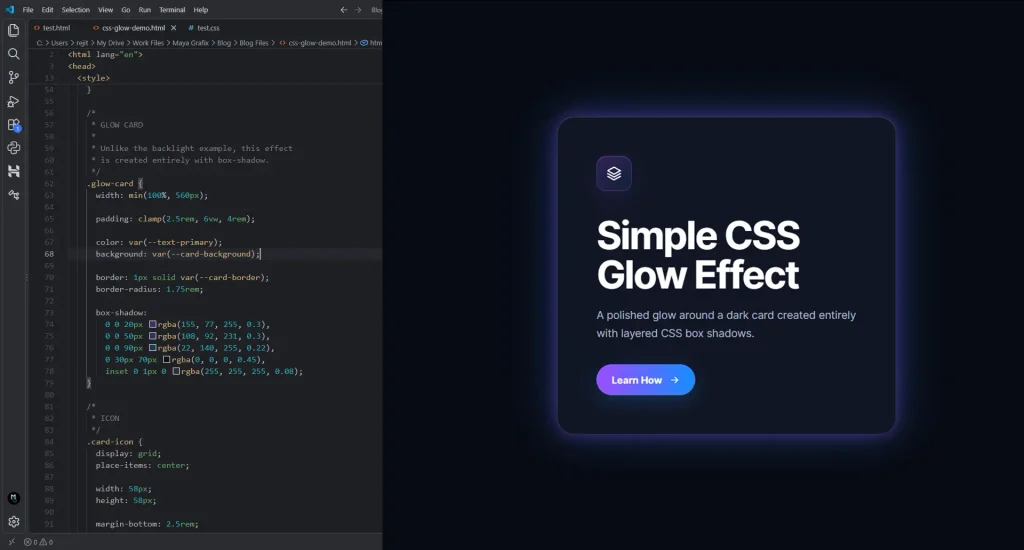
The result is already attractive, but the colored shadows still originate from the card as a whole.
For the next effect, I want much more control. I want to decide where each color appears and then animate that light independently.
That’s where the backlight technique becomes more useful.
Building the CSS Backlight Effect Step by Step
For the backlight, we’re going to start again rather than modify the glow card.
The important difference is architectural.
Instead of making the card responsible for the effect, we’ll create an outer wrapper that owns the light and an inner element that owns the card.
Step 1: Create the Complete HTML Structure
Let’s begin with all the HTML we’re going to need.
<div class="backlight">
  <article class="backlight-card">
    <div class="card-icon" aria-hidden="true">
      <svg viewBox="0 0 24 24">
        <path d="M12 3 3 8l9 5 9-5-9-5Z"></path>
        <path d="m3 12 9 5 9-5"></path>
        <path d="m3 16 9 5 9-5"></path>
      </svg>
    </div>

    <h1>
      Animated CSS<br />
      Backlight Effect
    </h1>

    <p>
      Create a soft animated backlight behind a card using gradients,
      pseudo-elements and pure CSS.
    </p>

    <a class="backlight-button" href="#">
      Learn How

      <svg viewBox="0 0 24 24" aria-hidden="true">
        <path d="M5 12h14"></path>
        <path d="m13 6 6 6-6 6"></path>
      </svg>
    </a>
  </article>
</div>
This is the complete content structure we’ll be styling.
The most important part is the first two elements:
<div class="backlight">
  <article class="backlight-card">
The outer .backlight element will create the light.
The inner .backlight-card will contain the actual card.
That gives us this relationship:
.backlight
│
├── ::before
│   └── backlight
│
└── .backlight-card
    ├── icon
    ├── heading
    ├── text
    └── button
Keeping those responsibilities separate makes the stacking much easier to manage.
Step 2: Add the CSS Reset and Variables
Start the CSS with:
*,
*::before,
*::after {
  box-sizing: border-box;
}
We’re deliberately including pseudo-elements because we’ll create the backlight using ::before.
Next, define all the values we’ll use:
:root {
  --page-background: #070a12;

  --card-background: #111625;
  --card-border: rgba(255, 255, 255, 0.12);

  --purple: #9b4dff;
  --violet: #6c5ce7;
  --blue: #168cff;
  --cyan: #00c8ff;

  --text-primary: #ffffff;
  --text-secondary: #aeb6ca;

  --backlight-blur: 35px;
  --backlight-opacity: 0.9;
  --backlight-spread: -18px;

  --animation-duration: 4s;
}
The first group handles the page and card.
The second group gives us our four backlight colors.
And these values control the effect itself:
--backlight-blur: 35px;
--backlight-opacity: 0.9;
--backlight-spread: -18px;

--animation-duration: 4s;
Putting these into custom properties makes experimentation much easier later.
Step 3: Set Up the Page
Now let’s create the environment around the card.
body {
  margin: 0;

  min-height: 100vh;

  display: grid;
  place-items: center;

  padding: 5rem 2rem;

  font-family:
    Inter,
    system-ui,
    -apple-system,
    BlinkMacSystemFont,
    "Segoe UI",
    sans-serif;

  color: var(--text-primary);
  background: var(--page-background);
}
This gives us a dark full-height page and places the component in the center.

The dark background isn’t essential to the CSS technique, but it makes the colored backlight much easier to see.
At this stage, the HTML still won’t look like the finished card. That’s fine. We’ll style each part before moving on to the animation.
Step 4: Build the Outer Backlight Wrapper
Now add:
.backlight {
  position: relative;
  z-index: 0;

  width: min(100%, 560px);
}
The wrapper itself has no visible background.
Its job is to establish the positioning and stacking context for the light we’re going to create behind it.
position: relative is particularly important because our pseudo-element will use absolute positioning.
Step 5: Build the Foreground Card
Before adding the light, let’s make sure the foreground element actually looks like a card.
.backlight-card {
  position: relative;
  z-index: 1;

  width: 100%;

  padding: clamp(2.5rem, 6vw, 4rem);

  color: var(--text-primary);
  background: var(--card-background);

  border: 1px solid var(--card-border);
  border-radius: 1.75rem;

  box-shadow:
    0 30px 70px rgba(0, 0, 0, 0.45),
    inset 0 1px 0 rgba(255, 255, 255, 0.08);
}
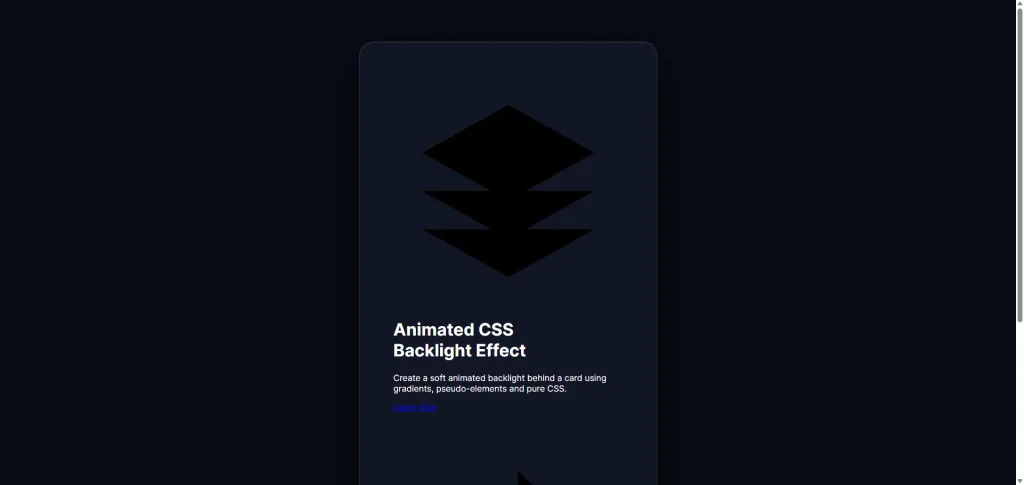
Now we have the dark foreground card used by the finished component.
Pay particular attention to:
position: relative;
z-index: 1;
background: var(--card-background);
The card must sit above our backlight, and its background needs to remain opaque.
If the background is transparent, the colored light behind it will become visible through the card. Instead of looking like light coming from behind an object, you’ll end up with a colored foreground.
Step 6: Style the Icon Before Moving On
Our HTML already contains an SVG icon. If we leave it unstyled, the browser can display it much larger than intended.
So let’s finish the icon now before adding anything else:
.card-icon {
  display: grid;
  place-items: center;

  width: 58px;
  height: 58px;

  margin-bottom: 2.5rem;

  color: #ffffff;

  background: linear-gradient(
    145deg,
    rgba(155, 77, 255, 0.22),
    rgba(22, 140, 255, 0.08)
  );

  border: 1px solid rgba(155, 77, 255, 0.35);
  border-radius: 1rem;

  box-shadow:
    inset 0 1px 0 rgba(255, 255, 255, 0.08),
    0 10px 30px rgba(108, 92, 231, 0.12);
}
Then explicitly size and style the SVG:
.card-icon svg {
  width: 28px;
  height: 28px;

  fill: none;
  stroke: currentColor;
  stroke-width: 1.8;
  stroke-linecap: round;
  stroke-linejoin: round;
}
Now the icon is complete before we continue.
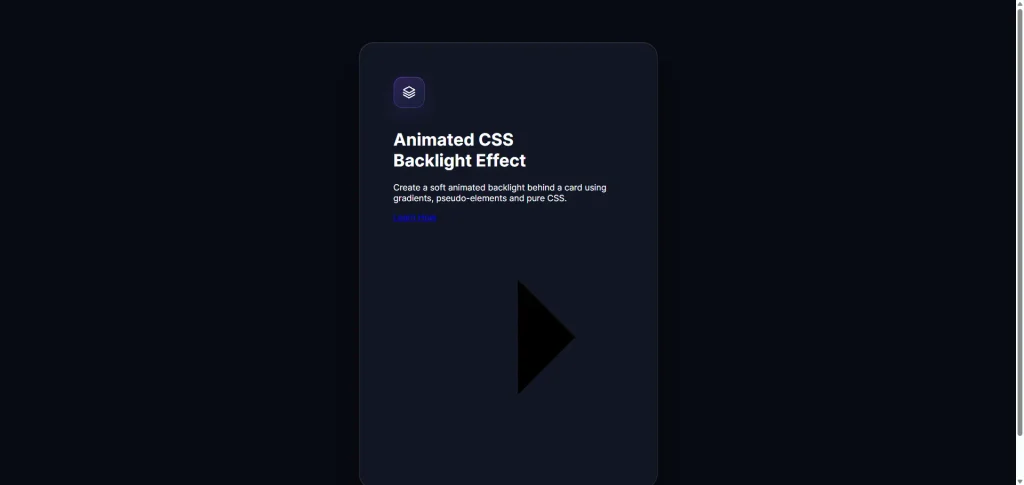
Step 7: Style the Heading and Description
Next, style the heading:
.backlight-card h1 {
  max-width: 440px;

  margin: 0 0 1.25rem;

  font-size: clamp(2.5rem, 7vw, 4rem);
  font-weight: 700;
  line-height: 1.02;
  letter-spacing: -0.04em;

  color: var(--text-primary);
}
And the paragraph:
.backlight-card p {
  max-width: 430px;

  margin: 0 0 2.25rem;

  font-size: clamp(1rem, 2vw, 1.1rem);
  line-height: 1.7;

  color: var(--text-secondary);
}
At this stage, the foreground of the card should already look close to the finished design.
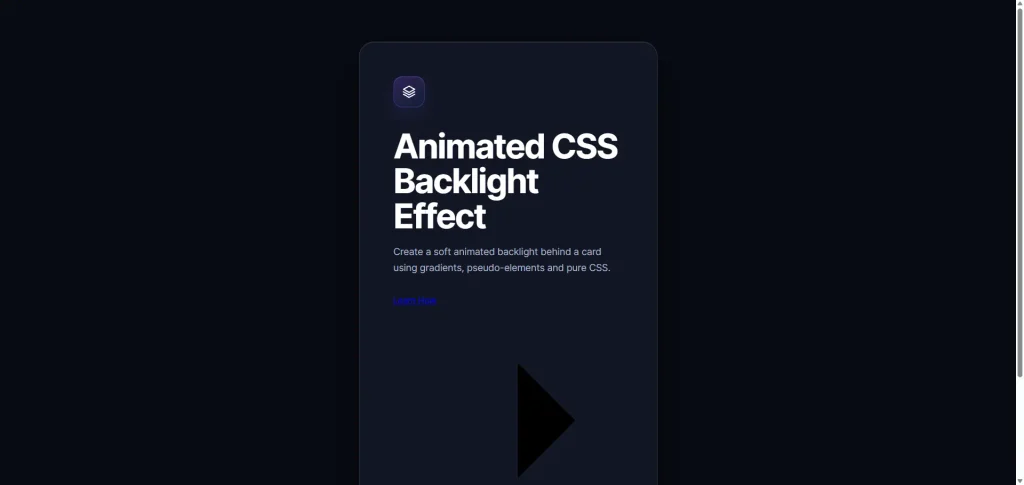
We’re deliberately completing the card before touching the backlight.
That makes debugging much easier because we’ll know that anything we add from this point onward belongs only to the effect.
Step 8: Finish the Button
The button uses the same purple-to-blue palette:
.backlight-button {
  display: inline-flex;
  align-items: center;
  gap: 0.75rem;

  padding: 0.9rem 1.5rem;

  color: #ffffff;

  font-size: 1rem;
  font-weight: 600;

  text-decoration: none;

  background: linear-gradient(90deg, var(--purple), var(--blue));

  border: 1px solid rgba(255, 255, 255, 0.15);
  border-radius: 999px;

  box-shadow: 0 10px 30px rgba(22, 140, 255, 0.2);

  transition:
    transform 0.25s ease,
    box-shadow 0.25s ease;
}
Add the hover state:
.backlight-button:hover {
  transform: translateY(-2px);

  box-shadow: 0 15px 40px rgba(22, 140, 255, 0.35);
}
And keyboard focus styling:
.backlight-button:focus-visible {
  outline: 3px solid rgba(0, 200, 255, 0.65);
  outline-offset: 4px;
}
Finally, size the arrow SVG:
.backlight-button svg {
  width: 18px;
  height: 18px;

  fill: none;
  stroke: currentColor;
  stroke-width: 2;
  stroke-linecap: round;
  stroke-linejoin: round;
}
Now every visible element inside the card has been styled.
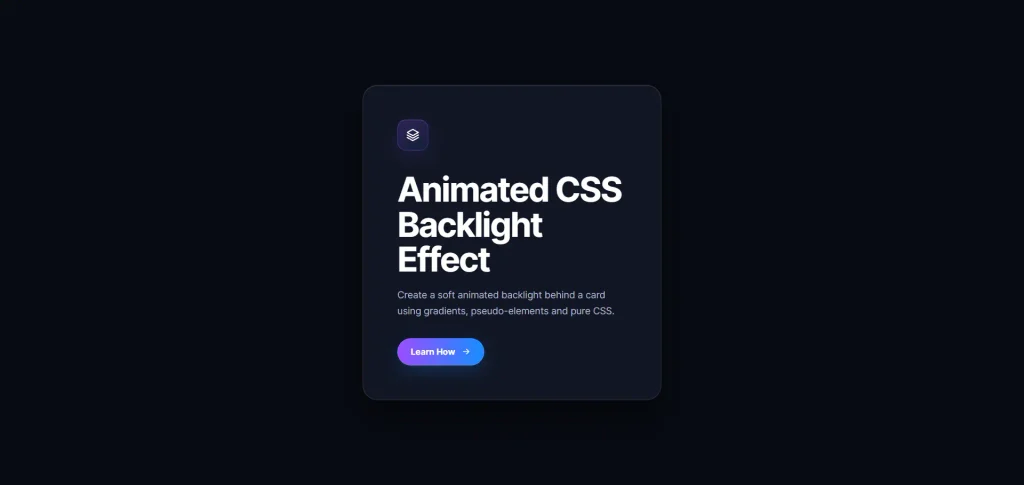
We can finally concentrate entirely on the backlight.
Step 9: Create the Backlight Layer
We’ll create the light using ::before on the outer wrapper.
Start with the layer itself:
.backlight::before {
  content: "";

  position: absolute;
  z-index: -1;

  inset: var(--backlight-spread);

  border-radius: 2rem;

  pointer-events: none;
}
There won’t be any visible light yet.
We’ve simply created an empty element behind the card.
This line:
inset: var(--backlight-spread);uses:
--backlight-spread: -18px;Because the value is negative, the pseudo-element extends 18px beyond the wrapper.
That gives our light some room to appear around the edges.
Step 10: Add Multiple Radial Gradients
Now we can add the colors.
Inside .backlight::before, add:
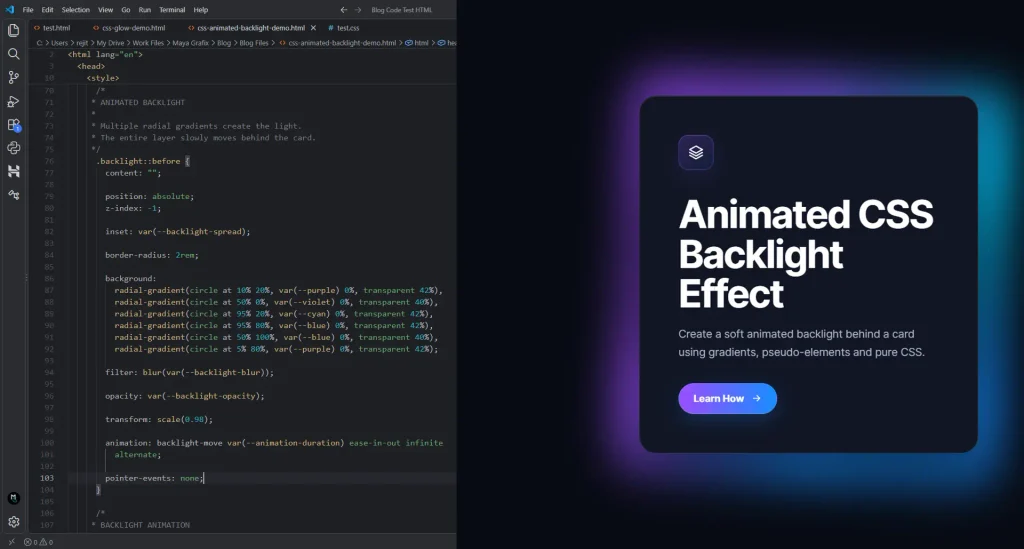
background:
  radial-gradient(circle at 10% 20%, var(--purple) 0%, transparent 42%),
  radial-gradient(circle at 50% 0%, var(--violet) 0%, transparent 40%),
  radial-gradient(circle at 95% 20%, var(--cyan) 0%, transparent 42%),
  radial-gradient(circle at 95% 80%, var(--blue) 0%, transparent 42%),
  radial-gradient(circle at 50% 100%, var(--blue) 0%, transparent 40%),
  radial-gradient(circle at 5% 80%, var(--purple) 0%, transparent 42%);
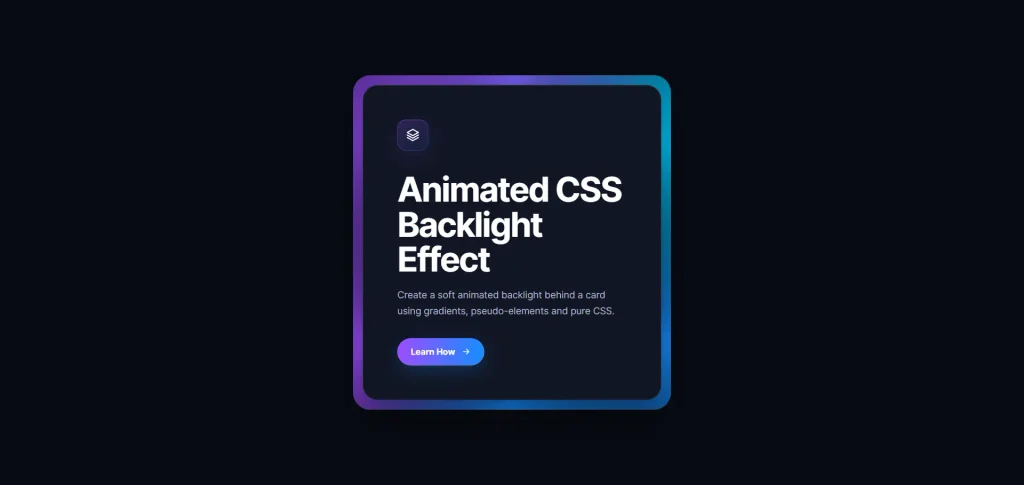
This is the part that gives the backlight its multicolor appearance.
We’re effectively placing six separate light sources around the card.
For example:
radial-gradient(circle at 10% 20%, var(--purple) 0%, transparent 42%)puts purple toward the upper-left.
This:
radial-gradient(circle at 95% 20%, var(--cyan) 0%, transparent 42%)places cyan near the upper-right.
And:
radial-gradient(circle at 50% 100%, var(--blue) 0%, transparent 40%)positions blue along the bottom.
This is where the technique starts to become more flexible than box-shadow.
We’re no longer just changing the color of a shadow. We’re positioning individual light sources.
Step 11: Turn the Gradients into Diffused Light
Next, add:
filter: blur(var(--backlight-blur));

opacity: var(--backlight-opacity);

transform: scale(0.98);
Our variables currently contain:
--backlight-blur: 35px;
--backlight-opacity: 0.9;
The blur is what transforms the clearly defined radial gradients into something that looks more like diffused light.
The opacity gives us one convenient control for the overall intensity.
And the initial scale(0.98) prepares the layer for the animation we’ll add next.
At this point, you should already have the complete static backlight effect.
Before adding animation, it’s worth checking that the card itself remains dark and the colors appear only around its outer edges.
If the colors are showing through the card, check that .backlight-card still has:
background: var(--card-background);
z-index: 1;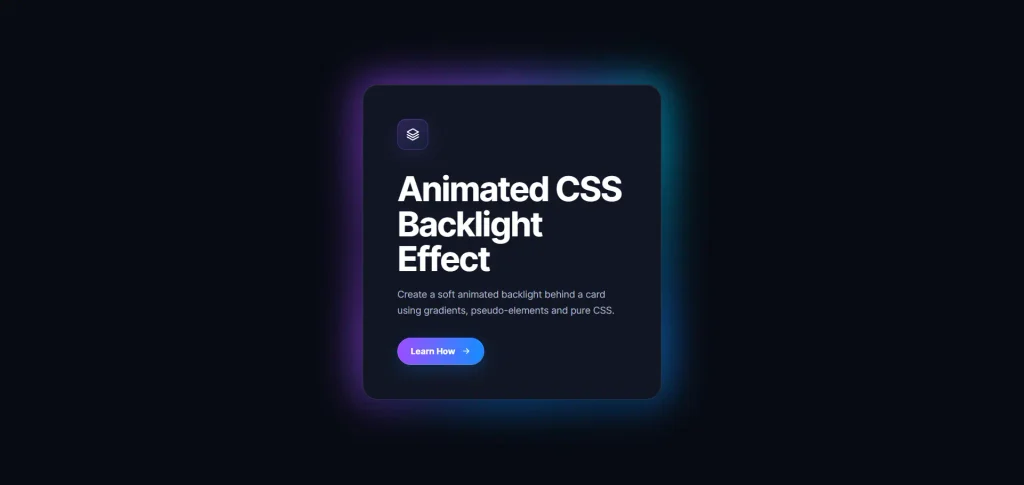
Step 12: Animate the Backlight
Now let’s bring the effect to life.
Add this to .backlight::before:
animation: backlight-move var(--animation-duration) ease-in-out infinite
  alternate;
The duration is already defined as:
--animation-duration: 4s;Now add the keyframes:
@keyframes backlight-move {
  0% {
    transform: translate(-10px, -6px) scale(0.94) rotate(-3deg);

    opacity: 0.65;
  }

  50% {
    transform: translate(10px, 8px) scale(1.06) rotate(3deg);

    opacity: 1;
  }

  100% {
    transform: translate(-5px, 10px) scale(1) rotate(-2deg);

    opacity: 0.8;
  }
}
These are the three animation states.
We’re changing three transform properties together.
translate() moves the complete light layer around the card.
scale() changes how far the light appears to spread.
rotate() changes the position of the different gradient areas relative to the edges of the card.
We’re also changing the opacity:
opacity: 0.65;to:
opacity: 1;and finally:
opacity: 0.8;This gives the light a subtle change in intensity while it moves.
The important detail is that none of this animation is applied to .backlight-card.
The card stays exactly where it is.
Only the colored layer behind it moves.
In my experience, that makes the effect feel much more like ambient lighting and much less like a UI animation.
Step 13: Respect Reduced Motion
Because the animation is decorative, visitors who prefer reduced motion shouldn’t have to see it.
Add:
@media (prefers-reduced-motion: reduce) {
  .backlight::before {
    animation: none;

    transform: none;
    opacity: var(--backlight-opacity);
  }

  .backlight-button {
    transition: none;
  }
}
This leaves the backlight visible but removes its movement.
It’s a small addition, but I consider it part of finishing the component rather than an optional extra.
Adjusting the Backlight
Once the component is working, most experiments can be done without touching the gradient structure.
For example, the intensity comes from:
--backlight-opacity: 0.9;The softness is controlled by:
--backlight-blur: 35px;The amount of light extending outside the card starts with:
--backlight-spread: -18px;And animation speed comes from:
--animation-duration: 4s;That’s one reason I like moving these values into CSS variables.
You can experiment with the effect without searching through the rest of the component CSS.
If you want to change the color palette, modify:
--purple: #9b4dff;
--violet: #6c5ce7;
--blue: #168cff;
--cyan: #00c8ff;
You can go much further by changing the positions inside each radial-gradient(), but I would start with the variables first.
Why the Wrapper Matters
You might wonder why we’re using:
<div class="backlight">
  <article class="backlight-card">
instead of simply creating .backlight-card::before.
I tried the single-element approach while working on this effect.
The problem is that the pseudo-element needs to sit behind an opaque card while still remaining visible outside its edges. Depending on the surrounding stacking contexts, negative z-index values can quickly become confusing.
The extra wrapper costs us one HTML element, but it makes the relationship very clear:
wrapper
    backlight behind

    card in front
This has become my preferred implementation because it is easier to understand, debug and reuse.
Watch Out for Overflow
If your code looks correct but the backlight appears to be cut off, inspect the parent elements.
The pseudo-element extends beyond the wrapper:
inset: var(--backlight-spread);and blur() extends the visible area even further.
If a parent element has:
overflow: hidden;that light can be clipped.
This is particularly easy to run into when using page builders because overflow may already be set on a parent Container for some unrelated layout effect.
Before changing your gradients or blur values, check the ancestors.
Using the Effect in Bricks Builder
The same structure works nicely in Bricks.
Create an outer Container and give it the class:
backlightInside it, create another Container:
backlight-cardThen place your content inside:
Container .backlight

    Container .backlight-card

        Icon
        Heading
        Text
        Button
I personally wouldn’t recreate every part of this demo with custom CSS when using Bricks.
Let Bricks handle things it already handles well: card padding, typography, border radius, content and button styling.
Use the custom CSS for the part Bricks isn’t giving us directly—the animated backlight.
The outer Container owns the pseudo-element and animation. The inner Container remains your normal Bricks component.
If you’re experimenting before building the native Bricks structure, the Bricks Code Element is also a convenient place to test the complete HTML and CSS first.
A Related Backlight Technique from Wes Bos
While experimenting with this effect, I came across a backlight demonstration from Wes Bos that approaches the idea from a different direction.
Watch Wes Bos’s CSS backlight video
His demonstration is worth looking at if you’re interested in creating backlighting based on visual content.
For this implementation, I wanted to avoid relying on an image or video and have precise control over where individual colors appeared. That’s why I ended up using multiple CSS radial gradients instead.
When I Would Use box-shadow Instead
After all this code, it’s worth coming back to the simple glow we started with.
The backlight isn’t automatically the better solution.
If I need a glow around a button, icon, input or small card, I would probably use box-shadow.
It’s simple, easy to maintain and does the job.
I would switch to this pseudo-element technique when the light itself becomes part of the design—when I want different colors in different places, more control over the spread, or independent animation.
That’s really the difference between the two examples.
Final Thoughts
What I like most about this CSS backlight effect is that it looks more complicated than the underlying technique actually is.
The final idea comes down to a few layers:
A normal dark card sits in the foreground.
A pseudo-element sits behind it.
Several radial gradients create individual colored light sources.
blur() blends those gradients together.
CSS keyframes move the light while leaving the card alone.
Separating the backlight from the content also makes the component much easier to reuse. The actual card doesn’t need to know anything about how the light is being generated behind it.
I’ve found that to be the most useful part of this approach—not just the visual effect, but the clean separation between the component and its decoration.
Frequently Asked Questions
A CSS backlight effect creates the appearance of light coming from behind an element. In this example, multiple radial gradients are placed on a pseudo-element behind the card and softened using filter: blur().
Yes. The complete example uses only HTML and CSS. The animation is created with CSS @keyframes.
box-shadow works well for a simple glow. Multiple radial gradients give you more control when you want different colours positioned around different parts of an element.
The wrapper separates the decorative light layer from the foreground card. This keeps the card opaque and makes the stacking behaviour easier to manage.
Change the --purple, --violet, --blue and --cyan CSS variables. The gradient positions can remain unchanged.
The final demo uses --animation-duration: 4s. Increase that value for slower movement or decrease it for faster movement.
Check whether the card or one of its parent elements has overflow: hidden. The blurred layer needs space outside the card’s normal boundaries.
Yes. Create an outer Container with the backlight class and an inner Container with backlight-card, then place your normal Bricks elements inside the inner Container.
Useful Resoures
If you want to explore the techniques used in this CSS backlight effect in more detail, these are worth bookmarking.
MDN – CSS radial-gradient()
A detailed reference for creating and positioning radial gradients. Useful if you want to experiment with different light shapes, gradient positions and colour stops.
MDN – CSS blur()
Explains how the blur() filter works and how the blur radius affects an element. This is the property that turns our gradient into a soft backlight rather than a clearly defined shape.
MDN – CSS isolation
A useful reference for understanding why isolation: isolate creates a new stacking context. This becomes particularly helpful when working with negative z-index values and pseudo-elements.
More from Maya Grafix
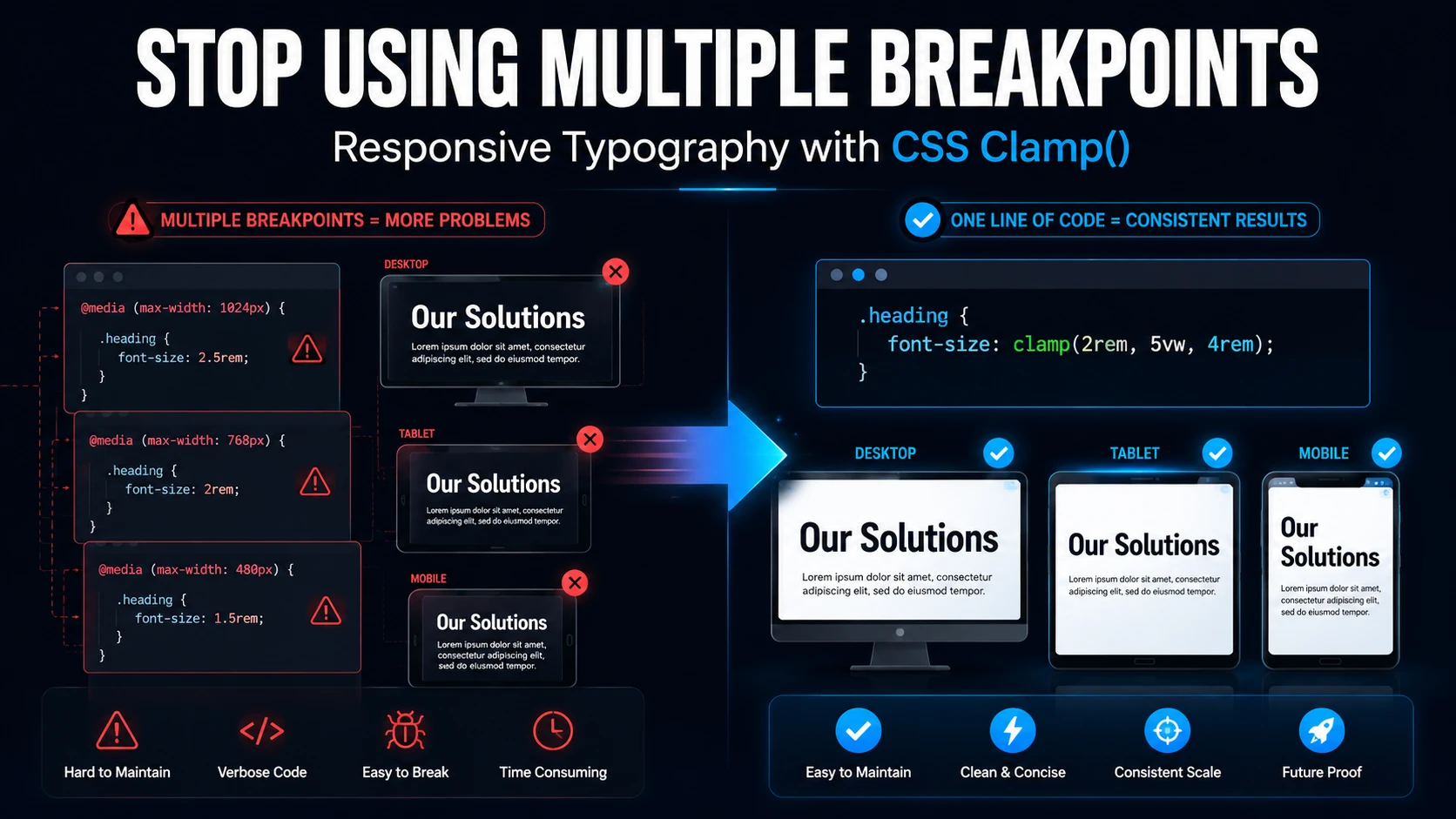
CSS Clamp Responsive Typography
Learn how I use CSS clamp() to create fluid, responsive typography without relying on multiple breakpoint-specific font sizes.
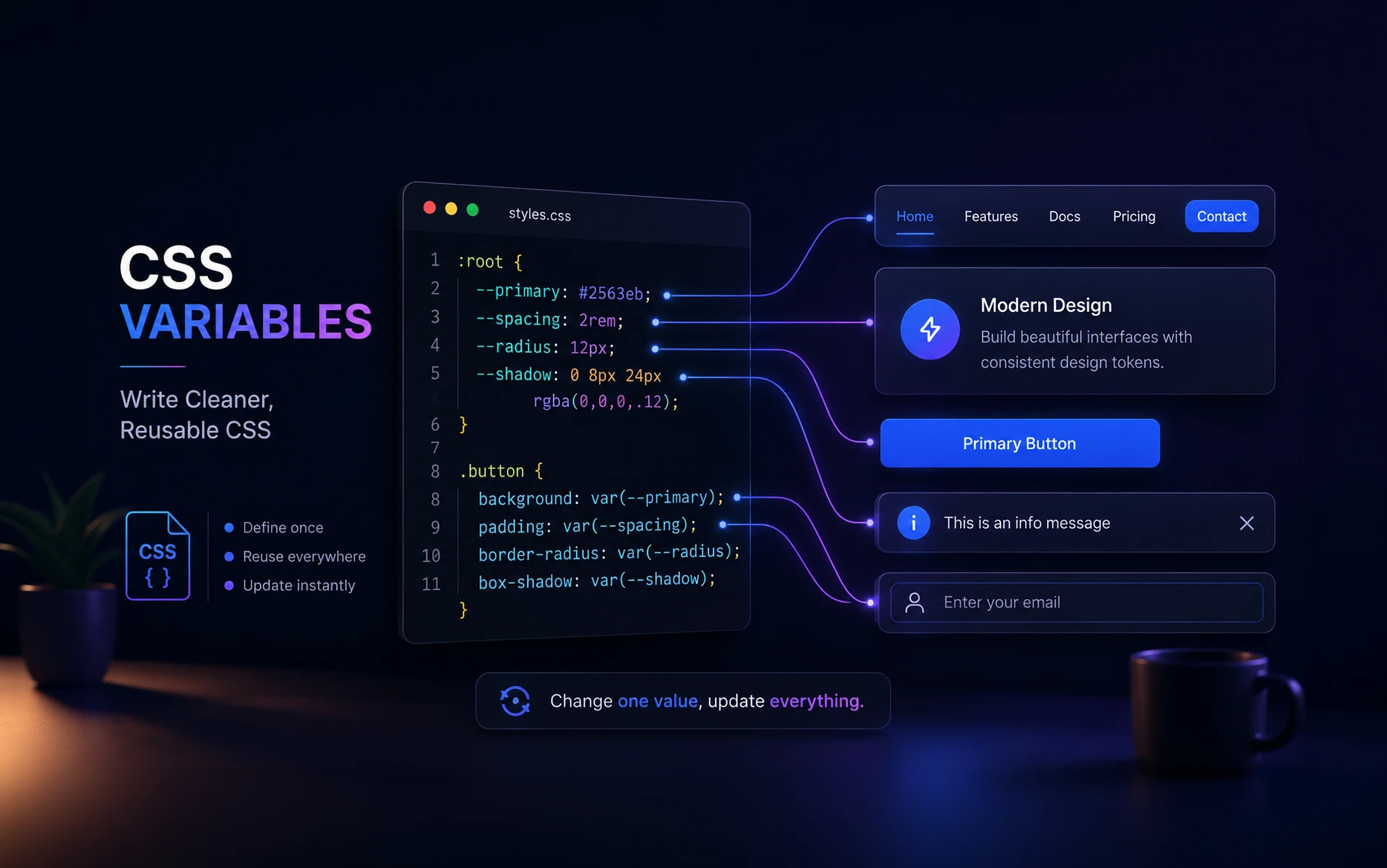
CSS Variables Explained: Write Cleaner, Reusable CSS with Custom Properties
A practical CSS variables tutorial showing how to generate reusable CSS with Custom Properties
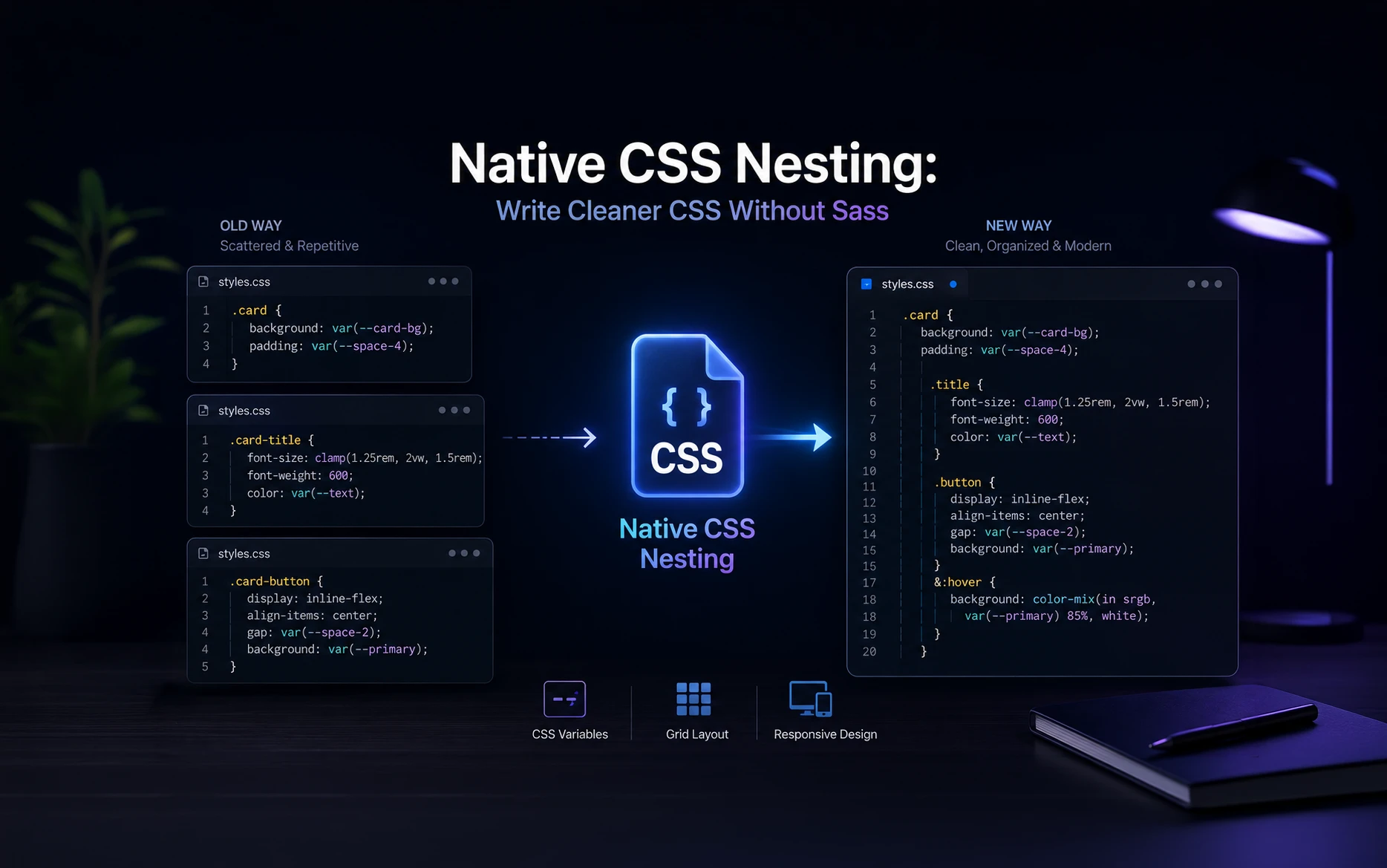
Native CSS Nesting: Write Cleaner CSS Without Sass
A toolkit on Native CSS Nesting for developers to write cleaner CSS without SASS