I’ve been using the Chrome Developer Console for years to test small JavaScript snippets while building websites. Recently, someone asked why Chrome refuses to let them paste JavaScript into the Console and instead asks them to type allow pasting. Since it’s a question many developers run into sooner or later, I thought it would be worth explaining what’s happening and why Chrome behaves this way.
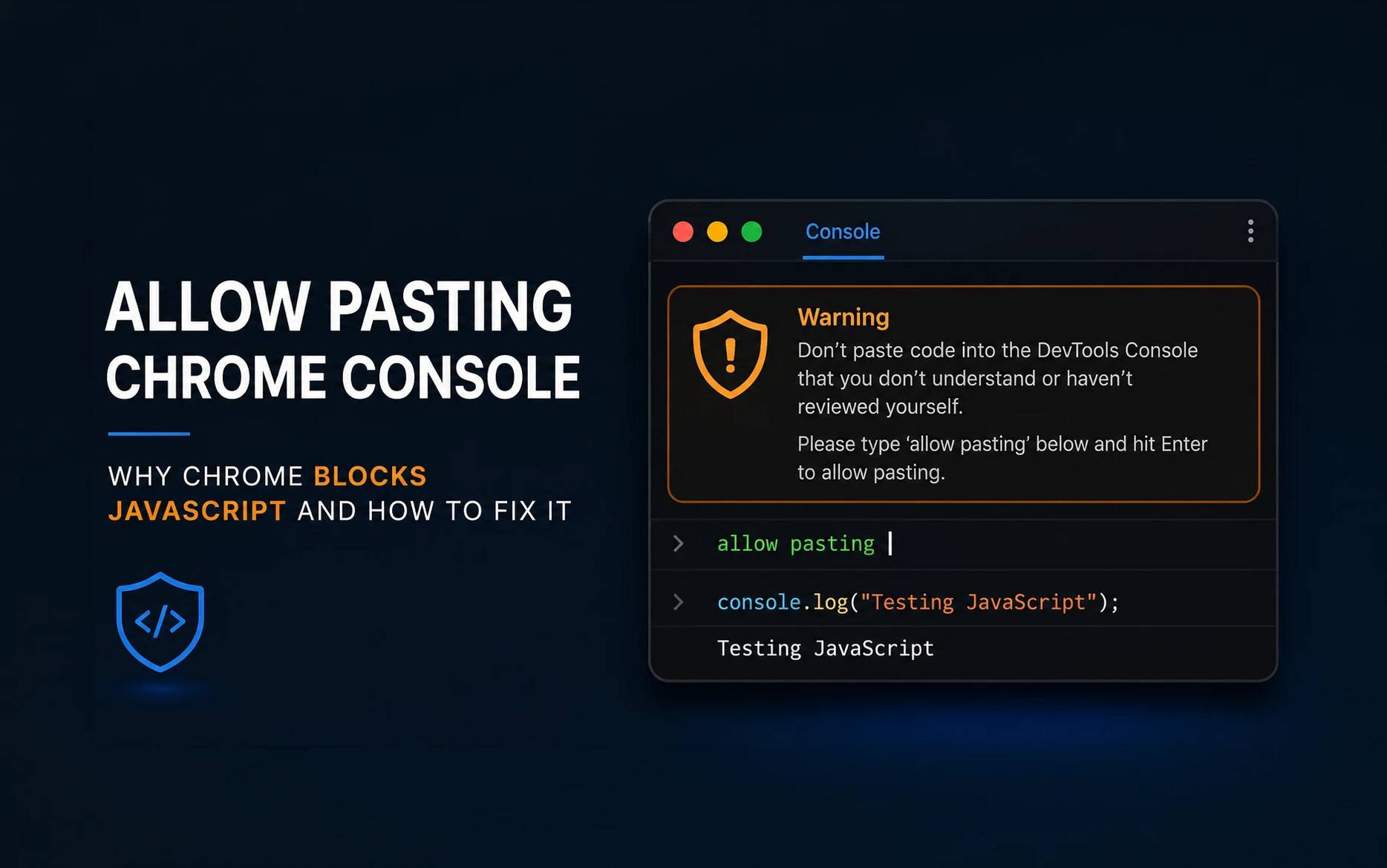
If you’ve searched for Allow Pasting Chrome Console, you’ve probably encountered this warning yourself. It isn’t an error or a bug—it’s a security feature built into Chrome to protect users from running potentially harmful JavaScript without understanding what it does.
What Is the Chrome Developer Console?
The Chrome Developer Console is one of the most powerful debugging tools available in modern browsers. It provides an interactive JavaScript environment for the webpage you’re currently viewing.
Instead of editing a JavaScript file, saving it, and refreshing the page repeatedly, you can execute JavaScript instantly and immediately see the result.
This has become one of my standard workflows whenever I’m troubleshooting a website.
I commonly use the Console to:
- Test JavaScript functions
- Inspect variables and objects
- Manipulate the DOM
- Debug JavaScript errors
- Test API responses
- Verify small code snippets before updating production code
If you’re developing WordPress websites, chances are you’ll spend a lot of time inside the Console.
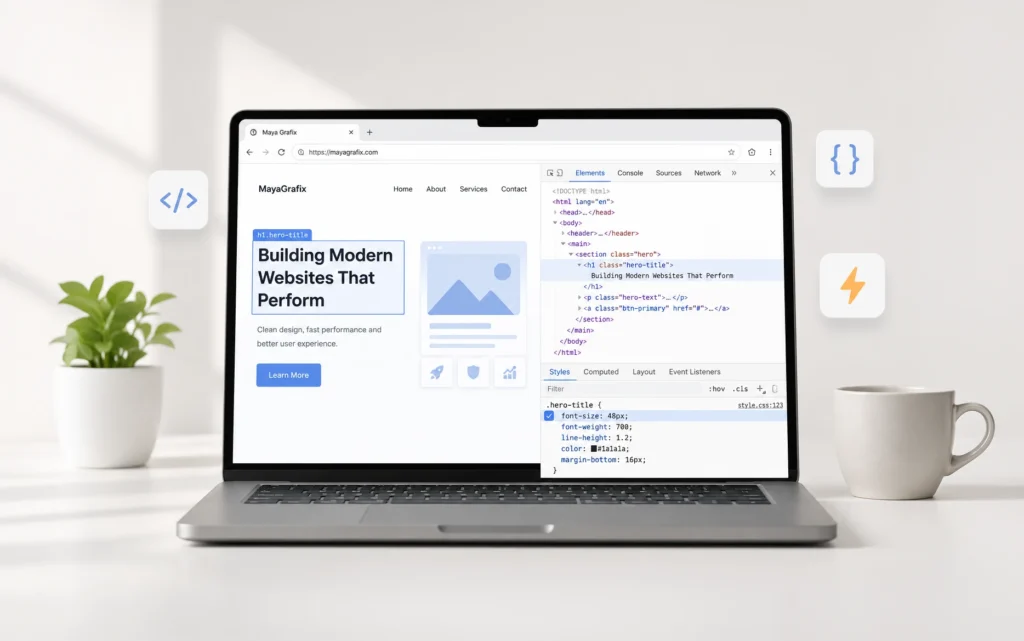
If you haven’t explored DevTools beyond the Console, take a look at my article on using Chrome Developer Tools to troubleshoot website problems, where I cover practical features like the Elements, Network, and Sources panels.
Opening the Chrome Console
There are several ways to open it.
Windows
- F12
- Ctrl + Shift + I
- Ctrl + Shift + J (opens directly to the Console)
Mac
- Cmd + Option + I
- Cmd + Option + J
You can also right-click anywhere on a webpage, choose Inspect, and then select the Console tab.
Executing JavaScript
Running JavaScript couldn’t be simpler.
Type your code and press Enter.
For example:
console.log("Hello from Chrome Console!");Or temporarily change the background colour of the current webpage.
document.body.style.background = "#f5f5dc";The page updates instantly.
Since these changes only affect the current browser session, the Console is a safe place to experiment without modifying your website files.
Why Chrome Blocks Pasted JavaScript
If Chrome refuses to let you paste JavaScript into the Console, it isn’t a bug.
It’s a deliberate security feature called Self-XSS protection.
Self-XSS (Self Cross-Site Scripting) protects users from running JavaScript they don’t understand.
Imagine someone posts the following online.
“Paste this into Chrome Console to unlock premium features.”
Many users simply follow the instructions without knowing what the code actually does.
Because JavaScript executed inside the Console runs with the same permissions as the current webpage, malicious code could:
- Read information displayed on the page.
- Perform actions while you’re logged in.
- Access data available to JavaScript.
- Send information to another server.
To reduce this risk, Chrome displays a warning before allowing pasted JavaScript.
Google explains this feature in detail in the official Chrome Developers documentation:
https://developer.chrome.com/blog/self-xss
How to Enable Allow Pasting
When Chrome displays the warning, the solution is straightforward.
- Click inside the Console.
- Type the following manually.
allow pasting- Press Enter.
- Paste your JavaScript again.
Important: Chrome requires you to type allow pasting yourself. Copying and pasting those words won’t work.
Once you’ve done this, Chrome remembers your decision for the current browser profile.
Can You Turn It Back On?
This was actually the next question I had after researching the feature.
Unfortunately, the answer isn’t as simple as you might expect.
According to the official Chrome Developers documentation, Chrome stores your decision inside your browser profile. The allow pasting confirmation is intended to be a one-time action, so the warning won’t normally appear again for that profile.
Current versions of Chrome also don’t include a setting inside DevTools to re-enable the warning. You might come across older articles mentioning a Show warning about self-XSS when pasting code option, but that setting no longer exists in recent Chrome releases.
The most reliable way to experience the original behaviour again is to create a new Chrome profile. Since the new profile has no stored preference, Chrome displays the Self-XSS warning again the first time you paste JavaScript into the Console.
Chrome’s Official Option for Test Automation
Chrome provides a command-line flag for automated testing environments where the Self-XSS warning can interrupt a test workflow.
--unsafely-disable-devtools-self-xss-warningsFor example, Chrome can be launched from the command line with the flag included:
chrome.exe --unsafely-disable-devtools-self-xss-warningsOn macOS, the command would look similar to this:
open -a "Google Chrome" --args --unsafely-disable-devtools-self-xss-warningsThe exact command can differ depending on the operating system and the location of the Chrome executable.
Google specifically provides this option for test automation. It should not be used as a normal way to disable the warning during everyday browsing.
The word unsafely in the flag is intentional. It makes it clear that the protection is being bypassed.
You can read the official explanation in the Chrome Developers documentation about Self-XSS protection.
Why You Should Not Use the Automation Flag for Normal Browsing
It can be tempting to add the flag permanently if you regularly paste JavaScript into the Console. I personally would not recommend that.
The warning exists to make you pause before executing code from another source. Even experienced developers can paste something without reading every line carefully.
For normal development work, typing allow pasting once is enough. The automation flag is useful only when a browser is being launched programmatically for testing and the warning interferes with that process.
Useful JavaScript Commands for the Chrome Console
Once pasting is enabled, the Console becomes a convenient place to run small troubleshooting scripts.
Here are a few examples I regularly find useful.
Check the Loaded jQuery Version
Many WordPress websites already load jQuery. You can check the active version with:
if (typeof jQuery !== "undefined") {
    console.log(`jQuery version: ${jQuery.fn.jquery}`);
} else {
    console.log("jQuery is not loaded on this page.");
}
This is more useful than directly running jQuery.fn.jquery because it also handles pages where jQuery is not loaded.
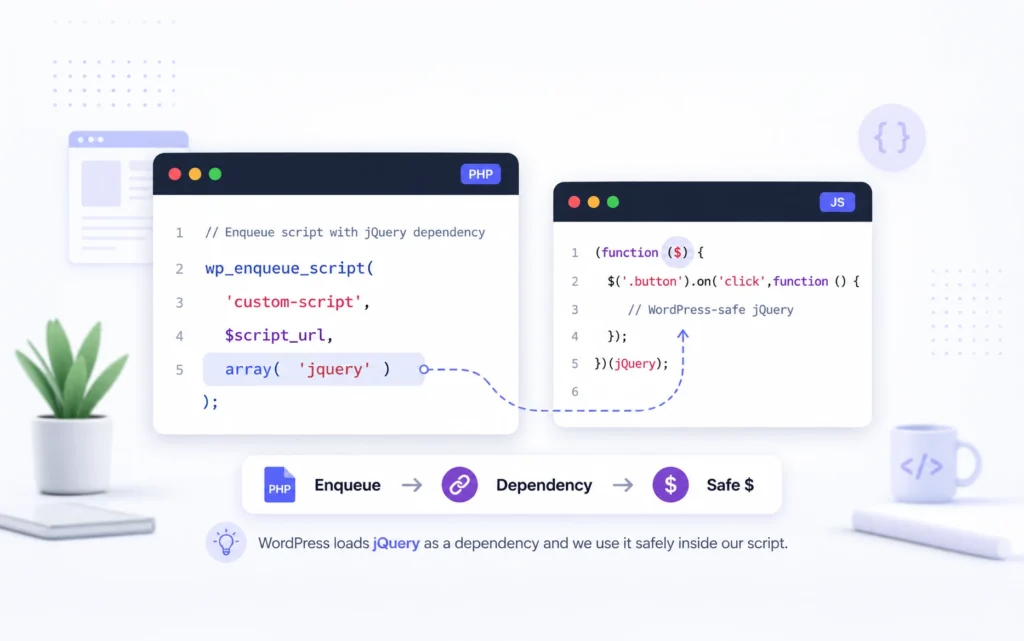
If you’re developing WordPress websites, you might also like my article on why I prefer jQuery in WordPress, how to enqueue it correctly, and how to use the $ shortcut safely. It explains why I still reach for jQuery in many WordPress projects.
Count the Images on a Page
console.log(`Total images: ${document.images.length}`);This can be useful when checking image-heavy pages or confirming whether dynamically loaded images are present in the DOM.
Find Broken Images
document.querySelectorAll("img").forEach((image) => {
    if (!image.complete || image.naturalWidth === 0) {
        image.style.outline = "3px solid red";
        console.log("Broken image:", image.src);
    }
});
This highlights broken images with a red outline and prints their URLs in the Console.
I have found this particularly useful on migrated websites where image paths are sometimes incorrect.
List All Links on the Current Page
document.querySelectorAll("a[href]").forEach((link) => {
    console.log(link.href);
});
This prints every link found on the page.
To list only external links, compare each link’s hostname with the current website:
document.querySelectorAll("a[href]").forEach((link) => {
    const url = new URL(link.href);

    if (url.hostname !== window.location.hostname) {
        console.log(link.href);
    }
});
Find Elements With Missing Alt Text
document.querySelectorAll("img").forEach((image) => {
    if (!image.hasAttribute("alt") || image.alt.trim() === "") {
        console.log("Missing alt text:", image);
    }
});
This is a quick accessibility and SEO check. It will not replace a proper accessibility audit, but it helps identify obvious omissions.
Temporarily Hide an Element
const element = document.querySelector(".your-selector");

if (element) {
    element.style.display = "none";
} else {
    console.log("Element not found.");
}
Replace .your-selector with the selector of the element you want to test.
This is useful when you want to see how a layout looks without a specific banner, sidebar, popup, or section.
Temporarily Add a CSS Class
const element = document.querySelector(".your-selector");

if (element) {
    element.classList.add("is-active");
} else {
    console.log("Element not found.");
}
This lets you test states such as active menus, open accordions, highlighted cards, and modal visibility without modifying the original JavaScript.
Copy Text From the Page
Chrome DevTools provides a useful copy() helper.
copy(document.body.innerText);This copies all visible page text to the clipboard.
You can also copy the content of a specific element:
const content = document.querySelector(".article-content");

if (content) {
    copy(content.innerText);
} else {
    console.log("Content element not found.");
}
The copy() helper is provided by DevTools. It is not a standard JavaScript function available inside a normal script file.
Use $_ to Access the Previous Result
Chrome Console stores the result of the previous expression in $_.
For example:
document.querySelectorAll("a");After running it, enter:
$_.length;This gives you the number of links without repeating the original query.
It is a small feature, but it saves time when exploring page elements interactively.
Use $0 for the Selected Element
When you select an element in the Elements panel, Chrome makes it available in the Console as $0.
For example:
console.log($0);You can then test changes directly:
$0.style.outline = "3px solid red";This is one of the quickest ways to experiment with a particular element without writing a long selector.
Best Practices When Pasting JavaScript
The allow pasting confirmation should not be treated as an inconvenience to remove without thought.
Before executing pasted code, I recommend checking a few things.
Read the entire script, even if it is only a few lines. Look for network requests, cookie access, storage access, form submissions, and code that sends data to an external URL.
Be particularly cautious when code contains methods such as:
fetch();XMLHttpRequest();document.cookie;localStorage;sessionStorage;These methods are not automatically malicious. They are commonly used in legitimate JavaScript. However, you should understand why the pasted script uses them before running it.
Also check the website currently open in the browser. Pasting unknown code while logged in to an email account, payment service, hosting panel, social network, or WordPress admin area creates a greater risk than testing on a local development website.
In my experience, the safest workflow is to test unfamiliar code on a local site or a separate development environment first.
Common Mistakes
Trying to Paste allow pasting
Chrome expects you to type the phrase manually.
Pasting the words into the Console does not confirm that you understand the warning.
Type:
allow pastingThen press Enter.
Looking for a DevTools Setting to Turn the Warning Back On
Older articles and forum discussions sometimes mention a Console preference called Show warning about self-XSS when pasting code.
That option is not available in current Chrome DevTools versions.
The most reliable way to see the warning again is to use a fresh Chrome profile.
Assuming “Restore Defaults and Reload” Will Bring It Back
Resetting DevTools preferences can restore layout and preference settings, but it is not a documented or reliable way to re-enable the Self-XSS warning.
Chrome stores the allow pasting decision as part of the browser profile, so resetting DevTools alone does not guarantee that the warning will return.
Using the Automation Flag Permanently
The following flag is intended for automated testing:
--unsafely-disable-devtools-self-xss-warningsIt should not be added permanently to your regular Chrome shortcut just to avoid the warning.
Running Code Without Checking the Current Page
Console JavaScript runs in the context of the page currently open.
Before running a script, confirm that you are on the correct tab and that the code is appropriate for that website.
Forgetting That Console Changes Are Temporary
Changes made through the Console usually disappear after refreshing the page.
For example:
document.body.style.background = "yellow";This only modifies the current page in the browser. It does not update the website’s CSS file.
Once the test works, the actual change still needs to be added to the website code.
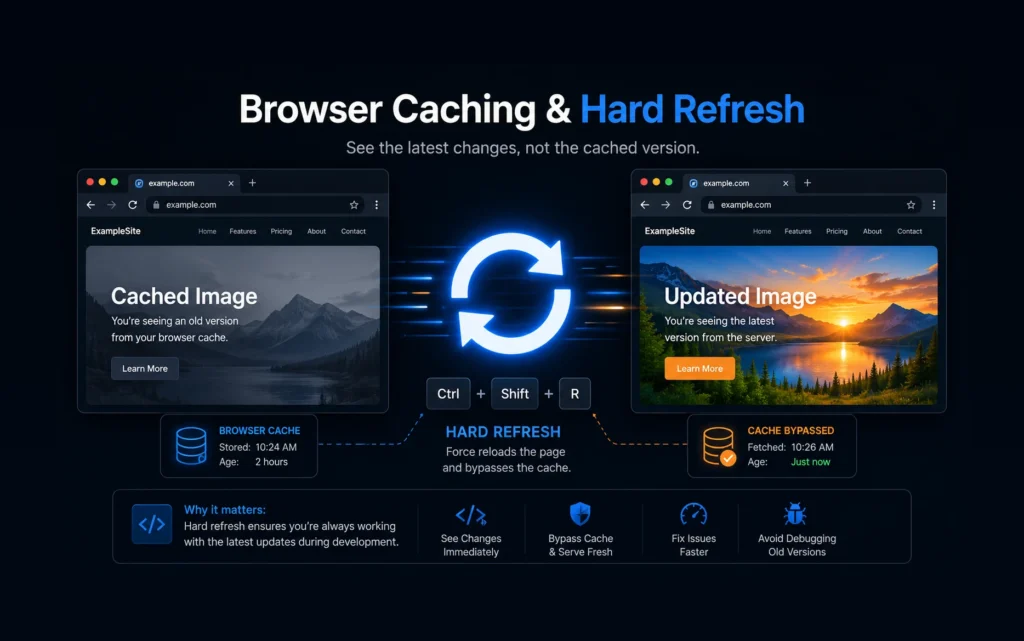
Refreshing the page removes these temporary changes. If you’ve ever updated a website only to have someone say they still see the old version, my guide on how to hard refresh your browser after website updates explains why that happens and how to fix it.
Final Thoughts
The Chrome Developer Console has become part of my standard development workflow. It is often the quickest place to test a JavaScript idea, inspect an element, or confirm what is happening on a page.
The Allow Pasting Chrome Console warning is not an error. It is a security measure designed to stop users from running code they do not understand.
For developers, the solution is simple: review the code, type allow pasting manually, and continue with the test. Once permission has been granted, Chrome remembers it for that browser profile.
There is currently no straightforward setting to restore the warning. A new Chrome profile is the most reliable way to see it again. For test automation, Chrome provides a command-line flag, but that flag should remain limited to controlled testing environments.
Have you found any useful JavaScript snippets that have become part of your regular Console workflow? Share them in the comments. They could be useful to other developers as well.
FAQs
Chrome blocks pasted JavaScript to protect users from Self-XSS attacks. These attacks convince people to paste malicious code into DevTools while they are logged in to a website.
Type the following phrase manually:
allow pastingPress Enter, and then paste your JavaScript again.
Chrome requires you to type the phrase manually. This helps confirm that you have read the warning rather than blindly following copied instructions.
The phrase itself only enables pasting in the DevTools Console. The safety depends on the JavaScript you execute afterward.
Only run code you understand and trust.
No. Chrome generally remembers the decision for the current browser profile.
Chrome does not currently provide a normal DevTools setting to re-enable it.
The most reliable method is to use a new Chrome profile.
Not reliably. It resets DevTools preferences, but Chrome also stores the pasting decision in the browser profile.
Chrome provides this command-line flag:
--unsafely-disable-devtools-self-xss-warningsIt is intended for test automation environments and should not be used for regular browsing.
Usually, no. Changes made in the Console affect the current page session and disappear after a refresh.
However, JavaScript can still submit forms, call APIs, change server-side data, or perform actions through your logged-in account. That is why unknown scripts should never be executed casually.
Other Chromium-based browsers can include similar DevTools behaviour, but the exact warning and implementation can differ between browsers and versions.