This article is a little different from what I normally write. Most of my posts focus on WordPress, CSS, JavaScript, PHP, or web development workflows. This time, I wanted to share a real-world troubleshooting experience because the solution wasn’t immediately obvious, and it can save others from spending hours chasing the wrong problem.
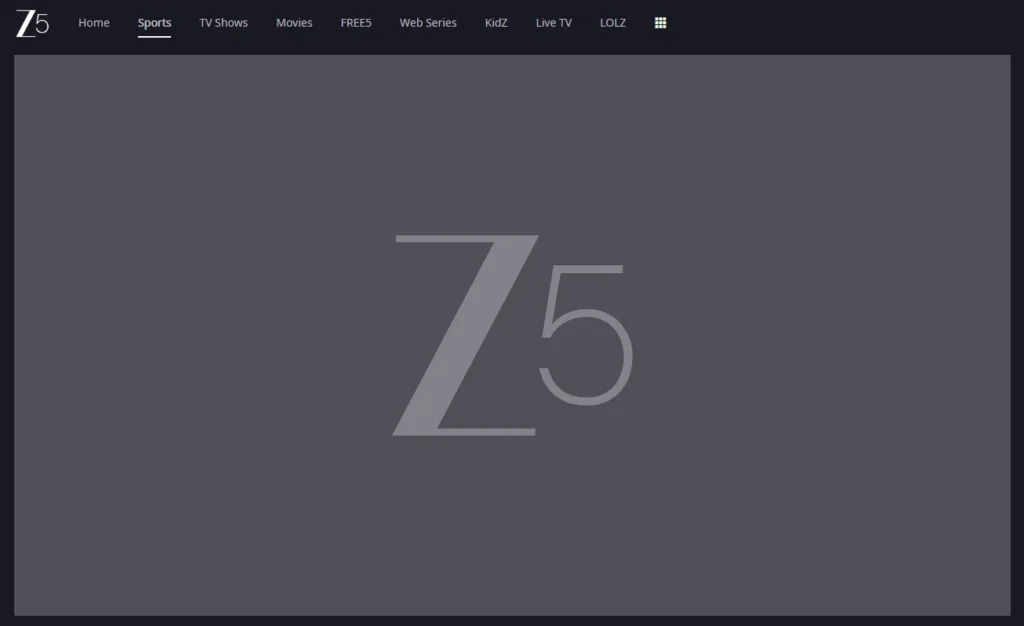
I had planned a relaxing evening to watch the FIFA World Cup on ZEE5. I opened the website, logged into my paid account, selected the match, and clicked the Play button. Instead of the live stream starting, I was greeted with… nothing. The website loaded normally, the menus worked, my subscription was active, but the video player remained completely blank. There wasn’t even a preview image.
At first, I assumed it was a temporary problem with ZEE5. Streaming services occasionally experience outages, so I gave it some time and tried again. The result was exactly the same. When I tested it in both Chrome and Microsoft Edge and found that they behaved identically, I knew the issue was probably somewhere on my computer rather than with the streaming service itself.
As a web developer, troubleshooting has become second nature. Whether I’m debugging a website or tracking down an unexpected browser issue, I’ve found that the quickest way to reach the answer is to eliminate possibilities one by one instead of making assumptions. That approach eventually led me to the real culprit—something I wasn’t expecting at all.
The Problem
The symptoms were surprisingly consistent.
The ZEE5 website loaded without any errors. I could browse movies, TV shows, and live sports. My profile opened normally, and my subscription details were visible. Everything suggested the website was working perfectly.
The moment I tried to play any video, however, the player simply refused to load. No loading animation, no preview thumbnail, and no error message. It looked as if the player wasn’t even trying to start.
Since I had a paid subscription, account permissions were clearly not the issue. My internet connection was stable, and other streaming platforms worked perfectly. That narrowed the possibilities considerably.
The Usual Fixes Didn’t Help
Like most people, I started with the obvious solutions.
I cleared Chrome’s browsing cache and cookies, thinking an outdated cached file was preventing the player from loading. After that, I logged out of ZEE5 and signed in again. When that didn’t work, I restarted the browser and even rebooted my computer.
Nothing changed.
The player remained blank.
At this stage, many people would probably uninstall the browser or assume the streaming service was having problems. I’ve learned over the years that those are usually the last things worth trying.
Instead, I started looking for patterns.
Chrome and Edge Showing the Same Problem
One thing immediately caught my attention.
Both Chrome and Microsoft Edge behaved in exactly the same way.
Since both browsers are based on Chromium, they share much of the same rendering engine. If a website fails in both browsers, it doesn’t automatically mean the website is broken. It often points towards something common between the two browsers.
That “something” could be:
- A browser extension
- Cached resources
- A security setting
- Antivirus software
- Network filtering
At this point, I still didn’t know which one was responsible.
The Incognito Test Changed Everything
Whenever I troubleshoot browser issues, one of the first things I do is open the website in an Incognito window.
Incognito mode disables most browser extensions by default, doesn’t reuse the normal browsing session, and starts with a much cleaner environment.
I opened ZEE5 in Incognito mode, logged into my account again, selected the same match, and clicked Play.
It worked instantly.
That single test ruled out a huge number of possibilities.
The website wasn’t broken.
My account wasn’t the problem.
My internet connection wasn’t the issue.
The browser itself wasn’t damaged.
Something inside my normal browser profile was interfering with the website.
That’s the kind of breakthrough every troubleshooting session needs.
Time to Investigate the Extensions
I have quite a few browser extensions installed. Some help with development work, while others improve day-to-day browsing.
Rather than disabling everything at once, I decided to take a more systematic approach.
I disabled one extension, refreshed the page, and tested the video player again.
Still nothing.
I enabled it back and disabled the next extension.
Again, no difference.
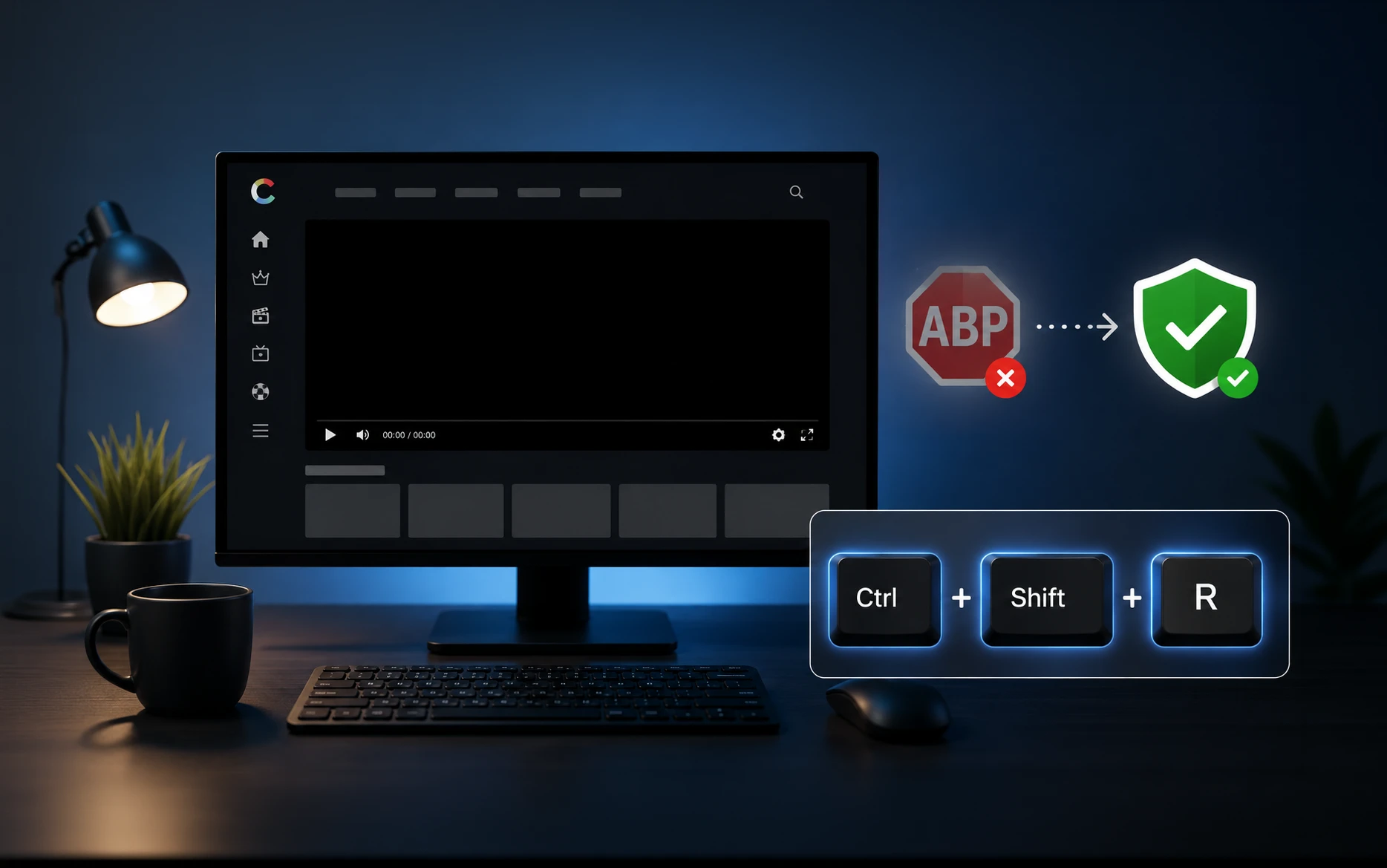
This process continued until I disabled AdBlock Plus.
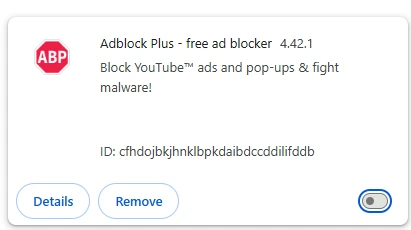
The moment I refreshed the page, the video started playing.
That was unexpected.
I’ve used AdBlock Plus for years without any major problems, so I wasn’t expecting it to interfere with ZEE5.
Still, I wasn’t convinced yet. One successful test doesn’t always prove the cause.
I enabled AdBlock Plus again.
The player stopped working.
I disabled it once more.
The player immediately returned.
That confirmed it.
Before You Check Extensions
While researching the problem, I also came across another common cause of video playback issues in Chrome: an outdated Widevine Content Decryption Module (CDM).
Widevine is Google’s digital rights management (DRM) component used by many streaming platforms, including ZEE5, Netflix, Prime Video, and others. If it’s outdated or corrupted, protected videos can fail to play even though the rest of the website loads normally.
Before spending too much time troubleshooting, it’s worth checking that Widevine is up to date.
In Chrome:
- Open
chrome://components - Scroll down to Widevine Content Decryption Module
- Click Check for update
- Restart Chrome after the update completes.
- Try playing the video again.

In my case, Widevine was already up to date, so it wasn’t the cause. However, it’s a quick check that can save time if your issue is DRM-related.
Surely Whitelisting the Website Would Fix It…
At this point, I thought the solution was obvious.
AdBlock Plus allows websites to be added to a whitelist so advertisements aren’t blocked. I added ZEE5 to the whitelist, expecting everything to return to normal.
Unfortunately, nothing changed.
Even after refreshing the page, the player still refused to load.
That confused me.
If the website was no longer being blocked, why wasn’t it working?
The answer turned out to be browser caching.
The Missing Step
I performed one more test.
Instead of pressing the normal Refresh button, I used a hard refresh by pressing Ctrl + Shift + R.
Immediately the player started working.
That explained everything.
When AdBlock Plus had originally blocked some of the player resources, Chrome had already cached the incomplete page state. Even though I later added ZEE5 to the whitelist, the browser continued using those cached files.
A hard refresh forced Chrome to download fresh copies of everything from the server, including the files that had previously been blocked. As soon as it did that, the video player loaded normally.
At first, I thought I had solved the problem.
Unfortunately, I soon realised it wasn’t that simple.
Every time I closed the browser and opened ZEE5 again, the videos stopped playing until I pressed Ctrl + Shift + R once more. A normal refresh wasn’t enough. While this workaround got the videos playing, it wasn’t something I wanted to repeat every time I watched a movie or a football match.
That’s when I decided to look for a better solution.
Why I Switched to uBlock Origin Lite
Since AdBlock Plus was clearly responsible for the issue, I started looking for alternatives.
One extension kept appearing in recommendations from developers and privacy communities: uBlock Origin Lite.
After reading through several discussions, I decided to give it a try.
The installation took less than a minute. I removed AdBlock Plus, installed uBlock Origin Lite with its default settings, and opened ZEE5 again.
This time everything worked exactly as expected.
The videos played immediately.
There was no need to whitelist the website.
There was no need to perform Ctrl + Shift + R every time.
It simply worked.
uBlock Origin Lite is the Manifest V3 version of uBlock Origin, designed for modern Chromium-based browsers such as Chrome and Microsoft Edge. Although it offers fewer advanced filtering options than the original extension, it provides excellent performance, uses very little memory, and has worked flawlessly for my day-to-day browsing.
I’ve continued using uBlock Origin Lite since then, and it has blocked advertisements just as effectively while avoiding the compatibility issue I experienced with AdBlock Plus. For me, it became the permanent solution rather than another workaround.

Why Ad Blockers Can Break Streaming Platforms
You might wonder why an ad blocker can stop a streaming service from working in the first place.
Modern streaming platforms are far more complex than they appear. When you click the Play button, the browser isn’t downloading a single video file. It first requests dozens of supporting resources, including JavaScript files, DRM components, encrypted video manifests, authentication services, media playlists, analytics scripts, and content delivered through multiple CDNs.
Modern ad blockers don’t just hide banner advertisements. They also block tracking scripts, third-party requests, and domains that match their filter lists. Occasionally, one of those blocked requests turns out to be something the streaming platform actually needs for video playback.
In my case, AdBlock Plus appears to have blocked one or more resources required by ZEE5’s player. Once those files were blocked and cached, Chrome continued using the incomplete version until I performed a hard refresh. Replacing AdBlock Plus with uBlock Origin avoided the issue completely because its default filter lists handled the same website differently.
What I Learned From This Experience
This wasn’t really about ZEE5.
It could have happened with any modern web application.
The biggest lesson was the importance of following a structured troubleshooting process instead of randomly trying every suggestion found online.
If I had immediately reinstalled Chrome, I would have spent a lot of time without solving the actual problem.
If I had blamed ZEE5, I would probably still be waiting for an update that was never going to arrive.
Instead, each test answered one question.
Does Incognito work?
Yes.
Then the browser profile is involved.
Is Widevine up to date?
Yes.
Do extensions affect it?
Yes.
Which extension?
AdBlock Plus.
Does whitelisting solve it?
Not immediately.
Why?
Cached resources.
What forces those resources to reload?
A hard refresh.
Once you approach problems like this methodically, the answer often reveals itself much faster than expected.
My Standard Browser Troubleshooting Workflow
Whenever a website behaves unexpectedly, this has become my standard checklist.
First, test the same website in an Incognito window. If it works there, you already know the issue is related to your browser profile rather than the website itself.
Next, verify that the Widevine Content Decryption Module is updated. Since many streaming services rely on DRM, this simple check can eliminate one of the most common causes of playback issues.
Then disable browser extensions one by one instead of disabling everything together. This makes it much easier to identify the exact extension responsible.
If you change extension settings, perform a hard refresh using Ctrl + Shift + R instead of a normal refresh. Cached resources can continue causing problems even after you’ve corrected the underlying issue.
Only after these steps would I consider clearing cookies, resetting browser settings, or reinstalling the browser.
This workflow has saved me countless hours over the years, and this experience reinforced why it works so well.
Final Thoughts
What started as an evening of watching football unexpectedly turned into another reminder that browser extensions can influence websites in ways we don’t always expect.
In my case, the culprit wasn’t Chrome, Edge, my internet connection, or ZEE5 itself. It was AdBlock Plus silently blocking resources that the video player needed to function. Whitelisting the site wasn’t enough because Chrome continued using previously cached files, and a simple hard refresh completed the fix. Eventually, I replaced AdBlock Plus with uBlock Origin, which has worked flawlessly so far.
The next time a website suddenly stops working, resist the temptation to assume the website is broken. Start with a few simple tests, eliminate possibilities one at a time, and let the evidence guide your next step. More often than not, the real cause is something much closer to home.
Frequently Asked Questions
If the website loads but the video player remains blank, a browser extension, an outdated Widevine DRM component, or cached browser resources can prevent playback. Testing the site in an Incognito window is a quick way to narrow down the cause.
Incognito mode disables most browser extensions by default. If the website works there but not in your normal browser window, one of your installed extensions is the most likely cause.
Widevine is Google’s DRM technology used by streaming platforms to securely deliver protected video content. Keeping it updated helps avoid playback issues with services such as ZEE5, Netflix, Prime Video, and others.
The browser can continue using cached resources that were downloaded while the site was still being blocked. Performing a hard refresh with Ctrl + Shift + R forces Chrome to request fresh copies from the server.
Both are popular ad blockers, but in my experience, uBlock Origin worked without interfering with ZEE5 playback and has become my preferred choice.
Not necessarily. Testing the website in an Incognito window, checking Widevine, and disabling browser extensions usually provide much faster answers than repeatedly clearing the cache.
Useful Resources
If you found this troubleshooting guide helpful, the resources below will help you understand browser behaviour, caching, and debugging techniques in more detail. I’ve included a few related articles from this blog along with some official references that provide additional information.
- How Chrome Developer Tools Helps Me Find and Fix Website Problems Faster – Learn how to inspect network requests, JavaScript errors, and browser behaviour to identify website issues more efficiently.
- Why Your Website Still Shows the Old Image After Replacing It (And How to Fix It) – Understand the difference between a normal browser refresh and a hard refresh, and why cached files sometimes continue to appear after a website has been updated.
- Allow Pasting Chrome Console: Why Chrome Blocks JavaScript and the Simple Fix – Discover why Chrome introduced the allow pasting security prompt and how it protects users from potentially dangerous JavaScript while using Developer Tools.
- Google Chrome Help – Update Chrome Components – Official instructions for checking and updating the Widevine Content Decryption Module, which is required by many streaming services.
- uBlock Origin Lite – Chrome Web Store – The official extension page with features, updates, and installation instructions.
- AdBlock Plus Help Center – Official documentation covering whitelisting, filter lists, and extension settings.