I recently shared a project folder of roughly 7 GB with a client through Google Drive. The folder contained the usual mix: source files, exports, documents, and a few assets that were too large or too numerous to send sensibly as individual attachments.
The client clicked Download, expected one ZIP file, and instead Chrome started downloading several archives. That is the point where Google Drive split ZIP files can look alarming. Nothing had necessarily gone wrong; Google Drive was preparing a large folder download as multiple ZIP archives rather than one giant archive.
The point is the client was not able to download the full archive, because he didn’t notice that Google asked quietly for permission to download multiple archive files.
The important detail is that these files are not separate deliverables. They are parts of one downloaded folder. Once every part has finished downloading, extracting them into the same destination recreates the original folder structure.
After I helped the client work through the download and extract the complete folder, I thought this was worth writing down. Google Drive split ZIP files are not difficult once you know the workflow, but the first time you see several archives appear instead of one expected download, it is easy to assume something has failed.
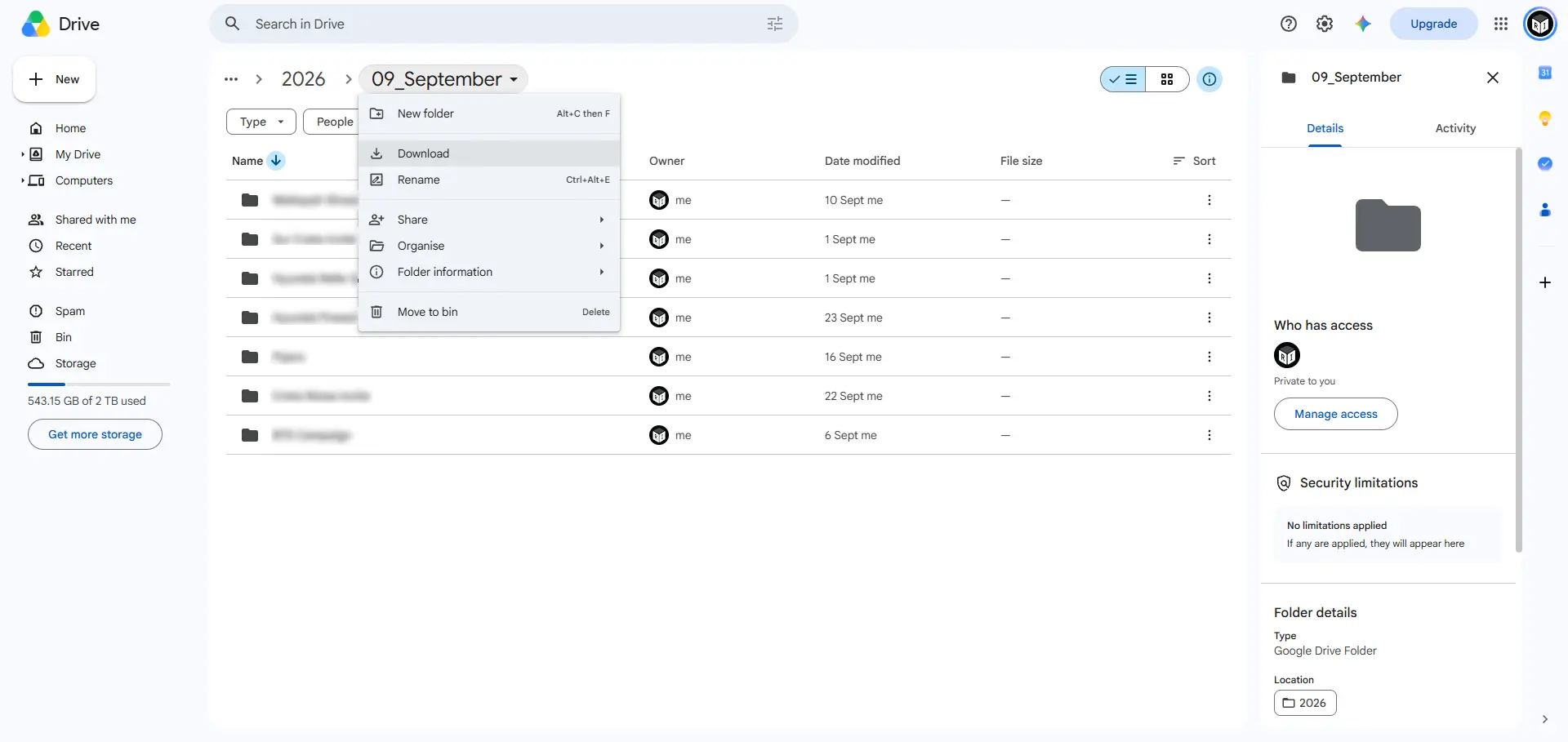
Table of Contents
Why Google Drive split ZIP files appear for large folders
When you download a folder from Google Drive, Drive packages the selected content into a ZIP archive for the browser. With a large folder, that packaging can result in more than one ZIP file. Google does not promise that every folder download will arrive as one archive, so it is safer to treat the download as a set until you have checked the finished files.
In this case, Google Drive split the 7 GB folder as a few numbered ZIP files. The filenames followed the same base name, with a timestamp number added to distinguish each archive. The exact names and sizes can vary, so do not rely on a specific suffix pattern. Rely on the shared base name, the complete download count, and the folder contents after extraction.
Google Drive also shows a preparation stage before the browser downloads anything. A very large folder can take time to prepare. Closing the tab early, refreshing repeatedly, or assuming that the first ZIP is the whole delivery is how an otherwise normal download turns into a support call.
Before downloading Google Drive split ZIP files
Create a clean destination folder first. I usually make a folder named after the client project inside Downloads or another working drive, then keep both the ZIP files and the extracted result there until I have verified everything. It gives you one place to check if something is missing.
Make sure the computer has free space for both the downloaded ZIP files and the extracted folder. Extraction temporarily needs room for both.
Keep the browser open until every download is complete. Do not judge completion from the first archive alone.
Use a stable connection. If a download fails, re-download only the failed ZIP rather than extracting a partial set.
Do not rename the ZIP files before extraction. Consistent filenames make it easier to see which archives belong together.
Allow Chrome to download the complete set
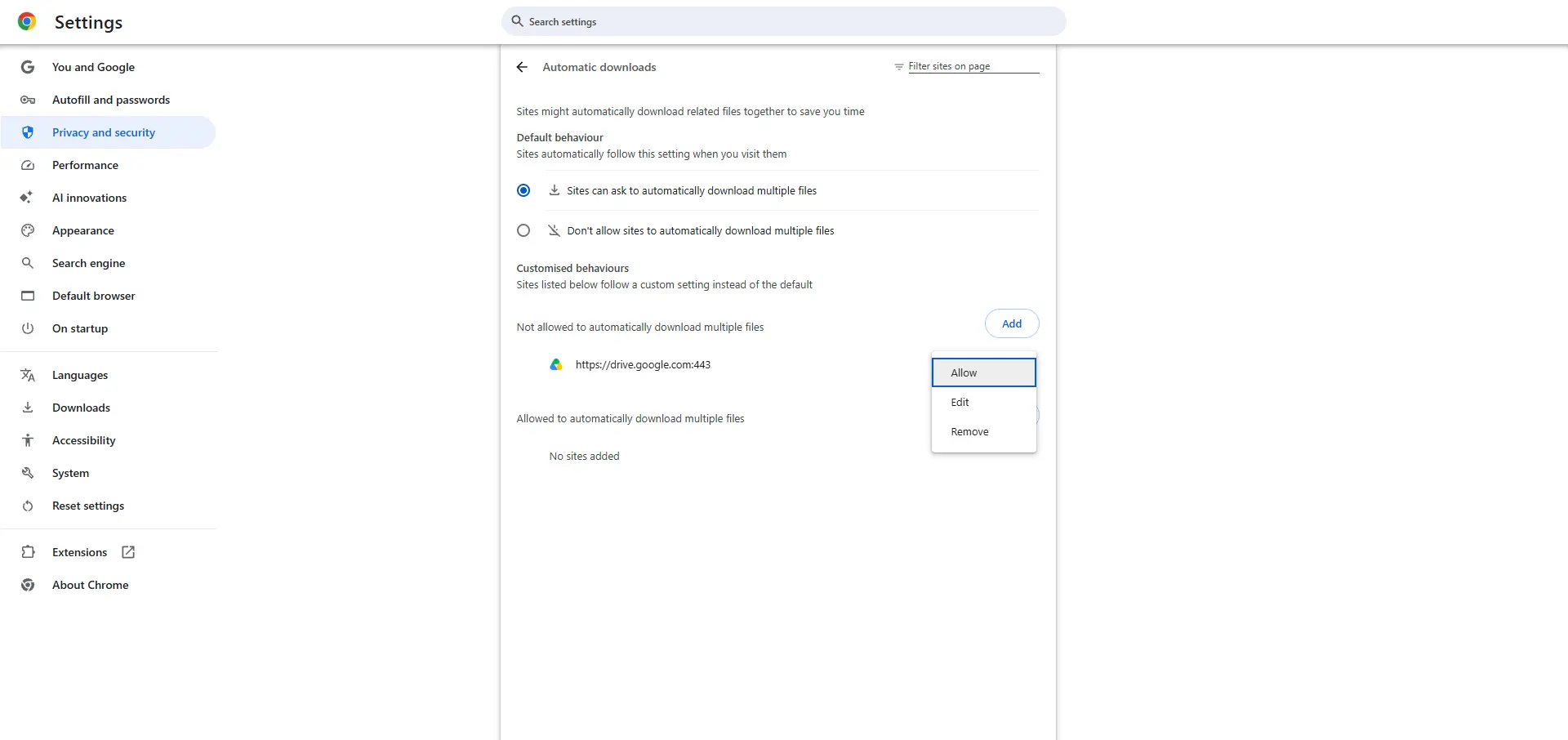
Chrome may ask permission to download multiple files automatically. This is a browser safety feature, not a Google Drive error. Because Google Drive can trigger several related ZIP downloads, Chrome may pause after the first one until you allow the site to continue.
When Chrome shows the prompt, allow downloads only if you trust the Google Drive share and the person who sent it. For a client handoff you initiated or a colleague you know, allowing drive.google.com to download the related files is normally the expected step.
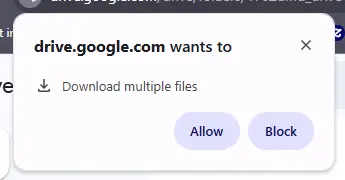
If you dismissed the prompt or Chrome blocked the remaining archives, open Chrome Settings, then Privacy and security, Site settings, Additional permissions, and Automatic downloads. You can also go directly to chrome://settings/content/automaticDownloads. Review the setting and allow Drive to ask or allow the specific trusted site, then start the Google Drive download again.
This permission controls related automatic downloads. It is separate from Chrome’s download location setting. If you want Windows to ask where to save each ZIP, use Chrome Settings, Downloads, and enable the option to ask where to save each file before downloading.
Check that the downloads are complete before extracting
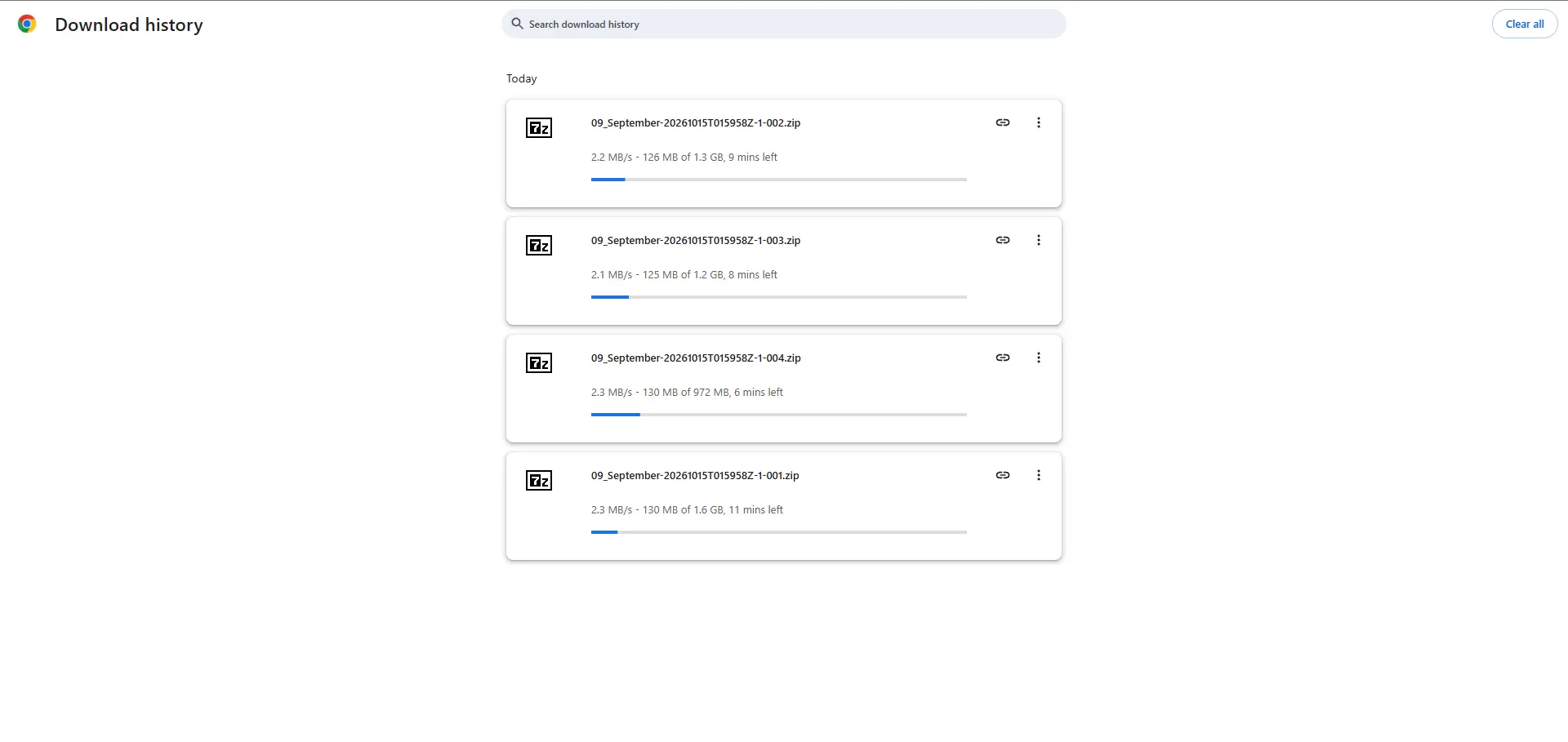
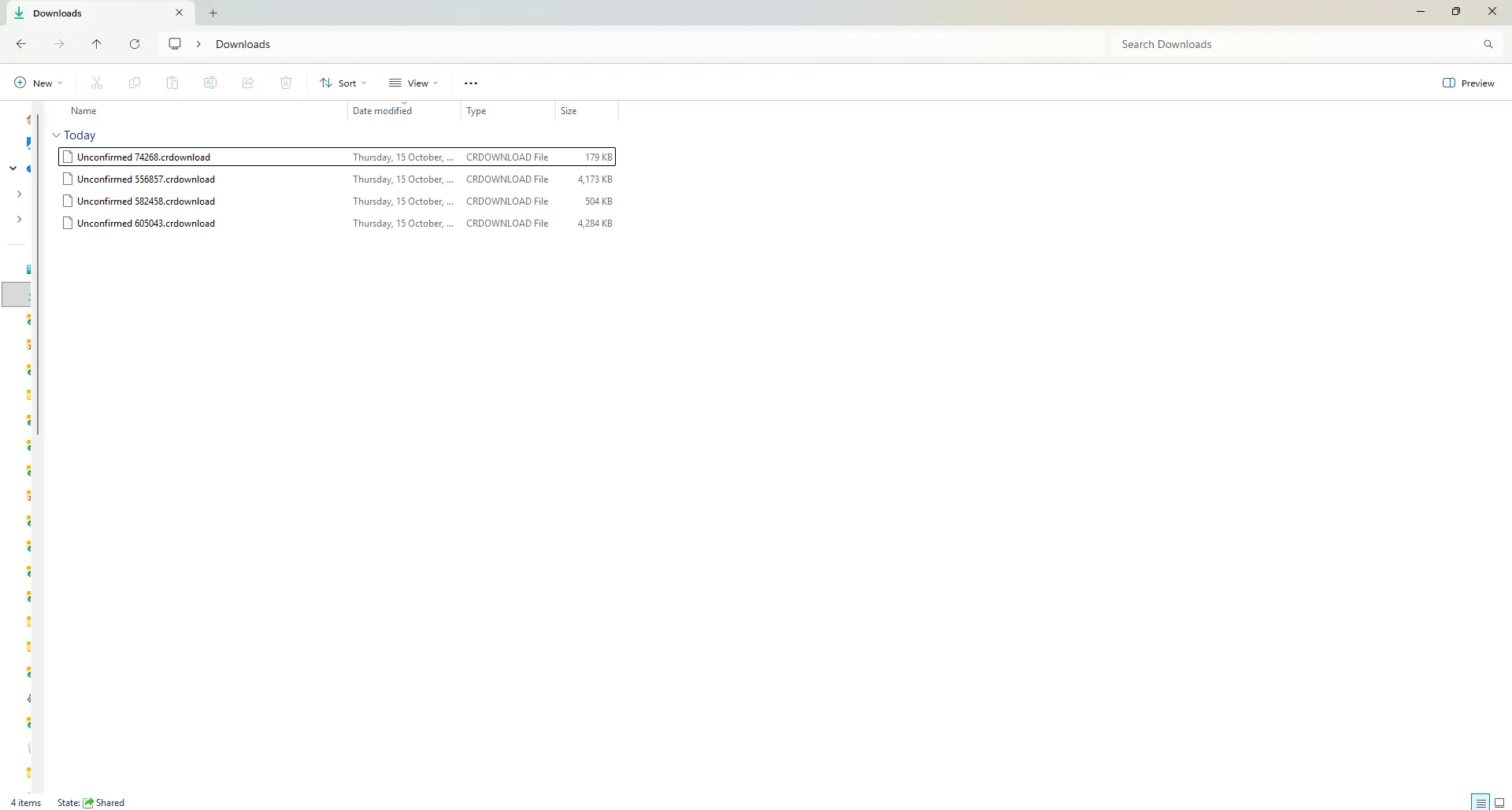
Open Chrome’s Downloads list and confirm that every archive has finished. Then open the destination folder in Windows File Explorer. You should see all ZIP files from the same Google Drive download together, with no .crdownload files still present.
A .crdownload file means Chrome is still downloading or the download did not finish cleanly. Do not extract while one is present. Wait for it to complete, or download that archive again if Chrome reports an error.
Windows File Explorer extraction method
Windows File Explorer can extract ordinary ZIP files without installing another app. This is a good first option when the archives open normally and the folder is not especially complex.
In File Explorer, right-click the first ZIP file and choose Extract All.
Choose an extraction location inside your project folder, such as C:\Users\YourName\Downloads\Client Project\Extracted.
Repeat the process for each remaining ZIP file, always choosing that same Extracted folder.
If Windows asks whether to replace a file, stop and check the destination path first. A replace prompt can be normal when archives contain a common top-level folder, but it can also reveal that files are being extracted into the wrong nested folder.
The goal is not to create a separate extracted folder for every ZIP. The goal is to let the archive contents merge into one shared extraction destination. If the original Drive folder was Project Files, the finished path should look like this:
C:\Users\YourName\Downloads\Client Project\Extracted\Project Files\It should not look like a row of archive-specific folders such as Extracted\Project Files 1, Extracted\Project Files 2, and Extracted\Project Files 3. Those separate folders make the handoff harder to verify and can separate files that originally belonged together.
Use 7 Zip when you want more control
I personally prefer 7-Zip, a free Windows utility, for larger client downloads. It makes the destination choice explicit and is useful when Windows Explorer is slow, reports an archive issue, or gives you less clarity about what is being extracted. Download 7-Zip only from its official site or a trusted software source.
You can download 7-Zip from its official website: https://www.7-zip.org/
7 Zip method 1 – Extract each archive individually
This method is slower but very clear. Use it if you want to watch each archive complete or troubleshoot one problematic ZIP.
Open the folder that contains all Google Drive split ZIP files.
Right-click the first ZIP file, choose 7-Zip, then Extract Files.
Set the Extract to field to the same shared destination folder, for example C:\Users\YourName\Downloads\Client Project\Extracted.
Click OK and wait for the extraction to finish.
Repeat for each remaining ZIP, always using the identical shared destination.
Do not use 7-Zip’s Extract Here command if you need a clean project folder and the ZIP files are sitting beside other work. It can be perfectly valid, but Extract Files gives you a chance to confirm the merge folder path before anything is written.
7 Zip method 2 – Select all archives and extract once
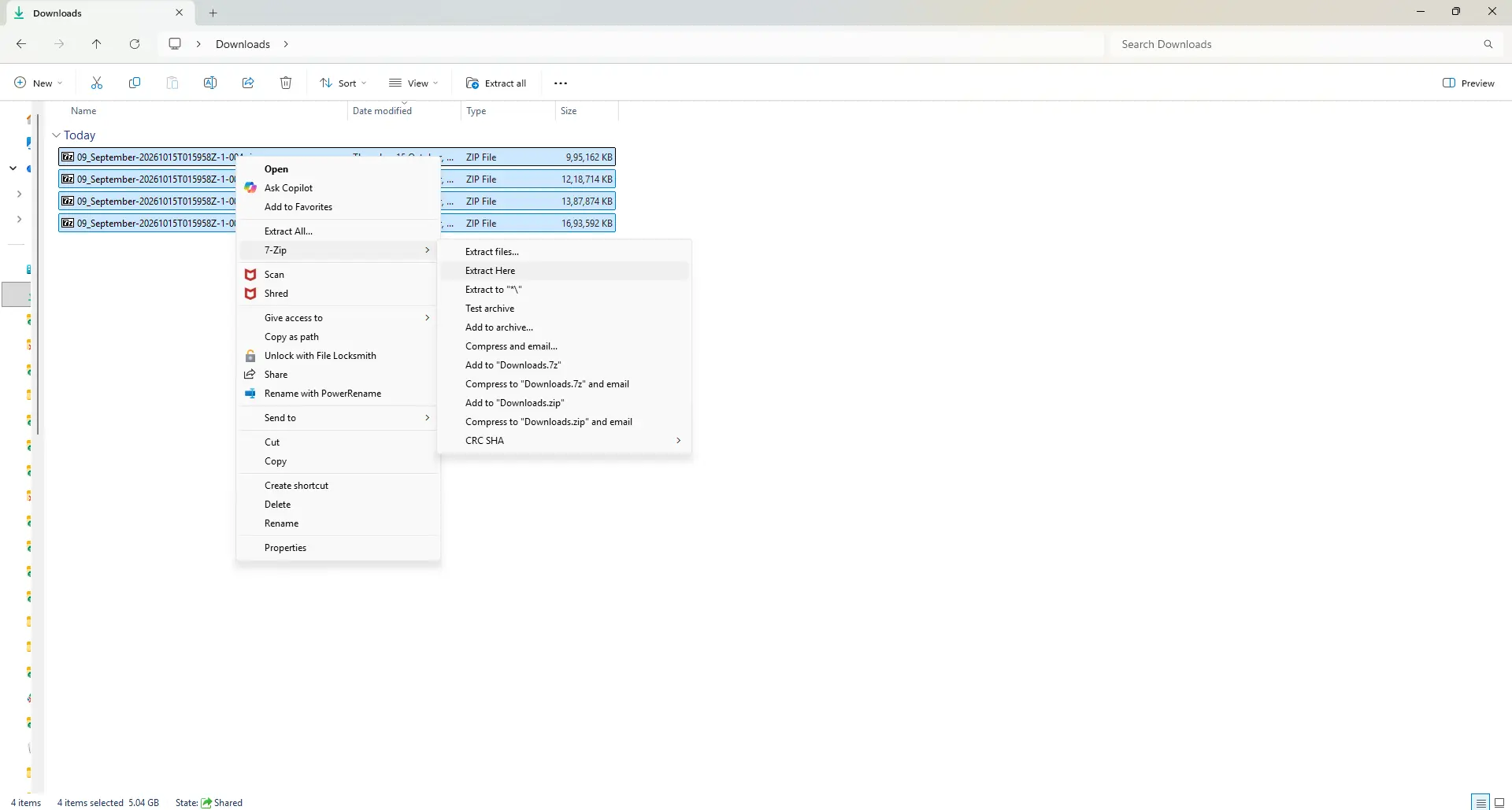
For a normal multi-ZIP Google Drive download, this is my preferred method. Select every ZIP file that belongs to the same download, right-click the selection, choose 7-Zip, then select Extract Here or Extract Files.
If you chose Extract Here, a folder with the same name from your Google Drive will be created and the all the files in the archive will be extracted to that folder.
If you chose Extract files, Set the Extract to field to the same shared destination folder, for example C:\Users\YourName\Downloads\Client Project\.
The select-all approach reduces the chance of accidentally extracting one part to a different location. It also makes the intended workflow obvious: all of the Google Drive split ZIP files are contributing to one reconstructed folder, not to separate projects.
Understand the merge folder path before clicking extract
The destination path is the small decision that prevents most of the confusion. Choose one empty or dedicated folder as the merge destination. Let each ZIP extract into that one location, and allow the common folder structure from the archives to rebuild underneath it.
For example, if the ZIP archives contain a top-level folder named Website Assets, use this destination:
C:\Users\YourName\Downloads\Client Project\Extracted\After extraction, the result should be:
C:\Users\YourName\Downloads\Client Project\Extracted\Website Assets\Avoid selecting Website Assets itself as the destination before every extraction unless you have already inspected the archive structure. If every ZIP already contains a Website Assets folder, choosing the parent Extracted folder avoids the common Website Assets\Website Assets nesting mistake.
Verify the rebuilt folder before deleting anything
Do a simple verification pass before you delete the ZIP files or tell the sender that the transfer is complete. Open the extracted top-level folder and compare it with the shared Drive folder if you still have access. Look for the expected main folders, a few large files, and any files you know should be present.
Open several files from different folders. A project can look complete while one archive has failed.
Check the size of the extracted folder in File Explorer. It should be broadly plausible for the original 7 GB download, allowing for compression differences.
Search the extracted folder for a known filename from the original share.
Keep the ZIP files until the client confirms the folder opens and the important files are present.
If you are handing files back to a client, I also recommend sending a short note that the download may arrive as multiple ZIP files and that all of them should be extracted into the same folder. That one sentence prevents a surprising amount of back-and-forth.
Security checks for shared Google Drive archives
A ZIP file is only a container. It does not make unknown content safe. Download Google Drive split ZIP files only from a share you expected, check the sender and the folder name, and be cautious with executable files, scripts, or unexpected password-protected archives.
Do not disable Chrome Safe Browsing or antivirus software just to force a download through. If Chrome shows a warning, verify the file with the sender through another trusted channel. For client work, a quick email or message is better than assuming that an unexpected installer is legitimate.
If the archive contains website files, treat credentials, backups, and configuration files carefully. Do not upload unknown code to a live WordPress site just because it arrived in a client archive. Review it locally first and keep a backup of the current site before making changes.
Troubleshooting Google Drive split ZIP files
Only one ZIP downloaded: Chrome may have blocked the remaining related downloads. Check Automatic downloads permissions for drive.google.com, then restart the folder download and leave Chrome open until every file is complete.
Windows says the ZIP is invalid: First check for a .crdownload file or an interrupted download in Chrome. Delete only the incomplete ZIP and download that part again. If the error remains, ask the sender to re-share or re-upload the folder.
Files landed in several folders: Create one empty merge folder and extract every archive into that same parent destination. Do not copy files across blindly until you understand whether duplicate names are expected.
The extracted folder is incomplete: Compare the top-level folders and a few known files with Drive. One missing ZIP can remove an entire section of a project. Re-download the missing or failed archive before troubleshooting individual files.
There is not enough disk space: Move the ZIP files to a drive with enough free capacity, then extract there. Remember that you need space for the compressed archives and the extracted result at the same time.
Final thoughts
Google Drive split ZIP files are usually a packaging detail, not a damaged delivery. The reliable workflow is simple: allow the trusted multiple downloads, wait for every archive to finish, extract all archives into one shared destination, and verify the rebuilt folder before deleting the originals.
This has become my standard workflow for larger client handoffs. It is a little more deliberate than double-clicking the first ZIP, but it saves time when a project folder contains many files and the client needs a complete, usable copy on the first attempt.
If you have run into a different Google Drive extraction pattern on Windows, share it in the comments. The exact archive names can vary, but the same basic checks usually reveal where the process went wrong.
Frequently asked questions about Google Drive split ZIP files
Why did Google Drive split my folder into multiple ZIP files?
Google Drive packages folder downloads into ZIP archives, and larger or more complex downloads can arrive as more than one archive. Treat the related ZIP files as one set until you have extracted and checked the rebuilt folder.
Do I need to extract Google Drive split ZIP files into the same folder?
Yes. Use one shared parent extraction folder so the archive contents can recreate the original folder structure together. Extracting each archive to a separate folder makes verification harder and can split related files apart.
Can Windows File Explorer extract Google Drive split ZIP files?
Yes, Windows can extract standard ZIP files through File Explorer. For larger downloads or more control over the extraction destination, 7-Zip is a useful alternative.
Why did Chrome download only the first ZIP file?
Chrome may require permission for related automatic downloads. Check Chrome Settings, Privacy and security, Site settings, Additional permissions, and Automatic downloads, then retry the trusted Google Drive download.
Can I delete the ZIP files after extraction?
Wait until you have opened several files, checked the expected folder structure, and confirmed that the recipient can use the files. Then you can delete the ZIP files to recover space or keep a backup copy if the project requires it.
Useful resources
These references are useful when you need to confirm the browser setting or use a different extraction utility:
From Maya Grafix