
Bricks 2.4 introduced AI abilities, and I wanted to try them on Maya Grafix. I use Codex as my AI coding agent, so I connected it to my WordPress site through the WordPress MCP Adapter. Codex could inspect my Bricks components and design settings. That raised a new question: could the same connection help me work with the articles in my custom Blog post type?
Table of Contents
This article follows what I tested, why I considered WPVibe, and how I added a small companion plugin for Blog content. It is about extending the workflow Bricks AI started, rather than teaching the Bricks builder. If you are setting up Bricks AI, start with the Bricks AI video and the official setup guide.
What Bricks 2.4 AI gave me
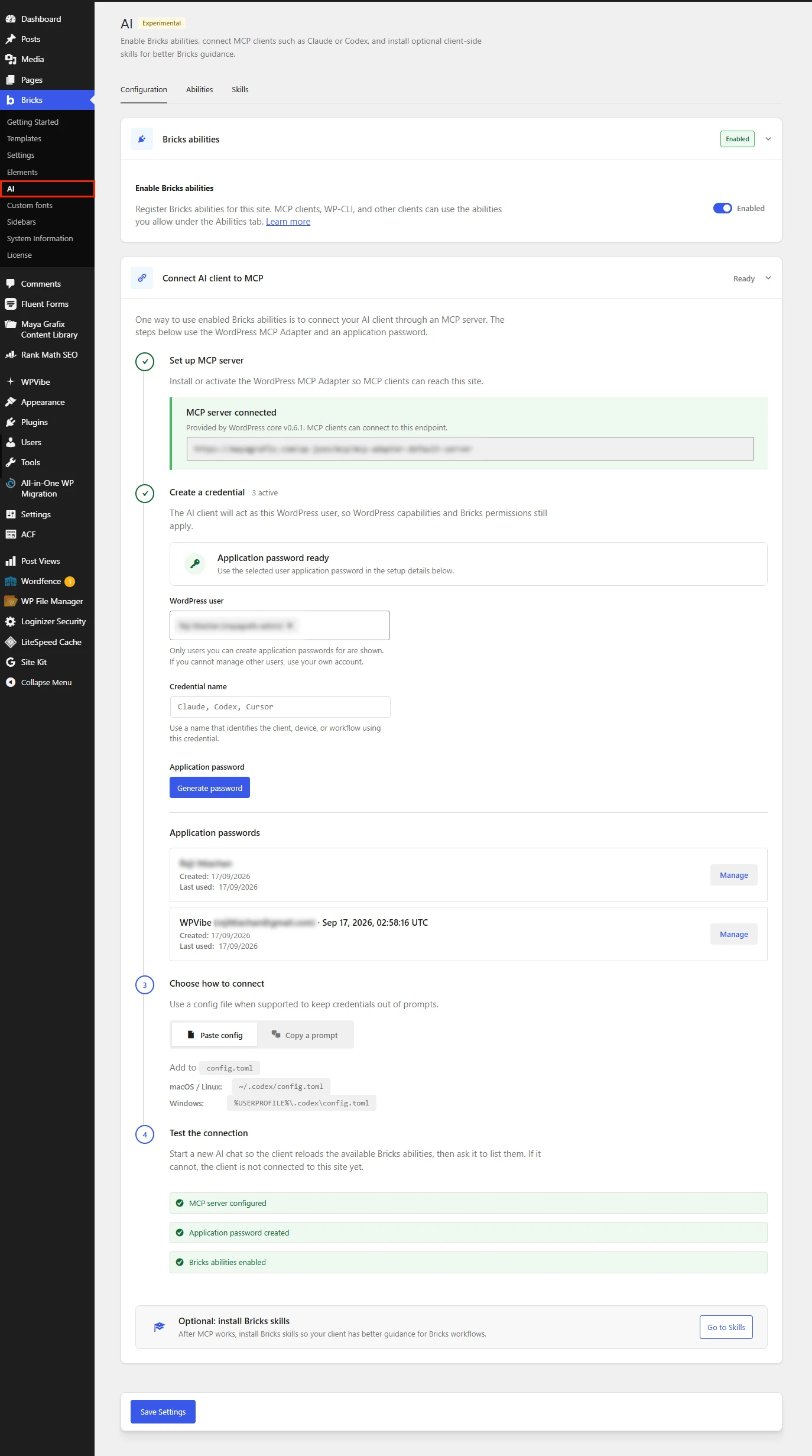
Bricks 2.4 introduced abilities for working with pages, elements, templates, components, classes, and other parts of a Bricks site through a compatible AI client. Bricks provides a guide to setting up the connection and managing abilities.
I connected Codex to Maya Grafix and asked it about the site I had already built. It found my Blog Data component and its variants, and it could read my global classes and theme settings. The assistant was working from the real design rather than a description I had typed into chat.
The useful part was context. If I ask an agent to suggest an edit to a card, it can inspect the component and its settings before proposing changes. That is more grounded than asking it to infer the design from a screenshot. I still decide what to change and check the result in the browser, but the starting point is the actual site data.
See the Bricks AI screen below.
Why I wanted to extend the connection
My next task was an article draft. The articles on Maya Grafix live in a custom WordPress post type named blog. Bricks supplies the single-post and archive designs, while the article body uses the WordPress editor.
I wanted Codex to read an existing article, follow its formatting, and create a draft with a title, content, excerpt, slug, and Rank Math fields. The Bricks creation path available in my connection was for Bricks-enabled content. It did not cover the editor-content workflow I use for these Blog articles.
This was a gap in the actions available to my setup, not a failed Bricks connection. I decided to add the content actions I needed to the same WordPress MCP connection.
A Blog post has a different shape from a Bricks page. Its title, excerpt, permalink slug, Gutenberg body, and SEO metadata are WordPress post fields. The Bricks template decides how a single article appears on the front end. To prepare an article draft, I needed access to those post fields without changing the template that presents them.
What the MCP Adapter actually connects
It helps to separate the connection from the actions it carries. An ability is a named operation, such as reading a component or creating a draft. The WordPress MCP Adapter exposes registered abilities to an MCP-compatible AI client.
| Piece | Role |
|---|---|
| WordPress Abilities API | Registers actions that clients can discover and execute |
| WordPress MCP Adapter | Makes exposed abilities available through MCP |
| Bricks | Registers builder-related abilities |
| My companion plugin | Registers actions for my Blog content workflow |
| Codex | Uses those actions through the connection |
I use Codex, but these Blog abilities are not tied to it. Another MCP-compatible agent can discover and call them when connected to the site as a WordPress user with the required permissions. Its configuration and interface will differ.
This distinction also explains why installing an MCP server alone does not automatically grant every editing operation. The server can expose only the abilities registered on the site and enabled for the connection. When I could inspect Bricks but could not handle my editor-based Blog articles, I looked for a narrowly defined WordPress ability instead of treating the builder as the article editor.
I tried WPVibe first
Before writing a plugin, I tried WPVibe with Codex. It worked in my test. WPVibe offers a broader WordPress toolkit and documents support for Bricks. I did not test every feature it advertises.
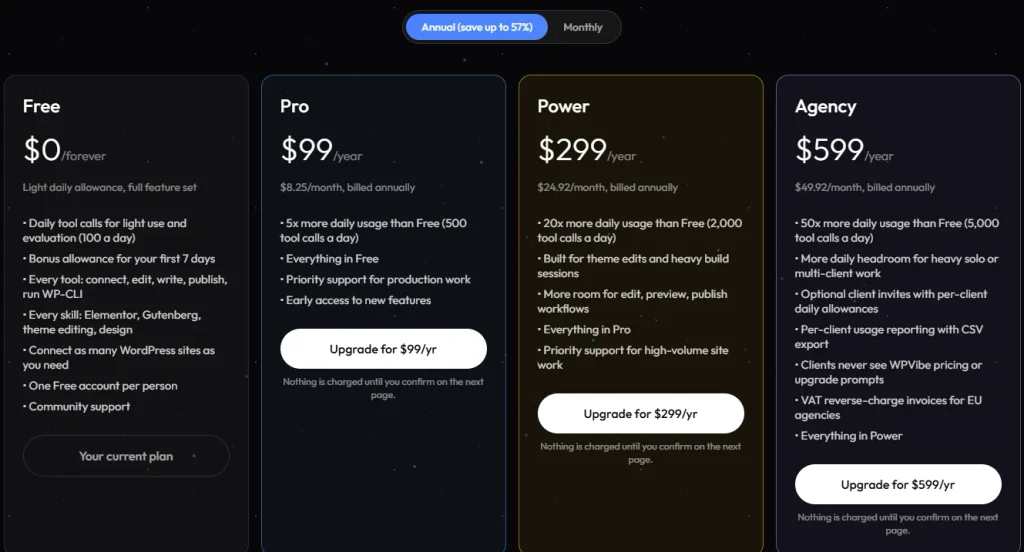
I also looked at the pricing screen. It showed 100 tool calls per day on Free, a bonus allowance during the first seven days, and 500 calls per day on Pro at $99 per year. I did not exhaust the allowance. I was considering how a regular writing and editing workflow would fit those ongoing limits.
One article can involve multiple calls: reading a reference, checking settings, creating a draft, and reading the saved result. Since my existing adapter connection already worked with Bricks, a few additional Blog actions felt like a good fit for my site.
The numbers on the pricing screen describe tool calls, not articles. One article might use only a handful of calls, while a longer revision can take more. My concern was a recurring allowance for a workflow I expected to use often, not a claim that WPVibe stopped working or that its Free plan was insufficient for everyone. Its broader feature set may be the better choice for someone who wants a ready-made connection across several site tasks.
The four Blog abilities I added
I made a small companion plugin that registers these abilities through WordPress:
| Ability | Purpose |
|---|---|
maya-grafix/list-blogs | Find Blog posts and drafts |
maya-grafix/get-blog | Read content, excerpt, and selected SEO fields |
maya-grafix/create-blog-draft | Create a Blog draft |
maya-grafix/update-blog-draft | Update an existing Blog draft |
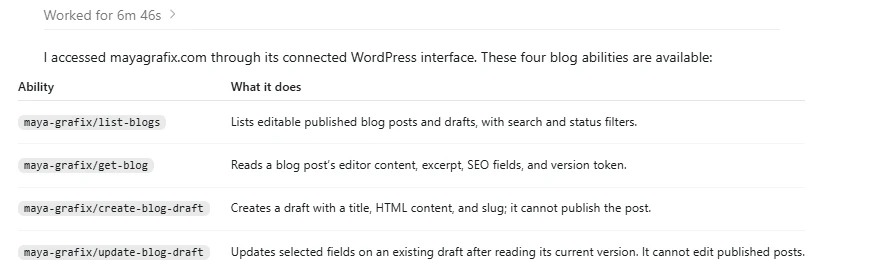
The plugin handles WordPress article content. Bricks still handles the templates and design. These actions can create and update drafts; the companion plugin exposes no publish or delete action. It uses the connected user’s existing WordPress permissions.
Each action has a clear boundary. The list action helps find a reference article. The read action returns its editable content and selected SEO fields. The create action writes a new draft, and the update action accepts changes only for an existing draft. A separate review and publication step stays in the normal WordPress workflow.
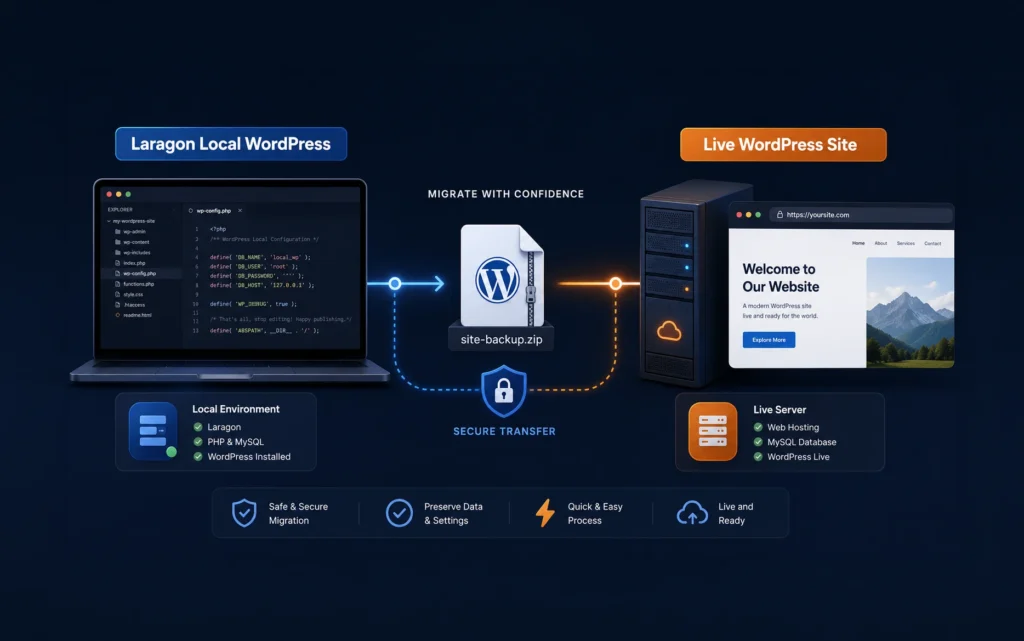
If you want to try the same workflow, get the ready-to-install Maya Grafix Blog MCP ZIP from the Download section below this article. You can also download the PHP and README files separately. If you package the PHP file yourself, create a folder named maya-grafix-blog-mcp, place maya-grafix-blog-mcp.php inside it, and keep the plugin header comment at the top of the PHP file. Compress the folder as maya-grafix-blog-mcp.zip, then upload that ZIP through Plugins → Add New → Upload Plugin in WordPress. Again, you don’t have to follow the exact plugin name. For more detail, see my How to Create Your First WordPress Plugin (Beginner’s Guide).
The plugin is built for my blog custom post type and an existing WordPress MCP Adapter connection. Check the included instructions and adapt the post type and permissions before using it on another site. After activation, refresh your AI client’s connection and ask it to discover the four Blog abilities.
What I verified on the live site
After activation, Codex discovered all four companion abilities through my existing MCP Adapter connection. It listed the Blog posts and read my published Bricks Builder Filter Multiple Query Loops article. The result contained its WordPress block markup, excerpt, and Rank Math fields.
That gives Codex a real formatting reference. The plugin does not automatically reproduce another article’s style; the agent still has to follow the reference, and I review its saved work.
For this draft, I looked at an existing post rather than guessing at its structure. Its article sections use H4 headings; a Rank Math table of contents appears after the opening paragraph; and the FAQ area uses the native accordion block with automatic closing enabled. These are small editorial details, but they are what make a newly generated article fit the established Blog format.
| Check | Result |
|---|---|
| Discover four Blog abilities | Verified live |
| List Blog posts | Verified live |
| Read article content and selected SEO fields | Verified live |
| Create a draft | Verified live with this article |
| Update a draft | Verified live with this article |
The code also passed PHP syntax validation and 32 isolated behavioral checks. The live create and update tests were completed with this article, and I read the saved draft back to check the result.
How I intend to write a draft
The workflow is simple: read a relevant published article, inspect its heading levels and block markup, prepare new editor content, create a draft, then read the saved draft back and preview it in WordPress.
Reading the saved result matters. An API response that reports success is only the beginning: I want to see the actual stored title, status, blocks, excerpt, and Rank Math metadata. WordPress may normalize Gutenberg markup when it saves the post. Comparing the saved article with the intended structure catches a misplaced heading or a missing block before anyone publishes it.
On Maya Grafix, the reference uses H4 section headings, a Rank Math table of contents, and an accordion for FAQs. The Bricks template supplies the surrounding layout. Codex supplies the article body and selected SEO fields through the new abilities.
The create action accepts a request ID so an identical retry can return the same draft rather than making a duplicate. For an update, Codex reads the current draft first and passes its version token; the plugin rejects a stale version. I avoid editing the same draft in the browser during an MCP update.
That version check is especially useful when an editor and an agent can both touch the same article. If the article changes after the agent reads it, an old update should not silently replace the newer work. The agent can read the latest draft, incorporate those changes, and submit an updated version. This is a practical guardrail for collaboration, rather than an automated publishing pipeline.
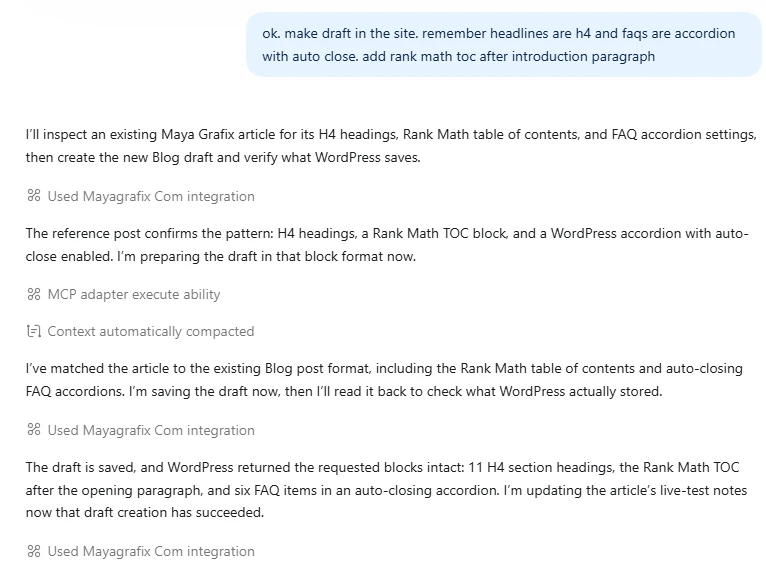
Seeing Codex create this Blog draft and then read it back to check the result felt surprisingly easy. It saved me the manual work of moving the article and its SEO details into WordPress, but I still needed to review and shape the writing.
I find that exciting and a little unsettling. If an agent can do this today, what might it be able to do ten years from now?
For now, the practical question is which connection gives me the right tools and enough control for the work I do today.
Which approach would I choose?
| Need | Approach to consider |
|---|---|
| Work with Bricks pages, components, and design settings | Bricks 2.4 AI abilities |
| Use a broad, ready-made WordPress toolkit | Evaluate WPVibe |
| Add a few content actions to an existing connection | A focused companion plugin |
WPVibe worked for me. I returned to my existing adapter connection because my Blog workflow needed only a small set of actions. A custom plugin means I also own its maintenance and testing.
The companion plugin does not impose a separate daily tool-call allowance. Codex, other AI clients, and the web host can still have their own limits.
Final thoughts
Bricks 2.4 AI gave Codex a useful view of my site’s design. Adding four WordPress abilities gave it access to the Blog content I work with every week.
I used the new abilities to create and update this Blog draft, then read back the saved content and SEO fields. For me, that is the useful direction: an agent that understands the existing site and prepares work I can review before publication.
If you use another MCP-compatible agent, the same approach can apply. Start with the abilities your site already exposes, then add focused actions for the workflow you actually need.
FAQs
No. The linked Bricks video and official documentation cover setup and Bricks features. This article explains how I extended the connected workflow to normal WordPress Blog content.
No. I tested discovery and reading with Codex. Another MCP-compatible agent can use the registered abilities through its own connection if the WordPress user has the required permissions.
No. It connected and worked in my test. I did not exhaust its daily allowance.
No. They appear alongside the Bricks actions through the WordPress MCP connection.
It exposes neither action. Its write tools create or update Blog drafts.
No. This is an installed WordPress plugin registering specific abilities. It does not call Bricks’ arbitrary PHP execution ability.