A persistent object cache WordPress warning is something you might not think about until you see this recommendation under Tools → Site Health:
You should use a persistent object cache.
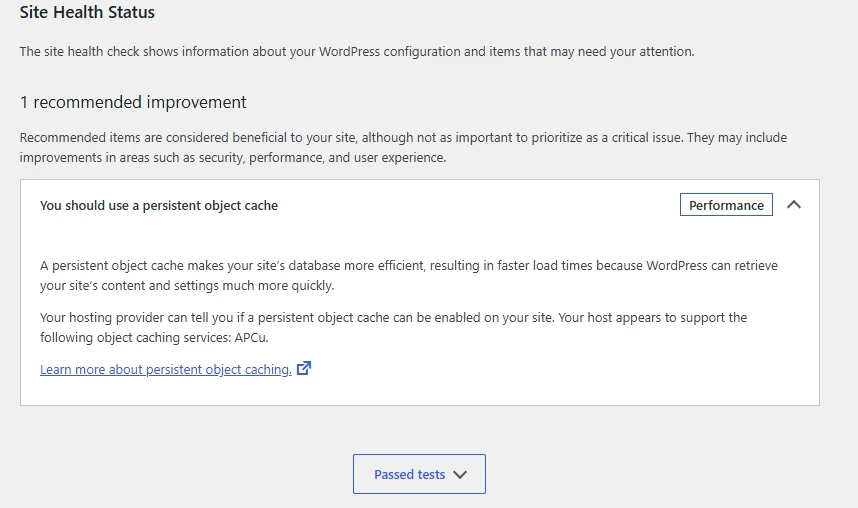
If you’ve come across this message, you might wonder whether something is wrong with your website or whether you need to enable yet another caching setting. This can be particularly confusing if you’re already using a caching plugin such as LiteSpeed Cache.
The important thing to understand is that page caching and object caching solve different problems. Having page caching enabled doesn’t necessarily mean WordPress is using a persistent object cache.
In this article, I’ll explain why WordPress shows this Site Health recommendation, what persistent object caching actually does, and how to set it up using LiteSpeed Cache with Redis or Memcached. I’ll also cover a couple of practical alternatives if you’re not using LiteSpeed or your hosting doesn’t provide Redis.ct caching does, why WordPress recommends it, and how to set it up using LiteSpeed Cache with Redis or Memcached. I’ll also look at a couple of alternatives for websites that aren’t using LiteSpeed or don’t have Redis available.
Table of Contents
What Is a Persistent Object Cache in WordPress?
WordPress already has a built-in object caching system.
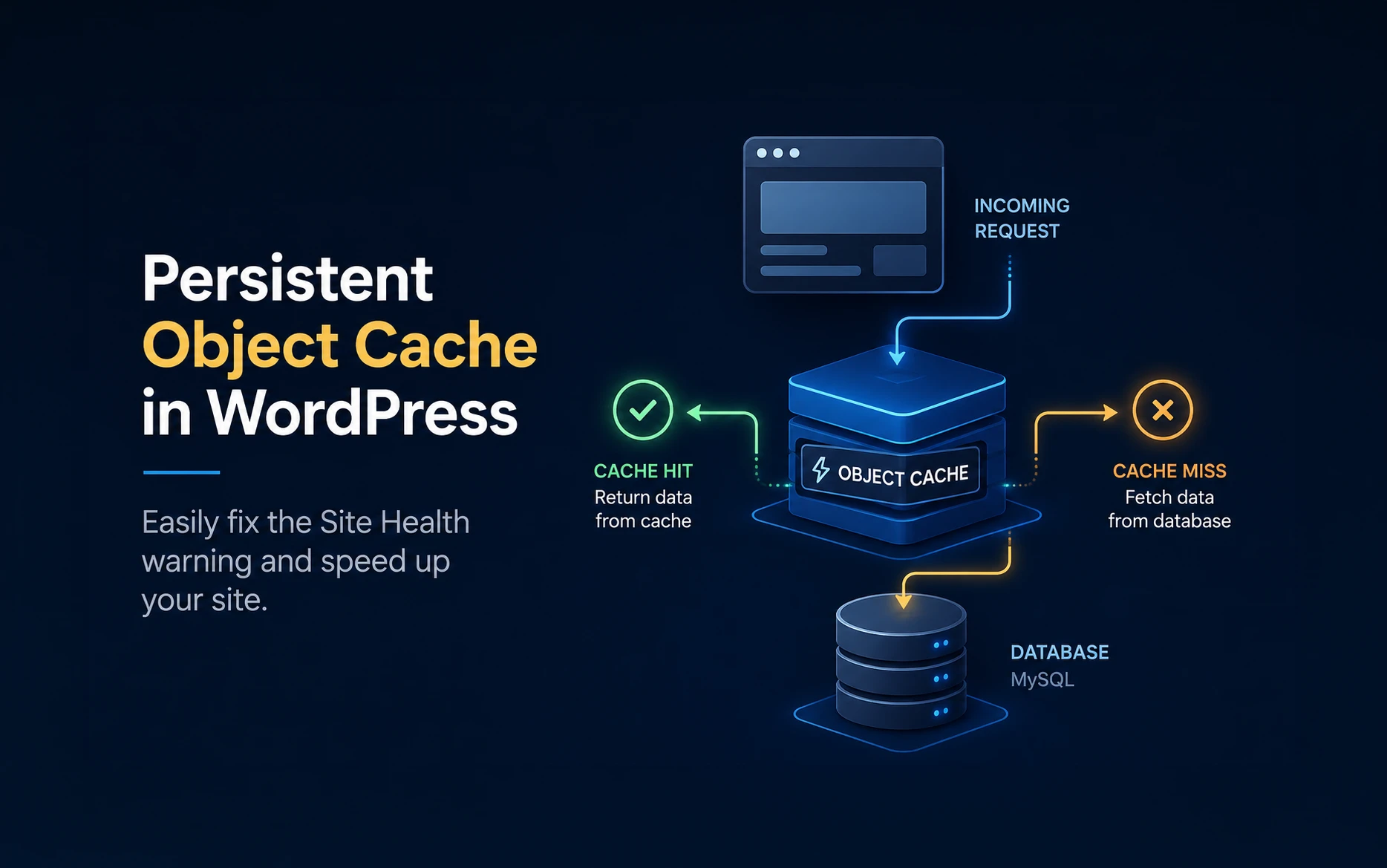
During a page request, WordPress repeatedly retrieves information from the database: options, post data, metadata, users, taxonomy information and other values.
The WordPress Object Cache allows some of these results to be stored temporarily so WordPress doesn’t have to perform the same database operation repeatedly during that request.
There’s one limitation, though.
By default, the cache doesn’t persist between requests.
A visitor loads a page, WordPress builds its object cache, the request finishes, and that cached information is gone. On the next uncached request, WordPress has to retrieve the data again.
A persistent object cache changes this.
Instead of keeping cached objects only for the current request, WordPress can store them in a persistent caching system such as Redis or Memcached.
The next request can then reuse those cached objects rather than retrieving everything from MySQL again.
In simple terms, without a persistent object cache:
WordPress
    ↓
Database Query
    ↓
MySQL
    ↓
Result
With persistent object caching:
WordPress
    ↓
Object Cache
    ↓
Is the data cached?
    ↓
YES → Return cached data

NO → Query MySQL
     ↓
     Store result in cache
     ↓
     Return data
The database is still there, of course. Persistent caching simply reduces how often WordPress needs to ask it for information that has already been retrieved.
Why Does WordPress Say “You Should Use a Persistent Object Cache”?
This recommendation comes from WordPress Site Health.
WordPress doesn’t simply display it because Redis isn’t installed.
Core checks characteristics of the website to determine whether persistent object caching could be beneficial. The check considers factors such as the number of posts, users, comments, terms, options and autoloaded options. Multisite installations are also treated as candidates for persistent object caching.
So if you’ve started seeing this recommendation after your website has grown, that doesn’t necessarily mean something has suddenly gone wrong.
WordPress has decided that the site has reached a point where reducing repeated database work could be useful.
It’s also important to understand that this is generally a recommendation, not an error.
Your website can continue working without persistent object caching.
Page Cache and Object Cache Are Not the Same Thing
This is probably the most important distinction in the entire article.
If you’re already using LiteSpeed Cache, WP Rocket or another page caching plugin, you might think:
My website is already cached. Why do I need another cache?
Because they’re caching different things.
If you’ve ever replaced an image or changed something on a website and continued seeing the old version, you’ve already experienced another type of caching problem. I’ve covered this separately in my article on why a website still shows an old image after replacing it. Persistent object caching works at a completely different level.
A page cache stores the final generated HTML.
For example:
First Visit

Browser
   ↓
WordPress
   ↓
PHP + Database
   ↓
Generated HTML
   ↓
Page Cache
On subsequent cached visits:
Browser
   ↓
Page Cache
   ↓
HTML
WordPress doesn’t need to generate the page again.
Object caching works deeper inside WordPress:
WordPress / PHP
       ↓
Object Cache
       ↓
Redis / Memcached
       ↓
MySQL Database
It helps when WordPress actually has to execute PHP and retrieve information from the database.
This distinction also explains why enabling Redis doesn’t necessarily produce a dramatic PageSpeed Insights improvement.
If LiteSpeed is already serving a fully cached HTML page, PHP and MySQL might not even be involved in that request.
Where Persistent Object Caching Makes the Biggest Difference
Persistent object caching becomes more useful when pages can’t simply be served from full-page cache.
Good examples include WooCommerce stores, membership websites, logged-in users, busy WordPress dashboards, large websites, dynamic pages and sites performing a lot of repeated database queries.
The WordPress admin area is a good example.
You can’t simply serve the entire admin dashboard as static cached HTML. WordPress has to execute PHP and retrieve current information.
Persistent object caching can reduce some of the database work involved.
This is why I wouldn’t look at object caching purely as a frontend PageSpeed optimization.
It’s really a WordPress/database performance optimization.
How to Enable Persistent Object Cache with LiteSpeed Cache
If your website is running on LiteSpeed and you’re already using the LiteSpeed Cache plugin, this is usually the first option I’d check.
But there’s an important point that causes a lot of confusion:
LiteSpeed Cache does not install Redis or Memcached on your server.
The plugin provides the WordPress integration. Redis, Memcached or LSMCD must already be available on your hosting environment.
So before changing anything in WordPress, check whether your hosting provider supports Redis or Memcached.
Some hosting dashboards provide a switch for enabling Redis. On other hosting setups, you might need to ask support to enable it.
On a VPS, you can install and manage Redis yourself.
Check Whether Redis Is Available
Before enabling object caching in LiteSpeed Cache, confirm that Redis is available on your server and that the required PHP Redis extension is enabled.
If your hosting uses cPanel, look for a PHP configuration option such as Select PHP Version, PHP Extensions, PHP Tweaks, or a similar menu. The exact name depends on your hosting provider.
Open the PHP extensions section and look for redis in the list of available extensions. If Redis is listed but not enabled, enable the redis extension and save the changes.
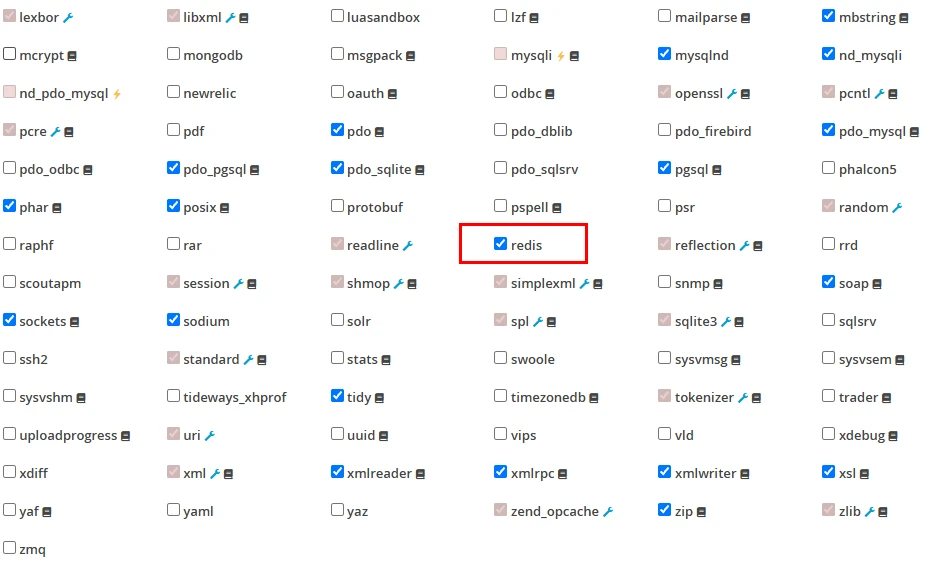
Keep in mind that enabling the PHP Redis extension is only one part of the setup. The extension allows PHP and WordPress to communicate with Redis, but a Redis server or service must also be running on your hosting account.
Some hosting providers give you a separate Redis management option in cPanel or their custom hosting dashboard. If you find one, make sure the Redis service is enabled there as well.
If you can enable the PHP Redis extension but can’t find any option for the Redis service itself, check your hosting documentation or contact your hosting provider and ask whether Redis object caching is available for your hosting plan.
Don’t simply turn Redis on inside LiteSpeed Cache and assume that it installs Redis on the server. LiteSpeed Cache connects WordPress to an existing Redis service; it doesn’t install or start Redis for you.
Open the LiteSpeed Object Cache Settings
In your WordPress dashboard, go to:
LiteSpeed Cache → Cache → Object
You’ll find the Object Cache settings there.
Set:
Object Cache: ONLiteSpeed Cache allows you to use caching methods including Redis and Memcached, depending on what’s available on the server.
If Redis is available, I personally prefer Redis for most WordPress installations.
Configure Redis
Select:
Method: RedisYou’ll then see connection settings such as the host and port.
A common local Redis configuration uses:
Host: 127.0.0.1
Port: 6379
However, don’t blindly copy these values.
Your hosting provider might use a different host, port, Unix socket, password or other configuration.
Use the Redis connection details supplied by your host.
Save the changes.
LiteSpeed Cache provides status information that helps you determine whether the connection is working and whether the necessary PHP extension is available.
Once Redis is connected successfully, WordPress can start using it as the persistent object cache.
What If Redis Shows “Connection Test: Failed”?
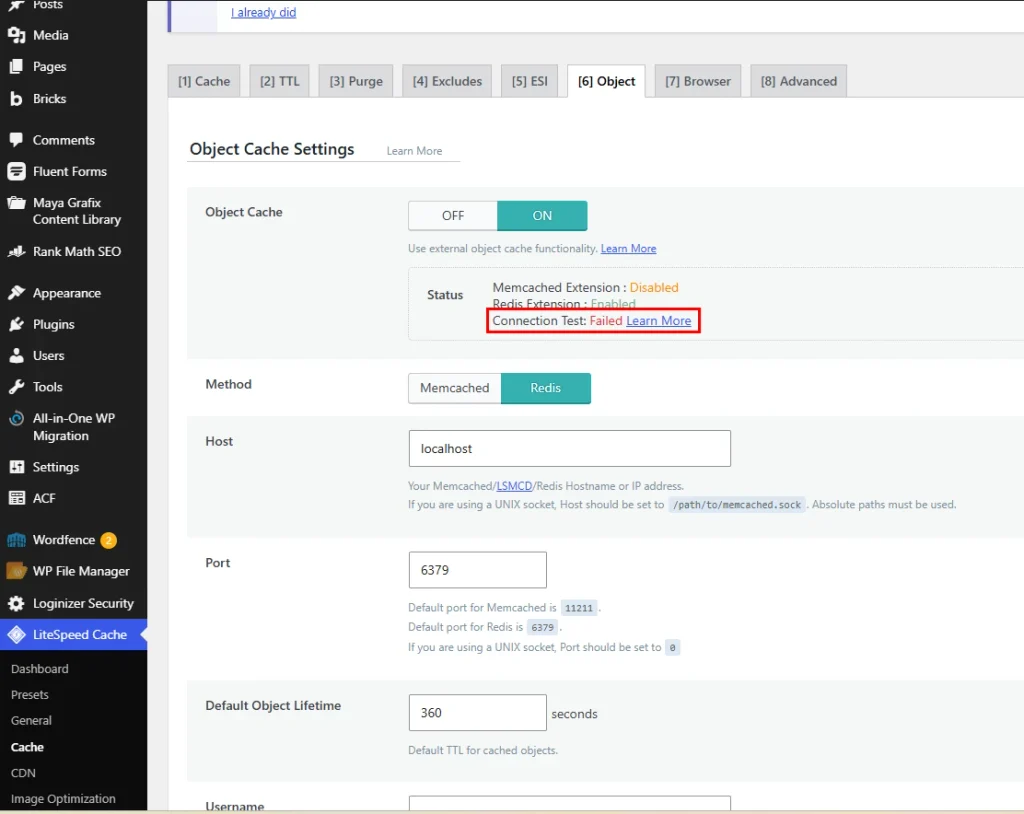
This is something I encountered while testing Redis on a shared hosting account.
I enabled the Redis PHP extension from cPanel, and LiteSpeed Cache correctly detected it:
Redis Extension: Enabled
Connection Test: Failed
At first, this can look like a configuration problem. But in my case, the reason was straightforward: my shared hosting provider doesn’t provide a Redis server with this hosting plan.
This highlights an important difference between the Redis PHP extension and a Redis server.
Enabling the Redis extension in cPanel only gives PHP the ability to communicate with a Redis server. It doesn’t actually install or start a Redis server on your hosting account.
Think of the setup like this:
WordPress
    ↓
LiteSpeed Cache
    ↓
PHP Redis Extension
    ↓
Redis Server
In my case, the first three parts were available, but there was no Redis server to connect to. That’s why LiteSpeed reported Redis Extension: Enabled while the Connection Test still failed.
The PHP Redis extension can also be used to communicate with a Redis server hosted elsewhere, provided your hosting environment allows the connection and you have the required host, port and authentication details.
If you’re on shared hosting and see the same failed connection test, don’t assume something is wrong with LiteSpeed Cache. Check whether Redis is actually included with your hosting plan.
Many basic shared hosting plans don’t provide a Redis service. Redis is more commonly available with VPS, cloud, managed WordPress and higher-performance hosting plans, although this varies considerably between hosting providers.
If you’re unsure, ask your hosting provider a simple question:
Does my hosting plan include a Redis server for WordPress object caching? If so, what host, port and authentication details should I use?
If they confirm that Redis isn’t available, simply enabling the PHP Redis extension won’t give you persistent Redis object caching.
In that situation, you can either continue without Redis, look at an alternative such as Docket Cache, use an external Redis service if your hosting supports remote connections, or move to a hosting plan that provides Redis when the performance requirements of the website justify it.
This is also why I recommend checking what your hosting actually provides before spending too much time troubleshooting a failed Redis connection in LiteSpeed Cache.
Verify the Site Health Recommendation
After enabling object caching successfully, go back to:
Tools → Site Health
Give WordPress a moment to run the tests again.
If everything is configured correctly, the persistent object cache recommendation should disappear.
But I wouldn’t consider removing the Site Health message the main objective.
The important thing is that WordPress is actually communicating with Redis and using the persistent object cache correctly.
Should You Use Redis or Memcached?
Both Redis and Memcached can be used for persistent object caching.
For most WordPress projects where both are available, I personally prefer Redis.
Redis has become extremely common in managed WordPress hosting and VPS environments, it’s well supported by WordPress caching plugins, and it’s easy to work with when you need to inspect or manage the cache later.
If your hosting environment already provides Memcached and it’s properly configured, there’s no need to change technologies simply because Redis is more commonly mentioned in WordPress tutorials.
Use what your server supports well.
Using Redis Object Cache Without LiteSpeed Cache
You don’t need LiteSpeed Cache to use Redis.
If your hosting provides Redis but you’re using another page caching solution, the Redis Object Cache plugin is a good alternative.
The plugin is specifically designed to connect the WordPress object-cache system to Redis.
After installing and activating the plugin, you’ll normally see an option to enable the object cache.
The important prerequisite remains exactly the same:
Redis must already be available on the server.
Installing the WordPress plugin doesn’t install a Redis server.
This setup can make sense when your caching stack looks something like:
Page Cache
    +
Redis Object Cache
    +
WordPress
    +
MySQL
The page caching solution handles complete pages while Redis Object Cache handles WordPress objects.
I generally prefer keeping the caching stack as simple as possible. If LiteSpeed Cache is already managing your caching and its Redis integration works correctly, I wouldn’t install Redis Object Cache as well just for the sake of having another plugin.
Use one properly configured object-cache integration.
What If Your Hosting Doesn’t Provide Redis or Memcached?
This is common on inexpensive shared hosting.
You might see the WordPress Site Health recommendation but discover that your hosting provider doesn’t provide Redis or Memcached.
In that situation, you have a few choices.
One is simply to leave the recommendation alone.
Remember, it’s a Site Health recommendation rather than an indication that WordPress is broken.
Another interesting option is Docket Cache.
Docket Cache provides persistent WordPress object caching using PHP OPcache rather than requiring a separate Redis or Memcached service.
That makes it particularly useful on hosting environments where you don’t have access to Redis.
I wouldn’t automatically install Docket Cache on every shared hosting website simply to remove a Site Health recommendation. But it’s worth knowing about when persistent caching could genuinely benefit the site and the hosting environment doesn’t give you Redis or Memcached.
Don’t Enable Object Cache Just to Make Site Health Green
This deserves mentioning because Site Health can sometimes make perfectly healthy WordPress installations look as though something needs fixing immediately.
A green Site Health screen isn’t the goal.
A stable and fast website is.
If you have a relatively small website, aggressive full-page caching and very little dynamic traffic, persistent object caching might produce a relatively small real-world difference.
On the other hand, if you’re running WooCommerce, a membership system, a large content site or something that performs a lot of database queries, Redis can be much more useful.
In my experience, it’s better to understand why WordPress is recommending persistent caching before installing another plugin or changing the server configuration.
Common Mistakes When Setting Up Persistent Object Cache
One of the most common mistakes is assuming that enabling Redis inside a WordPress plugin installs Redis on the server.
It doesn’t.
Another is running multiple object-cache plugins simultaneously. If LiteSpeed Cache is already handling Redis object caching, don’t add another Redis integration unless you have a specific reason and understand how the two interact.
I also wouldn’t judge whether Redis is working by looking only at a PageSpeed score.
Persistent object caching isn’t the same as frontend optimization. Its benefit is reducing repeated work inside WordPress.
Finally, don’t copy Redis connection settings from a tutorial without checking your hosting configuration. 127.0.0.1:6379 is common, but it isn’t universal.
My Preferred Setup
For a WordPress site running on a LiteSpeed server where Redis is available, my preferred setup is straightforward:
LiteSpeed Server
       ↓
LiteSpeed Full Page Cache
       +
LiteSpeed Cache Plugin
       ↓
Redis Persistent Object Cache
       ↓
MySQL
This keeps page caching and object caching within the same LiteSpeed Cache configuration.
If Redis is available but I’m not using LiteSpeed Cache, I’d look at Redis Object Cache.
If Redis and Memcached aren’t available because of hosting restrictions, I’d first decide whether persistent object caching is actually necessary. If it is, Docket Cache becomes an interesting alternative.
This has become my standard way of looking at the Site Health recommendation: choose the solution based on the hosting environment rather than installing a plugin just because WordPress displays a warning.
Best Practices
Keep your caching setup as simple as possible. More caching plugins don’t automatically mean better performance.
Use the persistent object-cache integration provided by your existing caching stack where practical, confirm Redis or Memcached availability with your host, and test the website after enabling it.
For WooCommerce and other dynamic sites, test logged-in functionality carefully as well.
And before making performance changes on an important production website, take a backup. Caching changes are usually straightforward to reverse, but having a current backup is still a sensible workflow.
Final Thoughts
The “You should use a persistent object cache” message in WordPress Site Health isn’t something you need to panic about.
It’s WordPress telling you that your site could potentially benefit from keeping frequently used database objects available between requests.
If you’re already using LiteSpeed Cache and your hosting provides Redis, enabling its built-in object-cache integration is usually the cleanest approach.
If you’re using another caching system, Redis Object Cache gives you a dedicated Redis solution. And if you’re on shared hosting without Redis or Memcached, Docket Cache provides another route worth investigating.
More importantly, don’t install another caching plugin simply to make a Site Health recommendation disappear.
Understand what your website is doing, check what your server supports, and choose the simplest caching setup that actually solves the problem.
If you’ve enabled Redis on a WordPress site and noticed a meaningful difference—particularly in wp-admin, WooCommerce or another dynamic site—I’d be interested to hear what changed.
Frequently Asked Questions
A persistent object cache stores frequently used WordPress objects between requests instead of discarding them when each PHP request finishes. Redis and Memcached are commonly used to provide this persistent storage.
WordPress Site Health checks characteristics of your website and can recommend persistent object caching when it determines that reducing repeated database queries could be beneficial.
No. It’s generally a performance recommendation. Your WordPress website can continue working without persistent object caching.
No. LiteSpeed Cache can connect WordPress to Redis, but Redis itself needs to be installed and running on the server or provided by your hosting company.
Yes. A plugin such as Redis Object Cache can connect WordPress to an available Redis server without requiring LiteSpeed Cache.
Both can provide persistent object caching. If both are equally well supported by the hosting environment, I generally prefer Redis. If your host already provides a properly configured Memcached service, there’s usually no need to switch purely for WordPress.
Not necessarily. Redis reduces repeated database work when WordPress has to process requests. If a page is already being served directly from a full-page cache, object caching might have little involvement in that particular request.
They perform different jobs. LiteSpeed page caching can serve complete cached pages without executing WordPress, while persistent object caching helps requests that do need WordPress, PHP and database access.
If Memcached is available, you can use that. If neither Redis nor Memcached is available, Docket Cache is one option for providing persistent object caching using PHP OPcache. For a small website, it’s also reasonable to evaluate whether persistent object caching is necessary before adding another caching layer.
You generally don’t need two plugins trying to provide the same persistent object-cache integration. If LiteSpeed Cache is successfully managing Redis, keep the setup simple and use that solution.
Useful Resources
These resources provide more technical information about WordPress object caching and the solutions discussed in this article.