I recently ran into an interesting problem while working on the Maya Grafix blog archive.
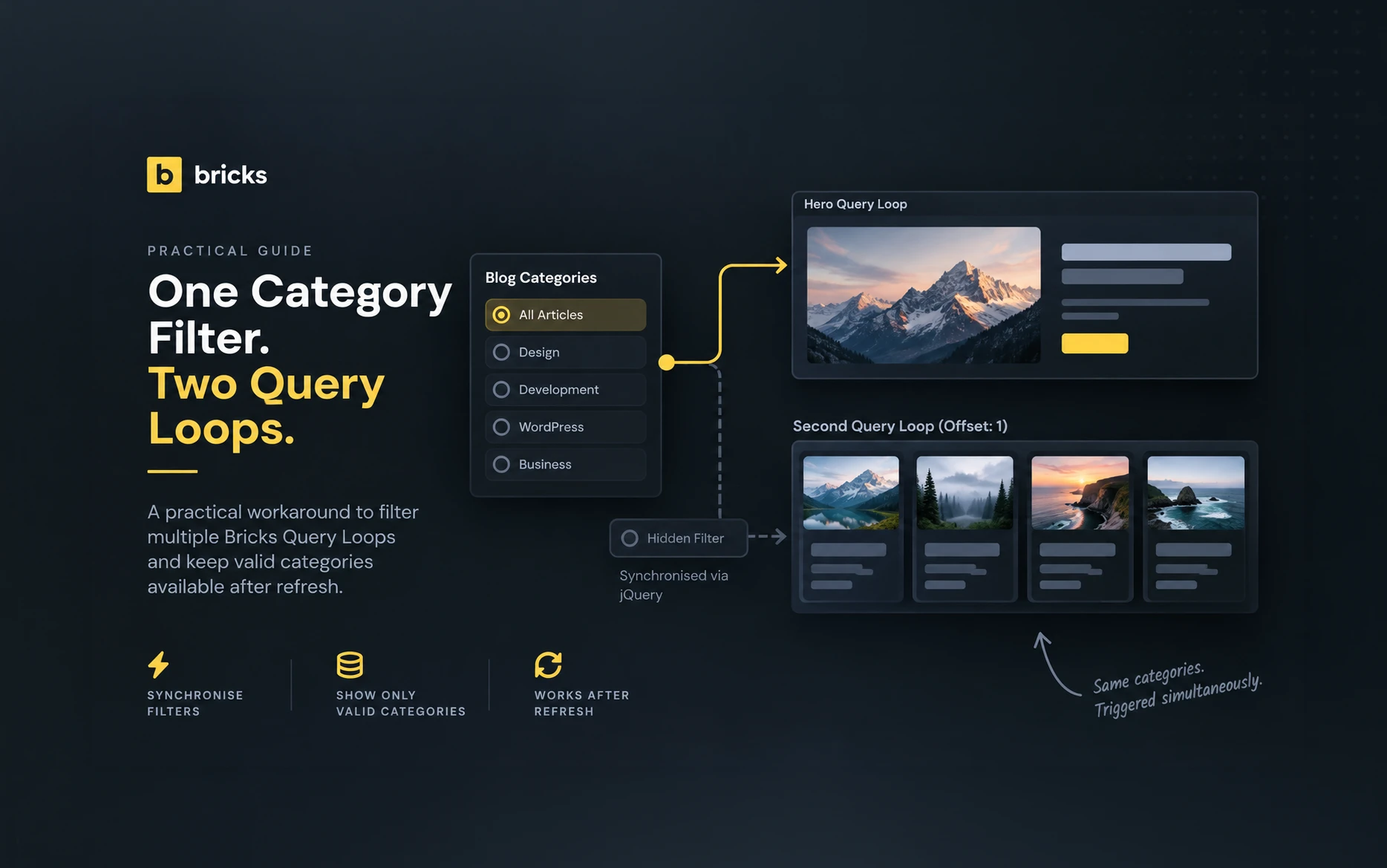
The archive looks like one continuous article listing, but underneath it I am actually using two separate Bricks Query Loops.
The first query displays a single hero article. The second displays the next four articles with an offset of one, so the hero article isn’t repeated.
Everything worked exactly as expected until I added category filtering.
A Bricks Query Filter targets a specific Query Loop. That meant my visible category filter could update the hero article or the second row of articles, but not both.
I needed both queries to behave like one filtered archive.
And once I solved that, I discovered a second problem: I have a view all articles link and the href was not rendered dynamically according to the selected filter category
Here’s how I solved both.
Table of Contents
The Bricks Builder Filter Multiple Query Loops Problem
My blog archive has a fairly simple layout.
At the top is a featured hero article.
Below that are four more articles.

Visually, these articles belong to the same listing.
Technically, they are two independent Bricks Query Loops.
The hero Query Loop is configured to return one article.
The second Query Loop returns four articles and uses:
Offset: 1The offset is important because the first matching article is already displayed in the hero section. Without the offset, that same article would appear again as the first card in the second row.

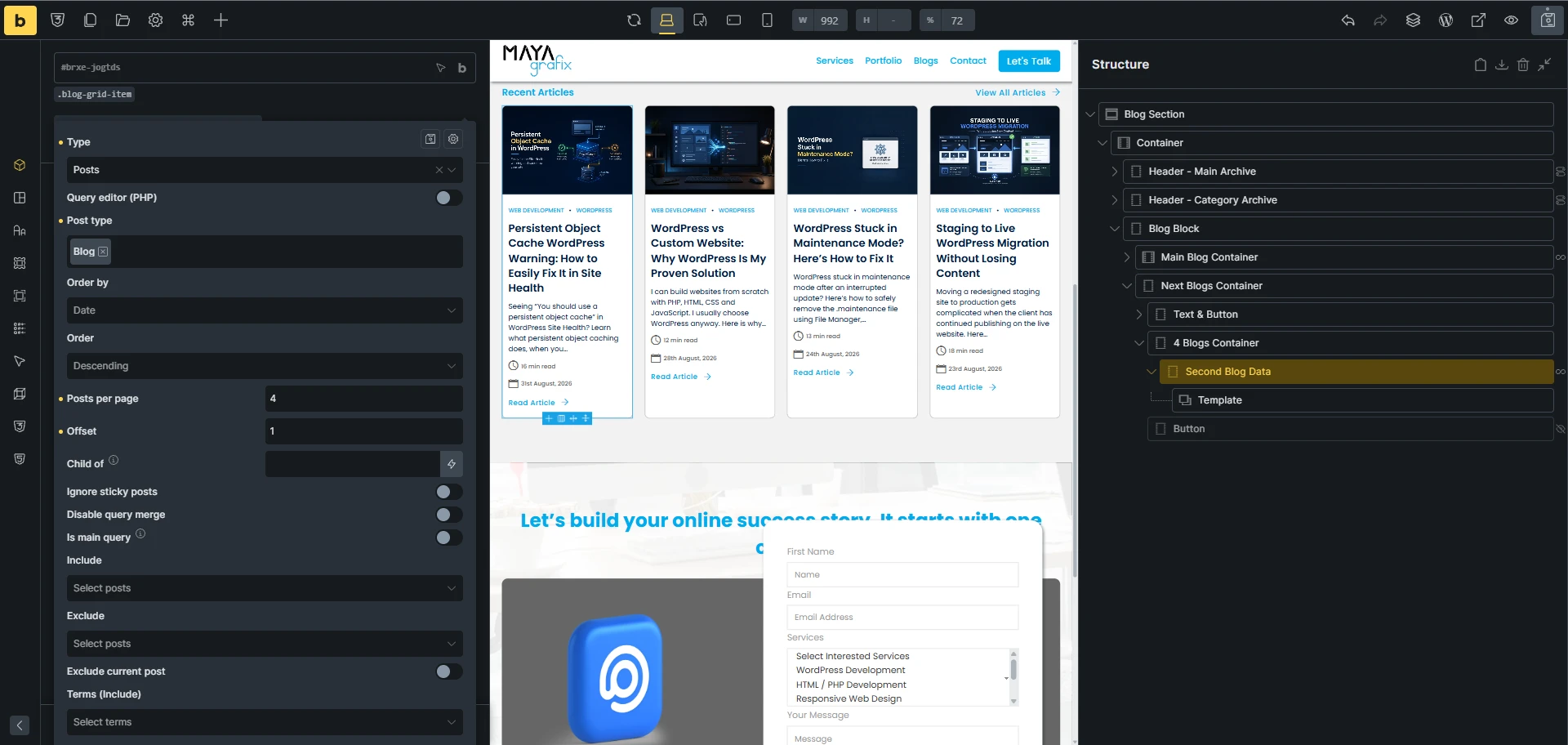
This layout worked perfectly.
The problem only appeared when I introduced Bricks Query Filters.
Why One Bricks Query Filter Doesn’t Control Both Queries
A Bricks Query Filter is connected to a specific Query Loop through its Target Query setting.
In the Bricks editor, the Target Query dropdown shows the name of the element or container containing the Query Loop, not the CSS ID of the container.
This is one reason I personally prefer giving important containers meaningful names in the Bricks Structure panel.
For example, my structure can be thought of as:
Main Blog Container
└── Query Loop
    └── 1 article

Second Blog Data
└── Query Loop
    └── 4 articles
        └── Offset: 1
Your container names can obviously be different.
What matters is that when configuring a Query Filter, Bricks asks which of those Query Loop elements it should target.

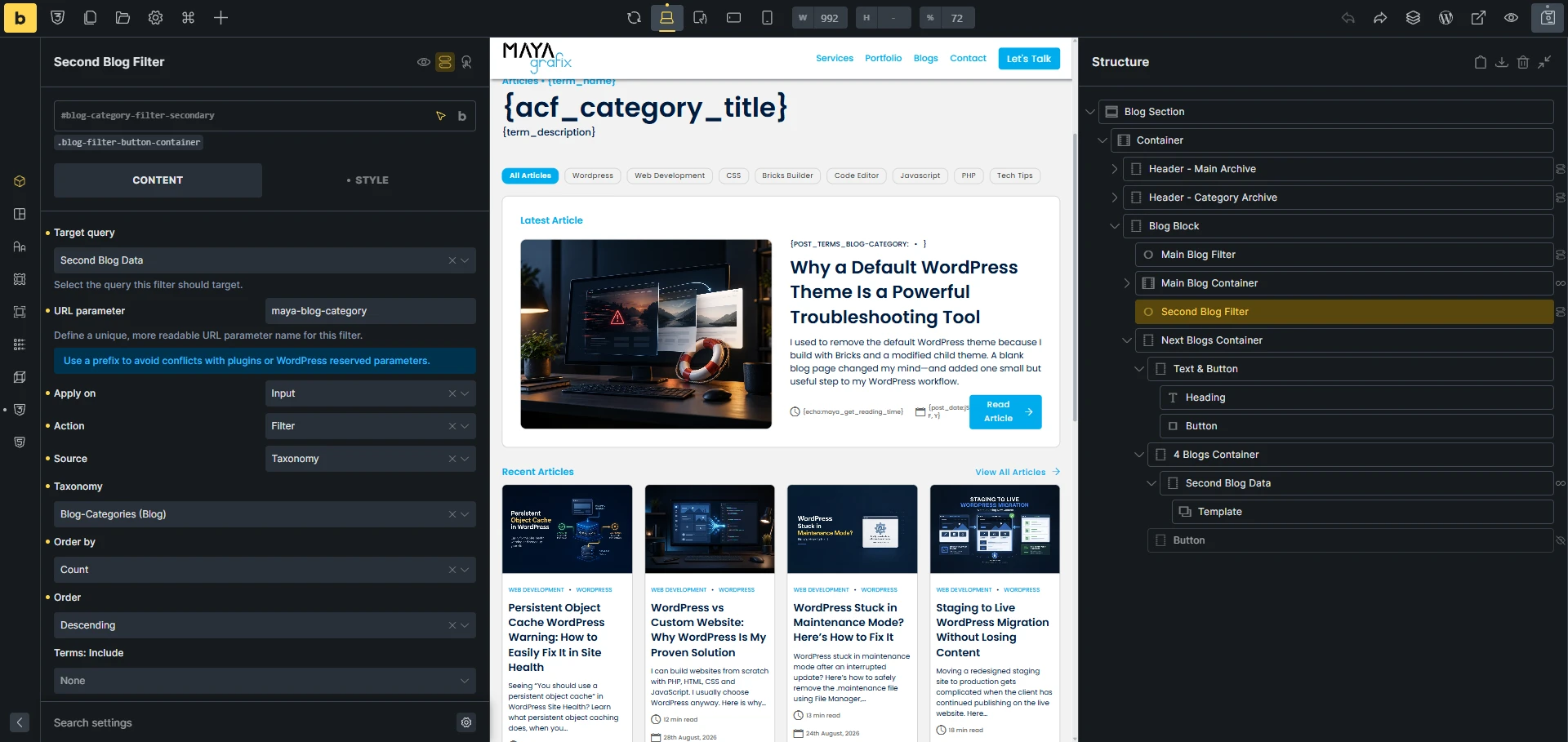
If I set the visible category filter’s Target Query to Main Blog Container, the hero changed correctly when someone selected a category.
The second row didn’t.
If I changed the Target Query to Second Blog Data, the four article cards filtered correctly.
But the hero didn’t.
What I really needed was:
Visible Category Filter
        |
        +----> Main Blog Container
        |
        +----> Second Blog Data
There isn’t a normal setting in the filter where I can simply select both Query Loops.
So instead of trying to force one filter to control two queries, I changed the approach.
The Hidden Secondary Filter Workaround
The solution was to create two Bricks category filters.
The first is the filter visitors actually see.
Its Target Query is my hero Query Loop.
Visible Category Filter
        ↓
Main Blog Container
I then duplicated that filter.
The duplicate has exactly the same category options, but its Target Query is the second Query Loop.
Secondary Category Filter
        ↓
Second Blog Data
I hid the second filter from visitors and use jQuery to synchronize it with the visible filter.
The complete interaction becomes:
Visitor
   ↓
Visible Filter
   ↓
Main Blog Container

   +

jQuery
   ↓
Hidden Filter
   ↓
Second Blog Data
From the visitor’s point of view, there is only one category filter.
Behind the scenes, two Bricks filters are being triggered, and each one updates its own Query Loop.
That allows me to continue using Bricks’ own AJAX filtering rather than trying to recreate the filtering system myself.
Setting Up the Visible Category Filter
My visible filter has this CSS ID:
blog-category-filterIts Target Query is the Query Loop container responsible for the hero article.
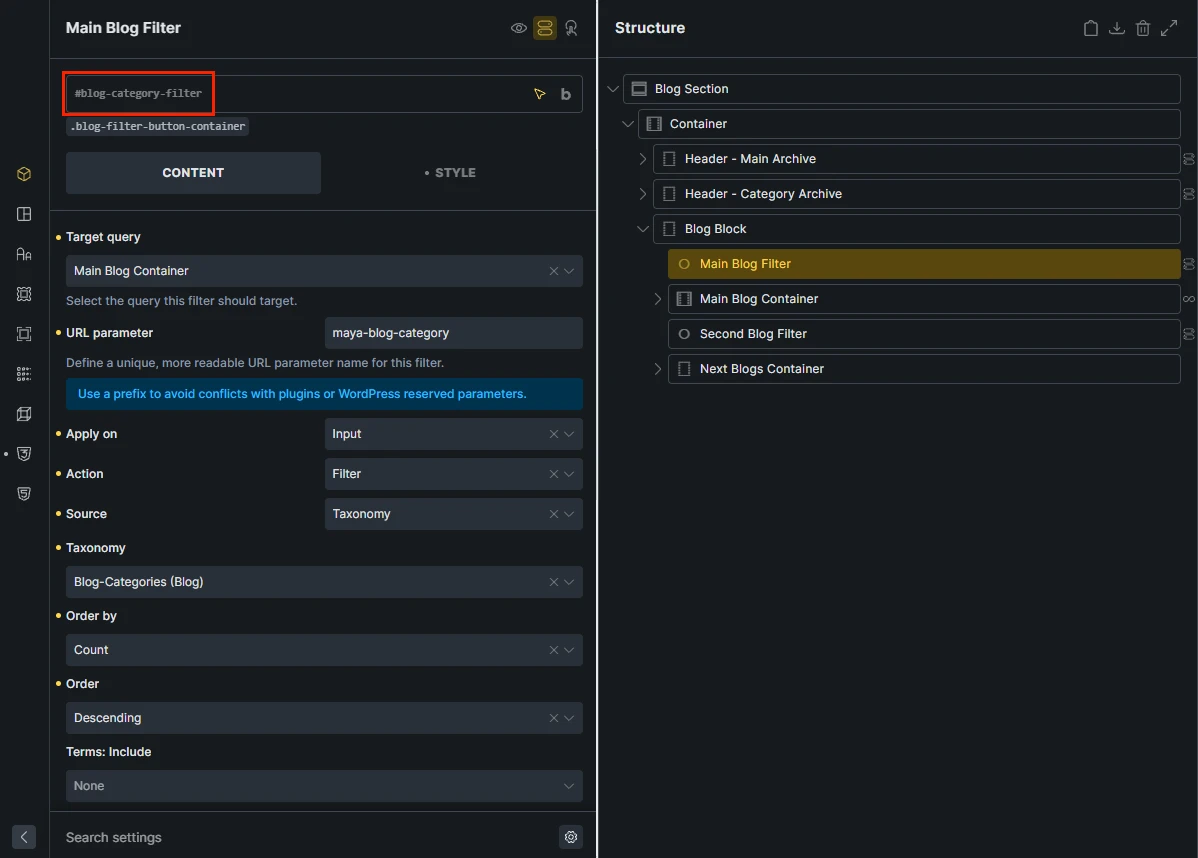
Again, don’t worry about matching my container names.
The CSS ID is important because we’re going to reference it from JavaScript.
Creating the Hidden Secondary Filter
I duplicated the category filter and gave the duplicate this CSS ID:
blog-category-filter-secondaryI then changed its Target Query to the container containing the second Query Loop.

The secondary filter needs to exist on the page because our JavaScript has to interact with its radio inputs.
I simply hide it with CSS:
#blog-category-filter-secondary {
    display: none;
}
Don’t hide it using a method that prevents Bricks from rendering the filter entirely.
The element needs to remain in the DOM.
Synchronizing Both Bricks Query Filters with jQuery
The problem was that one visible Bricks Query Filter could not control both Query Loops.
The jQuery code is very small. It simply watches the visible category filter, finds the same option inside the hidden secondary filter, and trigger it.
jQuery(document).ready(function ($) {
    syncBlogCategoryFilters();
});

function syncBlogCategoryFilters() {

    var $ = jQuery;

    $(document).on(
        'click',
        '#blog-category-filter input[type="radio"]',
        function () {

            var selectedValue = $(this).val();

            var $secondaryRadio = $('#blog-category-filter-secondary')
                .find('input[type="radio"]')
                .filter(function () {
                    return $(this).val() === selectedValue;
                });

            if ($secondaryRadio.length) {
                $secondaryRadio.trigger('click');
            }
        }
    );
}
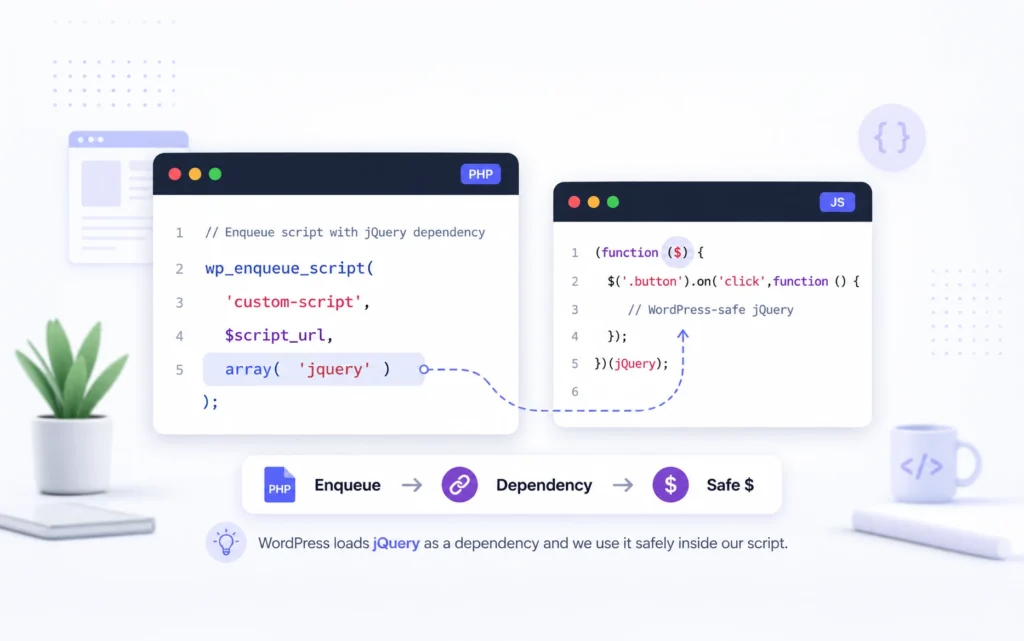
I used jQuery here because WordPress and Bricks were already loading it on this project, and it makes this particular event synchronization straightforward.
I’ve discussed my reasoning around this in more detail in Why I Prefer jQuery in WordPress Over JavaScript.
For something that belongs only to a particular Bricks template, you could also use a Bricks Code Element. For functionality I expect to reuse or maintain separately, I personally prefer a properly enqueued JavaScript file.
How the Filter Synchronization Works
The important part starts here:
$(document).on(
    'click',
    '#blog-category-filter input[type="radio"]',
    function () {
I’m deliberately using delegated event handling.
Bricks uses AJAX and can replace filter markup after an interaction. If I attached the event directly to the original radio buttons, there’s a possibility those elements could be replaced.
By listening at the document level, the handler continues to work with dynamically generated radio buttons.
When a visitor selects a category, we get its value:
var selectedValue = $(this).val();Then we search the hidden secondary filter for a radio input with the same value:
var $secondaryRadio = $('#blog-category-filter-secondary')
    .find('input[type="radio"]')
    .filter(function () {
        return $(this).val() === selectedValue;
    });
If we find one, we trigger it:
if ($secondaryRadio.length) {
                $secondaryRadio.trigger('click');
            }
This is the key to the whole workaround.
I’m not manually filtering the second Query Loop.
I’m making Bricks think the matching option in its own secondary filter was clicked.
Bricks then handles its normal AJAX request and updates the second Query Loop.
Once the synchronization was working, I had achieved the goal.
Selecting a category changed both:
Hero Query Loop
+
Second Row Query Loop
The offset also continued doing its job, so the hero article wasn’t duplicated in the second row.

Use a Custom URL Parameter for the Bricks Filter
There is one setting I would pay attention to in the Bricks Query Filter.
Bricks lets you define a custom URL parameter for the filter.
For my blog landing page, I use:
maya-blog-categorySo selecting CSS produces a URL such as:
/blogs/?maya-blog-category=cssI initially experimented with using:
blog-categorybecause that is the actual WordPress taxonomy query variable.
It worked, but Bricks itself recommends using a unique parameter to avoid conflicts with WordPress or plugin query variables.
That recommendation makes sense.
blog-category already has meaning to WordPress because it belongs to my custom taxonomy. Using the same parameter for the Bricks filter means both WordPress and Bricks can try to interpret the same URL value.
Using:
maya-blog-categorykeeps the Bricks filter state separate.
This has become my preferred setup:
WordPress taxonomy
blog-category

Bricks landing-page filter parameter
maya-blog-category
If I need the actual taxonomy term elsewhere on the page, such as for a dynamic category headline, I can resolve the maya-blog-category value separately in PHP.
I prefer that over making the Bricks filtering URL interfere with WordPress’s native taxonomy query.
One More Problem: The View All Articles Link
Once both Query Loops were filtering correctly, I noticed one small problem with the archive navigation.
My blog landing page also has a View All Articles button.
Normally it points to:
/blog-archive/But if a visitor selects CSS, for example, the two Query Loops update while the View All Articles button still points to the unfiltered archive.
That’s not the behaviour I want.
If someone is currently looking at CSS articles and clicks View All Articles, I want to take them to:
/blog-archive/?blog-category=cssThe Bricks filter cannot update a normal link automatically, so I added a small function to the same JavaScript file.
function updateBlogViewAllLink(selectedValue) {

    var $ = jQuery;

    var $button = $('#blog-view-all');

    if (!$button.length) {
        return;
    }

    var baseUrl = '/blog-archive/';

    /*
     * Return to the normal archive URL
     * when "All Articles" is selected.
     */
    if (
        !selectedValue ||
        selectedValue === 'all'
    ) {
        $button.attr('href', baseUrl);
        return;
    }

    /*
     * Pass the selected category
     * to the full blog archive.
     */
    $button.attr(
        'href',
        baseUrl +
        '?blog-category=' +
        encodeURIComponent(selectedValue)
    );
}
Then, inside the existing visible-filter click handler, I call it immediately after getting the selected category:
var selectedValue = $(this).val();

updateBlogViewAllLink(selectedValue);
So the visitor experience becomes:
Select CSS
        ↓
Hero Query Loop → CSS
Second Query Loop → CSS
View All Articles → /blog-archive/?blog-category=css
If they return to All Articles, the link goes back to:
/blog-archive/You can download the full code and the instructions from the download section below.
The Complete JavaScript Responsibility
At this point, the JavaScript has only two jobs.
The first is to synchronize the two Bricks Query Filters.
The second is to keep the View All Articles URL aligned with the currently selected category.
That’s it.
There is no custom AJAX request, no custom post-loading logic and no attempt to replace Bricks’ filtering system.
Bricks continues handling the Query Loops and AJAX filtering.
The JavaScript simply connects the pieces that Bricks doesn’t connect automatically.
Conceptually, the final setup is:
VISIBLE CATEGORY FILTER
        │
        ├────→ Hero Query Loop
        │
        ├────→ Update View All URL
        │
        └────→ jQuery synchronization
                       │
                       ↓
              Hidden Category Filter
                       │
                       ↓
              Second Query Loop
That’s also why I prefer keeping the hidden secondary filter as an actual Bricks filter rather than writing a completely custom filtering system.
I’m extending what Bricks already does well instead of replacing it.
Testing the Final Setup
Before considering the archive finished, I tested a few different scenarios.
I switched between categories repeatedly and made sure both Query Loops always displayed the same category.
I tested categories with only a small number of articles to make sure the second Query Loop and its offset behaved correctly.
I refreshed pages while a category was active.
I also opened filtered URLs directly in a new browser tab instead of reaching them through the filter.
Finally, I returned to All Articles and confirmed that both Query Loops and the View All Articles button returned to their normal state.
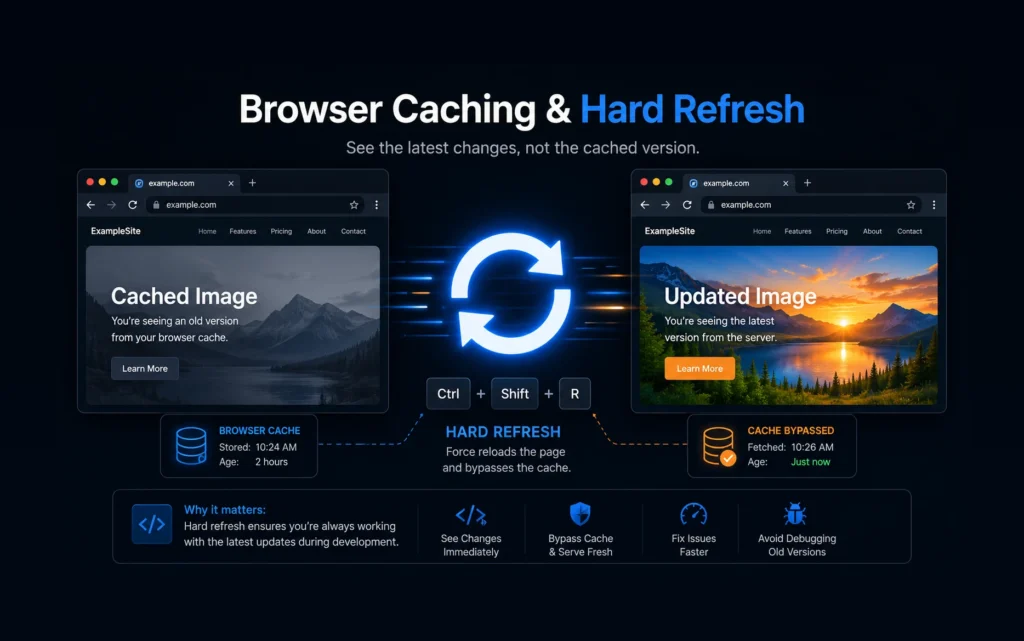
This kind of testing is particularly important with AJAX filters. Something can appear to work perfectly while clicking around normally but behave differently after a direct URL load or page refresh.
Testing the Offset After Filtering
There’s another detail that’s easy to overlook.
Remember that my second Query Loop uses:
Offset: 1That offset is still important after filtering.
Suppose I select the WordPress category.
The hero query displays the first matching WordPress article.
The second query should then display the next four matching WordPress articles.
Conceptually:
WordPress

Article 1
↓
Hero Query


Article 2
Article 3
Article 4
Article 5
↓
Second Query
If you remove the offset, Article 1 can appear in both sections.
So when testing this kind of layout, don’t just check whether the filter changes both Query Loops.
Check whether the resulting article sequence is still correct.
Test Categories with Different Numbers of Articles
This is another place where real testing matters.
Don’t test only your largest category.
Try a category containing many articles, another containing four or five, and one containing only a couple.
Also test:
All Articles
→ Category A
→ Category B
→ Category C
→ All Articles
Then refresh while one of those categories is active.
That last step is what exposed the second problem for me.
AJAX-based filtering can look perfect during the first interaction and behave differently once state, URL parameters or refreshed markup come into play.
Where I Put This Custom Code
For JavaScript that belongs exclusively to one Bricks template, the Bricks Code Element can be convenient.
For code I expect to maintain or reuse, I prefer keeping it in a properly enqueued JavaScript file.
The filter behaviour belongs to the website, not to the visual theme.
It also makes future maintenance easier.
And because this JavaScript affect an important archive, I would test the complete setup on staging before changing the production site.
That’s especially important on an active blog where new content might be published while development work is happening.
I’ve covered how I handle that situation in Staging to Live WordPress Migration Without Losing Content.
Common Mistakes to Watch For
The first mistake is assuming that because two Query Loops visually form one archive, Bricks will treat them as one query.
It won’t.
Each filter still needs the correct Query Loop selected under Target Query.
Another easy mistake is hiding the secondary filter in a way that removes it from the DOM. The visitor doesn’t need to see it, but the JavaScript still needs access to its radio inputs.
Also make sure both filters generate the same category values. The synchronization works by matching the selected value in the visible filter with the same value in the hidden filter.
Don’t forget the offset either. If the second query is supposed to continue where the hero query stops, test that behaviour for every category.
And finally, don’t assume everything is working just because AJAX filtering works immediately after page load.
Refresh a filtered page.
Why I Prefer This Approach
There are more aggressive ways to solve this.
I could have taken over the query logic, built a custom AJAX endpoint, passed the selected taxonomy manually and returned both sections myself.
But that would mean maintaining a lot of functionality Bricks already provides.
Bricks already knows how to:
Read the selected filter
↓
Build the query
↓
Run AJAX
↓
Update the Query Loop
I didn’t need to replace any of that.
I only needed to connect two instances of that existing behaviour.
The synchronization code essentially does this:
Visitor selects category
        ↓
Visible Bricks filter runs
        ↓
Find the same category
in the hidden filter
        ↓
Trigger it
        ↓
Second Bricks filter runs
The rest remains Bricks’ responsibility.
In my experience, small integrations like this are usually easier to maintain than replacing a builder’s internal functionality completely.
Final Thoughts
What looked like a fairly complicated Bricks limitation ended up needing a surprisingly small amount of custom code.
The key was not trying to force one Bricks Query Filter to do something it wasn’t designed to do.
Instead, I let each Query Loop have its own filter and synchronized those filters behind the scenes.
From the visitor’s point of view, there is still only one category filter.
Behind the scenes, Bricks continues handling both queries independently.
I also like that the final solution doesn’t replace Bricks’ AJAX filtering. The custom JavaScript only handles the missing connection between the two filters and keeps the View All Articles link in sync.
This is usually the kind of solution I prefer on WordPress projects: use the builder for what it already does well, then add the smallest amount of custom code necessary to bridge the gap.
If you’ve run into a similar situation with multiple Bricks Query Loops, I’d be interested to know how you handled it.
FAQs
A Bricks Query Filter has a Target Query setting where you select the Query Loop element it should control. For separate Query Loops, one practical workaround is to create a filter for each loop and synchronize the filter values with JavaScript.
Target Query tells the filter which Query Loop it should update. In the Bricks editor, you select the named element or container containing that Query Loop from the Target Query dropdown.
Each of my Query Loops needs its own Bricks filter. The secondary filter lets Bricks handle the second Query Loop normally, while jQuery synchronizes it with the filter visitors actually see.
The same general approach can be extended. Each additional Query Loop would need its own appropriately configured filter, and your synchronization code would need to trigger the matching filter option. I would keep an eye on the number of AJAX requests, though, before using this approach for a large number of loops.
AJAX can replace the original filter elements. Delegated event handling continues to catch clicks on newly generated radio buttons.
In my hero-plus-four-articles layout, yes. The hero Query Loop displays the first matching article, while the second Query Loop uses an offset of one so that article isn’t repeated.
Yes. For code specific to a template, a Bricks Code Element is a convenient option. For reusable functionality, I personally prefer a properly enqueued JavaScript file.
Useful Resources
If you’re working with Bricks Query Loops, AJAX filtering or custom WordPress code, these are useful follow-up resources.
- How I Fixed Bricks Builder Not Loading on GoDaddy Servers — Another Bricks problem where the eventual fix wasn’t obvious from the original symptom.
- How to Create a Shrinking Sticky Header in Bricks Builder — Another practical example of combining Bricks with custom code when the built-in controls don’t quite cover the required behaviour.
Official Bricks Resources
The official documentation is worth keeping nearby when building this because Bricks continues to handle the actual Query Loop and AJAX filtering. The custom code here only connects the pieces needed for this particular archive structure.