I recently ran into a simple WordPress problem that can look much more serious than it actually is.
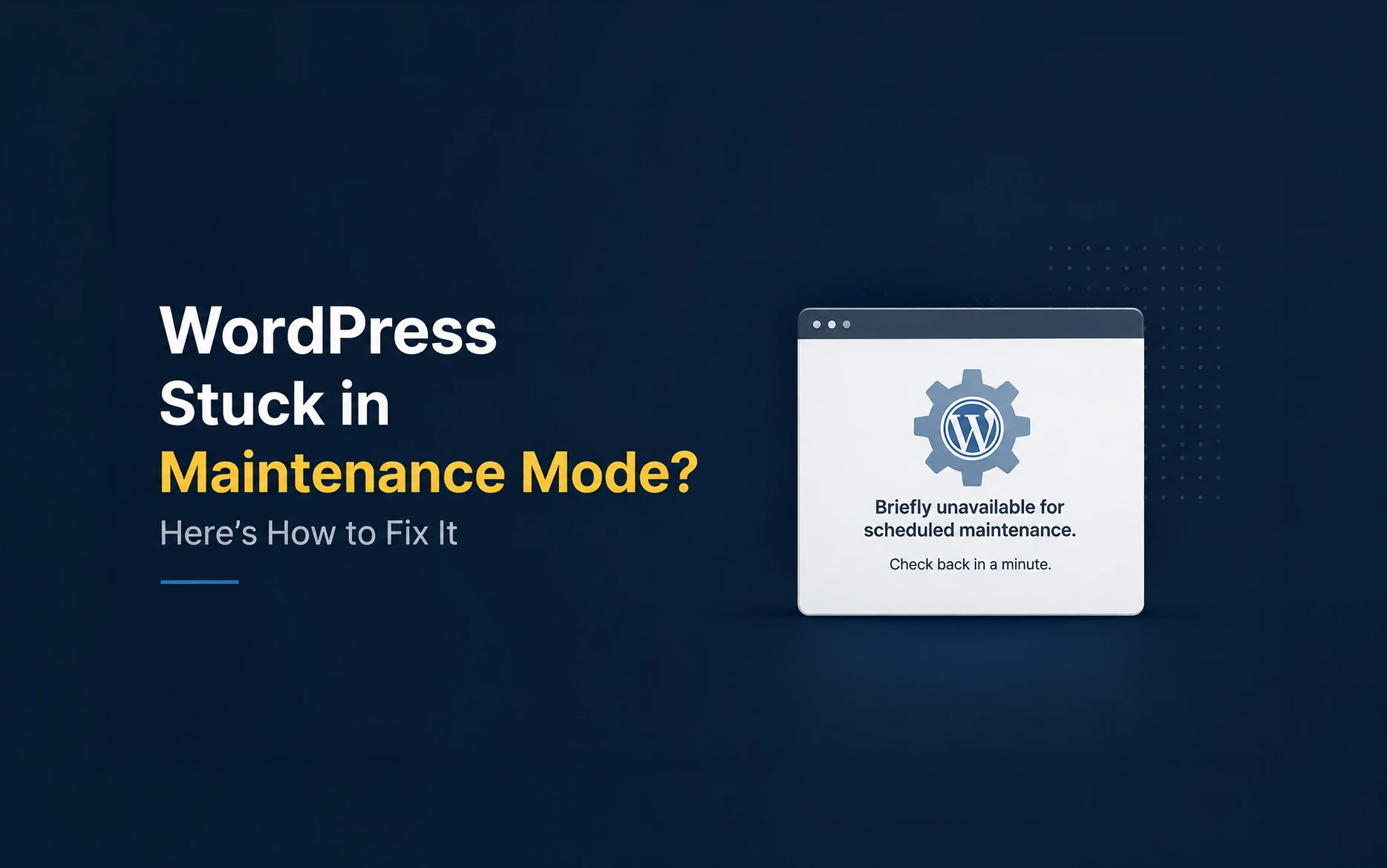
I was updating WordPress plugins and accidentally refreshed the page while the updates were still running. Immediately after that, the website was unavailable and displayed this message:
Briefly unavailable for scheduled maintenance. Check back in a minute.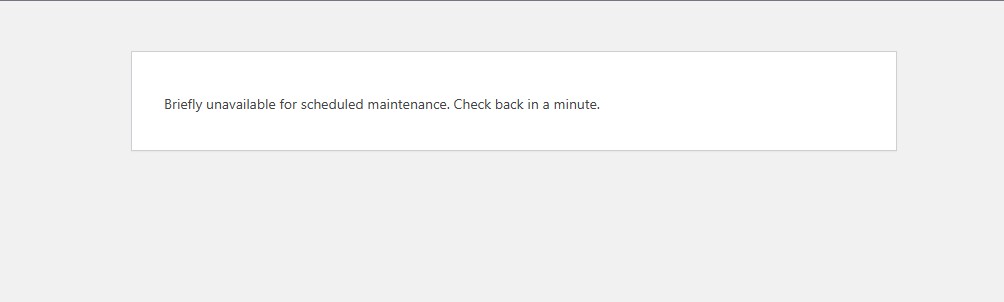
The WordPress admin area was unavailable as well.
If you find WordPress stuck in maintenance mode after an update, don’t panic. In most cases, the website itself isn’t damaged. WordPress has simply been interrupted before it could complete its normal update process and clean up the temporary maintenance file.
The fix usually takes less than a minute if you have access to the website files.
But what if you don’t have access to your hosting File Manager? I’ll cover that too, because not every WordPress developer or site administrator has full access to the hosting account.
Why Does WordPress Enter Maintenance Mode During Updates?
When WordPress updates its core files, a plugin, or a theme, it temporarily places the website into maintenance mode.
This is intentional.
WordPress doesn’t want visitors loading files while those same files are being replaced. It therefore creates a temporary file named:
.maintenancein the root directory of the WordPress installation.
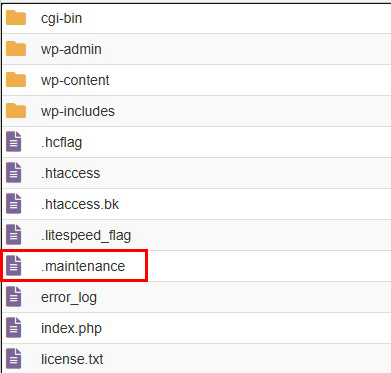
While that file represents an active update, visitors may see:
Briefly unavailable for scheduled maintenance. Check back in a minute.Once the update finishes normally, WordPress removes the .maintenance file and the website becomes available again.
Most of the time, the whole process happens so quickly that you barely notice it.
The problem occurs when something interrupts that process.
If you’re still getting familiar with the WordPress file structure, I explain where plugins live and how the basic WordPress directories work in my guide on creating your first WordPress plugin.
Why WordPress Gets Stuck in Maintenance Mode
There are several reasons you might find WordPress stuck in maintenance mode.
You might refresh or close the browser while updates are running. Your internet connection could drop, the server could time out, PHP could encounter an error, or a plugin update itself could fail.
Updating several plugins together can also make the process take longer, particularly on hosting accounts with limited server resources.
In my case, there was nothing complicated about it. I simply refreshed the page by mistake while WordPress was updating.
That was enough to interrupt the normal process.
First, Wait a Few Minutes
Before touching any files, wait a few minutes and check the website again.
This is worth doing because WordPress doesn’t consider a .maintenance file valid forever. WordPress checks the timestamp stored in the file and, according to WordPress core, considers maintenance mode over when that timestamp is at least 10 minutes old.
So if you interrupted an update only a minute ago, you don’t necessarily need to do anything immediately.
Wait a few minutes and try opening both:
https://example.com/and:
https://example.com/wp-admin/If the site comes back, you can move directly to checking whether the interrupted update completed successfully.
If you still have WordPress stuck in maintenance mode, I would remove the .maintenance file manually.
Fix WordPress Stuck in Maintenance Mode Using File Manager
This is probably the easiest solution if you have access to your hosting control panel.
Open the File Manager provided by your hosting company and navigate to the directory where WordPress is installed.
On many hosting accounts, this will be:
public_htmlBut don’t assume that public_html is always the correct directory. If WordPress is installed in a subdirectory, addon domain, subdomain, or a different document root, you need to open that directory instead.
An easy way to identify the correct WordPress root directory is to look for familiar files and folders such as:
wp-admin
wp-content
wp-includes
wp-config.php
In the same directory, look for:
.maintenanceDelete that file.
Now reload the website.
In most cases, your site should immediately come out of maintenance mode.
Can’t Find the .maintenance File?
This is an easy detail to miss.
The filename begins with a dot:
.maintenanceOn Linux-based hosting environments, filenames beginning with a dot are normally treated as hidden files.
Your hosting File Manager may therefore hide the file by default.
Look for an option such as:
Show Hidden Filesor:
Show Dotfiles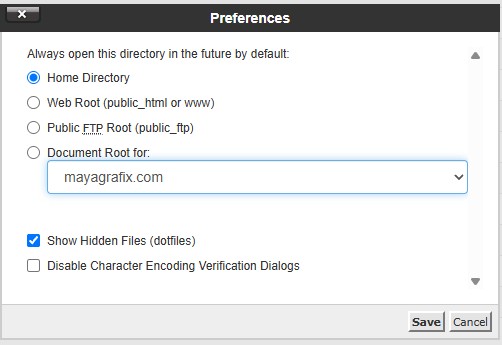
Enable it and check the WordPress root directory again.
I’ve found that this is one of those small details that can make a very simple WordPress fix unnecessarily confusing. You can be looking in exactly the right directory and still think the .maintenance file doesn’t exist simply because hidden files aren’t being displayed.
What If You Don’t Have Access to the Hosting File Manager?
This is where the usual advice to “just delete .maintenance from File Manager” isn’t particularly helpful.
You may be maintaining a client’s website without having access to their hosting control panel. In some setups, another developer or agency may manage the server. Managed WordPress hosting can also provide a different interface without a traditional File Manager.
You still have several options.
Option 1: Use FTP or SFTP
If you have FTP or SFTP credentials, you don’t need access to the hosting File Manager.
Connect to the server using an FTP client and navigate to the WordPress root directory.
Again, you’re looking for the directory containing:
wp-admin
wp-content
wp-includes
wp-config.php
Find:
.maintenanceand delete it.
If you can’t see the file, make sure your FTP client is configured to display hidden files.
WordPress itself recommends FTP as a way of removing a leftover .maintenance file when a site remains in maintenance mode.
In my experience, SFTP is preferable whenever the hosting provider supports it because the connection is encrypted.
Option 2: Use SSH
If you don’t have File Manager access but do have SSH access, removing the file is even quicker.
Connect to the server through SSH and navigate to your WordPress installation.
For example:
cd /path/to/wordpressFirst confirm that you’re in the correct directory:
ls -laYou should see your WordPress files along with the hidden .maintenance file.
Then remove it:
rm .maintenanceReload the website and check whether it is working normally.
Be careful when using rm over SSH. Unlike deleting something through a desktop file manager, there may be no convenient recycle bin to recover it from. Confirm the filename and your current directory before running the command.
Option 3: Use WP-CLI
If your hosting environment provides WP-CLI, you can also check the maintenance mode status from the command line.
For example:
wp maintenance-mode statusWP-CLI provides maintenance-mode commands specifically for checking and controlling WordPress maintenance mode.
If you’re comfortable working from the command line, this can be useful on servers where SSH is available but a graphical File Manager isn’t.
I personally prefer directly checking the WordPress root when troubleshooting an interrupted update because I can immediately see whether the .maintenance file exists and inspect the rest of the installation at the same time.
Option 4: Contact Your Hosting Provider
What happens if you have:
- no File Manager access
- no FTP/SFTP credentials
- no SSH access
At that point, you don’t have direct access to the file that needs to be removed.
Contact your hosting provider or whoever manages the hosting account and explain exactly what happened.
You can tell them:
The WordPress update was interrupted and the site is stuck in maintenance mode. Please check the WordPress root directory and remove the
.maintenancefile if it is still present.
For hosting support, this should be a straightforward request.
If you’re working on a client website and don’t control the hosting, contact the client or the person who manages the server and ask them either to remove the file or provide you with temporary SFTP access.
What If You Only Have WordPress Admin Access?
This is an important distinction.
If the standard WordPress maintenance screen is blocking both the frontend and /wp-admin/, having only a WordPress administrator username and password generally isn’t enough to remove the .maintenance file.
The file exists on the server filesystem, outside the normal WordPress dashboard interface.
If you can still reach the dashboard, you may be dealing with a maintenance-mode plugin or another issue rather than WordPress’s temporary update maintenance mode.
But if the standard maintenance message appears everywhere and you have no server-level access, I wouldn’t try to find a complicated workaround from WordPress itself.
Ask for FTP/SFTP access or contact the hosting provider.
This is also a good reminder for developers maintaining client websites: make sure you know in advance who has hosting access and how you can reach them if something goes wrong.
The Website Is Back. Are We Finished?
Not quite.
This is the part I think is easy to overlook.
Deleting .maintenance removes the maintenance screen, but it doesn’t tell you whether the update that caused the problem completed successfully.
If WordPress was updating a plugin when the process was interrupted, for example, you need to make sure that plugin wasn’t left partially updated.
Once you can access /wp-admin/ again, go to:
Dashboard → Updates
Check whether WordPress still reports any pending updates.
Then check:
Plugins → Installed Plugins
Make sure the plugins you were updating are still active and verify their versions.
If a plugin still needs updating, run the update again.
Re-run Interrupted Updates Carefully
If I know exactly which update was running when the interruption occurred, I prefer to update that item individually rather than immediately selecting every available update again.
Run the update and wait until WordPress confirms that it has completed.
Don’t refresh the page, close the tab, or navigate elsewhere while it is running.
If several updates previously failed together, update them one at a time. This also makes troubleshooting much easier because if the problem happens again, you immediately know which plugin or theme triggered it.
This has become my standard workflow whenever an update behaves unexpectedly.
What If the Same Problem Happens Again?
Finding WordPress stuck in maintenance mode once because you accidentally refreshed the page isn’t particularly worrying.
If it happens repeatedly during normal updates, however, I would investigate further.
Check for things such as:
- PHP errors
- low PHP memory limits
- server timeouts
- incorrect file permissions
- insufficient disk space
- plugin update failures
- server resource limitations
Your hosting error logs are particularly useful here.
If the same plugin repeatedly causes WordPress to get stuck during updates, I would also investigate that plugin separately rather than treating .maintenance as the actual problem.
The leftover .maintenance file may only be the symptom. The real problem could be whatever is preventing the update from finishing.
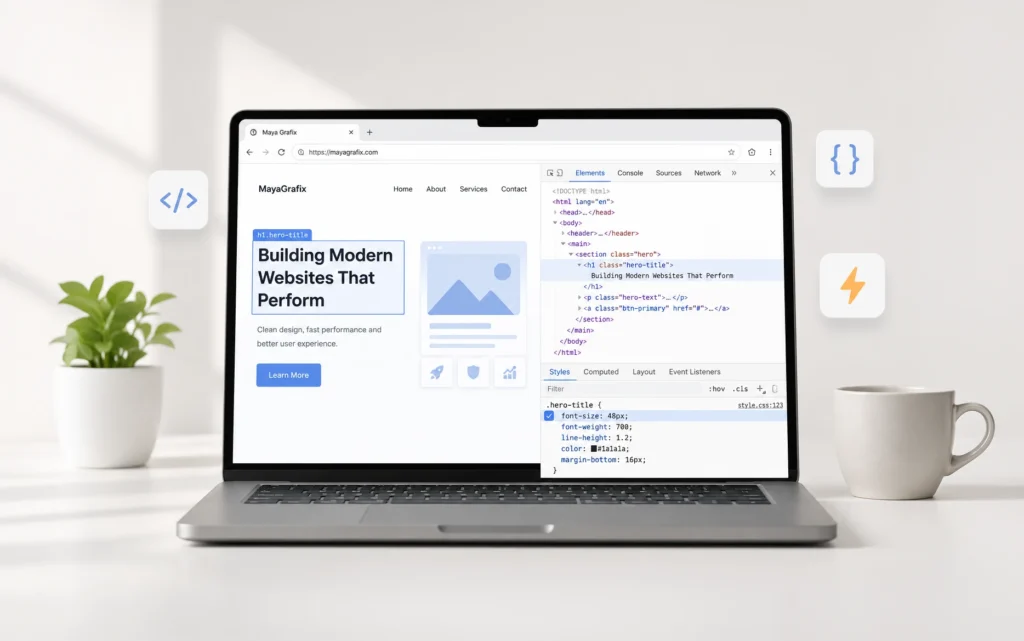
If the site loads again but something still isn’t working correctly, browser-side troubleshooting is a good next step. I’ve covered the tools I normally use in my guide to finding and fixing website problems with Chrome Developer Tools.
Don’t Confuse This With a Maintenance Mode Plugin
There is another important distinction.
WordPress’s temporary update maintenance mode and a maintenance/coming-soon plugin are not the same thing.
The solution in this article applies when WordPress automatically enters maintenance mode while updating WordPress core, a plugin, or a theme.
If you deliberately enabled maintenance mode using a plugin, deleting the WordPress .maintenance file may not solve anything because that plugin can control its maintenance page independently.
In that situation, disable maintenance mode through the plugin settings.
If the plugin prevents you from reaching /wp-admin/, you may need to temporarily disable that plugin through FTP, SFTP, File Manager, or another server-level method.
Best Practices When Updating WordPress
A few habits can reduce the chances of seeing WordPress stuck in maintenance mode in the first place.
Before major WordPress, theme, or plugin updates, make sure you have a recent backup.
On important production websites, I prefer testing significant updates on staging first. This is especially useful for WordPress core updates and major releases of plugins that affect page building, ecommerce, forms, custom fields, or other critical functionality.
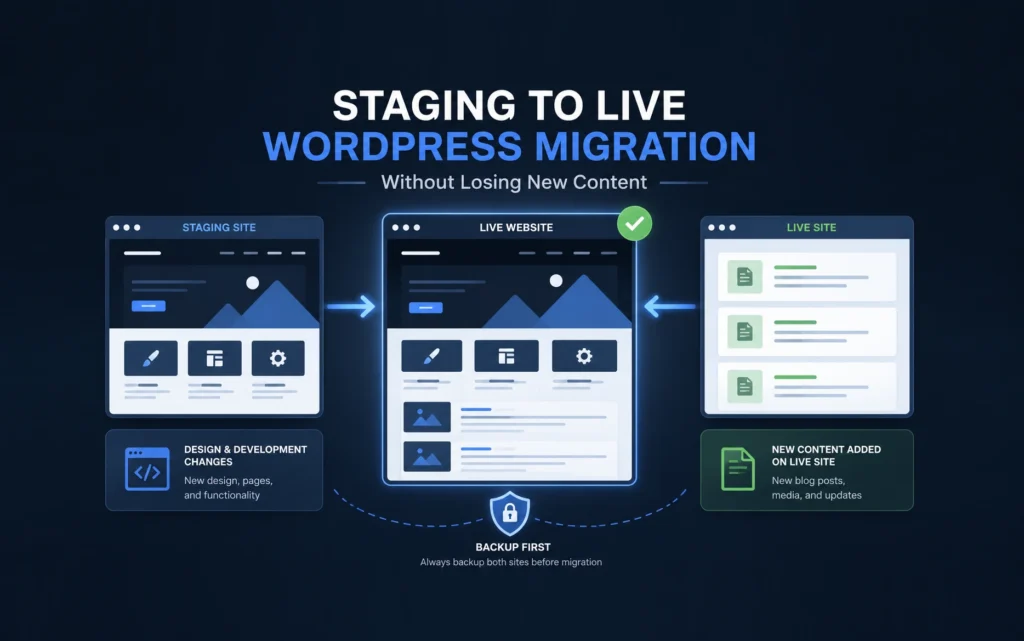
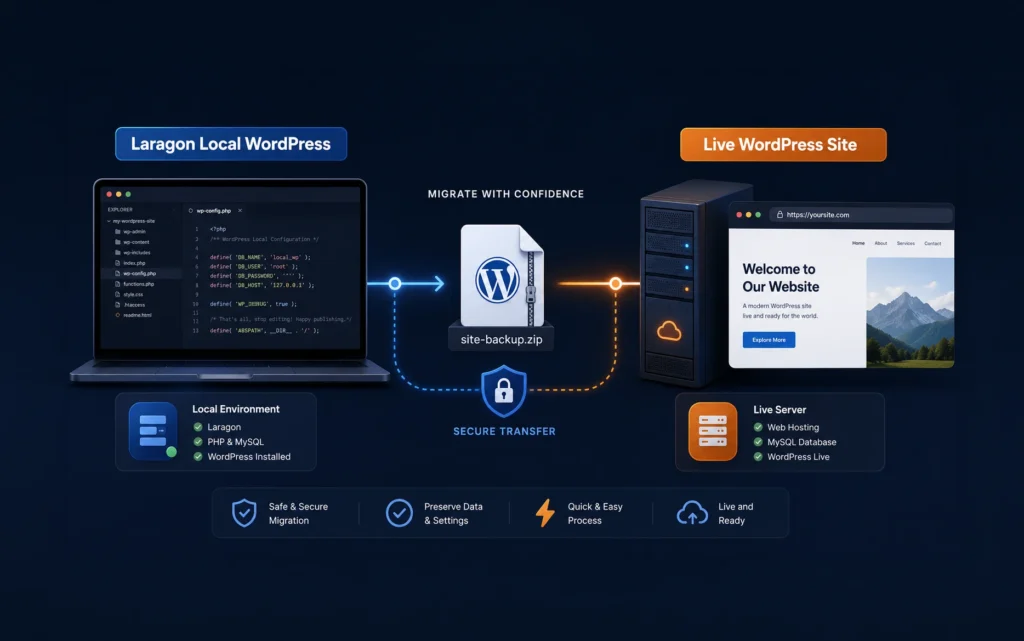
If you regularly work with staging sites, I’ve also written about moving WordPress staging changes to live without losing new content, including the backup workflow I use before making changes.
While an update is running, leave the browser tab alone until WordPress confirms completion.
If you’re updating a large number of plugins on a server with limited resources, consider doing them in smaller batches or individually.
Most importantly, don’t treat the disappearance of the maintenance screen as proof that everything is fine. Always check the website and the update status afterward.
Common Mistakes to Avoid
The first mistake is repeatedly refreshing the page while an update is still processing. That’s exactly how I ended up with this problem.
Another is deleting random WordPress files because the site appears broken. If the message specifically says:
Briefly unavailable for scheduled maintenance. Check back in a minute.start by checking .maintenance.
Don’t delete wp-config.php, plugin folders, theme folders, or WordPress core files unless you have identified a separate reason to do so.
Also remember that .maintenance is a hidden file. If you don’t see it immediately, check whether your File Manager or FTP client is hiding dotfiles before assuming something else is wrong.
Final Thoughts
Seeing WordPress stuck in maintenance mode can be alarming, particularly when both the website and WordPress dashboard suddenly become unavailable.
Fortunately, the cause is usually simple.
WordPress creates a temporary .maintenance file while updates are running. If the update process is interrupted, that file can be left behind. Waiting a few minutes may be enough; otherwise, removing .maintenance through File Manager, FTP/SFTP, or SSH will usually get the site accessible again.
If you don’t have access to any of those, contact the hosting provider or whoever manages the server rather than trying to work around the problem from the WordPress dashboard.
And once the website is back, check the interrupted update.
That final step matters. Getting rid of the maintenance message fixes the immediate problem; confirming that WordPress, the plugin, or the theme updated correctly makes sure you haven’t left another problem waiting for you.
Have you ever had WordPress get stuck during an update for a reason other than accidentally refreshing the page? I’d be interested to know what caused it and how you resolved it.
Frequently Asked Questions
WordPress normally enters maintenance mode temporarily while updating WordPress core, plugins, or themes. If that process is interrupted by a refresh, timeout, connection problem, or update failure, the site can remain on the maintenance screen.
Wait a few minutes first. If the maintenance screen remains, access the WordPress root directory using your hosting File Manager, FTP/SFTP, or SSH and locate the .maintenance file. Removing that file will normally restore access to the website.
The .maintenance file is located in the root directory of the WordPress installation, usually alongside wp-config.php and the wp-admin, wp-content, and wp-includes directories.
Files beginning with a dot are commonly hidden on Linux-based servers. Enable the option to show hidden files or dotfiles in your hosting File Manager or FTP client.
Yes. If you have FTP/SFTP or SSH access, you can remove the .maintenance file without using the hosting File Manager. If you have no server-level access at all, contact your hosting provider or the person managing the hosting account.
If WordPress’s update maintenance mode is preventing access to /wp-admin/, administrator credentials alone generally won’t let you remove the .maintenance file. You will need filesystem access or assistance from the hosting provider.
If an update has been interrupted or maintenance mode has become stuck, removing the leftover .maintenance file is the standard recovery method. WordPress’s own troubleshooting documentation recommends deleting this file when it hasn’t been removed correctly after an update.
Log in to WordPress, check Dashboard → Updates, verify the plugins or themes involved in the interrupted update, and run any incomplete update again. Also test the frontend of the website to make sure everything is functioning normally.
If it happens repeatedly, investigate PHP errors, server resource limits, timeouts, file permissions, disk space, and the specific plugin or theme being updated. Repeated maintenance-mode failures are more likely to indicate an underlying update or hosting problem.
Useful Resources
For the technical details behind this behaviour, the official WordPress documentation is worth keeping bookmarked.
- WordPress Developer Resources –
wp_is_maintenance_mode()
Explains how WordPress detects the.maintenancefile and the 10-minute timestamp check. - WordPress Advanced Administration Handbook – Common WordPress Errors
Includes the official troubleshooting advice for a.maintenancefile that remains after an upgrade. - Learn WordPress – Troubleshooting Basics
Covers maintenance mode and the FTP method for removing the.maintenancefile. - WP-CLI Maintenance Mode Commands
Useful if you manage WordPress installations through SSH and WP-CLI.